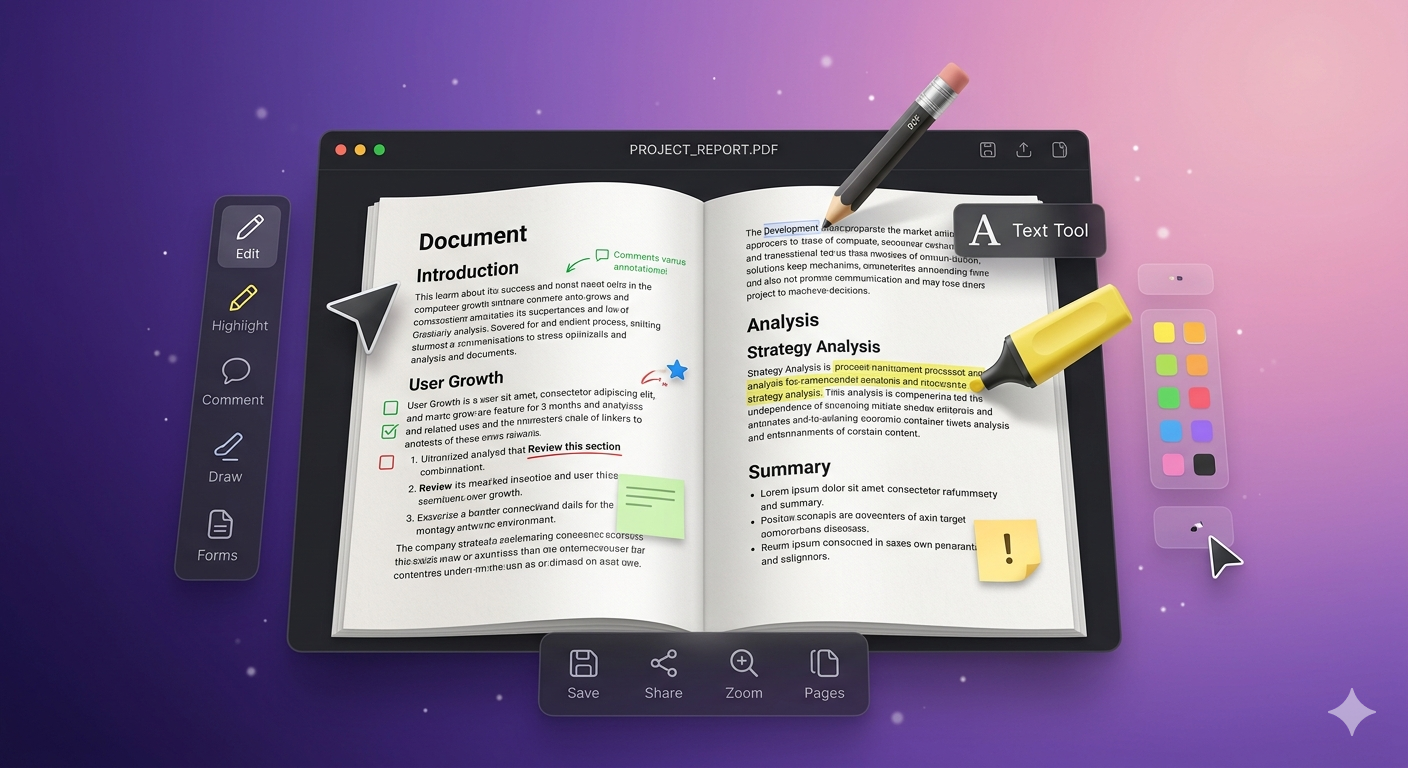
Need to edit a PDF but don't have Adobe Acrobat? Whether you need to merge pages, split documents, compress files, or convert images to PDF, there are excellent free alternatives. Here's your complete guide to editing PDFs online without expensive software.
Quick Answer
For basic PDF editing (merge, split, compress, convert), use free online tools like Free Media Tools. For advanced editing (text, images, forms), use free desktop software like LibreOffice Draw or PDF-XChange Editor. Adobe Acrobat Pro ($19.99/month) is only necessary for professional, frequent PDF work.
Types of PDF Editing
Basic PDF Operations (Free Online Tools)
What you can do:
- ✅ Merge multiple PDFs into one
- ✅ Split PDFs into separate files
- ✅ Extract specific pages
- ✅ Compress PDFs to reduce file size
- ✅ Convert images to PDF
- ✅ Rotate pages
- ✅ Reorder pages
Best tools: Free Media Tools, SmallPDF, iLovePDF
Advanced PDF Editing (Desktop Software)
What you can do:
- ✅ Edit text content
- ✅ Add/remove images
- ✅ Fill out forms
- ✅ Add annotations and comments
- ✅ Add/remove watermarks
- ✅ Redact sensitive information
- ✅ Create fillable forms
Best tools: Adobe Acrobat Pro, LibreOffice Draw, PDF-XChange Editor
Best Free PDF Editing Tools (2026)
1. Free Media Tools (Online)
Best for: Basic PDF operations with complete privacy
Features:
- Merge PDFs
- Split PDFs
- Compress PDFs (via image compression)
- Convert images to PDF
- No file size limits
- No registration required
- Privacy-focused (client-side processing)
Pricing: Completely free
Pros:
- ✅ Privacy-focused (files never uploaded)
- ✅ No limits or watermarks
- ✅ Fast processing
- ✅ No registration
Cons:
- ❌ No text editing
- ❌ No form filling
Use it for:
2. LibreOffice Draw (Desktop - Free)
Best for: Editing PDF text and images
Features:
- Edit text in PDFs
- Add/remove images
- Draw shapes and annotations
- Rearrange pages
- Export as PDF
Pricing: Free and open-source
Pros:
- ✅ Completely free
- ✅ No watermarks
- ✅ Offline editing
- ✅ Cross-platform (Windows, Mac, Linux)
Cons:
- ❌ Requires installation
- ❌ Learning curve
- ❌ May not preserve complex formatting
How to use:
- Download LibreOffice (libreoffice.org)
- Open PDF in LibreOffice Draw
- Edit text, images, or layout
- File → Export as PDF
3. PDF-XChange Editor (Desktop - Free/Paid)
Best for: Annotations and form filling
Features:
- Add comments and annotations
- Fill out forms
- Add text and images
- Highlight and underline
- Free version has most features
Pricing: Free (with watermark on some features), Pro: $54 one-time
Pros:
- ✅ Powerful free version
- ✅ Fast and lightweight
- ✅ Extensive annotation tools
Cons:
- ❌ Windows only
- ❌ Watermark on some features (free version)
- ❌ Requires installation
4. SmallPDF (Online)
Best for: Occasional PDF editing
Features:
- Merge, split, compress PDFs
- Convert to/from PDF
- Edit text and images
- Sign PDFs
- OCR (scan to text)
Pricing: Free (2 uses/day), Pro: $9/month
Pros:
- ✅ User-friendly interface
- ✅ Many features
- ✅ Fast processing
Cons:
- ❌ Limited free uses (2/day)
- ❌ Files uploaded to servers
- ❌ Subscription required for unlimited use
5. iLovePDF (Online)
Best for: Batch PDF operations
Features:
- Merge, split, compress PDFs
- Convert to/from PDF
- Add page numbers
- Watermarks
- Batch processing
Pricing: Free (limited), Premium: $7/month
Pros:
- ✅ Many features
- ✅ Batch processing
- ✅ Fast
Cons:
- ❌ Limited free uses
- ❌ Files uploaded to servers
- ❌ Subscription for advanced features
6. Adobe Acrobat Online (Online)
Best for: Adobe users
Features:
- Merge, split, compress PDFs
- Convert to/from PDF
- Edit text and images
- Fill and sign forms
- OCR
Pricing: Free (2 uses/month), Pro: $19.99/month
Pros:
- ✅ Professional tool
- ✅ Reliable
- ✅ Full Adobe ecosystem
Cons:
- ❌ Expensive subscription
- ❌ Very limited free uses
- ❌ Requires Adobe account
7. Google Drive (Online)
Best for: Viewing and basic annotations
Features:
- View PDFs
- Add comments
- Basic annotations
- Share and collaborate
Pricing: Free
Pros:
- ✅ Free
- ✅ Collaboration features
- ✅ Cloud storage included
Cons:
- ❌ Very limited editing
- ❌ No text editing
- ❌ No merging/splitting
Comparison Table: Free PDF Editors
| Tool | Cost | Text Edit | Merge/Split | Compress | Privacy | Platform |
|---|---|---|---|---|---|---|
| Free Media Tools | Free | No | Yes | Yes | Excellent | Online |
| LibreOffice Draw | Free | Yes | No | No | Excellent | Desktop |
| PDF-XChange | Free* | Limited | No | No | Excellent | Desktop |
| SmallPDF | $9/mo | Yes | Yes | Yes | Fair | Online |
| iLovePDF | $7/mo | Yes | Yes | Yes | Fair | Online |
| Adobe Online | $20/mo | Yes | Yes | Yes | Fair | Online |
| Google Drive | Free | No | No | No | Fair | Online |
*Free version has watermarks on some features
How to Edit PDFs: Common Tasks
Task 1: Merge Multiple PDFs
Use case: Combine invoices, contracts, or reports into one file
Best tool: Free Media Tools PDF Merger
Steps:
- Go to freemediatools.online/merge-pdf
- Upload PDFs
- Arrange in order
- Click "Merge"
- Download combined PDF
Read: How to Merge PDF Files Online
Task 2: Split or Extract Pages
Use case: Extract specific pages or separate chapters
Best tool: Free Media Tools PDF Splitter
Steps:
- Go to freemediatools.online/split-pdf
- Upload PDF
- Select pages to extract
- Click "Split"
- Download extracted files
Read: How to Split PDF Pages Online
Task 3: Compress Large PDFs
Use case: Reduce file size for emailing
Best tool: Free Media Tools Image Compressor
Steps:
- Extract images from PDF
- Compress images using our tool
- Recreate PDF with compressed images
- Result: 70-90% smaller file
Read: How to Compress PDF File Size
Task 4: Convert Images to PDF
Use case: Create PDF from photos or scanned documents
Best tool: Free Media Tools JPG to PDF
Steps:
- Go to freemediatools.online/jpg-to-pdf
- Upload images (JPG, PNG, etc.)
- Arrange in order
- Click "Convert"
- Download PDF
Read: JPG to PDF Converter Free Online
Task 5: Edit PDF Text
Use case: Fix typos or update information
Best tool: LibreOffice Draw (free) or Adobe Acrobat Pro (paid)
Steps (LibreOffice):
- Download LibreOffice
- Right-click PDF → Open With → LibreOffice Draw
- Click text to edit
- Make changes
- File → Export as PDF
Note: Complex PDFs may not preserve formatting perfectly.
Task 6: Fill Out PDF Forms
Use case: Complete job applications, tax forms, contracts
Best tool: PDF-XChange Editor (free) or Adobe Acrobat Reader (free)
Steps (Adobe Reader):
- Download Adobe Acrobat Reader (free)
- Open PDF
- Click in form fields
- Type information
- File → Save
Task 7: Add Annotations and Comments
Use case: Review documents, provide feedback
Best tool: PDF-XChange Editor or Adobe Acrobat Reader
Steps:
- Open PDF in editor
- Select annotation tool (highlight, comment, etc.)
- Add annotations
- Save
Task 8: Sign PDFs
Use case: Sign contracts, agreements, forms
Best tool: Adobe Acrobat Reader (free) or SmallPDF
Steps (Adobe Reader):
- Open PDF
- Tools → Fill & Sign
- Click "Sign"
- Create signature (type, draw, or upload image)
- Place signature on document
- Save
Real-World Example: Job Application
My friend needed to submit a job application with multiple documents:
Requirements:
- Resume (Word doc)
- Cover letter (Word doc)
- Portfolio (15 JPG images)
- References (PDF)
- All in one PDF file, under 10MB
Solution:
- Converted Word docs to PDF (File → Save As → PDF)
- Converted portfolio images to PDF using our tool
- Merged all PDFs using our merger
- Result: 12MB (too large)
- Compressed images using our compressor
- Recreated PDF: 7.8MB (under limit)
Outcome: Professional, organized application. She got the interview!
What to Avoid: PDF Editing Mistakes
1. Using Sketchy Online Tools
Many free PDF editors upload your files to unknown servers.
Risk: Privacy breach, data theft, malware
Solution: Use reputable tools or privacy-focused tools like Free Media Tools (client-side processing).
2. Over-Compressing
Reducing quality too much makes PDFs unreadable.
Solution: Use medium compression. Test readability before sending.
3. Not Checking Output
Sometimes editing fails or creates corrupted PDFs.
Solution: Always open and review edited PDF before sending or submitting.
4. Editing Scanned PDFs
Scanned PDFs are images, not text. You can't edit text directly.
Solution: Use OCR (Optical Character Recognition) to convert scanned text to editable text. Adobe Acrobat Pro and many online tools offer OCR.
5. Forgetting to Save As New File
Overwriting original PDF means you can't undo changes.
Solution: Always "Save As" with new filename to preserve original.
Security and Privacy Considerations
Risks of Online PDF Editors
When you upload PDFs to online tools:
- Files stored on third-party servers
- Potential data breaches
- Terms may allow data scanning
- Government access to server data
For Sensitive Documents
Use:
- Desktop software (LibreOffice, PDF-XChange, Adobe Pro)
- Privacy-focused online tools (Free Media Tools - client-side processing)
Avoid:
- Unknown online tools
- Free tools with unclear privacy policies
- Tools that require account creation
Password-Protected PDFs
If your PDF contains sensitive information:
Using Adobe Acrobat Pro:
- Open PDF
- Tools → Protect → Encrypt with Password
- Set password
- Save
Send password separately (via text, phone, or separate email)
Frequently Asked Questions
Can I edit a PDF for free?
Yes, for basic operations (merge, split, compress, convert) use free online tools like Free Media Tools. For text editing, use free desktop software like LibreOffice Draw.
How do I edit text in a PDF?
Use LibreOffice Draw (free) or Adobe Acrobat Pro (paid). Open PDF, click text to edit, make changes, and export as PDF.
Can I edit a PDF without Adobe Acrobat?
Yes, many free alternatives exist: LibreOffice Draw, PDF-XChange Editor, SmallPDF, iLovePDF, and Free Media Tools for basic operations.
How do I edit a scanned PDF?
Scanned PDFs are images. Use OCR (Optical Character Recognition) to convert to editable text. Adobe Acrobat Pro, SmallPDF, and iLovePDF offer OCR.
What's the best free PDF editor?
For basic operations: Free Media Tools (privacy-focused, unlimited). For text editing: LibreOffice Draw (free, open-source). For annotations: PDF-XChange Editor (free version).
Can I edit PDFs on my phone?
Yes, many mobile apps offer PDF editing: Adobe Acrobat Reader (iOS/Android), Xodo PDF (Android), PDF Expert (iOS). Free Media Tools works in mobile browsers.
How do I remove pages from a PDF?
Use a PDF splitter to extract pages you want to keep, or use desktop software to delete specific pages. Try our PDF splitter.
Is it safe to edit PDFs online?
Depends on the tool. Free Media Tools processes files in your browser (safe). Other tools upload files to servers (potential privacy risk). For sensitive documents, use desktop software.
PDF Editing Workflow: Best Practices
For Students
Typical tasks:
- Merge assignment pages
- Convert scanned notes to PDF
- Compress PDFs for submission
Recommended tools:
- Free Media Tools (merge, split, convert)
- LibreOffice Draw (edit text)
- Adobe Reader (fill forms)
For Businesses
Typical tasks:
- Merge invoices and reports
- Compress PDFs for emailing
- Fill and sign contracts
- Add watermarks
Recommended tools:
- Free Media Tools (basic operations)
- Adobe Acrobat Pro (professional editing)
- PDF-XChange Editor (annotations)
For Freelancers
Typical tasks:
- Create proposals from images
- Merge portfolio pieces
- Sign contracts
- Compress for client delivery
Recommended tools:
- Free Media Tools (merge, convert, compress)
- Adobe Reader (sign)
- SmallPDF (occasional advanced editing)
Related Tools You Might Need
-
Merge PDF — Combine multiple PDFs into one document.
-
Split PDF — Extract specific pages or separate PDFs into multiple files.
-
JPG to PDF — Convert images to PDF format.
-
Compress Images — Reduce PDF file size by compressing embedded images.
Conclusion
You don't need expensive Adobe Acrobat to edit PDFs. For basic operations (merge, split, compress, convert), use free online tools like Free Media Tools. For text editing, use free desktop software like LibreOffice Draw. Only invest in Adobe Acrobat Pro if you need professional features daily.
Start editing your PDFs now — completely free, no registration required.
By Muhammad Hasnain Adam — Full-stack developer passionate about creating free, accessible tools. I built Free Media Tools to give everyone access to professional PDF editing without expensive subscriptions or privacy concerns.