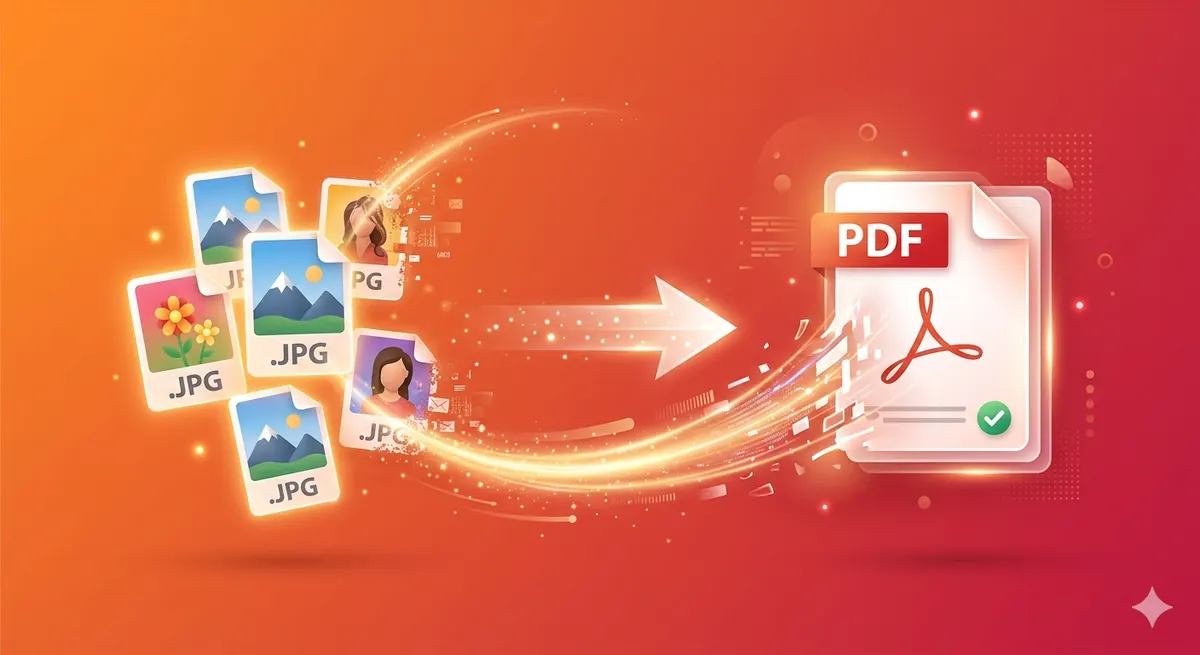
Need to convert JPG images to PDF? Whether you're creating a photo album, submitting scanned documents, or combining multiple images into one file, our free online JPG to PDF converter makes it simple. No software installation, completely private, and 100% free.
Quick Answer
Use Free Media Tools' JPG to PDF Converter to convert images to PDF in seconds. Upload JPG, PNG, WebP, or other image formats, arrange them in order, and download as a single PDF. Works in your browser with complete privacy — files never leave your device.
Why Convert JPG to PDF?
Common Use Cases
- Document submission - Many forms require PDF format, not images
- Photo albums - Combine multiple photos into one PDF document
- Scanned documents - Convert scanned receipts, invoices, or contracts to PDF
- Presentations - Create PDF presentations from image slides
- Portfolios - Combine artwork or design samples into PDF portfolio
- Archiving - Store multiple images as single, organized PDF
- Printing - PDFs maintain quality and layout better than images
- Professional sharing - PDFs look more professional than image attachments
Benefits of Converting Images to PDF
- Universal compatibility - PDFs open on any device
- Better organization - Multiple images in one file
- Professional appearance - PDFs look more polished
- Easier sharing - One file instead of multiple images
- Preserved quality - Images maintain original quality
- Smaller file size - Combined PDF often smaller than separate images
- Print-ready - PDFs maintain exact layout and dimensions
How to Convert JPG to PDF Online (Step-by-Step)
Method 1: Free Media Tools (Recommended)
Best for: Privacy, unlimited conversions, multiple images
Steps:
- Go to freemediatools.online/jpg-to-pdf
- Click "Select Images" or drag and drop files
- Upload JPG, PNG, WebP, or other image formats
- Arrange images in desired order (drag to reorder)
- Adjust settings (optional):
- Page size (A4, Letter, etc.)
- Orientation (Portrait/Landscape)
- Margins
- Click "Convert to PDF"
- Download your PDF
Pros:
- ✅ Completely free, unlimited
- ✅ Privacy-focused (files processed in browser)
- ✅ No file size limits
- ✅ No watermarks
- ✅ No registration required
- ✅ Supports multiple image formats
- ✅ Combine multiple images into one PDF
Cons:
- None for basic conversion
Method 2: Adobe Acrobat Online
Best for: Adobe subscribers
Steps:
- Go to acrobat.adobe.com
- Select "JPG to PDF" tool
- Upload images
- Click "Convert"
- Download PDF (requires sign-in)
Pros:
- Professional tool
- Reliable
Cons:
- ❌ Requires Adobe account
- ❌ Limited free uses (2 per month)
- ❌ $19.99/month for unlimited
- ❌ Files uploaded to servers
Method 3: SmallPDF
Best for: Occasional use
Steps:
- Go to smallpdf.com/jpg-to-pdf
- Upload images
- Arrange order
- Click "Create PDF"
- Download
Pros:
- Simple interface
- Fast
Cons:
- ❌ 2 free uses per day
- ❌ $9/month for unlimited
- ❌ Privacy concerns (files uploaded)
Method 4: Microsoft Word (Desktop)
Best for: Windows users with Word
Steps:
- Open Microsoft Word
- Insert → Pictures
- Add images
- Arrange layout
- File → Save As → PDF
Pros:
- Built into Windows
- Full layout control
Cons:
- Requires Word installation
- Manual layout work
- Not ideal for many images
Method 5: Preview (Mac Only)
Best for: Mac users, simple conversion
Steps:
- Open images in Preview
- Select all images (Cmd+A)
- File → Print
- PDF → Save as PDF
Pros:
- Built into macOS
- Free
- Offline
Cons:
- Mac only
- Limited layout options
Real-World Example: Job Application Portfolio
A graphic designer friend needed to submit her portfolio for a job application:
- 15 design samples (JPG images)
- Job portal required single PDF file
- File size limit: 10MB
Solution:
- Used our JPG to PDF converter
- Uploaded all 15 images
- Arranged in order: best work first
- Selected A4 page size, portrait orientation
- Converted to PDF
- Result: 8.2MB PDF (under limit)
Outcome: Professional, organized portfolio in one file. She got the interview!
Comparison Table: JPG to PDF Converters
| Tool | Cost | File Limit | Privacy | Watermark | Multi-Image |
|---|---|---|---|---|---|
| Free Media Tools | Free | None | Excellent | No | Yes |
| Adobe Online | $20/mo | 100MB | Fair | No | Yes |
| SmallPDF | $9/mo | 5GB | Fair | No | Yes |
| iLovePDF | $7/mo | 200MB | Fair | No | Yes |
| Adobe Pro | $20/mo | None | Excellent | No | Yes |
| Mac Preview | Free | None | Excellent | No | Yes |
Winner: Free Media Tools for privacy, unlimited use, and zero cost.
Supported Image Formats
Our JPG to PDF converter supports all common image formats:
Raster Formats
- JPG/JPEG - Most common photo format
- PNG - Images with transparency
- WebP - Modern, efficient format
- GIF - Animated or simple graphics
- BMP - Windows bitmap
- TIFF - High-quality scans
When to Use Each Format
JPG:
- Photos and complex images
- Smaller file size
- No transparency
PNG:
- Graphics with transparency
- Screenshots
- Logos and icons
- Larger file size than JPG
WebP:
- Modern format, smaller than JPG
- Supports transparency
- Not all devices support it
TIFF:
- High-quality scans
- Professional photography
- Very large file size
Advanced JPG to PDF Tips
1. Optimize Images Before Converting
Large images create large PDFs. Optimize first:
For photos:
- Resize to appropriate dimensions (1920×1080 for full-page)
- Compress using our image compressor
- Convert to PDF
Result: 60-80% smaller PDF with same visual quality
2. Choose Appropriate Page Size
Common page sizes:
- A4 - International standard (210×297mm)
- Letter - US standard (8.5×11 inches)
- Legal - US legal documents (8.5×14 inches)
- Custom - Match your image dimensions
Tip: Use A4 for international documents, Letter for US documents.
3. Set Correct Orientation
Portrait (vertical):
- Documents
- Portraits
- Most photos
Landscape (horizontal):
- Wide photos
- Charts and graphs
- Presentations
Auto: Let tool choose based on image dimensions
4. Adjust Margins
No margins:
- Full-bleed photos
- Posters
- Designs that use entire page
Standard margins (1 inch):
- Documents
- Text-heavy content
- Professional reports
5. Compress PDF After Conversion
If PDF is too large:
- Extract images from PDF
- Compress images using our compressor
- Recreate PDF
Or read: How to Compress PDF File Size
What to Avoid: JPG to PDF Mistakes
1. Not Optimizing Images First
Converting huge 10MB photos creates massive PDFs.
Solution: Resize and compress images before converting. Use image compressor and image resizer.
2. Wrong Page Orientation
Converting portrait images with landscape orientation adds white space.
Solution: Match page orientation to image orientation, or use "Auto" setting.
3. Mixing Image Sizes
Combining small and large images creates inconsistent PDF layout.
Solution: Resize all images to similar dimensions before converting.
4. Not Checking Output
Sometimes conversion fails or creates poor-quality PDFs.
Solution: Always open and review the PDF before sharing or submitting.
5. Using Low-Quality Images
Converting low-resolution images creates blurry PDFs.
Solution: Use high-quality source images (at least 1920×1080 for full-page).
Security and Privacy Considerations
Why Privacy Matters
Images often contain sensitive information:
- Personal photos
- Scanned documents (IDs, passports, medical records)
- Financial documents (bank statements, receipts)
- Business documents (contracts, invoices)
- Confidential information
How Free Media Tools Protects Privacy
- Client-side processing - Images processed in your browser, never uploaded
- No server storage - Files never touch our servers
- No tracking - We don't track what you convert
- No registration - No account, no email required
- Works offline - Once loaded, works without internet
Other Tools' Privacy Risks
Online tools that upload files:
- Images stored on their servers
- Potential data breaches
- Terms may allow data use
- Government access to server data
Recommendation: For sensitive documents, use tools that process files locally (like Free Media Tools).
Frequently Asked Questions
Is it free to convert JPG to PDF?
Yes, our JPG to PDF converter is completely free with no limits. No registration, no watermarks, no hidden fees.
Can I convert multiple JPGs to one PDF?
Yes, upload multiple images and they'll be combined into a single PDF. Arrange them in desired order before converting.
Does converting JPG to PDF reduce quality?
No, images are embedded in PDF at original quality. However, if you compress images before converting, quality may be reduced (but usually imperceptibly).
What's the maximum file size for conversion?
Free Media Tools has no file size limit. Since processing happens in your browser, the only limit is your device's memory.
Can I convert PNG to PDF?
Yes, our converter supports JPG, PNG, WebP, GIF, BMP, TIFF, and other image formats.
Can I convert PDF back to JPG?
Yes, but you'll need a PDF to image converter. Many tools offer this, including Adobe Acrobat.
How do I convert multiple JPGs to separate PDFs?
Convert each image individually, or use batch processing tools. Our tool creates one PDF from multiple images.
Can I convert JPG to PDF on my phone?
Yes, our converter works on mobile browsers (iOS Safari, Android Chrome). Upload and convert images from your phone.
JPG to PDF for Specific Use Cases
For Students
Converting notes:
- Scan handwritten notes
- Convert to PDF
- Submit assignments
Creating study materials:
- Combine diagrams and charts
- Create PDF study guides
- Share with classmates
For Businesses
Converting receipts:
- Scan receipts with phone
- Convert to PDF
- Submit for expense reports
Creating invoices:
- Design invoice in image editor
- Convert to PDF
- Send to clients
For Photographers
Creating portfolios:
- Select best photos
- Convert to PDF portfolio
- Send to clients or galleries
Proof sheets:
- Combine multiple photos
- Create PDF proof sheet
- Share with clients for selection
For Real Estate
Property listings:
- Combine property photos
- Add floor plans
- Create PDF listing
Inspection reports:
- Scan inspection photos
- Convert to PDF
- Attach to reports
Troubleshooting Common Issues
Issue 1: PDF is Too Large
Cause: High-resolution images create large PDFs
Solution:
- Resize images to appropriate dimensions
- Compress images using our compressor
- Convert again
Issue 2: Images Appear Blurry in PDF
Cause: Low-resolution source images or over-compression
Solution:
- Use higher-resolution source images
- Avoid excessive compression
- Check PDF zoom level (may look blurry at high zoom)
Issue 3: Wrong Page Orientation
Cause: Page orientation doesn't match image orientation
Solution:
- Select correct orientation (Portrait/Landscape)
- Or use "Auto" to match image dimensions
Issue 4: Images in Wrong Order
Cause: Images uploaded in wrong sequence
Solution: Most tools let you drag to reorder before converting.
Issue 5: PDF Won't Open
Cause: Corrupted conversion or incompatible images
Solution:
- Try converting again
- Check if source images open correctly
- Try different conversion tool
Related Tools You Might Need
-
Image Compressor — Compress images before converting to PDF to reduce final PDF file size.
-
Image Resizer — Resize images to appropriate dimensions before converting to PDF.
-
Merge PDF — Combine multiple PDFs (including converted image PDFs) into one document.
-
Split PDF — Extract specific pages from converted PDFs.
Why Choose Free Media Tools for JPG to PDF Conversion?
1. Complete Privacy
Images processed in your browser, never uploaded. Your photos and documents stay private.
2. Truly Free
No hidden costs, no "free trial" requiring credit card, no watermarks. Free forever.
3. No Limits
Convert unlimited images, unlimited times. No daily limits, no file size restrictions.
4. Fast Processing
Client-side processing means instant conversion. No waiting for uploads/downloads.
5. No Registration
No account creation, no email required. Just upload, convert, download.
6. Multiple Formats
Supports JPG, PNG, WebP, GIF, BMP, TIFF, and more. One tool for all image formats.
7. Combine Multiple Images
Upload multiple images and combine into single PDF. Perfect for photo albums and portfolios.
Conclusion
Converting JPG to PDF doesn't require expensive software or risky online tools. Use Free Media Tools' JPG to PDF Converter for fast, private, unlimited image to PDF conversion. Whether you're creating photo albums, submitting documents, or building portfolios, our tool makes it simple and secure.
Start converting images to PDF now — completely free, no registration required.
By Muhammad Hasnain Adam — Full-stack developer passionate about creating free, privacy-focused tools. I built Free Media Tools to give everyone access to professional PDF and media tools without compromising privacy or paying subscription fees.