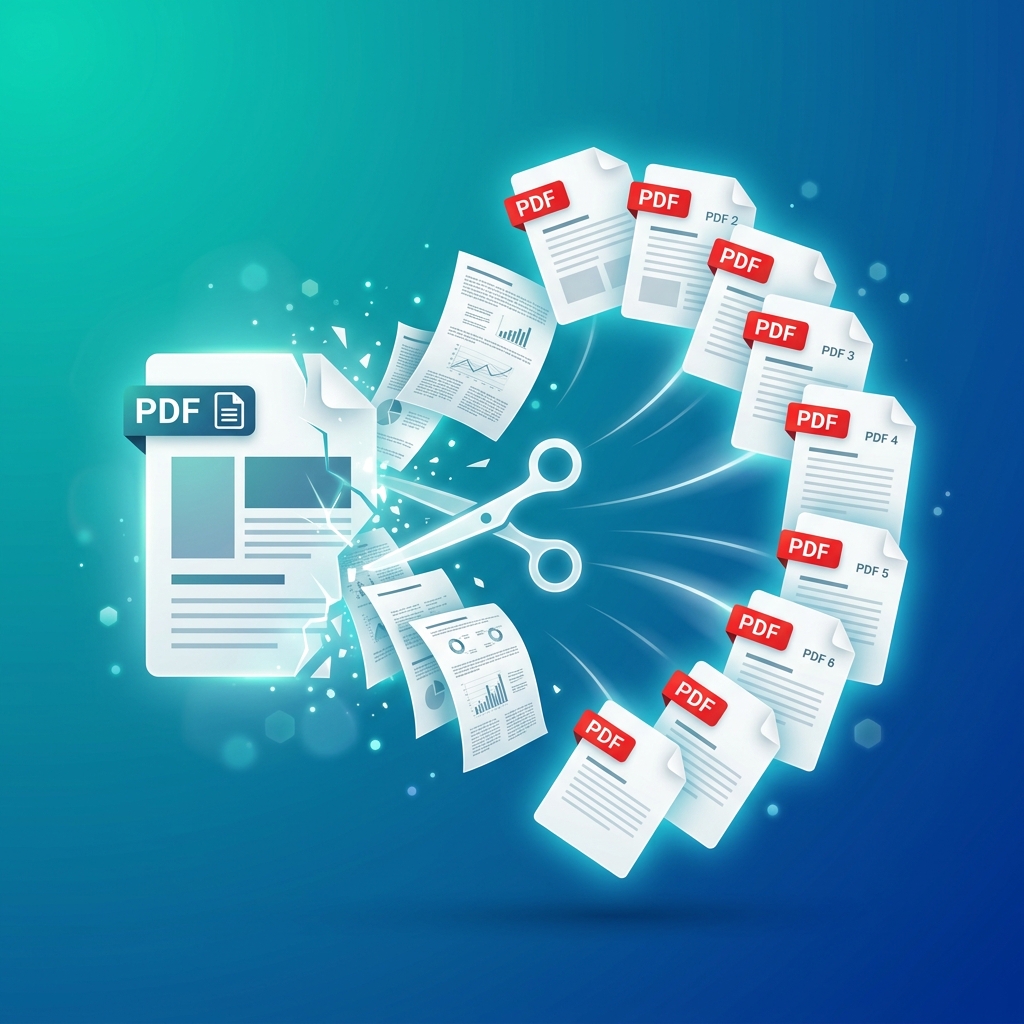
Need to extract specific pages from a PDF or split a large PDF into smaller files? Whether you're separating chapters, extracting invoices, or removing unwanted pages, our free online PDF splitter makes it simple. No software installation, completely private, and 100% free.
Quick Answer
Use Free Media Tools' PDF Splitter to extract pages from any PDF in seconds. Upload your PDF, select pages to extract or split ranges, and download individual files. Works in your browser with complete privacy — files never leave your device.
Why Split PDF Files?
Common Use Cases
- Extract specific pages - Pull out important pages from long documents
- Remove unwanted pages - Delete blank pages, ads, or irrelevant content
- Separate chapters - Split ebooks or reports by chapter
- Extract invoices - Separate individual invoices from bulk PDF
- Split scanned documents - Separate multi-page scans into individual files
- Share specific sections - Send only relevant pages, not entire document
- Reduce file size - Extract needed pages to create smaller files
- Organize documents - Separate mixed documents into categories
Benefits of Splitting PDFs
- Easier sharing - Send only relevant pages
- Better organization - Separate documents by topic or category
- Reduced file size - Smaller files are easier to email and store
- Privacy - Share only necessary information, not entire document
- Professional - Send clean, focused documents
How to Split PDF Files Online (Step-by-Step)
Method 1: Free Media Tools (Recommended)
Best for: Privacy, unlimited splits, large files
Steps:
- Go to freemediatools.online/split-pdf
- Upload your PDF
- Select splitting method:
- Extract pages - Select specific pages (e.g., 1, 3, 5-7)
- Split by range - Divide into chunks (e.g., every 5 pages)
- Split all - Separate into individual pages
- Click "Split PDF"
- Download extracted files
Pros:
- ✅ Completely free, unlimited
- ✅ Privacy-focused (files processed in browser)
- ✅ No file size limits
- ✅ No watermarks
- ✅ No registration required
- ✅ Multiple splitting options
Cons:
- None for basic splitting
Method 2: Adobe Acrobat Online
Best for: Adobe subscribers
Steps:
- Go to acrobat.adobe.com
- Select "Split PDF" tool
- Upload PDF
- Choose split method
- Download files (requires sign-in)
Pros:
- Professional tool
- Reliable
Cons:
- ❌ Requires Adobe account
- ❌ Limited free uses (2 per month)
- ❌ $19.99/month for unlimited
- ❌ Files uploaded to servers
Method 3: SmallPDF
Best for: Occasional use
Steps:
- Go to smallpdf.com/split-pdf
- Upload PDF
- Select pages or ranges
- Click "Split PDF"
- Download
Pros:
- Simple interface
- Fast
Cons:
- ❌ 2 free uses per day
- ❌ $9/month for unlimited
- ❌ Privacy concerns (files uploaded)
Method 4: Adobe Acrobat Pro (Desktop)
Best for: Professional use, frequent PDF work
Steps:
- Open PDF in Adobe Acrobat Pro
- Tools → Organize Pages
- Click "Split"
- Choose split method
- Save files
Pros:
- Professional features
- Offline processing
- Batch operations
Cons:
- ❌ Expensive ($19.99/month)
- ❌ Requires software installation
Method 5: Preview (Mac Only)
Best for: Mac users, simple extraction
Steps:
- Open PDF in Preview
- View → Thumbnails
- Select pages to extract
- File → Print Selected Pages
- Save as PDF
Pros:
- Built into macOS
- Free
- Offline
Cons:
- Mac only
- Clunky for multiple extractions
- Limited options
Real-World Example: Extracting Tax Documents
I needed to submit specific tax forms from a 45-page PDF my accountant sent:
- Pages 1-3: W-2 forms
- Pages 12-15: 1099 forms
- Pages 40-42: Summary
Problem: Tax portal required separate uploads for each form type
Solution:
- Used our PDF splitter
- Extracted pages 1-3 → saved as "W2-forms.pdf"
- Extracted pages 12-15 → saved as "1099-forms.pdf"
- Extracted pages 40-42 → saved as "Summary.pdf"
- Uploaded each file separately
Result: Clean, organized submissions. Took 2 minutes instead of manually creating separate PDFs.
Comparison Table: PDF Splitting Tools
| Tool | Cost | File Limit | Privacy | Watermark | Features |
|---|---|---|---|---|---|
| Free Media Tools | Free | None | Excellent | No | All methods |
| Adobe Online | $20/mo | 100MB | Fair | No | All methods |
| SmallPDF | $9/mo | 5GB | Fair | No | All methods |
| iLovePDF | $7/mo | 200MB | Fair | No | All methods |
| Adobe Pro | $20/mo | None | Excellent | No | Advanced |
| Mac Preview | Free | None | Excellent | No | Basic |
Winner: Free Media Tools for privacy, unlimited use, and zero cost.
PDF Splitting Methods Explained
1. Extract Specific Pages
Use when: You need specific pages from a document
Example: Extract pages 5, 7, and 10-15 from a 50-page report
How:
- Select individual pages: 5, 7
- Select ranges: 10-15
- Result: One PDF with pages 5, 7, 10, 11, 12, 13, 14, 15
2. Split by Page Range
Use when: You want to divide PDF into equal chunks
Example: Split 100-page PDF into 10-page sections
How:
- Set range: Every 10 pages
- Result: 10 separate PDFs, each with 10 pages
3. Split into Individual Pages
Use when: You need each page as separate file
Example: Separate scanned receipts into individual files
How:
- Select "Split all pages"
- Result: Each page becomes its own PDF
4. Remove Pages
Use when: You want to delete specific pages
Example: Remove blank pages or ads from document
How:
- Select pages to keep (or pages to remove)
- Result: New PDF without unwanted pages
Advanced PDF Splitting Tips
1. Naming Extracted Files
When extracting multiple sections, use descriptive names:
- ❌ Bad: "document-1.pdf", "document-2.pdf"
- ✅ Good: "contract-terms.pdf", "contract-pricing.pdf", "contract-signatures.pdf"
2. Batch Processing
If you need to split multiple PDFs the same way:
- Note the page ranges for first PDF
- Apply same pattern to other PDFs
- Saves time on repetitive tasks
3. Verify Page Numbers
Before splitting, check page numbers:
- PDF page numbers may differ from document page numbers
- Use thumbnail view to verify correct pages
4. Combine with Merging
Split and merge workflow:
- Split multiple PDFs to extract needed pages
- Merge extracted pages into new document
- Creates custom documents from multiple sources
Read: How to Merge PDF Files
5. Optimize After Splitting
If extracted PDFs are still large:
- Compress images in PDF
- Remove unnecessary metadata
- Optimize for web viewing
Read: How to Compress PDF File Size
What to Avoid: PDF Splitting Mistakes
1. Splitting Wrong Pages
Extracting wrong pages wastes time and creates confusion.
Solution: Preview pages before splitting. Use thumbnail view to verify page content.
2. Not Checking Page Orientation
Some PDFs have mixed portrait/landscape pages. Splitting may separate related content.
Solution: Review entire PDF first. Keep related pages together even if orientations differ.
3. Losing Bookmarks and Links
Splitting PDFs removes bookmarks and internal links.
Solution: If bookmarks are important, note them before splitting and recreate in extracted PDFs.
4. Creating Too Many Files
Splitting into too many small files makes organization difficult.
Solution: Split by logical sections (chapters, topics) rather than arbitrary page counts.
5. Not Naming Files Clearly
Generic names like "split-1.pdf" make files hard to identify later.
Solution: Use descriptive names that indicate content: "chapter-1-introduction.pdf"
Security and Privacy Considerations
Why Privacy Matters for PDFs
PDFs often contain sensitive information:
- Personal data (SSN, address, medical records)
- Financial information (bank statements, tax returns)
- Business secrets (contracts, proposals, pricing)
- Legal documents (agreements, court filings)
- Confidential reports
How Free Media Tools Protects Privacy
- Client-side processing - Files processed in your browser, never uploaded
- No server storage - Files never touch our servers
- No tracking - We don't track what files you split
- No registration - No account, no email required
- Works offline - Once loaded, works without internet
Other Tools' Privacy Risks
Online tools that upload files:
- Files stored on their servers (temporarily or permanently)
- Potential data breaches
- Terms may allow data use
- Government access to server data
Recommendation: For sensitive documents, use tools that process files locally (like Free Media Tools or Adobe Acrobat Pro).
Frequently Asked Questions
Is it free to split PDF files?
Yes, our PDF splitter is completely free with no limits. No registration, no watermarks, no hidden fees.
Can I split password-protected PDFs?
Most tools require you to unlock password-protected PDFs before splitting. Open the PDF, remove the password, then split.
Does splitting PDFs reduce quality?
No, splitting PDFs doesn't compress or reduce quality. Extracted pages are exact copies of the originals.
How many pages can I extract from a PDF?
With Free Media Tools, there's no limit. Extract 1 page or 1,000 pages from any size PDF.
Can I split PDFs on my phone?
Yes, our PDF splitter works on mobile browsers (iOS Safari, Android Chrome). Upload and split PDFs from your phone.
What's the maximum PDF file size for splitting?
Free Media Tools has no file size limit. Since processing happens in your browser, the only limit is your device's memory.
Can I split multiple PDFs at once?
Currently, you split one PDF at a time. For batch processing, use Adobe Acrobat Pro or similar desktop software.
How do I split a PDF into equal parts?
Use the "Split by range" option. For example, to split a 100-page PDF into 5 equal parts, split every 20 pages.
PDF Splitting for Specific Use Cases
For Students
Splitting textbooks:
- Extract specific chapters for studying
- Separate practice problems from solutions
- Create focused study materials
Splitting research papers:
- Extract methodology sections
- Separate data tables and charts
- Organize citations by topic
For Businesses
Splitting invoices:
- Separate bulk invoices into individual files
- Extract specific months from annual reports
- Organize by client or project
Splitting contracts:
- Extract terms and conditions
- Separate pricing from legal text
- Create summaries from full contracts
For Legal Professionals
Splitting case files:
- Extract specific exhibits
- Separate witness statements
- Organize evidence by type
For Accountants
Splitting financial documents:
- Separate quarterly reports
- Extract specific tax forms
- Organize receipts by category
Troubleshooting Common Issues
Issue 1: Extracted PDF Won't Open
Cause: Corrupted split or incompatible PDF
Solution:
- Try splitting again
- Check if original PDF opens correctly
- Try different splitting tool
- Repair PDF using Adobe Acrobat
Issue 2: Missing Pages in Extracted PDF
Cause: Wrong page range selected
Solution:
- Check page numbers in original PDF
- Use thumbnail view to verify pages
- Re-split with correct range
Issue 3: Extracted PDF is Too Large
Cause: Extracted pages contain uncompressed images
Solution:
- Compress images in extracted PDF
- Use image compressor on embedded images
- Read: How to Compress PDF File Size
Issue 4: Can't Select Specific Pages
Cause: PDF may be corrupted or have restrictions
Solution:
- Check if PDF has editing restrictions
- Try opening in different PDF viewer
- Use Adobe Acrobat to remove restrictions
Issue 5: Split Takes Too Long
Cause: Very large PDF or slow device
Solution:
- Close other browser tabs
- Try splitting smaller page ranges
- Use desktop software for very large PDFs
Related Tools You Might Need
-
Merge PDF — Combine extracted pages with other PDFs to create custom documents.
-
Compress PDF — Reduce extracted PDF file size by compressing embedded images.
-
JPG to PDF — Convert images to PDF format before merging with extracted pages.
Why Choose Free Media Tools for PDF Splitting?
1. Complete Privacy
Files processed in your browser, never uploaded. Your sensitive documents stay private.
2. Truly Free
No hidden costs, no "free trial" requiring credit card, no watermarks. Free forever.
3. No Limits
Split unlimited PDFs, unlimited times. No daily limits, no file size restrictions.
4. Fast Processing
Client-side processing means instant splitting. No waiting for uploads/downloads.
5. No Registration
No account creation, no email required. Just upload, split, download.
6. Multiple Methods
Extract specific pages, split by range, or separate all pages. Flexible options for any need.
Conclusion
Splitting PDF files doesn't require expensive software or risky online tools. Use Free Media Tools' PDF Splitter for fast, private, unlimited PDF splitting. Whether you're extracting invoices, separating chapters, or removing unwanted pages, our tool makes it simple and secure.
Start splitting PDFs now — completely free, no registration required.
By Muhammad Hasnain Adam — Full-stack developer passionate about creating free, privacy-focused tools. I built Free Media Tools to give everyone access to professional PDF and media tools without compromising privacy or paying subscription fees.