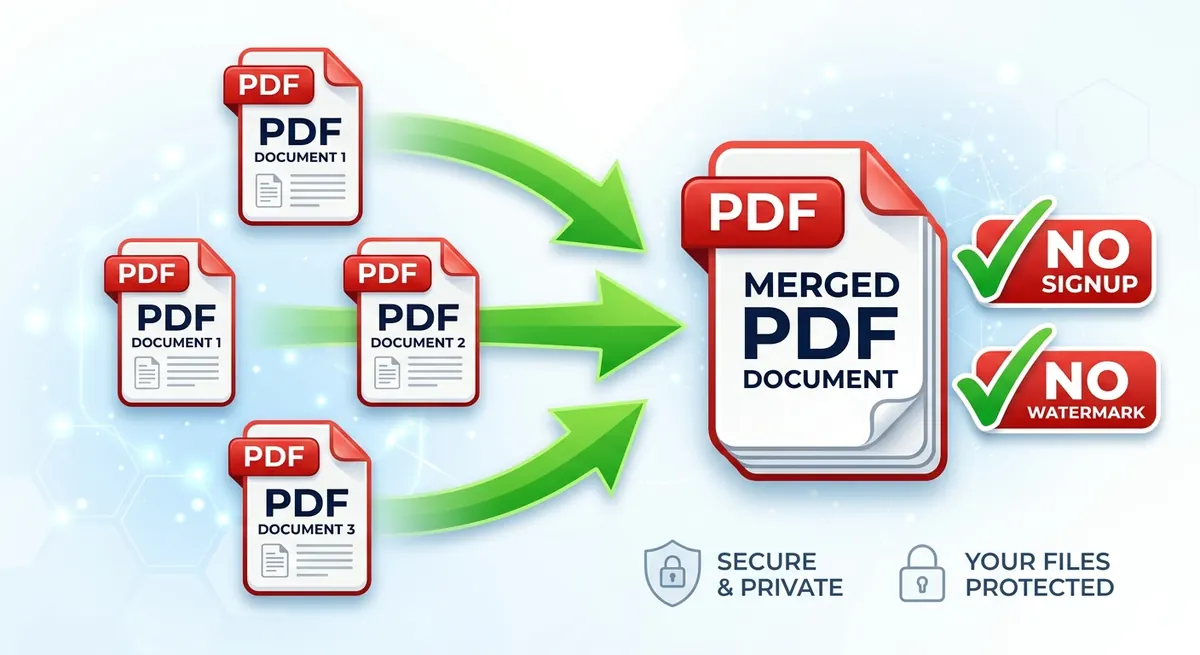
Tired of PDF tools that require signup, add watermarks, or limit free uses? Most "free" PDF mergers have hidden catches. Here's how to merge PDF files completely free, with no registration, no watermarks, and unlimited use — plus why privacy matters when combining sensitive documents.
Quick Answer
Use Free Media Tools' PDF Merger to combine PDFs without signup or watermarks. Upload your files, arrange order, click merge, and download. Files are processed in your browser (never uploaded to servers), ensuring complete privacy. Truly free with no limits.
The Problem with "Free" PDF Mergers
Hidden Catches in Popular Tools
SmallPDF:
- ❌ 2 free uses per day
- ❌ $9/month for unlimited
- ❌ Files uploaded to servers
iLovePDF:
- ❌ Requires signup for more than 1 file
- ❌ $7/month for unlimited
- ❌ Privacy concerns
Adobe Acrobat Online:
- ❌ Requires Adobe account
- ❌ 2 free uses per month
- ❌ $19.99/month for unlimited
PDF Merge:
- ❌ Adds watermarks on free version
- ❌ File size limits
- ❌ Ads and popups
The pattern: "Free" tools have limits, require signup, or add watermarks.
How to Merge PDFs Without Signup
Method 1: Free Media Tools (Recommended)
Website: freemediatools.online/merge-pdf
Why it's different:
- ✅ No signup or registration
- ✅ No watermarks
- ✅ Unlimited merges
- ✅ No file size limits
- ✅ Privacy-focused (browser-based processing)
- ✅ No ads or popups
How it works:
- Go to freemediatools.online/merge-pdf
- Click "Select PDFs" or drag and drop files
- Arrange PDFs in desired order (drag to reorder)
- Click "Merge PDFs"
- Download combined PDF
Processing: Files are processed in your browser using JavaScript. They never leave your device or upload to servers.
Time: 5-30 seconds depending on file sizes
Verdict: ⭐⭐⭐⭐⭐ (5/5) - Best free option with no catches
Method 2: Adobe Acrobat Pro (Desktop)
Best for: Professional use, frequent PDF work
Pros:
- ✅ Professional features
- ✅ Offline processing
- ✅ Batch operations
- ✅ No watermarks
Cons:
- ❌ $19.99/month subscription
- ❌ Requires installation
- ❌ Overkill for occasional use
Verdict: ⭐⭐⭐⭐ (4/5) - Excellent but expensive
Method 3: Preview (Mac Only)
Best for: Mac users, simple merging
Steps:
- Open first PDF in Preview
- View → Thumbnails (show sidebar)
- Drag other PDFs into sidebar
- Arrange order
- File → Export as PDF
Pros:
- ✅ Built into macOS
- ✅ Free
- ✅ Offline
- ✅ No watermarks
Cons:
- ❌ Mac only
- ❌ Clunky for many files
- ❌ Limited features
Verdict: ⭐⭐⭐ (3/5) - Good for Mac users
Method 4: PDFtk (Command Line)
Best for: Advanced users, automation
Command:
pdftk file1.pdf file2.pdf file3.pdf cat output merged.pdf
Pros:
- ✅ Free and open-source
- ✅ Powerful
- ✅ Scriptable
Cons:
- ❌ Command line interface
- ❌ Requires installation
- ❌ Technical knowledge needed
Verdict: ⭐⭐⭐ (3/5) - Great for tech-savvy users
Comparison Table: Free PDF Mergers
| Tool | Signup Required | Watermarks | Daily Limit | Privacy | Cost |
|---|---|---|---|---|---|
| Free Media Tools | No | No | Unlimited | Excellent | Free |
| SmallPDF | No | No | 2/day | Poor | $9/mo |
| iLovePDF | Yes | No | Limited | Poor | $7/mo |
| Adobe Online | Yes | No | 2/month | Fair | $20/mo |
| PDF Merge | No | Yes | Unlimited | Poor | Free |
| Mac Preview | No | No | Unlimited | Excellent | Free |
Winner: Free Media Tools for no signup, no limits, and privacy
Why "No Signup" Matters
Problems with Required Signup
1. Privacy concerns:
- Email address collected
- Account tracks your activity
- Data may be sold to third parties
- Password security risks
2. Spam and marketing:
- Promotional emails
- Newsletter subscriptions
- Marketing campaigns
3. Friction:
- Slows down workflow
- Password management
- Email verification
- Account recovery hassles
4. Data breaches:
- Your email exposed if company is hacked
- Password reuse risks
Benefits of No-Signup Tools
1. Instant access:
- Start working immediately
- No forms to fill out
- No email verification
2. Privacy:
- No personal data collected
- No tracking
- No spam
3. Convenience:
- Use on any device
- No login required
- No password to remember
4. Security:
- No account to hack
- No data to breach
Why "No Watermark" Matters
Problems with Watermarked PDFs
1. Unprofessional appearance:
- "Created with FreeToolXYZ.com" on every page
- Looks cheap and amateur
- Embarrassing for business use
2. Unusable for official documents:
- Job applications
- Legal documents
- Business contracts
- Academic submissions
3. Permanent marking:
- Can't remove watermarks easily
- Ruins document integrity
Real Example: Job Application Disaster
A friend merged her resume, cover letter, and portfolio using a "free" PDF tool. Every page had "Created with PDFMerge.com" watermark.
Result:
- Looked unprofessional
- Hiring manager noticed
- Had to recreate entire application
- Missed deadline
Lesson: Always use tools without watermarks for important documents.
Privacy: Why Browser-Based Processing Matters
How Most Online Tools Work
Traditional online PDF mergers:
- You upload PDFs to their server
- Server processes files
- You download result
- Files stored temporarily (or permanently)
Privacy risks:
- Your files pass through their servers
- They can access your documents
- Potential data breaches
- Terms of service may allow data use
- Government access to server data
How Free Media Tools Works
Browser-based processing:
- You select PDFs
- Files stay on your device
- JavaScript processes files in your browser
- You download result
- Nothing uploaded to servers
Privacy benefits:
- ✅ Files never leave your device
- ✅ No server storage
- ✅ No data breaches possible
- ✅ Complete privacy
- ✅ Works offline (once page loads)
Technical note: We use WebAssembly and JavaScript to process PDFs entirely in your browser. This is why the tool works even without internet (after initial page load).
Real-World Use Cases
Use Case 1: Job Application
Scenario: Combine resume, cover letter, portfolio
Requirements:
- No watermarks (professional appearance)
- No signup (quick turnaround)
- Privacy (personal information)
Solution: Free Media Tools
- Merged 4 PDFs in 30 seconds
- No watermarks
- Professional result
Use Case 2: Business Proposal
Scenario: Combine proposal, pricing, terms, credentials
Requirements:
- Confidential information
- Professional appearance
- Quick turnaround
Solution: Free Media Tools
- Complete privacy (browser-based)
- No watermarks
- Instant processing
Use Case 3: Tax Documents
Scenario: Combine W-2s, 1099s, receipts for accountant
Requirements:
- Sensitive financial data
- No signup (privacy)
- Multiple files
Solution: Free Media Tools
- Files never uploaded
- Unlimited merges
- Complete privacy
Use Case 4: Academic Submission
Scenario: Combine research paper, citations, appendices
Requirements:
- No watermarks (university requirements)
- Specific page order
- Professional appearance
Solution: Free Media Tools
- Easy reordering
- No watermarks
- Clean result
Advanced Tips for Merging PDFs
1. Organize Files Before Merging
Best practice:
- Rename files with numbers (01-resume.pdf, 02-cover-letter.pdf)
- Files upload in alphabetical order
- Easier to arrange
2. Check Page Orientation
Before merging:
- Open each PDF
- Check if pages are portrait or landscape
- Rotate if needed
Result: Consistent orientation in merged PDF
3. Verify Page Count
After merging:
- Check total page count
- Ensure all pages included
- Verify order
Tip: Preview merged PDF before sending
4. Optimize File Size
If merged PDF is too large:
- Extract images from PDFs
- Compress images using our compressor
- Recreate PDFs with compressed images
- Merge again
Or read: How to Reduce PDF Size
5. Add Bookmarks (Optional)
For long merged PDFs:
- Use Adobe Acrobat to add bookmarks
- Helps readers navigate
- Professional touch
What to Avoid: Common Mistakes
1. Wrong File Order
Merging PDFs in wrong order creates confusion.
Solution: Preview each PDF before merging. Arrange carefully. Most tools let you drag to reorder.
2. Not Checking the Result
Sometimes merging fails or creates corrupted PDFs.
Solution: Always open and review merged PDF before deleting originals or sending.
3. Using Tools with Watermarks
Watermarked PDFs look unprofessional and may be rejected.
Solution: Use tools without watermarks like Free Media Tools.
4. Uploading Sensitive Documents
Uploading confidential PDFs to online tools risks privacy.
Solution: Use browser-based tools (Free Media Tools) or desktop software (Adobe Acrobat Pro, Mac Preview).
5. Merging Low-Quality Scans
Merging multiple low-quality scanned PDFs creates large, poor-quality documents.
Solution: Improve scan quality first, or use OCR to convert to text-based PDFs.
Frequently Asked Questions
Can I merge PDFs without signing up?
Yes, Free Media Tools' PDF Merger requires no signup or registration. Upload PDFs, merge, and download — completely free with no account needed.
How do I merge PDFs without watermarks?
Use our PDF merger which adds no watermarks. Avoid free tools that add "Created with..." text to your documents.
Is it safe to merge PDFs online?
Browser-based tools like Free Media Tools are safe because files are processed locally (never uploaded). Traditional online tools that upload files have privacy risks.
How many PDFs can I merge at once?
With Free Media Tools, there's no limit. Merge 2, 10, 50, or 100+ PDFs. The only limit is your browser's memory.
Can I merge password-protected PDFs?
Most tools require you to unlock password-protected PDFs first. Open the PDF, remove the password, then merge.
Does merging PDFs reduce quality?
No, merging PDFs doesn't compress or reduce quality. The merged PDF contains exact copies of the original pages.
Can I merge PDFs on my phone?
Yes, our PDF merger works on mobile browsers (iOS Safari, Android Chrome). Upload and merge PDFs from your phone.
What's the maximum file size for merging?
Free Media Tools has no file size limit. Since processing happens in your browser, the only limit is your device's memory.
Alternative: Split PDFs
Need to extract specific pages before merging? Use our PDF splitter to:
- Extract specific pages
- Split by page range
- Separate into individual pages
- Remove unwanted pages
Then merge the extracted pages with other PDFs.
Troubleshooting Common Issues
Issue 1: Merged PDF is Too Large
Cause: Original PDFs contain uncompressed images
Solution:
- Extract images from PDFs
- Compress images using our compressor
- Recreate PDFs with compressed images
- Merge again
Issue 2: Pages in Wrong Order
Cause: PDFs merged in wrong sequence
Solution: Most tools let you reorder before merging. Drag PDFs to correct position.
Issue 3: Merged PDF Won't Open
Cause: Corrupted merge or incompatible PDFs
Solution:
- Try merging again
- Check if original PDFs open correctly
- Try different merging tool
Issue 4: Some Pages Missing
Cause: Merge failed or PDFs corrupted
Solution:
- Check original PDFs for corruption
- Merge again
- Try merging in smaller batches
Issue 5: File Too Large to Email
Cause: Merged PDF exceeds email attachment limit (usually 25MB)
Solution:
- Compress the merged PDF
- Use cloud storage (Google Drive, Dropbox) and share link
- Split into smaller PDFs
Related Tools You Might Need
-
Split PDF — Extract specific pages from PDFs before merging, or separate merged PDFs.
-
Compress PDF — Reduce merged PDF file size by compressing embedded images.
-
JPG to PDF — Convert images to PDF format before merging with other PDFs.
Why Choose Free Media Tools?
1. Truly Free
- No hidden costs
- No "free trial" requiring credit card
- No watermarks
- Free forever
2. No Signup Required
- No account creation
- No email required
- No password to remember
- Instant access
3. Complete Privacy
- Files processed in browser
- Never uploaded to servers
- No tracking
- No data collection
4. No Limits
- Unlimited merges
- No daily limits
- No file size restrictions
- Merge as many PDFs as needed
5. No Watermarks
- Professional results
- Clean documents
- Suitable for business use
6. Fast Processing
- Client-side processing
- Instant merging
- No waiting for uploads/downloads
Conclusion
Merging PDF files doesn't require signup, watermarks, or subscription fees. Use Free Media Tools' PDF Merger for fast, private, unlimited PDF merging. Whether you're combining business documents, job applications, or personal files, our tool makes it simple and secure — with no catches.
Start merging PDFs now — completely free, no registration required, no watermarks.
By Muhammad Hasnain Adam — Full-stack developer passionate about creating free, privacy-focused tools. I built Free Media Tools to give everyone access to professional PDF tools without compromising privacy or paying subscription fees.