Discord changed its upload limit again. In August 2026, the free limit went up from 10MB to 20MB. Discord also changed how the limit is checked on mobile, which catches a lot of Android users out. Older guides (including the first version of this one) still talk about 8MB and 10MB.
This guide has the current limits from Discord's own help pages and settings I measured on our video compressor. It also includes a simple way to work out how long your clip can be before it won't fit.
Quick Answer
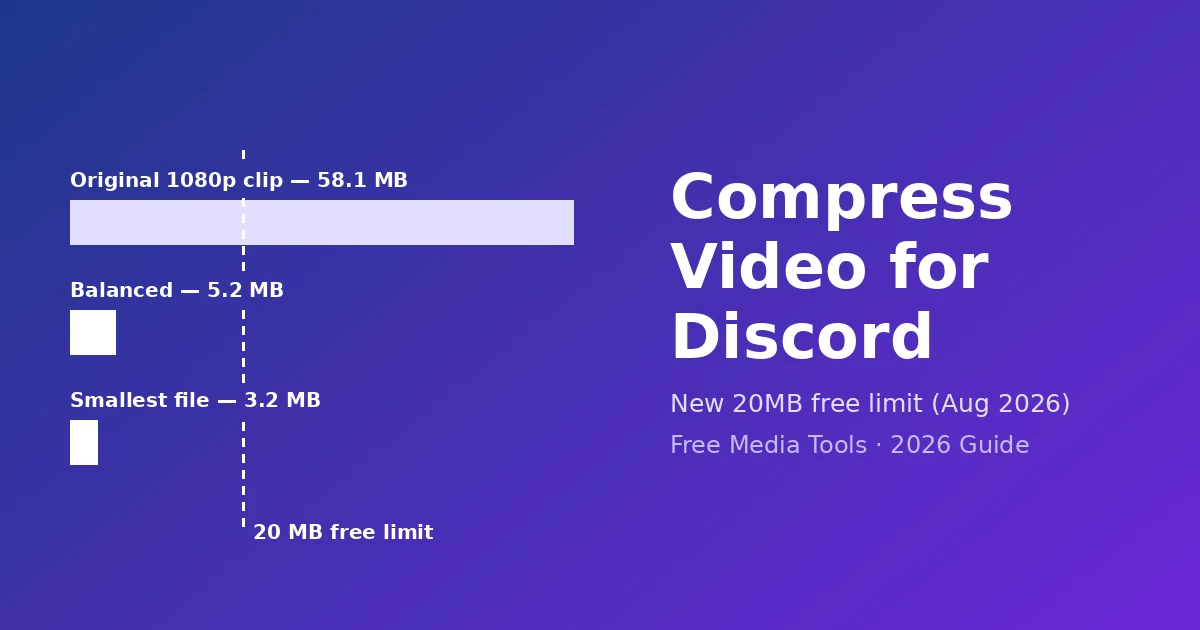
Without Nitro, Discord accepts files up to 20MB. To get a clip under it, open Compress Video, choose Smallest file, compress, and send the result. In my test, a 30-second 1080p phone-quality clip went from 58.1MB to 3.2MB on Smallest file and 5.2MB on Balanced. Both are well under 20MB. For clips longer than about 3 minutes, trim first or use a link.
Discord Upload Limits Right Now
| Plan | Max file size | Source |
|---|---|---|
| Free (no Nitro) | 20MB (up from 10MB in August 2026) | Discord File Attachments FAQ |
| Nitro Basic | 50MB | Discord File Attachments FAQ / Nitro page |
| Nitro | Up to 1GB | Discord File Attachments FAQ |
| Server Boost Level 2 | 50MB for everyone in that server | Discord server caps page |
| Server Boost Level 3 | 100MB for everyone in that server | Discord server caps page |
Discord's FAQ also says it is "currently experimenting with various file upload size limits", so some accounts may see larger limits. If you're sharing with other people, plan for 20MB.
The Android catch
Discord now checks the file size before its own compression, not after. Its FAQ says this makes uploads easier on desktop and iOS. On Android, where source files tend to be larger, you may hit the limit more often than before, even though the number went up. If a clip used to send from your Android phone and now doesn't, that's why. Compress it yourself first.
How Long Can a Discord Video Be?
File size is roughly bitrate × duration. Our compressor caps the video bitrate for each setting, so you can estimate the longest clip that fits:
| Compressor setting | Video bitrate cap | Audio | Max length for 20MB (approx.) | Max length for 50MB |
|---|---|---|---|---|
| Smallest file | 800 kbps | 64 kbps | about 3 minutes | about 7.5 minutes |
| Balanced | 1.5 Mbps | 96 kbps | about 1 min 40 s | about 4 minutes |
| Best quality | 2.5 Mbps | 128 kbps | about 1 minute | about 2.5 minutes |
These are worst-case figures for busy footage that hits the cap. My 30-second test came out at 3.2MB on Smallest file, almost exactly the cap (0.864 Mbps × 30 s ≈ 3.2MB), because I made it deliberately detailed. Calm footage, such as a screen recording or someone talking to the camera, often comes out smaller.
Pro tip: Aim for about 18MB, not 19.9MB. Discord's developer changelog describes the new limit as 20 MiB, and file managers round sizes differently. A small margin saves a failed upload.
Step-by-Step: Compress a Video for Discord
- Check the size. On Windows: right-click → Properties. On Mac: right-click → Get Info. If it's already under 20MB, send it as it is.
- Trim first if it's long. Cut out the setup and the ending with Trim Video. Halving the length halves the file, with no quality cost.
- Open Compress Video and drop the file in. It accepts MP4, MOV, AVI and WebM.
- Pick a setting using the table above. For a typical 30–90 second clip, Balanced fits with room to spare. Use Smallest file for clips of 2–3 minutes.
- Click Compress Video. Compression runs on your device, so speed depends on your computer. On my test machine, the 30-second clip took about a minute on Smallest file and about 2.5 minutes on Balanced.
- Download and check the size, then drag it into Discord.
The output is always an H.264 MP4 capped at 1080p, the format Discord previews most reliably in chat. If the source is 4K, it's scaled down to 1080p as part of compression, which on its own saves a lot of space.
If It's Still Too Big
- Trim harder. Duration has the biggest effect on file size.
- Drop to Smallest file. It's the lowest bitrate cap the tool offers.
- Remove the audio if it's just game noise you don't need. Audio is only a small part of the file (64–128 kbps), so this saves less than people expect. Use Remove Audio after compressing.
- Use a link for long videos. Anything much over 3 minutes won't look good at 20MB. Upload it to YouTube (unlisted), Google Drive or similar and paste the link.
Compressing on Your Phone
The compressor works in Chrome on Android and Safari on iPhone. Open Compress Video, tap the upload box and choose the clip from your gallery. Phones are slower than computers at encoding, so a 1-minute clip can take several minutes. Keep the screen on and the tab open until it finishes. Then share the downloaded file to Discord from your Files/Downloads app instead of the gallery, so you send the compressed copy and not the original.
On iPhone, the Photos app can also export at a lower resolution. Our guide to reducing video size on iPhone covers those options.
Gaming Clips: Getting the Best Look at 20MB
- Trim to the highlight. A 20–40 second clip on Balanced looks noticeably better than a 2-minute clip squeezed onto Smallest file.
- 60fps footage spends its bitrate across twice as many frames, so fast action can look blocky at low caps. If smoothness matters less than sharpness, record clips at 30fps.
- Record at a sensible bitrate in the first place. If your capture app lets you set the bitrate, a lower setting makes files easier to share without re-compressing.
For a deeper explanation of why motion costs more space, see video bitrate explained. To compare Discord with other apps, see our video size limits for every platform.
Frequently Asked Questions
What is Discord's file size limit without Nitro?
20MB per file. Discord's File Attachments FAQ says the free limit went up from 10MB in August 2026. Nitro Basic allows 50MB and Nitro up to 1GB.
Why won't my video upload from Android when it's "only" 15MB after Discord compresses it?
Discord now checks the original file size before compressing on mobile. If the original is over 20MB, it's rejected. Compress it yourself first so the file you pick is already under the limit.
What's the best setting for a 1-minute clip?
Balanced. At its bitrate cap, a minute of video is about 12MB, safely under 20MB, and it looks clearly better than Smallest file.
Does the compressor upload my video?
No. Compression runs in your browser with FFmpeg compiled to WebAssembly, so the video stays on your device. The first run downloads the compression engine. After that, everything is local.
Why does the compressor skip my file?
Files under 5MB are left alone because they're already small. Anything that size is already well under Discord's 20MB limit, so you can send it as it is.
Can I send a 4K clip on Discord?
Not at full size without Nitro. Compressing scales it down to 1080p and caps the bitrate, which is usually the difference between hundreds of MB and something that fits in 20MB.
Related Tools You Might Need
- Compress Video — Get clips under Discord's 20MB limit, in your browser
- Trim Video — Cut a long recording down to the highlight before compressing
- Video to GIF — Turn a few seconds into a GIF for reactions
- Remove Audio from Video — Drop game or background noise without re-encoding
By Muhammad Hasnain Adam — Developer based in Karachi and the builder of Free Media Tools. I updated this guide after Discord raised its free limit to 20MB, and re-measured our compressor's output so the numbers above are real.