An iPhone 15 Pro shooting 4K 60fps generates roughly 400MB per minute of footage. A 3-minute birthday video is over 1GB. WhatsApp rejects anything over 16MB. iMessage quietly downgrades quality. Email bounces anything over 25MB. And your iCloud storage fills up faster than you expect.
This guide covers every practical method to reduce video file size on iPhone — from changing camera settings before you record, to compressing existing videos, to using free browser tools that don't require any app installation.
How Large Are iPhone Videos, Really?
Before picking a method, it helps to know what you're working with. Here's what a 1-minute video from an iPhone takes up at different settings:
| Setting | File Size (1 min) | Notes |
|---|---|---|
| 4K 60fps | ~400 MB | iPhone 13+ default for video |
| 4K 30fps | ~170 MB | Still very large |
| 1080p 60fps | ~90 MB | Good quality, more manageable |
| 1080p 30fps | ~40 MB | Best balance for sharing |
| 720p 30fps | ~15 MB | WhatsApp-friendly |
| Cinematic 4K | ~480 MB | iPhone 13+ feature |
Most people shoot in 4K without realising it, then wonder why their videos are so large.
Method 1: Change Camera Settings Before Recording
The most effective way to reduce video size is to record at a lower resolution from the start. You lose nothing — you just record smarter.
Steps:
- Open Settings on your iPhone
- Scroll down and tap Camera
- Tap Record Video
- Select a lower resolution:
- 1080p at 30 fps — best for most sharing (WhatsApp, email, text)
- 1080p at 60 fps — good for action without the 4K file size
- 720p at 30 fps — smallest, fine for phone screens
Best settings by use case:
| Use Case | Recommended Setting |
|---|---|
| WhatsApp / iMessage | 1080p 30fps or 720p 30fps |
| Email attachment | 1080p 30fps |
| YouTube upload | 4K 30fps or 1080p 60fps |
| Instagram Reels | 1080p 30fps |
| Just for memories | 4K 30fps (compress later if needed) |
Limitation: This only affects new recordings. For existing videos, use the methods below.
Method 2: Compress Using a Browser Tool (Recommended for Existing Videos)
For videos already on your iPhone that are too large to share, a browser-based compressor is the fastest option — no app download, no account, files never leave your device.
Using Free Media Tools on iPhone Safari:
- Open Safari on your iPhone
- Go to freemediatools.online/compress-video-online
- Tap Select Video and choose your video from Photos
- Select compression level:
- Medium — reduces size by 60-70%, good quality retained
- Heavy — reduces size by 75-85%, acceptable quality for phones
- Tap Compress Video
- Wait for processing (happens on your device, not a server)
- Tap Download to save compressed video to Photos
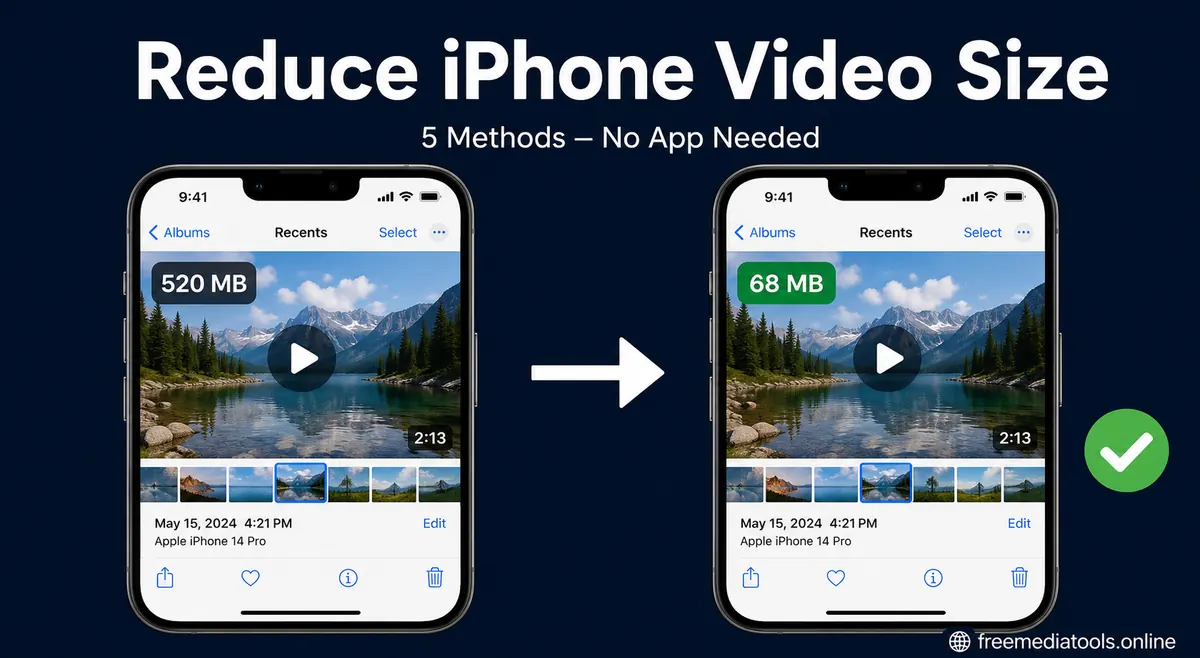
Real example: A 3-minute birthday video shot in 4K 30fps (520MB) compressed to 1080p medium quality = 68MB. Sent successfully via email and WhatsApp.
Why this works better than WhatsApp's built-in compression: WhatsApp compresses automatically when you exceed 16MB, but its compression is aggressive and the result often looks noticeably degraded. Compressing yourself first gives you control over how much quality you trade for file size.
Method 3: Use iPhone's Built-in "Reduce File Size" When Sharing
When you share a video through the iOS share sheet, iPhone gives you the option to reduce file size. This is the fastest method for one-off shares.
Steps:
- Open the Photos app
- Select the video you want to share
- Tap the Share button (box with arrow)
- Before choosing where to share, look for Options at the top of the share sheet
- Tap Options → change Video Quality to:
- Medium or Smallest
- Tap Done, then choose your share destination
Limitation: This only applies to that single share. The original video in your Photos stays at full quality. Also, the "Smallest" option can look quite poor — test before sending something important.
Method 4: Trim the Video First
A shorter video is a smaller video. If you only need part of a clip, trimming before compressing gives better quality at smaller size than compressing a long video heavily.
Trim directly in Photos:
- Open the video in Photos
- Tap Edit
- Drag the yellow handles at the bottom to select the clip range
- Tap Done → Save as New Clip (keeps the original)
For more precise trimming, use Free Media Tools' video trimmer in Safari — same process as Method 2, but you choose start/end points precisely.
Rule of thumb: Trim first, then compress. A 90-second clip will always look better at a given file size than a 3-minute clip compressed to the same size.
Method 5: Change Export Settings When Saving from iCloud or AirDrop
If someone sends you a full-resolution video, or you're downloading from iCloud, you can control the quality on export.
For iCloud photos/videos:
- Go to Settings → Photos
- Under Transfer to Mac or PC, select Automatic (this converts HEVC/ProRes to a more compatible, smaller format)
For videos already in iCloud:
- Full-resolution versions are stored in iCloud when your iPhone storage is low
- Go to Settings → General → iPhone Storage → Photos
- Enable Optimize iPhone Storage — this keeps lower-res versions on device and full versions in iCloud, freeing space without deleting
Comparing the 5 Methods
| Method | Best For | Quality Control | Time Required |
|---|---|---|---|
| Change camera settings | Future recordings | ✅ Full control | 2 minutes (one-time) |
| Browser compressor | Any existing video | ✅ Full control | 2–5 minutes |
| iOS share sheet reduction | Quick one-off share | ⚠️ Limited options | 30 seconds |
| Trim video | Long clips with unused footage | ✅ No quality loss | 2–10 minutes |
| iCloud optimize storage | Freeing iPhone storage | ⚠️ Auto-managed | 1 minute (one-time) |
What to Do for Specific Platforms
Sending via WhatsApp (16MB limit)
WhatsApp's 16MB limit allows roughly:
- 90 seconds at 1080p 30fps (after compression)
- 3 minutes at 720p 30fps
Workflow:
- Trim to only the essential part
- Compress with the browser tool at Medium or Heavy
- Check file size before sending — aim for under 14MB to leave buffer
- Send as a Document (not Gallery) to bypass WhatsApp's extra re-compression pass: tap the paperclip → Document → select your video
Sending via Email (20–25MB limit)
Gmail allows 25MB, Outlook 20MB. Most phone videos exceed this.
Workflow:
- Compress to under 20MB using the browser tool
- Or: record new clips at 1080p 30fps from the start
- For longer videos, upload to Google Drive and share a link instead
Uploading to Instagram Reels
Instagram's limit is generous (650MB) but re-encodes everything. Large uploads take longer and Instagram's encoding introduces its own quality loss.
Workflow:
- Shoot at 1080p 30fps in vertical (9:16)
- Keep clips under 90 seconds
- No compression needed unless you're working with existing 4K footage
Uploading to YouTube from iPhone
YouTube accepts up to 256GB, so file size isn't the constraint — upload time is.
Workflow:
- Compress 4K footage to 1080p 30fps before uploading — YouTube will re-encode to 1080p anyway
- This cuts upload time by 70-80% with no visible quality difference
Common iPhone Video Problems — Solved
"My video is blurry after sending on WhatsApp"
WhatsApp re-compressed it. Next time, compress yourself first using the browser tool, then share as a Document (not via the camera roll share).
"My iPhone video won't open on Windows"
iPhone videos in HEVC (.mov) format often don't open on Windows without HEVC codecs. Fix: convert to MP4 using Free Media Tools' video converter in Safari.
"I ran out of iCloud storage because of videos"
Enable Optimize iPhone Storage in Settings → Photos. Or compress and delete originals — a 500MB video compressed to 60MB saves 440MB.
"My 4K video looks worse after compression"
You may have used too aggressive a compression setting. Try Medium instead of Heavy, or start from the original file (not an already-compressed version). Each re-compression pass degrades quality further.
"The video file shows as MOV but I need MP4"
Convert it first: convert-video → select MP4 as output. MP4 is more universally compatible for email, WhatsApp, and most platforms.
How Much Space Can You Save?
A typical iPhone user with a lot of videos can reclaim significant storage:
| Video | Original | After Compression | Savings |
|---|---|---|---|
| 1-min 4K 60fps birthday clip | 400 MB | 45 MB | 355 MB |
| 3-min 4K 30fps holiday video | 510 MB | 68 MB | 442 MB |
| 30-sec 1080p slow-mo | 120 MB | 18 MB | 102 MB |
| 10 average clips | ~2.1 GB | ~250 MB | ~1.85 GB |
If you shoot a lot of video, switching to 1080p 30fps for everyday recordings (keeping 4K for special occasions) alone can halve your storage usage with no practical quality difference on phone screens.
Frequently Asked Questions
Does compressing a video reduce quality?
Yes, slightly — all lossy compression removes some data. But the difference between a well-compressed 1080p video and the original 4K is invisible on a phone screen or standard monitor. The difference only shows on large 4K TVs or professional editing monitors. For sharing, medium compression is essentially visually lossless for most content.
Can I compress videos on iPhone without installing an app?
Yes. Open Safari and go to freemediatools.online/compress-video-online. The tool runs entirely in your browser using WebAssembly — no app download, no account required. Your video never leaves your device.
What is the best video format for iPhone?
MP4 (H.264 codec) for compatibility — plays on all devices and platforms. iPhone natively records in HEVC (.mov) which is more efficient but less compatible. For sharing, convert to MP4 first.
Does iPhone have a built-in video compressor?
Not directly. iOS has the share sheet quality reduction (Method 3 above), but it gives limited control. For proper compression with quality control, use a browser-based tool or change recording settings.
Why does iMessage reduce my video quality automatically?
iMessage compresses videos over approximately 100MB before sending. This is automatic and you can't disable it. To avoid quality loss, compress the video yourself first, then send.
How do I check video file size on iPhone?
Go to the Photos app → select the video → swipe up or tap the info (ⓘ) button → the file size is shown at the bottom of the info panel.
Is it safe to use browser-based video tools on iPhone?
Yes, as long as the tool processes files locally (in-browser). Free Media Tools uses WebAssembly — the video is read by your browser's engine, never uploaded anywhere. Check: if you can use the tool without an internet connection once the page has loaded, it's truly local.
Will compressing a video reduce its duration?
No. Compression reduces file size by reducing bitrate and sometimes resolution, but does not cut or shorten the video. Duration stays identical.
Related Tools
- Video Compressor — Reduce any video file size in your browser. Works on iPhone Safari.
- Video Trimmer — Cut videos to the exact length you need before compressing.
- Video Converter — Convert iPhone MOV to MP4 for universal compatibility.
- Extract Audio — Pull audio from a video if you only need the sound.
By Muhammad Hasnain Adam — Mobile app and full-stack developer from Karachi, Pakistan. I built Free Media Tools after repeatedly hitting the exact problems described in this guide — trying to send iPhone videos that were too large for WhatsApp, or watching iMessage silently destroy quality. Every tool on this site processes your files locally, so your personal videos stay private.