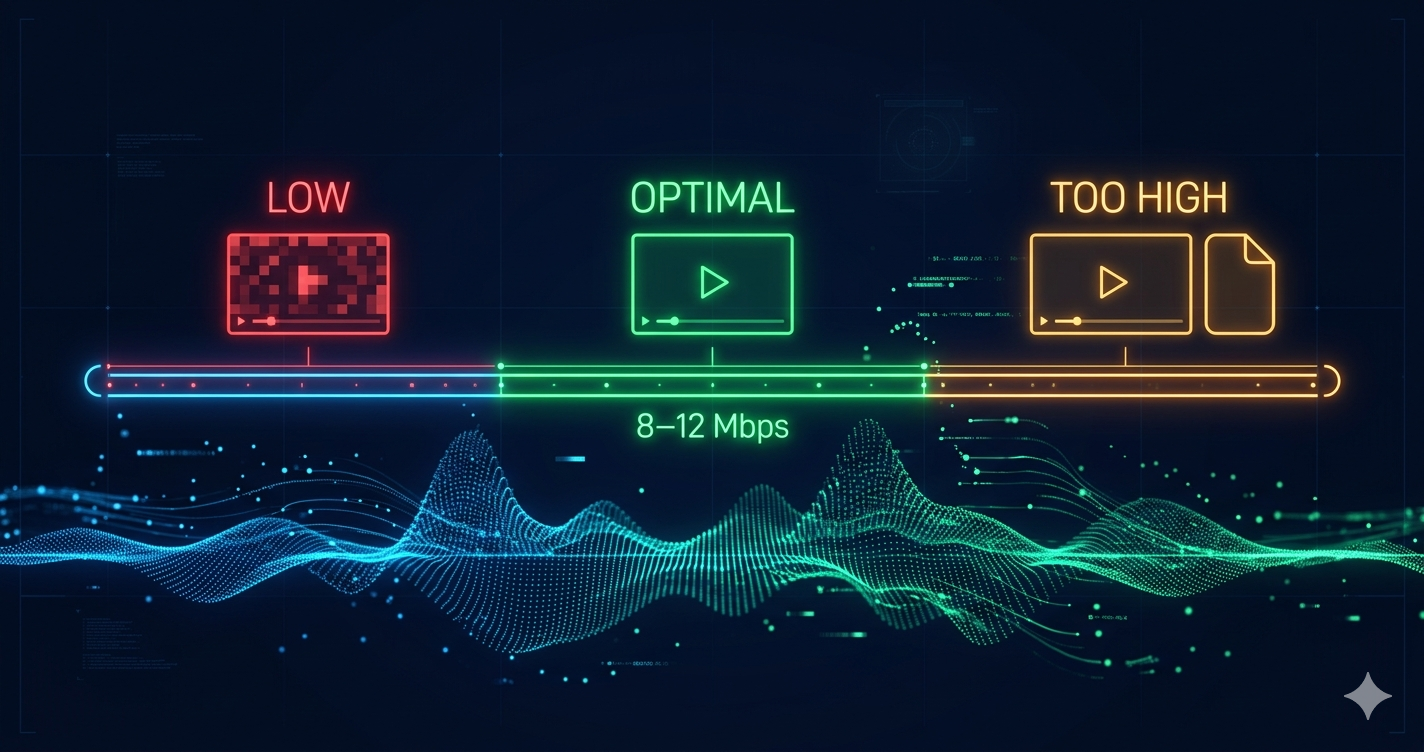
Video bitrate determines quality and file size. Too low and your video looks pixelated. Too high and files are unnecessarily large. Understanding bitrate helps you create videos that look great without wasting storage or bandwidth.
Quick Answer
Bitrate is the amount of data processed per second in a video, measured in Mbps (megabits per second). Higher bitrate = better quality but larger files. For 1080p video, use 8-12 Mbps for web/YouTube, 5-8 Mbps for streaming, and 35-45 Mbps for 4K. Use our video compressor to optimize bitrate automatically.
What is Video Bitrate?
Definition
Bitrate is the amount of data processed per second in a video file, measured in:
- Kbps (kilobits per second) - 1,000 bits per second
- Mbps (megabits per second) - 1,000,000 bits per second
How It Works
Video is compressed by removing data. Bitrate determines how much data is kept:
- High bitrate (20 Mbps): More data = better quality = larger file
- Medium bitrate (8 Mbps): Balanced data = good quality = medium file
- Low bitrate (2 Mbps): Less data = lower quality = smaller file
Bitrate vs File Size
File size is directly related to bitrate and duration:
Formula: File Size (MB) = Bitrate (Mbps) × Duration (seconds) ÷ 8
Examples:
- 10 Mbps × 60 seconds ÷ 8 = 75 MB (1-minute video)
- 8 Mbps × 300 seconds ÷ 8 = 300 MB (5-minute video)
- 50 Mbps × 600 seconds ÷ 8 = 3,750 MB = 3.75 GB (10-minute video)
Bitrate Recommendations by Use Case
For YouTube
| Resolution | Frame Rate | Recommended Bitrate |
|---|---|---|
| 720p | 30 fps | 5 Mbps |
| 720p | 60 fps | 7.5 Mbps |
| 1080p | 30 fps | 8 Mbps |
| 1080p | 60 fps | 12 Mbps |
| 1440p (2K) | 30 fps | 16 Mbps |
| 1440p (2K) | 60 fps | 24 Mbps |
| 4K | 30 fps | 35-45 Mbps |
| 4K | 60 fps | 53-68 Mbps |
For Streaming (Twitch, Facebook Live)
| Resolution | Frame Rate | Recommended Bitrate |
|---|---|---|
| 720p | 30 fps | 3-4 Mbps |
| 720p | 60 fps | 4.5-6 Mbps |
| 1080p | 30 fps | 4.5-6 Mbps |
| 1080p | 60 fps | 6-8 Mbps |
Note: Streaming bitrate is lower than YouTube because it's real-time. Too high causes buffering.
For Web Use
| Resolution | Use Case | Recommended Bitrate |
|---|---|---|
| 480p | Mobile, slow connections | 2-3 Mbps |
| 720p | Standard web video | 5-8 Mbps |
| 1080p | High-quality web video | 8-12 Mbps |
| 4K | Premium web content | 25-35 Mbps |
For Social Media
| Platform | Resolution | Recommended Bitrate |
|---|---|---|
| Instagram Feed | 1080p | 8-10 Mbps |
| Instagram Stories | 1080×1920 | 8 Mbps |
| 1080p | 8-10 Mbps | |
| 1080p | 6-8 Mbps | |
| 1080p | 8-10 Mbps | |
| TikTok | 1080×1920 | 8-10 Mbps |
For Archival/Editing
| Purpose | Recommended Bitrate |
|---|---|
| Archival storage | 50-100 Mbps (high quality) |
| Video editing | 50-150 Mbps (ProRes, DNxHD) |
| Master copies | 100+ Mbps (minimal compression) |
Constant Bitrate (CBR) vs Variable Bitrate (VBR)
Constant Bitrate (CBR)
What it is: Same bitrate throughout entire video
Pros:
- Predictable file size
- Better for streaming (consistent bandwidth)
- Simpler encoding
Cons:
- Wastes bitrate on simple scenes
- Lower quality on complex scenes
- Larger files than VBR
When to use:
- Live streaming
- When predictable file size is critical
- Real-time encoding
Variable Bitrate (VBR)
What it is: Bitrate changes based on scene complexity
Pros:
- Better quality overall
- Smaller files than CBR
- Efficient use of bitrate
Cons:
- Unpredictable file size
- Slower encoding
- Can cause buffering in streaming
When to use:
- YouTube uploads
- Downloaded videos
- When quality is priority
Example:
- Simple scene (blue sky): 4 Mbps
- Complex scene (crowd, motion): 15 Mbps
- Average: 8 Mbps
How Bitrate Affects Quality
Too Low Bitrate
Symptoms:
- Pixelation (blocky artifacts)
- Blurriness
- Loss of detail
- Color banding
- Compression artifacts
Example: 1080p video at 2 Mbps looks terrible
Optimal Bitrate
Characteristics:
- Sharp, clear image
- Good detail preservation
- Minimal artifacts
- Efficient file size
Example: 1080p video at 8-12 Mbps looks excellent
Too High Bitrate
Characteristics:
- Excellent quality
- Unnecessarily large files
- Wasted storage/bandwidth
- No visible improvement over optimal
Example: 1080p video at 50 Mbps looks identical to 12 Mbps but 4x larger
Real-World Example: YouTube Channel
A gaming YouTuber recorded 4K 60fps gameplay at 110 Mbps bitrate.
Problem:
- 10-minute video: 8.25 GB
- Upload time: 2-3 hours
- YouTube re-encodes to 68 Mbps anyway
Solution:
- Compressed to 60 Mbps using our tool
- Result: 4.5 GB file (45% smaller)
Results:
- Upload time: 45 minutes (75% faster)
- Quality: Identical after YouTube processing
- Storage saved: 3.75 GB per video
Annual impact:
- 100 videos per year
- Storage saved: 375 GB
- Upload time saved: 150+ hours
How to Choose the Right Bitrate
Step 1: Determine Resolution and Frame Rate
Higher resolution and frame rate need higher bitrate.
Base bitrates:
- 720p 30fps: 5 Mbps
- 1080p 30fps: 8 Mbps
- 1080p 60fps: 12 Mbps
- 4K 30fps: 35-45 Mbps
Step 2: Consider Content Complexity
Complex content needs higher bitrate.
Low complexity (add 0%):
- Talking head videos
- Presentations
- Screen recordings
- Static scenes
Medium complexity (base bitrate):
- General videos
- Vlogs
- Tutorials
High complexity (add 25-50%):
- Gaming
- Sports
- Fast motion
- Lots of detail
Step 3: Consider Use Case
Different platforms have different requirements.
YouTube: Use recommended bitrates (can be higher)
Streaming: Use lower bitrates (avoid buffering)
Web: Balance quality and load time
Social media: Follow platform recommendations
Step 4: Test and Adjust
Encode a short sample and check quality.
If quality is poor:
- Increase bitrate by 25%
- Check codec settings
- Verify resolution
If file is too large:
- Decrease bitrate by 15-20%
- Consider lower resolution
- Use more efficient codec (H.265)
Bitrate Calculation Examples
Example 1: YouTube Video
Specs: 1080p, 30fps, 5 minutes
Recommended bitrate: 8 Mbps
File size calculation:
- 8 Mbps × 300 seconds ÷ 8 = 300 MB
Example 2: 4K Video
Specs: 4K, 60fps, 10 minutes
Recommended bitrate: 60 Mbps
File size calculation:
- 60 Mbps × 600 seconds ÷ 8 = 4,500 MB = 4.5 GB
Example 3: Instagram Story
Specs: 1080×1920, 30fps, 30 seconds
Recommended bitrate: 8 Mbps
File size calculation:
- 8 Mbps × 30 seconds ÷ 8 = 30 MB
Audio Bitrate
Don't forget audio! Audio bitrate affects file size too.
Recommended Audio Bitrates
| Quality | Bitrate | Use Case |
|---|---|---|
| Low | 64 kbps | Voice only, podcasts |
| Medium | 128 kbps | General use, YouTube |
| High | 192 kbps | Music videos, high quality |
| Very High | 256-320 kbps | Professional, archival |
Most common: 128 kbps AAC (good quality, small size)
Frequently Asked Questions
What is a good bitrate for 1080p video?
8-12 Mbps is ideal for 1080p 30fps video. Use 12 Mbps for 60fps. This provides excellent quality without unnecessarily large files.
Does higher bitrate mean better quality?
Yes, up to a point. Beyond optimal bitrate, quality improvement is minimal but file size keeps increasing. For 1080p, 12 Mbps is optimal; 50 Mbps looks identical but is 4x larger.
What bitrate should I use for YouTube?
YouTube recommends: 8 Mbps for 1080p 30fps, 12 Mbps for 1080p 60fps, 35-45 Mbps for 4K 30fps, 53-68 Mbps for 4K 60fps.
What's the difference between bitrate and resolution?
Resolution is image dimensions (1920×1080). Bitrate is data per second (8 Mbps). You can have 1080p at 2 Mbps (poor quality) or 1080p at 50 Mbps (excellent quality).
Should I use CBR or VBR?
Use VBR for YouTube and downloaded videos (better quality, smaller files). Use CBR for live streaming (consistent bandwidth, no buffering).
How do I change video bitrate?
Use our video compressor to automatically optimize bitrate, or use video editing software to manually set bitrate when exporting.
What bitrate is 4K video?
4K video needs 35-45 Mbps for 30fps, 53-68 Mbps for 60fps. Lower bitrates cause pixelation; higher bitrates waste space without visible improvement.
Does bitrate affect upload speed?
Yes, higher bitrate = larger file = longer upload time. Optimize bitrate to reduce file size and upload faster without sacrificing quality.
Common Bitrate Mistakes to Avoid
1. Using Too Low Bitrate
Trying to save space by using 2 Mbps for 1080p creates pixelated, unwatchable video.
Solution: Use recommended bitrates for your resolution.
2. Using Too High Bitrate
Using 50 Mbps for 1080p wastes storage without improving quality.
Solution: Use optimal bitrates (8-12 Mbps for 1080p).
3. Ignoring Frame Rate
60fps needs 50% more bitrate than 30fps at same resolution.
Solution: Increase bitrate by 50% for 60fps video.
4. Not Considering Content
Using same bitrate for talking head video and gaming footage.
Solution: Increase bitrate 25-50% for complex, fast-motion content.
5. Using CBR for YouTube
CBR wastes bitrate on simple scenes and lacks quality on complex scenes.
Solution: Use VBR for YouTube uploads (better quality, smaller files).
Related Tools You Might Need
-
Video Compressor — Automatically optimize video bitrate for perfect balance between quality and file size.
-
Video Converter — Convert videos to efficient formats (H.264, H.265) for better compression at same bitrate.
-
Compress for YouTube — Optimize videos specifically for YouTube with recommended bitrate settings.
Why Our Compressor Handles Bitrate Perfectly
- Automatic optimization - Chooses optimal bitrate for your resolution
- Quality preservation - Maintains visual quality while reducing file size
- Smart encoding - Uses VBR for best quality-to-size ratio
- Fast processing - Compresses videos quickly
- No guesswork - You don't need to understand bitrate math
- Free forever - No subscriptions or hidden fees
By Muhammad Hasnain Adam — Full-stack developer and creator of Free Media Tools. I built this compressor to automatically handle bitrate optimization, so you get perfect quality without needing to understand the technical details or do manual calculations.