People mute videos for all kinds of reasons: copyrighted music that will get a reel blocked, wind noise, a private conversation in the background, or a clip that needs a clean voiceover later. The audio has to go, and the picture has to stay exactly as it was.
Most online editors run the whole video through a full export to do this. That takes time, can lower quality, and free tiers often add a watermark. You don't need any of that. A video file keeps its picture and its sound as separate streams, so you can drop the audio stream and copy the video stream across unchanged. This guide shows how to do that in your browser and on your phone. It also includes the one-line command for huge files.
Quick Answer
Open Remove Audio from Video, choose your video (MP4, MOV, WebM and others), click Remove Audio, then Download Video. You get a silent MP4 named yourfile_no_audio.mp4. The video isn't re-encoded, so quality is identical and it finishes in seconds. There's no watermark and no signup, and the file is processed in your browser instead of being uploaded.
What "Without Re-encoding" Means (and Why It Matters)
When an editor re-encodes a video, it decodes every frame and compresses it again. That takes time and loses a little quality each round, the same way re-saving a JPEG does.
Our tool runs FFmpeg (compiled to WebAssembly so it runs inside the browser) with two instructions: drop the audio (-an) and copy the video stream as-is (-c:v copy). No frame is decoded or compressed again.
To check this, I generated a 30-second 1080p H.264 test video with a 128 kbps AAC audio track, removed the audio with the tool, and compared the video streams with an MD5 checksum:
| Original | After Remove Audio | |
|---|---|---|
| File size | 19.77 MB | 19.29 MB |
| Streams | H.264 video + AAC audio | H.264 video only |
| Video stream MD5 | a5b2fcce…7e85 | a5b2fcce…7e85 |
| Time (including first-time tool load) | — | about 3 seconds |
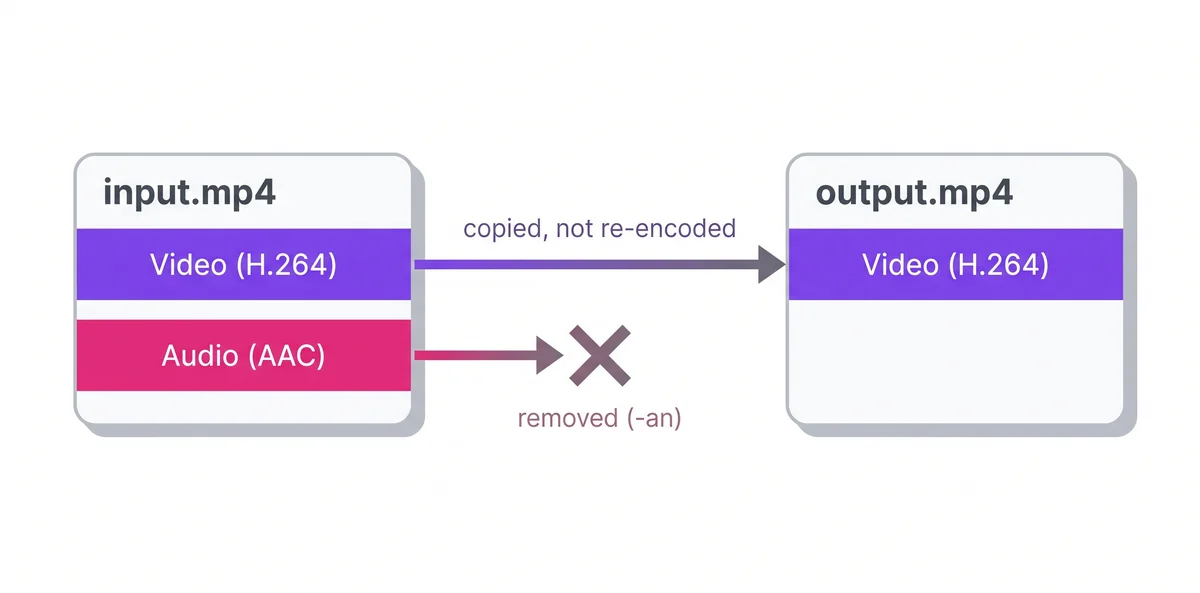
The checksums match, so the video data is byte-for-byte identical. Only the audio track is gone. "Without losing quality" is literally true here, not marketing.
Step-by-Step: Mute a Video in Your Browser
-
Open Remove Audio from Video on desktop or mobile.
-
Drag your video onto the upload box, or click to choose it.
-
Click Remove Audio. The first time you use the tool, the browser downloads the FFmpeg engine, which takes a few seconds on a normal connection. After that, processing is close to instant because nothing is re-encoded.
-
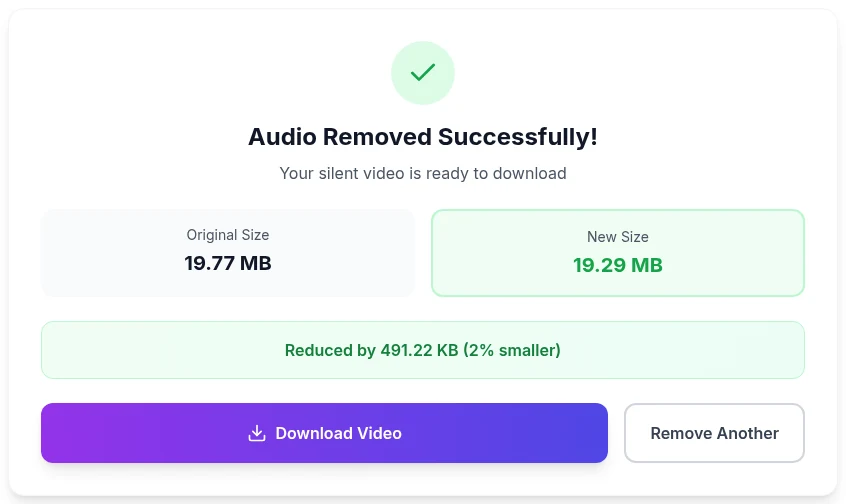
When "Audio Removed Successfully!" appears, check the before/after sizes and click Download Video.
-
Play the downloaded file once to make sure it's silent before you post it.
Pro tip: If you might want the sound later (the music, or someone's speech), save it first with Extract Audio. It exports the soundtrack as MP3, WAV, AAC, M4A or OGG. Then mute the video.
Why the File Barely Gets Smaller
People are often surprised that a muted video is almost the same size. Audio is a small part of most videos. In my tests:
| Test file | Before | After | Saved |
|---|---|---|---|
| 30 s, 1080p MP4 (H.264 + AAC 128 kbps) | 19.77 MB | 19.29 MB | 491 KB (2%) |
| 10 s, 1080p MOV (H.264 + AAC) | 6.53 MB | 6.44 MB | 92 KB (1%) |
| 10 s, 720p WebM (VP9 + Opus) | 1.36 MB | 1.26 MB | 112 KB (8%) |
The maths checks out: 128 kilobits per second × 30 seconds is about 480 KB, which almost exactly matches the 491 KB saved. If you're trying to get under a size limit, removing audio won't do it. Use the video compressor instead. Our guide to video bitrate explains where the bytes really go.
Which Formats Work
- MP4 and MOV (the usual phone and camera formats): video copied straight into an MP4.
- WebM (VP9): worked in my test. The output is an MP4 containing the original VP9 video. Most modern browsers and players handle that. If an older device won't play it, run it through Convert Video to get a standard H.264 MP4.
- Other containers (AVI, MKV): accepted by the uploader. Whether the video can be copied into MP4 without re-encoding depends on the codec inside. H.264 and H.265 copy fine.
The output is always MP4, because that's the format with the widest support on every platform you're likely to post to.
Muting on Your Phone Without Any App
If the video is already on your phone, the built-in editors can do it:
- iPhone (Photos app): open the video → Edit → tap the speaker icon at the top left so it shows as muted → Done. You can choose to save it as a new clip.
- Android (Google Photos): open the video → Edit → tap the speaker/mute icon in the video editor → Save copy.
- WhatsApp, before sending: after choosing a video in a chat, tap the speaker icon at the top of the preview to send it muted. That answers the common search "how to remove sound from a video before sending" without editing the original.
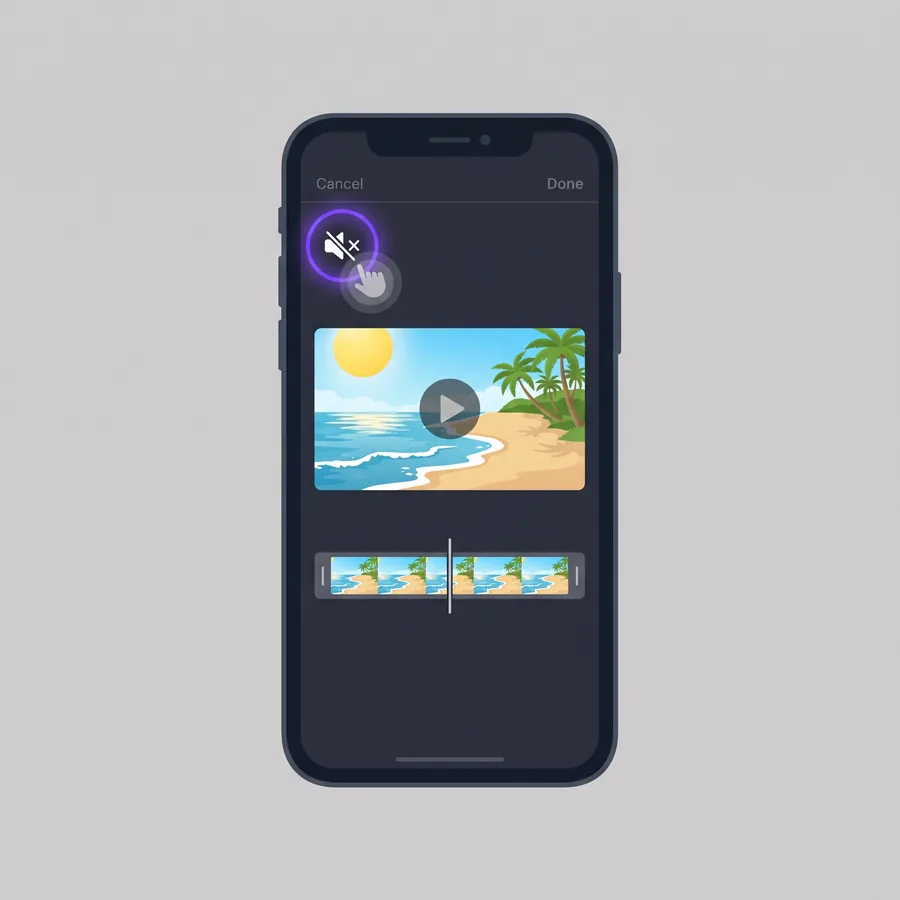
These are quick, but they re-save the video. Use the browser tool when you want the original quality kept exactly, or when the file came from somewhere other than your gallery.
For Very Large Files: The One-Line Command
The browser tool loads the whole video into your browser's memory. That's fine for typical phone clips. For multi-gigabyte recordings, a desktop is more reliable. If you have FFmpeg installed, this is the same operation the tool performs:
ffmpeg -i input.mp4 -an -c:v copy output.mp4
It runs at disk speed because nothing is re-encoded. A long recording takes seconds, not minutes.
Common Reasons to Remove Audio (and What to Do Next)
- Copyrighted background music. Platforms detect music even when it's quiet in the background. Mute the clip, then add licensed music or a voiceover with Replace Audio in Video. It also copies the video stream without re-encoding and trims to the video's length.
- Wind or traffic noise you can't fix. Removing audio is cleaner than a noisy track. Add captions with Add Subtitles so the message still comes through.
- Privacy. Background conversations, names or addresses spoken out loud. Muting is the safest way to share the visuals only.
- B-roll and website backgrounds. Silent clips for presentations or a homepage hero video. Browsers only autoplay videos that are muted, so a silent file avoids surprises. For a smooth loop, see how to loop a video.
Frequently Asked Questions
Does removing audio reduce video quality?
Not with this tool. The video stream is copied, not re-encoded. In my test, the video stream's MD5 checksum was identical before and after. Phone editors and most online editors do re-encode, which can soften the image slightly.
Is there a watermark?
No. The output is your original video stream with the audio removed. Nothing is added.
Can I remove only the music and keep the voices?
Not with a mute tool. That needs AI source separation, which is a different process. Removing audio removes the whole track. A common workaround is to mute the video and record a new voiceover, then combine them with Replace Audio in Video.
Why is my muted video almost the same size?
Because audio is usually only 1–8% of a video file. My 30-second 1080p test lost 491 KB out of 19.77 MB. To shrink a video, compress it. Removing audio barely helps.
Can I mute just part of a video?
This tool removes audio from the whole clip. To mute one section, trim the video into parts, mute the part you need, and join them back with Merge Videos. Note that trimming and merging may re-encode.
Is my video uploaded to a server?
No. FFmpeg runs inside your browser tab, so the video is processed on your own device. The only download is the FFmpeg engine itself, the first time you use the tool.
Related Tools You Might Need
- Remove Audio from Video — Mute any video without re-encoding or watermarks
- Extract Audio — Save the soundtrack as MP3, WAV, AAC, M4A or OGG before muting
- Replace Audio in Video — Add new music or a voiceover to a silent clip
- Compress Video — Actually reduce the file size for uploads and email
- Trim Video — Cut the clip down before you share it
By Muhammad Hasnain Adam — Developer based in Karachi and the builder of Free Media Tools. I wrote our audio remover to copy the video stream instead of re-encoding it, and checked the output against the original with checksums before publishing this guide.