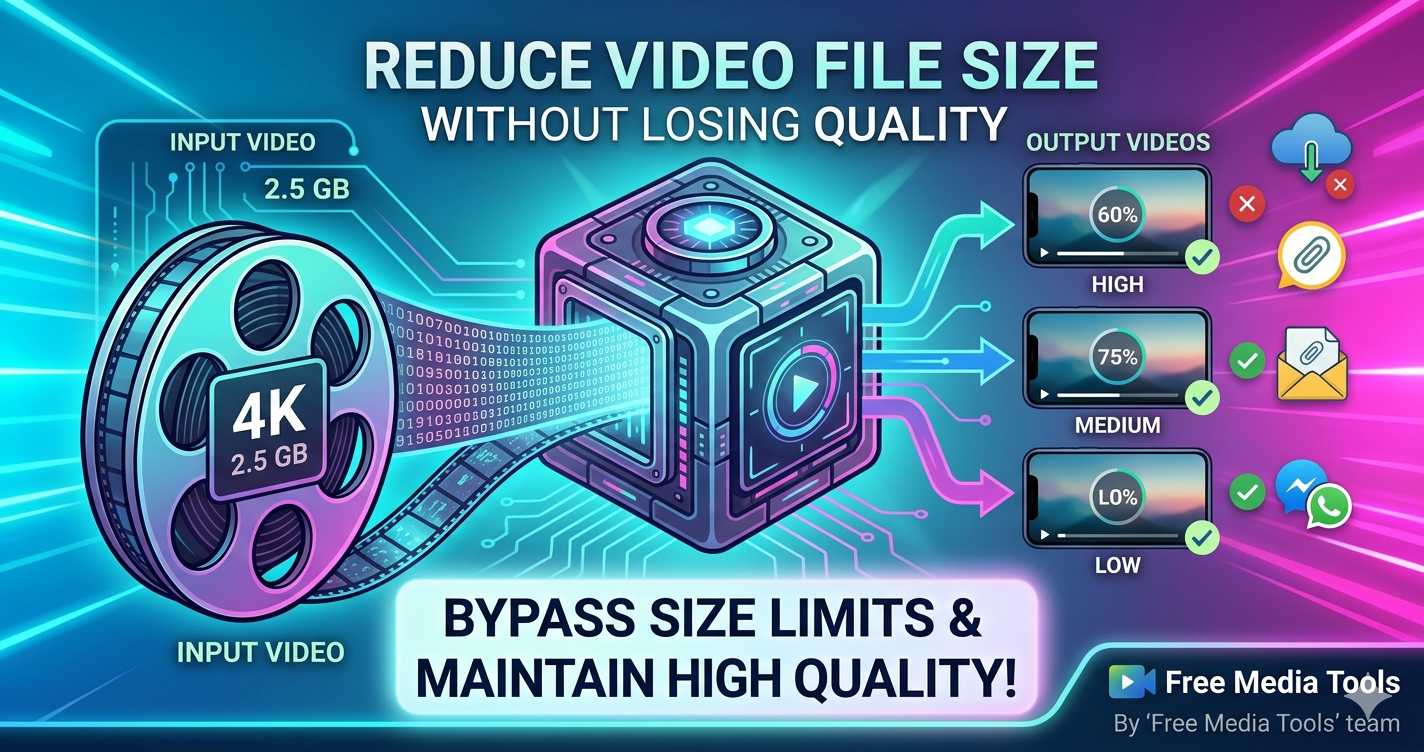
Large video files are a pain. They take forever to upload, eat up storage space, and often exceed file size limits for email and messaging apps. But reducing video file size doesn't have to mean sacrificing quality.
Quick Answer
Use Free Media Tools' video compressor to reduce video file size by 60-90% while maintaining excellent quality. It's free, works in your browser, and requires no software installation.
What Makes Video Files Large?
Understanding what makes videos large helps you reduce their size effectively:
1. Resolution
Higher resolution = larger file size. A 4K video (3840×2160) is about 4x larger than 1080p (1920×1080).
2. Bitrate
Bitrate is the amount of data per second. Higher bitrate = better quality but larger files.
3. Frame Rate
More frames per second (fps) = smoother motion but larger files. Most videos use 24-30 fps.
4. Codec
The codec (compression algorithm) significantly affects file size. Modern codecs like H.265 can reduce file size by 50% compared to older H.264.
5. Duration
Obviously, longer videos = larger files.
4 Ways to Reduce Video File Size
Method 1: Compress the Video (Recommended)
Compression reduces file size by removing redundant data while maintaining visual quality.
How to do it:
- Go to freemediatools.online/compress-video-online
- Upload your video
- Select quality level (High/Medium/Low)
- Download compressed video
Pros:
- Maintains resolution
- Quick and easy
- Can reduce size by 60-90%
Cons:
- Some quality loss (minimal with good settings)
Method 2: Lower the Resolution
Reducing resolution dramatically decreases file size.
When to use:
- Video will be viewed on mobile devices
- Original is 4K but you only need 1080p
- File size is more important than maximum quality
Example reductions:
- 4K → 1080p: ~75% smaller
- 1080p → 720p: ~50% smaller
- 720p → 480p: ~50% smaller
Method 3: Trim Unnecessary Parts
Remove unwanted sections to reduce duration and file size.
How to do it: Use our video trimmer to cut out:
- Long intros/outros
- Mistakes or pauses
- Irrelevant sections
Pros:
- No quality loss
- Makes video more engaging
- Direct correlation: 50% shorter = 50% smaller
Method 4: Change Video Format
Converting to a more efficient format can reduce file size.
Best formats for small file size:
- MP4 (H.265/HEVC) - Best compression, modern devices
- MP4 (H.264) - Good compression, universal compatibility
- WebM - Great for web, not all devices support it
Use our video converter to change formats.
Which Method Loses the Least Quality?
Ranked from least to most quality loss:
- Trimming - No quality loss (just removes content)
- Format conversion (H.264 → H.265) - Minimal loss
- Compression (with high-quality settings) - Slight loss
- Resolution reduction - Noticeable but acceptable
- Heavy compression (low-quality settings) - Significant loss
Step-by-Step: Reduce Video Size Using Free Media Tools
Step 1: Upload Your Video
Visit freemediatools.online/compress-video-online and upload your video file.
Step 2: Choose Compression Level
Select based on your needs:
- High Quality: 40-60% size reduction, minimal quality loss
- Medium Quality: 60-75% size reduction, slight quality loss
- Low Quality: 75-90% size reduction, noticeable quality loss
Step 3: Preview and Adjust
Check the estimated output size. If it's still too large, consider:
- Lowering quality setting
- Trimming the video first
- Reducing resolution
Step 4: Download
Click "Compress Video" and download your optimized file.
Best Practices for Video Compression
- Always keep the original - Never overwrite your source file
- Compress once - Multiple compressions degrade quality quickly
- Match the platform - Different platforms have different requirements
- Test the output - Always watch the compressed video before sharing
- Start with high quality - You can always compress more, but can't uncompress
Platform-Specific Recommendations
For Email (Usually 25MB limit)
- Resolution: 720p or lower
- Quality: Medium
- Duration: Under 2 minutes
For WhatsApp (16MB limit)
- Resolution: 720p
- Quality: Medium
- Duration: Under 3 minutes
- See our WhatsApp guide
For Instagram
- Resolution: 1080×1920 (Reels/Stories)
- Quality: High
- Duration: Under 90 seconds
- See our Instagram guide
For YouTube
- Resolution: Keep original (1080p or 4K)
- Quality: High
- YouTube handles compression automatically
Frequently Asked Questions
Does compressing a video reduce quality?
Yes, but the quality loss can be minimal with proper settings. Our "High Quality" compression reduces file size by 40-60% with barely noticeable quality loss.
What's the best video format for small file size?
MP4 with H.265 (HEVC) codec offers the best compression. However, H.264 is more universally compatible and still provides excellent compression.
Can I reduce video size without losing quality?
You can't reduce size without any quality loss, but you can minimize it. Trimming unwanted parts is the only method with zero quality loss.
How much can I compress a video?
Typically 60-90% size reduction is possible. A 100MB video can often be compressed to 10-40MB while maintaining acceptable quality.
Why is my video file so large?
Common reasons:
- High resolution (4K or 1080p)
- High bitrate
- Long duration
- Inefficient codec
- Uncompressed or lightly compressed source
Related Articles
Ready to Reduce Your Video File Size?
Stop struggling with oversized video files. Use our free video compressor to reduce file size by up to 90% while maintaining excellent quality.
Real-World Example: 4K Travel Video Compression
I recently returned from a trip with 127GB of 4K drone footage. My external drive was full, and I needed to free up space while keeping the videos watchable for future editing.
Original file: 4K (3840×2160), 10 minutes, 8.2GB
Goal: Reduce to under 1GB for archival storage
What I did:
- Used our compressor with "Medium Quality" setting
- Kept the 4K resolution (wanted to preserve detail for potential future use)
- The tool reduced bitrate from 115 Mbps to 18 Mbps
Result: 950MB final file (88% reduction) with quality that still looked excellent on my 4K monitor. When I needed the absolute best quality later, I still had the original, but for everyday viewing and sharing, the compressed version was perfect.
Comparison Table: File Size by Resolution and Duration
Here's what you can expect for typical video file sizes at different resolutions:
| Duration | 480p | 720p | 1080p | 4K |
|---|---|---|---|---|
| 1 minute | 8-12MB | 20-30MB | 50-80MB | 150-300MB |
| 5 minutes | 40-60MB | 100-150MB | 250-400MB | 750MB-1.5GB |
| 10 minutes | 80-120MB | 200-300MB | 500-800MB | 1.5-3GB |
| 30 minutes | 240-360MB | 600-900MB | 1.5-2.4GB | 4.5-9GB |
| 1 hour | 480-720MB | 1.2-1.8GB | 3-4.8GB | 9-18GB |
Note: These are estimates for H.264 encoded videos at standard bitrates. Actual sizes vary based on content complexity and compression settings.
Codec Comparison: Which Compresses Best?
| Codec | File Size (relative) | Quality | Compatibility | Best For |
|---|---|---|---|---|
| H.265 (HEVC) | 1x (smallest) | Excellent | Modern devices (2016+) | 4K videos, archival |
| H.264 (AVC) | 2x | Excellent | Universal | General use, sharing |
| VP9 | 1.2x | Excellent | Web browsers | Web streaming |
| MPEG-4 | 2.5x | Good | Older devices | Legacy compatibility |
| AVI (uncompressed) | 10x+ (largest) | Perfect | Universal | Editing, not sharing |
Recommendation: Use H.264 for maximum compatibility. Use H.265 if you're sure your audience has modern devices (iPhone 7+, Android 7+, computers from 2016+).
What to Avoid: Common Video Compression Mistakes
1. Compressing Multiple Times
Each time you compress a video, you lose more quality. If you compress a video, then edit it, then compress again, the quality degrades significantly.
Solution: Always work from the original file. Keep your source files uncompressed and only compress the final output.
2. Using Extreme Compression for Important Videos
I've seen people compress wedding videos or important presentations with "Low Quality" settings to save space. The result? Blurry faces, pixelated text, and regret.
Solution: For videos you care about, use "High Quality" or "Medium Quality" settings. Storage is cheap; memories aren't.
3. Ignoring Aspect Ratio
Compressing a 16:9 video and forcing it into a 4:3 frame (or vice versa) creates black bars or stretches the image.
Solution: Maintain the original aspect ratio unless you have a specific reason to change it.
4. Not Testing Before Sharing
You compressed a 2-hour presentation video and sent it to your team without watching it. Turns out the audio is out of sync.
Solution: Always watch at least a few minutes of your compressed video before sharing, especially for important content.
5. Choosing the Wrong Resolution for the Platform
Uploading a 480p video to YouTube in 2026 looks unprofessional. Sending a 4K video via email bounces back.
Solution: Match your resolution to the platform:
- Social media: 1080p
- Email/messaging: 720p or lower
- Professional/archival: Keep original resolution
Frequently Asked Questions (Expanded)
How do I know which quality setting to use?
Start with "Medium Quality" for most use cases. If the output is too large, try "Low Quality." If quality is critical (professional work, important memories), use "High Quality."
Quick guide:
- High Quality: Important videos, professional content, archival
- Medium Quality: General sharing, social media, family videos
- Low Quality: Quick clips, when file size is critical, temporary use
Will reducing video size affect audio quality?
Our tool maintains audio quality by default. However, if you're using extreme compression settings, some audio quality loss may occur. For most users, the audio remains clear and intact.
Can I compress videos on my phone?
Yes! Our tool works on any device with a web browser — iPhone, Android, tablet, or computer. The compression happens in your browser, so there's no app to download.
What's the difference between bitrate and resolution?
Resolution is the number of pixels (e.g., 1920×1080). Bitrate is how much data is used per second of video. You can have a 1080p video with low bitrate (smaller file, lower quality) or high bitrate (larger file, better quality).
Think of it like this: Resolution is the size of your canvas, bitrate is how much paint you use.
Does video content affect compression?
Yes! Videos with lots of motion (sports, action scenes) compress less efficiently than static videos (talking head, slideshow). A 5-minute action movie trailer might be 200MB, while a 5-minute interview could be 80MB at the same settings.
Can I compress videos without internet?
Our tool works in your browser, so you need internet to load the page initially. However, once loaded, the compression happens on your device. Your video files never upload to our servers — everything is processed locally.
How long does compression take?
Compression time depends on:
- Video length
- Your device's processing power
- Compression settings
Typical times:
- 1-minute video: 15-30 seconds
- 5-minute video: 1-2 minutes
- 30-minute video: 5-10 minutes
Newer devices compress faster than older ones.
Related Tools You Might Need
Working with video files? These free tools complement our video compressor:
-
Video Trimmer — Cut out unwanted sections before compressing. Shorter videos = smaller files and better quality after compression.
-
Video Converter — Convert videos to more efficient formats like MP4 (H.265) for better compression ratios.
-
Image Compressor — Need to reduce image file sizes too? Compress photos and graphics while maintaining quality.
Technical Deep Dive: How Video Compression Works
For those interested in the technical details, here's what happens when you compress a video:
1. Spatial Compression
The tool analyzes each frame and removes redundant visual information. Similar colors are grouped, and unnecessary detail is eliminated.
2. Temporal Compression
Instead of storing every frame completely, the tool stores "key frames" and then only the changes between frames. This is why videos with lots of motion compress less efficiently.
3. Bitrate Adjustment
Based on your quality selection, the tool adjusts how much data is used per second of video. Lower bitrate = smaller file but potentially lower quality.
4. Codec Optimization
Modern codecs like H.264 use advanced algorithms to maintain visual quality while reducing file size. Our tool uses industry-standard encoding parameters optimized for web and mobile viewing.
All of this happens in your browser using WebAssembly technology, which means your videos never leave your device. This ensures complete privacy and security.
Why Our Tool is Different
Most video compressors either:
- ❌ Require you to upload videos to their servers (privacy risk)
- ❌ Add watermarks to your compressed videos
- ❌ Limit file size or number of compressions
- ❌ Require expensive software licenses
- ❌ Force you to create an account
Our tool:
- ✅ Processes everything in your browser (complete privacy)
- ✅ No watermarks ever
- ✅ No file size limits
- ✅ Unlimited compressions
- ✅ No signup required
- ✅ 100% free forever
By Muhammad Hasnain Adam — Full-stack developer with 3+ years of experience. I created Free Media Tools to provide everyone with professional-grade video tools without the usual barriers of cost, privacy concerns, or artificial limitations.