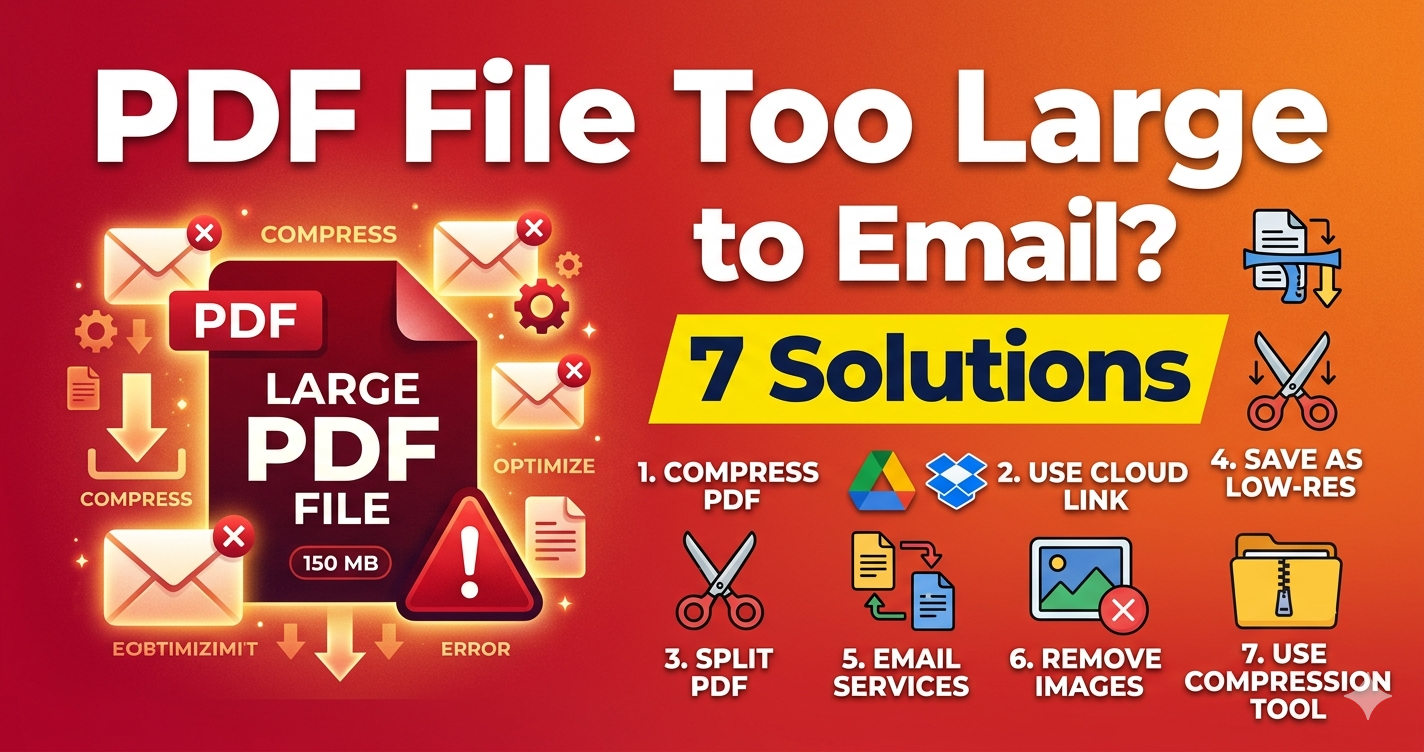
Trying to email a PDF but getting "file too large" errors? Most email providers limit attachments to 20-25MB, but PDFs with images or scans can easily exceed 50-100MB. Here are 7 proven methods to send large PDF files via email.
Quick Answer
The fastest solution: compress your PDF before sending. Use Free Media Tools' PDF compressor to reduce your PDF size by 70-90% while maintaining readability. For PDFs over 100MB, use cloud storage links instead of attachments.
Email Attachment Size Limits (2026)
Major Email Providers
| Email Provider | Attachment Limit | Receiving Limit |
|---|---|---|
| Gmail | 25 MB | 50 MB |
| Outlook/Hotmail | 20 MB | 150 MB |
| Yahoo Mail | 25 MB | 25 MB |
| Apple Mail (iCloud) | 20 MB | 20 MB |
| ProtonMail | 25 MB | 25 MB |
| AOL Mail | 25 MB | 25 MB |
Important: These limits apply to the entire email, including all attachments combined.
Why Email Has Size Limits
- Server storage - Large files consume server space
- Bandwidth - Large attachments slow down email servers
- User experience - Large files take forever to download
- Security - Larger files increase malware risk
- Spam prevention - Limits prevent abuse
Method 1: Compress the PDF (Recommended)
Best for: PDFs with images or scans (most common case)
Why PDFs Are Large
80-95% of PDF file size comes from uncompressed images. A single uncompressed photo can be 5-10MB.
How to Compress PDFs
Option A: Compress Images in PDF
- Extract images from PDF
- Compress images using our PDF compressor
- Recreate PDF with compressed images
- Result: 70-90% file size reduction
Option B: Use Online PDF Compressor
- Upload PDF to compression tool (SmallPDF, iLovePDF, etc.)
- Select compression level
- Download compressed PDF
- Result: 50-80% file size reduction
Option C: Adobe Acrobat Pro
- Open PDF in Adobe Acrobat Pro
- File → Save As Other → Reduced Size PDF
- Select compatibility version
- Save
- Result: 60-85% file size reduction
Real-World Example
Original PDF: 45MB (contract with scanned signatures)
After compression: 6.8MB (85% reduction)
Result: Successfully emailed via Gmail
Read our detailed guide: How to Reduce PDF Size Without Losing Quality
Method 2: Split the PDF
Best for: Multi-page PDFs where recipient only needs specific pages
How to Split PDFs
- Go to Free Media Tools' PDF Splitter
- Upload your PDF
- Select pages to extract (e.g., pages 1-10)
- Download extracted PDF
- Email smaller file
Example Use Case
Original: 60-page report (38MB)
Split: Extract executive summary (pages 1-5) = 3.2MB
Result: Email summary, share full report via cloud storage
Read: How to Split PDF Pages Online
Method 3: Use Cloud Storage Links
Best for: Very large PDFs (50MB+) or multiple large files
Popular Cloud Storage Services
Google Drive (Free: 15GB)
- Upload PDF to Google Drive
- Right-click → Get link
- Set permissions: "Anyone with the link can view"
- Copy link
- Paste link in email
Dropbox (Free: 2GB)
- Upload PDF to Dropbox
- Click "Share"
- Create link
- Copy link
- Paste link in email
OneDrive (Free: 5GB)
- Upload PDF to OneDrive
- Right-click → Share
- Create link
- Copy link
- Paste link in email
WeTransfer (Free: 2GB per transfer)
- Go to wetransfer.com
- Upload PDF
- Enter recipient email
- Send
- Recipient receives download link
Pros and Cons
Pros:
- ✅ No file size limits (within storage plan)
- ✅ Recipient doesn't need account (for most services)
- ✅ Can share with multiple people
- ✅ Can revoke access later
Cons:
- ❌ Requires internet connection to access
- ❌ Links may expire (WeTransfer: 7 days)
- ❌ Less convenient than direct attachment
Method 4: Use Gmail's Built-in Google Drive Integration
Best for: Gmail users sending large files
How It Works
When you attach a file larger than 25MB in Gmail, it automatically uploads to Google Drive and sends a link instead.
Steps:
- Compose email in Gmail
- Click attachment icon
- Select PDF (even if over 25MB)
- Gmail automatically uploads to Drive
- Sends link instead of attachment
Recipient experience:
- Receives email with "View in Google Drive" link
- Clicks link to view/download PDF
- No Google account required
Pros:
- ✅ Seamless integration
- ✅ No extra steps
- ✅ Recipient doesn't need Google account
Cons:
- ❌ Gmail only
- ❌ Uses your Google Drive storage
Method 5: Use File Transfer Services
Best for: One-time large file transfers
Popular Services
WeTransfer (Free: 2GB)
- No account required
- Files stored for 7 days
- Simple interface
- wetransfer.com
Send Anywhere (Free: unlimited)
- No account required
- 6-digit code or link
- Files stored for 48 hours
- send-anywhere.com
Firefox Send (Free: 2.5GB)
- No account required
- Encrypted transfers
- Set expiration and download limits
- send.firefox.com
Filemail (Free: 5GB)
- No account required
- Files stored for 7 days
- filemail.com
How to Use (WeTransfer Example)
- Go to wetransfer.com
- Click "Add files"
- Upload PDF
- Enter recipient email
- Add message (optional)
- Click "Transfer"
- Recipient receives email with download link
Method 6: Reduce PDF Resolution
Best for: PDFs with high-resolution scans or images
Why Resolution Matters
- 300 DPI - Print quality (large file size)
- 150 DPI - Screen viewing (medium file size)
- 72 DPI - Web viewing (small file size)
If your PDF is for screen viewing only (not printing), reduce resolution to 150 DPI.
How to Reduce Resolution
Using Adobe Acrobat Pro:
- File → Save As Other → Optimized PDF
- Images → Downsample to 150 DPI
- Save
Using Online Tools:
- Upload PDF to compression tool
- Select "Medium" or "Low" quality
- Download
Result: 50-70% file size reduction
Method 7: Remove Unnecessary Content
Best for: PDFs with embedded fonts, metadata, or hidden content
What to Remove
- Embedded fonts - Can add 1-5MB per font
- Metadata - Author, creation date, keywords
- Hidden content - Deleted text, old versions
- Annotations - Comments, highlights
- Form fields - If not needed
How to Remove (Adobe Acrobat Pro)
- File → Save As Other → Optimized PDF
- Check "Discard objects"
- Select items to remove:
- Embedded fonts
- Metadata
- Hidden content
- Save
Result: 10-30% file size reduction
Comparison Table: Methods for Sending Large PDFs
| Method | File Size Limit | Ease of Use | Privacy | Speed |
|---|---|---|---|---|
| Compress PDF | None | Easy | Excellent | Fast |
| Split PDF | None | Easy | Excellent | Fast |
| Cloud Storage | 2GB-15GB | Medium | Fair | Medium |
| Gmail Drive | 15GB | Easy | Fair | Fast |
| File Transfer | 2GB-5GB | Easy | Fair | Medium |
| Reduce Resolution | None | Medium | Excellent | Fast |
| Remove Content | None | Hard | Excellent | Fast |
Best overall: Compress PDF (fastest, most private, no limits)
What to Avoid: Common Mistakes
1. Zipping PDFs
Zipping (compressing) PDFs rarely reduces file size because PDFs are already compressed.
Solution: Compress images in PDF instead of zipping the PDF file.
2. Over-Compressing
Reducing quality too much makes PDFs unreadable.
Solution: Use medium compression settings. Test readability before sending.
3. Sending Multiple Emails
Splitting PDF into multiple emails is confusing for recipients.
Solution: Compress or use cloud storage link instead.
4. Not Testing Links
Cloud storage links sometimes have wrong permissions or expire.
Solution: Test link in incognito/private browser before sending.
5. Forgetting to Mention Link in Email
Sending email with just a link and no context looks like spam.
Solution: Explain what the link is and why you're sharing it.
Security and Privacy Considerations
Risks of Cloud Storage
When you upload to cloud storage:
- Files stored on third-party servers
- Potential data breaches
- Terms may allow data scanning
- Government access to server data
For sensitive documents:
- Use compression instead of cloud storage
- Or use encrypted file transfer services
- Or use password-protected PDFs
How to Password-Protect PDFs
Using Adobe Acrobat Pro:
- Open PDF
- Tools → Protect → Encrypt with Password
- Set password
- Save
Using Online Tools:
- Upload PDF to password protection tool
- Set password
- Download protected PDF
Send password separately (via text, phone, or separate email)
Frequently Asked Questions
Why is my PDF file so large?
Usually because of uncompressed images or high-resolution scans. A single uncompressed photo can be 5-10MB.
What's the maximum email attachment size?
Most email providers limit attachments to 20-25MB. Gmail: 25MB, Outlook: 20MB, Yahoo: 25MB.
How do I compress a PDF for email?
Extract and compress your PDF using our PDF compressor, then send. Or use online PDF compression tools.
Can I email a 50MB PDF?
Not as a direct attachment. Compress it to under 25MB, or use cloud storage links (Google Drive, Dropbox, WeTransfer).
How do I send a PDF that's too large for Gmail?
Gmail automatically uploads files over 25MB to Google Drive and sends a link. Or compress the PDF first.
What's the best way to send large PDFs?
For best privacy and convenience: compress the PDF to under 25MB and attach directly. For very large files: use cloud storage links.
How much can I compress a PDF without losing quality?
You can typically reduce file size by 60-80% with minimal visible quality loss by compressing images to 85-90% quality.
Is WeTransfer safe for sensitive documents?
WeTransfer is generally safe but files are stored on their servers for 7 days. For highly sensitive documents, use compression and direct email instead.
Step-by-Step: Compress and Email Large PDF
Complete Workflow
Step 1: Check PDF Size
- Right-click PDF → Properties
- Note file size
Step 2: Compress PDF
- Extract images from PDF
- Compress images using our tool
- Recreate PDF with compressed images
- Or use online PDF compressor
Step 3: Verify Size
- Check compressed PDF size
- If under 20MB: ready to email
- If still over 20MB: compress more or use cloud storage
Step 4: Test PDF
- Open compressed PDF
- Check readability
- Verify all pages present
Step 5: Email
- Compose email
- Attach compressed PDF
- Send
Example Results
Original PDF: 62MB (proposal with photos)
After compression: 11MB (82% reduction)
Method: Compressed images to 85% quality
Result: Successfully emailed, still looks professional
Related Tools You Might Need
-
Compress PDF — Reduce PDF file size by 70-90% for email.
-
Split PDF — Extract specific pages to create smaller PDFs for emailing.
-
Merge PDF — Combine multiple PDFs before compressing and emailing.
Quick Reference: Email Attachment Limits
Gmail (25MB)
- Attachments over 25MB automatically upload to Google Drive
- Recipient gets link instead of attachment
- No Google account required to download
Outlook/Hotmail (20MB)
- Attachments over 20MB must use OneDrive
- Can send link to OneDrive file
- Recipient needs Microsoft account for some features
Yahoo Mail (25MB)
- Hard limit of 25MB
- No automatic cloud storage integration
- Must compress or use external service
Apple Mail/iCloud (20MB)
- Attachments over 20MB use Mail Drop
- Files stored for 30 days
- Recipient gets download link
Conclusion
Don't let email attachment limits stop you from sending important PDFs. The best solution is to compress your PDF before sending — it's fast, private, and works with any email provider. For very large files, cloud storage links are a reliable alternative.
Start compressing your PDFs now with Free Media Tools' PDF Compressor — completely free, no registration required.
By Muhammad Hasnain Adam — Full-stack developer who's helped thousands of users send large files efficiently. I built Free Media Tools to make file compression and conversion accessible to everyone, without expensive software or privacy concerns.