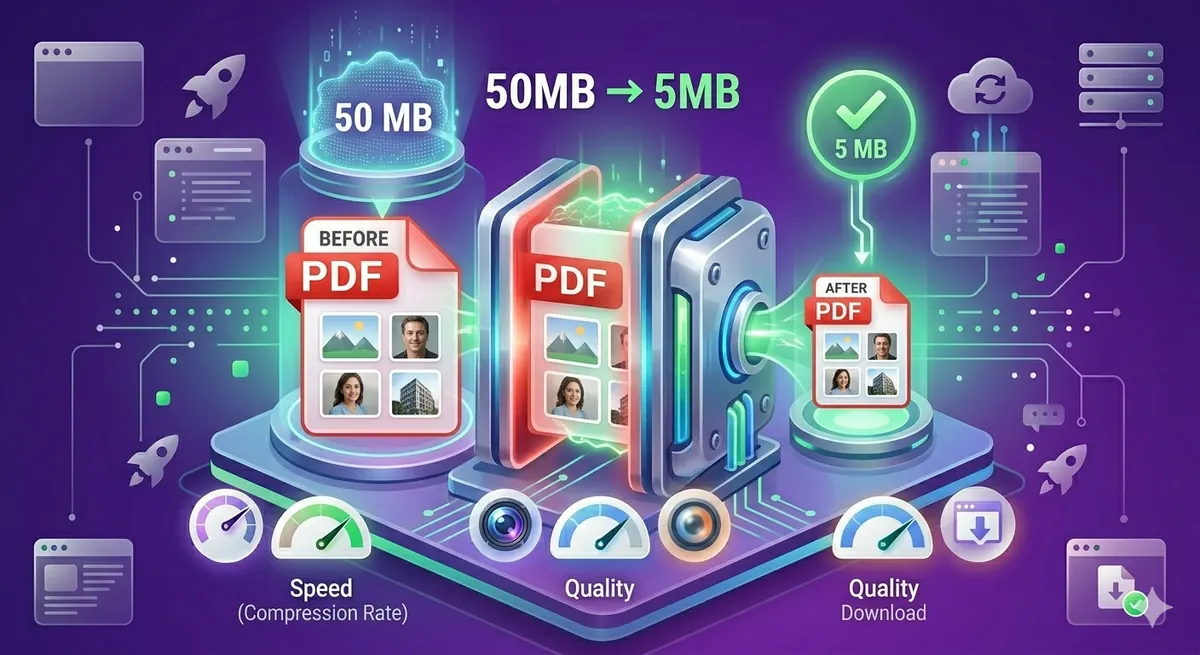
PDF files with photos can balloon to 50-100MB, making them impossible to email and slow to upload. The culprit? Uncompressed images embedded at full resolution. Here's how to reduce PDF size by 70-90% without losing visible quality — perfect for email attachments, online submissions, and storage optimization.
Quick Answer
Extract images from your PDF, compress them using our image compressor at 85% quality, then recreate the PDF. This reduces file size by 70-90% while maintaining excellent visual quality. For automated solutions, use Adobe Acrobat's "Reduce File Size" or online PDF compressors.
Why PDFs Become So Large
Main Culprits
- Uncompressed images - Photos embedded at full resolution (5-10MB each)
- High-resolution scans - 600 DPI scans when 150-300 DPI is sufficient
- Multiple embedded fonts - Each font adds 50-500KB
- Metadata bloat - Hidden data from creation software
- Revision history - Edited PDFs contain old versions
The biggest problem: A single uncompressed 4000×3000 photo can be 8-12MB. A 20-page PDF with 10 photos can easily reach 80-100MB.
Understanding PDF Compression
Lossy vs Lossless Compression
Lossy compression:
- Removes data that's less noticeable
- Can reduce size by 70-90%
- Minimal visible quality loss at proper settings
- Best for photos and complex images
Lossless compression:
- Preserves all original data
- Only reduces size by 10-30%
- Perfect quality preservation
- Best for text and simple graphics
Recommendation: Use lossy compression at 85% quality for photos. Text remains sharp while images stay clear.
What "Without Losing Quality" Really Means
"Without losing quality" means:
- Text remains crisp and readable
- Images look identical at normal viewing
- No visible compression artifacts
- Professional appearance maintained
Reality: Some data is removed, but human eyes can't detect the difference at proper compression settings.
How to Reduce PDF Size (Step-by-Step Methods)
Method 1: Extract and Compress Images (Best Quality Control)
Best for: Maximum quality control, large PDFs with many images
Steps:
- Open PDF in Adobe Acrobat or PDF editor
- Export all images from PDF
- Compress images using our image compressor
- Set quality to 85%
- Resize to appropriate dimensions (1920px width for full-page)
- Recreate PDF with compressed images
- Compare file sizes
Example results:
- Original PDF: 45MB (20 pages, 15 photos)
- Compressed images: Average 200KB each (from 3MB)
- New PDF: 4.2MB (91% reduction)
Pros:
- ✅ Maximum control over quality
- ✅ Best compression results
- ✅ Can optimize each image individually
Cons:
- Takes more time
- Requires PDF editing software
Method 2: Adobe Acrobat "Reduce File Size"
Best for: Quick compression, Adobe users
Steps:
- Open PDF in Adobe Acrobat Pro
- File → Save As Other → Reduced Size PDF
- Select compatibility (Acrobat X or later)
- Click OK
- Save compressed PDF
Alternative (more control):
- File → Save As Other → Optimized PDF
- Click "Audit space usage" to see what's large
- Adjust image quality settings:
- Downsample to 150-300 DPI
- JPEG quality: 85%
- Click OK and save
Pros:
- ✅ Fast and easy
- ✅ Professional results
- ✅ Batch processing available
Cons:
- ❌ Requires Adobe Acrobat Pro ($19.99/month)
- ❌ Expensive for occasional use
Method 3: Online PDF Compressors
Popular tools:
- SmallPDF
- iLovePDF
- PDF Compressor
- Sejda
Steps:
- Go to compression website
- Upload PDF
- Select compression level (usually "Recommended" or "High")
- Download compressed PDF
Pros:
- ✅ No software installation
- ✅ Fast and simple
- ✅ Works on any device
Cons:
- ❌ Privacy concerns (files uploaded to servers)
- ❌ File size limits (usually 100MB)
- ❌ Limited free uses (2-5 per day)
- ❌ May require subscription
Method 4: Preview (Mac)
Best for: Mac users, quick compression
Steps:
- Open PDF in Preview
- File → Export
- Quartz Filter → Reduce File Size
- Save
Pros:
- ✅ Built into macOS
- ✅ Free
- ✅ Fast
Cons:
- ❌ Aggressive compression (may reduce quality too much)
- ❌ Limited control
- ❌ Mac only
Tip: For better control, create custom Quartz filter with specific quality settings.
Method 5: Print to PDF (Windows/Mac)
Best for: Simple compression, any platform
Steps:
- Open PDF in any PDF reader
- File → Print
- Select "Microsoft Print to PDF" (Windows) or "Save as PDF" (Mac)
- Print/Save
- Compare file sizes
Pros:
- ✅ Built into OS
- ✅ Free
- ✅ Simple
Cons:
- ❌ Unpredictable compression
- ❌ May lose hyperlinks and bookmarks
- ❌ Limited control
Real-World Example: Research Paper Submission
A graduate student needed to submit her thesis:
- Original PDF: 87MB (150 pages, 45 figures/photos)
- Problem: University portal had 25MB limit
Solution:
- Extracted all 45 images from PDF
- Compressed images using our tool at 85% quality
- Resized images to 1920px width (from 4000px)
- Recreated PDF with compressed images
Results:
- Compressed images: Average 180KB (from 1.8MB each)
- New PDF: 18.5MB (79% reduction)
- Quality: Indistinguishable from original when printed
- Submission: Successful
Time invested: 30 minutes Alternative: Rewriting entire thesis with lower-quality images would take days
Optimal Settings for Different Use Cases
For Email Attachments
Target: Under 10MB (ideally under 5MB)
Settings:
- Image resolution: 150 DPI
- JPEG quality: 80-85%
- Downsample large images
- Remove unnecessary pages
Result: Fast sending, quick downloading, readable on all devices
For Online Submissions
Target: Meet specific size limit (usually 10-25MB)
Settings:
- Image resolution: 150-300 DPI
- JPEG quality: 85%
- Maintain readability
- Test before submitting
Result: Meets requirements while maintaining quality
For Printing
Target: Maintain print quality
Settings:
- Image resolution: 300 DPI minimum
- JPEG quality: 90-95%
- Minimal compression
- Test print before final
Result: Professional print quality
For Web Viewing Only
Target: Smallest file size
Settings:
- Image resolution: 72-150 DPI
- JPEG quality: 75-85%
- Aggressive compression acceptable
- Optimize for screen viewing
Result: Fast loading, good screen quality
For Archiving
Target: Balance size and quality
Settings:
- Image resolution: 150-300 DPI
- JPEG quality: 85%
- Preserve metadata
- Maintain readability
Result: Reasonable file size, long-term quality
Comparison Table: PDF Compression Methods
| Method | Compression | Quality Control | Speed | Cost | Privacy |
|---|---|---|---|---|---|
| Extract & Compress | 70-90% | Excellent | Slow | Free | Excellent |
| Adobe Acrobat | 60-85% | Good | Fast | $20/mo | Excellent |
| Online Tools | 50-80% | Fair | Fast | Free-$ | Poor |
| Mac Preview | 70-90% | Poor | Fast | Free | Excellent |
| Print to PDF | 40-70% | Poor | Fast | Free | Excellent |
Winner: Extract and compress images for best quality control. Adobe Acrobat for speed and convenience.
What to Avoid: PDF Compression Mistakes
1. Compressing Text-Only PDFs
Text-only PDFs are already small (50-500KB). Compressing them does nothing.
Solution: Only compress PDFs with images or scans.
2. Over-Compressing
Setting quality too low (below 70%) creates pixelated, blurry images.
Solution: Use 85% quality as starting point. Test visual quality before finalizing.
3. Compressing Multiple Times
Compressing an already-compressed PDF degrades quality without much size reduction.
Solution: Always compress from original high-quality PDF. Keep original as backup.
4. Not Checking Output
Sometimes compression fails or creates unreadable PDFs.
Solution: Always open and review compressed PDF before deleting original or sending.
5. Wrong DPI for Purpose
Using 72 DPI for print creates blurry output. Using 600 DPI for web wastes space.
Solution:
- Web viewing: 72-150 DPI
- Email/sharing: 150 DPI
- Printing: 300 DPI
- Professional printing: 300-600 DPI
6. Losing Metadata
Some compression tools strip metadata (author, title, keywords, hyperlinks).
Solution: Use tools that preserve metadata, or re-add after compression.
Advanced PDF Optimization Techniques
1. Optimize Images Before Creating PDF
Best practice:
- Resize images to appropriate dimensions
- Compress images to 85% quality
- Convert to efficient format (WebP or optimized JPEG)
- Then create PDF
Result: Smaller PDF from the start, no need to compress later.
2. Use Appropriate DPI
DPI guidelines:
- 72 DPI: Web viewing only
- 150 DPI: Email, casual sharing
- 300 DPI: Professional printing
- 600 DPI: High-quality printing (rarely needed)
Tip: Most images in PDFs are viewed on screens. 150 DPI is sufficient for 90% of use cases.
3. Remove Unnecessary Elements
What to remove:
- Hidden layers
- Comments and annotations
- Form fields (if not needed)
- Embedded fonts (use standard fonts)
- Metadata (if privacy concern)
How: Adobe Acrobat → Tools → Optimize PDF → Audit Space Usage
4. Subset Embedded Fonts
Instead of embedding entire fonts, embed only used characters.
Adobe Acrobat:
- File → Properties → Fonts
- Check which fonts are embedded
- File → Save As Other → Optimized PDF
- Fonts → Subset fonts when percent of characters used is less than: 100%
Result: Reduces font data from 500KB to 50KB per font.
5. Convert Scans to Text (OCR)
Scanned PDFs are images of text (huge). OCR converts to actual text (tiny).
Steps:
- Use Adobe Acrobat: Tools → Enhance Scans → Recognize Text
- Or use online OCR tools
- Save as searchable PDF
Result: 10-20MB scanned PDF becomes 500KB text PDF.
Security and Privacy Considerations
Why Privacy Matters
PDFs often contain sensitive information:
- Personal data (SSN, address, financial info)
- Business secrets (contracts, proposals, financials)
- Medical records
- Legal documents
- Confidential information
Privacy Risks of Online Compressors
When you upload PDFs to online tools:
- Files stored on their servers (temporarily or permanently)
- Potential data breaches
- Terms may allow data use or analysis
- Government access to server data
- No guarantee of deletion
Safer Alternatives
For sensitive documents:
- Extract and compress locally - Use our image compressor (browser-based, no upload)
- Adobe Acrobat Pro - Desktop software, no upload
- Mac Preview - Built-in, offline
- Open-source tools - Ghostscript, QPDF (command line)
Recommendation: Never upload sensitive PDFs to online compressors. Use local tools instead.
Frequently Asked Questions
How do I reduce PDF file size without losing quality?
Extract images from the PDF, compress them at 85% quality using an image compressor, then recreate the PDF. This reduces size by 70-90% while maintaining excellent visual quality.
What is the best way to compress a PDF?
For best results, extract and compress images separately at 85% quality. For convenience, use Adobe Acrobat's "Reduce File Size" feature. For free options, use online compressors like SmallPDF (but consider privacy).
Can I compress a PDF to under 1MB?
Yes, if the PDF has few pages or you use aggressive compression. Reduce image resolution to 150 DPI, compress at 75-80% quality, and remove unnecessary elements. Text-only PDFs are naturally under 1MB.
Does compressing PDF reduce print quality?
It depends on compression settings. If you maintain 300 DPI and 85%+ quality, print quality remains excellent. Over-compression (below 70% quality or under 150 DPI) will reduce print quality.
How much can I compress a PDF without losing quality?
You can typically reduce PDF size by 70-80% without noticeable quality loss by compressing images at 85% quality and reducing resolution to 150-300 DPI.
Why is my PDF file so large?
Usually because of uncompressed images or high-resolution scans. A single uncompressed photo can be 5-10MB. Check image resolution and compression.
What is the best free PDF compressor?
For privacy, extract images and use our image compressor (browser-based, no upload). For convenience, SmallPDF or iLovePDF (but files are uploaded). For Mac users, Preview is built-in and free.
Can I compress password-protected PDFs?
You must unlock the PDF first (enter password), then compress. Most tools can't compress locked PDFs.
Troubleshooting Common Issues
Issue 1: Compressed PDF Still Too Large
Cause: Images still high resolution or quality too high
Solution:
- Reduce image resolution to 150 DPI
- Lower JPEG quality to 75-80%
- Remove unnecessary pages
- Check for embedded fonts and subset them
Issue 2: Compressed PDF Looks Blurry
Cause: Over-compression or resolution too low
Solution:
- Increase JPEG quality to 85-90%
- Increase resolution to 150-300 DPI
- Compress from original high-quality PDF
Issue 3: Text Looks Fuzzy
Cause: Text was rasterized (converted to image) during compression
Solution:
- Use compression method that preserves text as vectors
- Don't use "Print to PDF" method
- Use Adobe Acrobat's "Optimize PDF" instead
Issue 4: Hyperlinks Stopped Working
Cause: Some compression methods remove hyperlinks
Solution:
- Use Adobe Acrobat (preserves links)
- Avoid "Print to PDF" method
- Re-add links after compression if needed
Issue 5: File Won't Open After Compression
Cause: Corrupted compression or incompatible settings
Solution:
- Try compressing again
- Use different compression tool
- Check if original PDF opens correctly
- Repair PDF using Adobe Acrobat
Related Tools You Might Need
-
Image Compressor — Compress images extracted from PDFs to reduce size by 70-90% while maintaining quality.
-
Image Resizer — Resize images to appropriate dimensions before adding to PDFs.
-
Merge PDF — Combine multiple compressed PDFs into one document.
-
Split PDF — Extract specific pages from large PDFs before compressing.
Batch Processing Large Numbers of PDFs
Using Adobe Acrobat Pro
Steps:
- Tools → Action Wizard
- Create New Action
- Add "Optimize PDF" step
- Configure compression settings
- Select folder of PDFs
- Run action
Result: Compress hundreds of PDFs automatically.
Using Command Line (Ghostscript)
For advanced users:
gs -sDEVICE=pdfwrite -dCompatibilityLevel=1.4 -dPDFSETTINGS=/ebook \
   -dNOPAUSE -dQUIET -dBATCH -sOutputFile=output.pdf input.pdf
Settings:
/screen: Lowest quality (72 DPI)/ebook: Medium quality (150 DPI) - recommended/printer: High quality (300 DPI)/prepress: Highest quality (300 DPI, color preserved)
Conclusion
Reducing PDF file size without losing quality is achievable with the right approach. Extract images, compress them at 85% quality using our image compressor, and recreate the PDF for 70-90% size reduction while maintaining professional appearance. For quick compression, use Adobe Acrobat's "Reduce File Size" feature.
Start compressing your PDFs now — completely free, no registration required.
By Muhammad Hasnain Adam — Full-stack developer passionate about document optimization. I built Free Media Tools to help everyone reduce file sizes without expensive software or privacy concerns.