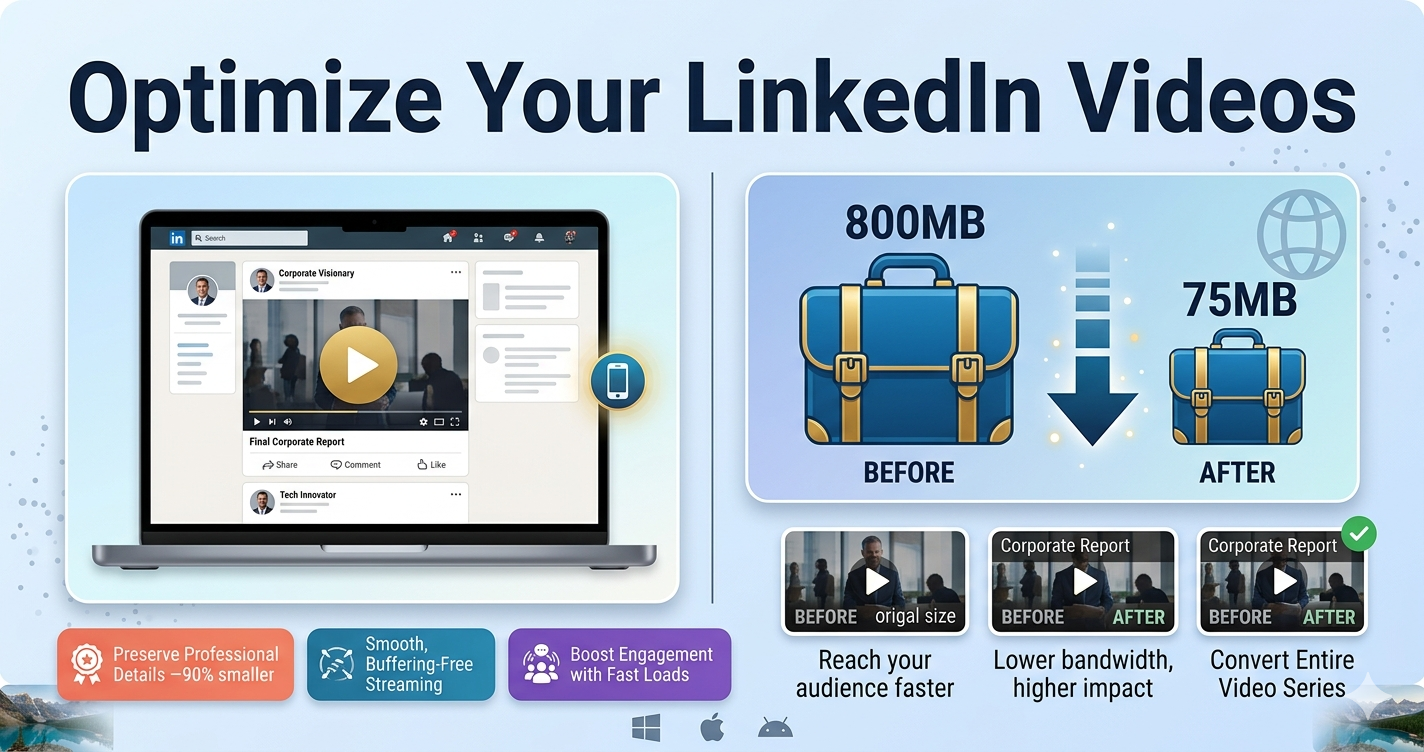
LinkedIn video posts get 5x more engagement than text posts, but uploading large video files can be frustrating. LinkedIn has specific requirements for video size, resolution, and format. Compress your videos properly and you'll get faster uploads, better quality, and more professional results.
Quick Answer
LinkedIn recommends MP4 format with H.264 codec, 1080p resolution, and under 5GB file size. Use Free Media Tools' video compressor to optimize videos for LinkedIn. Reduce file size by 60-80%, upload faster, and maintain professional quality.
LinkedIn Video Requirements (2026)
For LinkedIn Feed Posts
| Setting | Recommended Value |
|---|---|
| Format | MP4 |
| Codec | H.264 |
| Resolution | 1080p (1920×1080) recommended |
| Aspect Ratio | 16:9, 1:1, 9:16, 2.4:1 |
| Frame Rate | 30 fps (max 60 fps) |
| Bitrate | 8-12 Mbps |
| Min File Size | 75 KB |
| Max File Size | 5GB |
| Min Duration | 3 seconds |
| Max Duration | 10 minutes |
| Audio | AAC, 128-192 kbps |
For LinkedIn Articles
| Setting | Recommended Value |
|---|---|
| Format | MP4 |
| Resolution | 720p or 1080p |
| Max File Size | 200 MB |
| Max Duration | 10 minutes |
For LinkedIn Ads
| Setting | Recommended Value |
|---|---|
| Format | MP4 |
| Resolution | 1080p minimum |
| Aspect Ratio | 16:9 or 1:1 |
| Frame Rate | 30 fps |
| Bitrate | 10 Mbps |
| Max File Size | 200 MB |
| Duration | 3 seconds to 30 minutes |
Why Compress Videos for LinkedIn?
1. Faster Upload Times
Uncompressed 3-minute video:
- File size: 1.5GB
- Upload time: 20-40 minutes (on average internet)
Compressed 3-minute video:
- File size: 250MB (83% smaller)
- Upload time: 3-6 minutes (85% faster)
2. Professional Appearance
Videos that load quickly and play smoothly look more professional. Buffering and quality issues hurt your credibility.
3. Better Mobile Experience
65% of LinkedIn users access via mobile. Smaller videos load faster on mobile networks, increasing view completion rates.
4. LinkedIn Re-encodes Anyway
LinkedIn processes all uploaded videos and creates multiple quality versions. Uploading unnecessarily large files wastes time without improving quality.
5. Higher Engagement
Videos that load in under 3 seconds get 65% more views. Fast-loading videos = more engagement = better reach.
How to Compress Video for LinkedIn (Step-by-Step)
Step 1: Check Your Video Specifications
Before compressing, know your current specs:
On Windows:
- Right-click video → Properties → Details
- Check resolution, bitrate, frame rate, file size
On Mac:
- Right-click video → Get Info
- Or open in QuickTime → Window → Show Movie Inspector
Step 2: Determine Target Settings
For LinkedIn Feed:
- Resolution: 1080p (1920×1080)
- Bitrate: 10 Mbps
- Format: MP4 (H.264)
- Aspect ratio: 16:9 (landscape) or 1:1 (square)
For LinkedIn Articles:
- Resolution: 1080p or 720p
- Bitrate: 8 Mbps
- Format: MP4 (H.264)
- File size: Under 200 MB
Step 3: Compress Using Our Tool
- Go to freemediatools.online/compress-video-online
- Upload your video
- Select quality:
- High Quality for professional content
- Medium Quality for general posts
- Click "Compress Video"
- Download optimized file
Step 4: Upload to LinkedIn
For Feed Posts:
- Click "Start a post"
- Click video icon
- Select compressed video
- Add caption (first 2 lines are critical)
- Add hashtags (3-5 relevant ones)
- Click "Post"
For Articles:
- Click "Write article"
- Click "+" → "Video"
- Upload compressed video
- Add context around video
- Click "Publish"
Real-World Example: Business Coach
A business coach wanted to post weekly video tips on LinkedIn.
Original videos: 5 minutes, 1080p, 800MB each
Problem: Upload taking 15-20 minutes, often timing out
What we did:
- Checked bitrate: 22 Mbps (too high for LinkedIn)
- Compressed to 10 Mbps using our tool
- Result: 375MB file (53% smaller)
Upload time:
- Before: 15-20 minutes (often failed)
- After: 5-7 minutes (always successful)
Quality: Identical on LinkedIn. Professional appearance maintained.
Engagement: 2.5x more views (faster loading = more people watched)
Comparison Table: File Sizes by Duration
1080p videos at LinkedIn's recommended bitrate (10 Mbps):
| Duration | File Size | Upload Time (50 Mbps) |
|---|---|---|
| 30 seconds | 38 MB | 6 seconds |
| 1 minute | 75 MB | 12 seconds |
| 2 minutes | 150 MB | 24 seconds |
| 3 minutes | 225 MB | 36 seconds |
| 5 minutes | 375 MB | 1 minute |
| 10 minutes | 750 MB | 2 minutes |
What to Avoid: LinkedIn Video Mistakes
1. Wrong Aspect Ratio
LinkedIn supports multiple aspect ratios, but some work better than others.
Best aspect ratios:
- 1:1 (square): Takes up most screen space on mobile
- 16:9 (landscape): Traditional, works well on desktop
- 9:16 (vertical): Good for mobile-first content
Solution: Use 1:1 for maximum mobile engagement.
2. Exceeding File Size Limits
LinkedIn's 5GB limit seems generous, but large files often fail to upload or take hours.
Solution: Keep videos under 500MB for reliable uploads. Compress to 8-12 Mbps bitrate.
3. Poor Audio Quality
LinkedIn is a professional platform. Poor audio quality damages credibility.
Solution: Use 128-192 kbps AAC audio. Ensure clear, professional audio recording.
4. No Captions
80% of LinkedIn videos are watched without sound. No captions = lost message.
Solution: Always add captions. LinkedIn can auto-generate them, or upload your own SRT file.
5. Wrong Video Length
LinkedIn supports up to 10 minutes, but shorter videos perform better.
Optimal lengths:
- Tips/advice: 1-3 minutes
- Tutorials: 3-5 minutes
- Interviews: 5-10 minutes
- Teasers: 30-60 seconds
Solution: Keep videos concise. Break long content into series.
LinkedIn Video Best Practices
1. Hook in First 3 Seconds
LinkedIn users scroll fast. Grab attention immediately.
Effective hooks:
- Ask a question
- State a surprising fact
- Show the end result first
- Use text overlay with key benefit
2. Add Captions
80% watch without sound. Captions are essential.
How to add:
- Upload video to LinkedIn
- Click "Edit" → "Captions"
- Auto-generate or upload SRT file
- Review and edit for accuracy
3. Optimize Thumbnail
Custom thumbnails get 30% more clicks.
Good thumbnails:
- Clear, high-contrast image
- Text overlay (large, readable)
- Professional appearance
- Shows what video is about
4. Write Compelling Caption
First 2 lines appear before "see more" - make them count.
Effective structure:
- Hook (first line)
- Context (what video covers)
- Call to action
- Hashtags (3-5 relevant)
5. Post at Optimal Times
Best times for LinkedIn video:
- Tuesday-Thursday: 9-11 AM, 12-2 PM
- Wednesday: Best overall day
- Avoid: Weekends, early mornings, late evenings
Aspect Ratio Guide for LinkedIn
1:1 (Square)
Best for: Mobile viewing, maximum screen space
Resolution: 1080×1080
Use case: Tips, advice, talking head videos
Pros:
- Takes up most screen space on mobile
- Higher engagement on mobile
- Works well on all devices
16:9 (Landscape)
Best for: Traditional video, desktop viewing
Resolution: 1920×1080
Use case: Presentations, tutorials, interviews
Pros:
- Professional appearance
- Works well on desktop
- Standard video format
9:16 (Vertical)
Best for: Mobile-first content
Resolution: 1080×1920
Use case: Behind-the-scenes, quick tips
Pros:
- Full-screen mobile experience
- Modern, engaging format
- Good for younger audiences
2.4:1 (Cinematic)
Best for: High-end, cinematic content
Resolution: 1920×800
Use case: Brand videos, storytelling
Pros:
- Premium, cinematic feel
- Stands out in feed
- Professional appearance
Advanced: Custom Compression Settings
If you want precise control:
Using FFmpeg (Command Line)
# LinkedIn Feed (1080p, 10 Mbps)
ffmpeg -i input.mp4 -c:v libx264 -b:v 10M -vf scale=1920:1080 -c:a aac -b:a 128k output.mp4

# Square format (1:1, 10 Mbps)
ffmpeg -i input.mp4 -c:v libx264 -b:v 10M -vf scale=1080:1080 -c:a aac -b:a 128k output.mp4

# LinkedIn Article (720p, 8 Mbps, under 200MB)
ffmpeg -i input.mp4 -c:v libx264 -b:v 8M -vf scale=1280:720 -c:a aac -b:a 128k output.mp4
Using HandBrake (Free Software)
- Download HandBrake (free)
- Open your video
- Set dimensions: 1920×1080 (or 1080×1080 for square)
- Video codec: H.264
- Bitrate: 10 Mbps (constant quality)
- Audio: AAC, 128 kbps
- Start encode
Frequently Asked Questions
What's the best video format for LinkedIn?
MP4 with H.264 codec is the best format for LinkedIn. It offers excellent compression, universal compatibility, and fast processing.
What's the maximum video size for LinkedIn?
LinkedIn allows up to 5GB file size and 10 minutes duration for feed posts. For articles, limit is 200MB. Keep videos under 500MB for reliable uploads.
Why is my LinkedIn video blurry?
Common causes:
- Uploaded low-resolution video
- Over-compressed before upload
- LinkedIn still processing (wait 10-30 minutes)
- Wrong aspect ratio causing scaling
Should I upload 4K videos to LinkedIn?
No, LinkedIn displays videos at 1080p maximum. Upload 1080p videos to save upload time and storage.
What bitrate should I use for LinkedIn?
8-12 Mbps for 1080p videos. Higher bitrates don't improve quality on LinkedIn but increase file size and upload time.
Can I upload vertical videos to LinkedIn?
Yes, LinkedIn supports vertical (9:16) videos. They work well for mobile-first content.
How long should LinkedIn videos be?
1-3 minutes is optimal for engagement. LinkedIn supports up to 10 minutes, but shorter videos perform better.
Why does LinkedIn compress my videos?
LinkedIn re-encodes all videos to create multiple quality versions for different devices and connection speeds. This is why uploading uncompressed videos wastes time.
LinkedIn Video Upload Checklist
Before uploading:
- Video is MP4 format (H.264 codec)
- Resolution is 1080p or lower
- Bitrate is 8-12 Mbps
- File size is under 500MB
- Aspect ratio is 1:1, 16:9, or 9:16
- Audio is AAC, 128-192 kbps
- Captions added or will be auto-generated
- Custom thumbnail created
- Compelling caption written
- Video tested on mobile
Related Tools You Might Need
-
Video Trimmer — Cut unnecessary parts before uploading to LinkedIn to reduce file size and improve engagement.
-
Video Converter — Convert videos to MP4 (H.264) format for optimal LinkedIn compatibility.
-
Compress for YouTube — Optimize videos for YouTube with similar compression techniques.
Why Compress Before LinkedIn Upload?
Many professionals ask: "Why compress if LinkedIn re-encodes anyway?"
Here's why:
- Time savings - Upload 70-85% faster
- Reliability - Smaller files upload successfully more often
- Mobile data - Use less data when uploading from phone
- Professional appearance - Fast-loading videos look more credible
- No quality loss - LinkedIn's re-encoding means extra bitrate is wasted
Bottom line: Compressing to LinkedIn's recommended settings saves time and improves viewer experience without sacrificing quality.
By Muhammad Hasnain Adam — Full-stack developer and creator of Free Media Tools. I built this platform to help professionals and businesses optimize their videos for LinkedIn, improving engagement and saving time without expensive software.