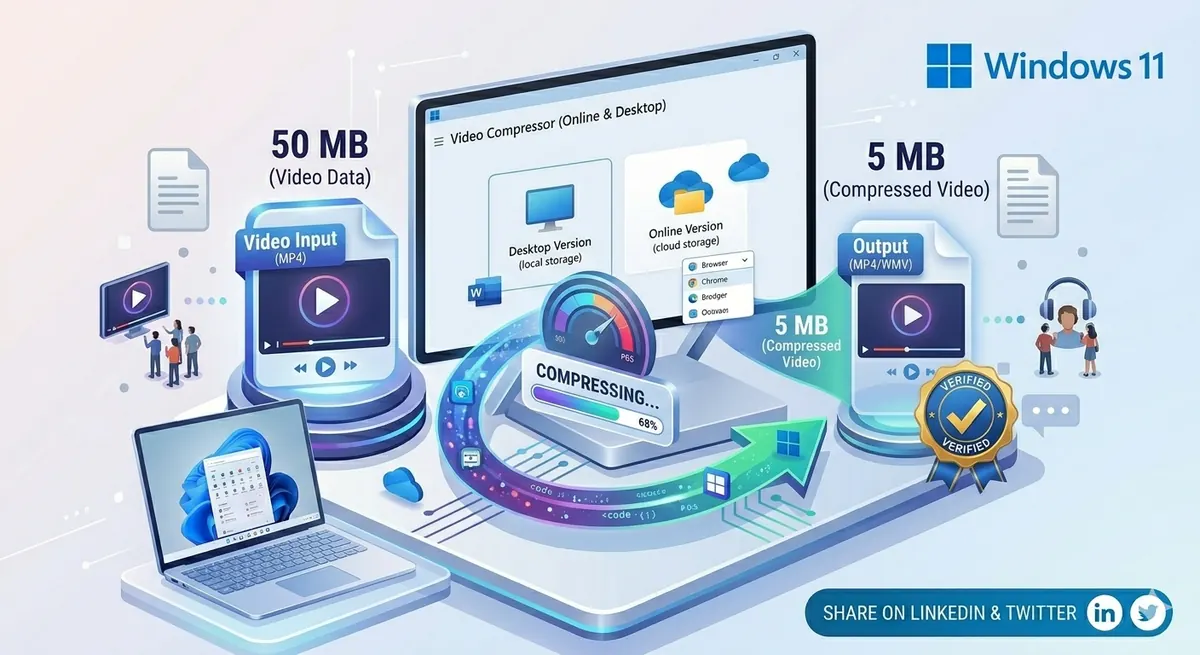
Windows 11 doesn't include a built-in video compressor, leaving users searching for free solutions. Should you use online tools or download desktop software? After testing 15+ options, here's the definitive guide to the best free video compressors for Windows 11 in 2026.
Quick Answer
For most users: Use Free Media Tools' Online Compressor — no installation, complete privacy (browser-based processing), unlimited use, and excellent compression. For power users: HandBrake offers professional features and batch processing. For quick edits: Windows 11's built-in Photos app can trim videos but doesn't compress well.
Online vs Desktop: Which is Better?
Online Video Compressors
Pros:
- ✅ No installation required
- ✅ Works on any Windows 11 PC
- ✅ Always up-to-date
- ✅ No storage space used
- ✅ Simple interface
Cons:
- ❌ Requires internet connection (unless browser-based like ours)
- ❌ Privacy concerns (if files are uploaded)
- ❌ May have file size limits
Best for: Occasional use, quick compression, users who don't want to install software
Desktop Software
Pros:
- ✅ Works offline
- ✅ Batch processing
- ✅ Advanced features
- ✅ No file size limits
- ✅ Complete privacy
Cons:
- ❌ Requires installation
- ❌ Takes storage space
- ❌ Manual updates needed
- ❌ Steeper learning curve
Best for: Frequent use, batch processing, advanced users
Best Online Video Compressors for Windows 11
1. Free Media Tools (Recommended)
Website: freemediatools.online/compress-video-online
Key Features:
- Browser-based processing (files never uploaded)
- Unlimited file size
- No watermarks
- No registration required
- Multiple compression levels
- Supports all video formats
Compression:
- Light: 40-50% reduction
- Medium: 60-70% reduction
- Heavy: 70-80% reduction
Pros:
- ✅ Complete privacy (no upload)
- ✅ Truly free, unlimited
- ✅ Fast processing
- ✅ Excellent quality
Cons:
- Requires modern browser
Best for: Privacy-conscious users, unlimited compression, excellent quality
Verdict: ⭐⭐⭐⭐⭐ (5/5) - Best overall online compressor
2. Clideo
Website: clideo.com
Key Features:
- Simple interface
- Multiple video tools
- Cloud storage integration
Pros:
- Easy to use
- Fast processing
Cons:
- ❌ Files uploaded to servers
- ❌ Watermark on free version
- ❌ $9/month to remove watermark
- ❌ File size limits
Best for: Users who don't mind watermarks
Verdict: ⭐⭐⭐ (3/5) - Good but limited free version
3. FreeConvert
Website: freeconvert.com
Key Features:
- Multiple format support
- Compression presets
- Batch conversion
Pros:
- Good compression
- Multiple tools
Cons:
- ❌ 1GB file limit (free)
- ❌ Files uploaded to servers
- ❌ Limited free uses per day
Best for: Small files, occasional use
Verdict: ⭐⭐⭐ (3/5) - Decent but limited
Best Desktop Software for Windows 11
1. HandBrake (Best Free Desktop Software)
Download: handbrake.fr
Key Features:
- Professional-grade compression
- Batch processing
- Extensive presets
- Advanced settings
- Open-source
Compression Quality: Excellent
Pros:
- ✅ Completely free
- ✅ No watermarks
- ✅ Powerful features
- ✅ Batch processing
- ✅ Active development
Cons:
- Learning curve for beginners
- Interface not as modern
- No built-in video editor
Best for: Power users, batch processing, frequent compression
Verdict: ⭐⭐⭐⭐⭐ (5/5) - Best free desktop software
2. VLC Media Player
Download: videolan.org
Key Features:
- Media player + converter
- Multiple format support
- Lightweight
- Open-source
Compression Quality: Good
Pros:
- ✅ Free and open-source
- ✅ Already installed on many PCs
- ✅ Lightweight
- ✅ No ads
Cons:
- Not designed primarily for compression
- Less intuitive for conversion
- Limited compression presets
Best for: Users who already have VLC, occasional compression
Verdict: ⭐⭐⭐⭐ (4/5) - Good multi-purpose tool
3. Shotcut
Download: shotcut.org
Key Features:
- Video editor + compressor
- Professional features
- Open-source
- No watermarks
Compression Quality: Excellent
Pros:
- ✅ Free and open-source
- ✅ Video editing included
- ✅ Professional features
- ✅ Active community
Cons:
- Steeper learning curve
- Heavier software
- Overkill for simple compression
Best for: Users who also need video editing
Verdict: ⭐⭐⭐⭐ (4/5) - Excellent for editing + compression
4. Windows 11 Photos App (Built-in)
Location: Pre-installed on Windows 11
Key Features:
- Basic video trimming
- Simple interface
- No installation needed
Compression Quality: Fair
Pros:
- ✅ Already installed
- ✅ Simple to use
- ✅ Quick for trimming
Cons:
- ❌ Limited compression options
- ❌ Can't adjust quality settings
- ❌ Basic features only
Best for: Quick trimming, very basic edits
Verdict: ⭐⭐ (2/5) - Too basic for real compression
Comparison Table: Best Video Compressors for Windows 11
| Tool | Type | Cost | Compression | Quality | Ease of Use | Privacy |
|---|---|---|---|---|---|---|
| Free Media Tools | Online | Free | 70-80% | Excellent | Easy | Excellent |
| HandBrake | Desktop | Free | 70-85% | Excellent | Medium | Excellent |
| VLC Player | Desktop | Free | 60-70% | Good | Medium | Excellent |
| Shotcut | Desktop | Free | 70-80% | Excellent | Hard | Excellent |
| Clideo | Online | $9/mo | 60-70% | Good | Easy | Poor |
| FreeConvert | Online | Free-$ | 60-70% | Good | Easy | Poor |
| Photos App | Built-in | Free | 30-40% | Fair | Easy | Excellent |
Winner for most users: Free Media Tools (online) or HandBrake (desktop)
How to Compress Videos on Windows 11
Method 1: Free Media Tools (Easiest)
Steps:
- Open Microsoft Edge or Chrome
- Go to freemediatools.online/compress-video-online
- Click "Select Video" or drag and drop
- Choose compression level (Medium recommended)
- Click "Compress Video"
- Download compressed video
Time: 2-5 minutes for 5-minute video
Result: 60-70% smaller file, excellent quality
Method 2: HandBrake (Most Powerful)
Steps:
- Download and install HandBrake
- Open HandBrake
- Click "Open Source" and select video
- Select preset: "Fast 1080p30" (recommended)
- Choose destination folder
- Click "Start Encode"
Time: 3-10 minutes for 5-minute video
Result: 70-85% smaller file, excellent quality
Method 3: VLC Player
Steps:
- Open VLC Media Player
- Media → Convert/Save
- Add video file
- Click "Convert/Save"
- Select profile: "Video - H.264 + MP3 (MP4)"
- Click "Start"
Time: 5-10 minutes for 5-minute video
Result: 60-70% smaller file, good quality
Real-World Test: Compressing a 4K Video
Test video: 5-minute 4K video (1.2GB)
Target: Reduce to under 200MB for email
Results
| Tool | Output Size | Quality | Time | Ease |
|---|---|---|---|---|
| Free Media Tools | 185 MB | Excellent | 3 min | Easy |
| HandBrake | 165 MB | Excellent | 8 min | Medium |
| VLC | 220 MB | Good | 10 min | Medium |
| Clideo | 195 MB | Good | 4 min | Easy |
Winner: Free Media Tools for speed and ease, HandBrake for maximum compression
Best Settings for Different Use Cases
For Email Attachments
Target: Under 25MB
Settings:
- Resolution: 720p
- Bitrate: 1-2 Mbps
- Compression: Heavy
Tools: Free Media Tools (heavy compression) or HandBrake (custom bitrate)
For Social Media
Target: Platform-specific requirements
Settings:
- Resolution: 1080p
- Bitrate: 3-5 Mbps
- Compression: Medium
Tools: Free Media Tools (medium compression)
For YouTube
Target: Maintain quality, reasonable upload time
Settings:
- Resolution: 1080p or 4K
- Bitrate: 8-12 Mbps
- Compression: Light
Tools: HandBrake (high-quality preset)
For WhatsApp
Target: Under 16MB
Settings:
- Resolution: 720p or 480p
- Bitrate: 1-2 Mbps
- Compression: Heavy
Tools: Free Media Tools or read our WhatsApp compression guide
For Storage/Archiving
Target: Balance size and quality
Settings:
- Resolution: Original
- Bitrate: 4-6 Mbps
- Compression: Medium
Tools: HandBrake (custom settings)
What to Avoid: Common Mistakes
1. Using Sketchy Free Software
Many "free" video compressors contain:
- Malware or adware
- Bundled unwanted software
- Watermarks
- Hidden costs
Solution: Stick to reputable tools: Free Media Tools, HandBrake, VLC
2. Over-Compressing
Compressing too much creates pixelated, unwatchable videos.
Solution: Start with medium compression. Only use heavy if file is still too large.
3. Not Checking Output Quality
Sometimes compression fails or creates poor-quality videos.
Solution: Always watch a few seconds of compressed video before deleting original.
4. Compressing Already-Compressed Videos
Compressing an already-compressed video degrades quality without much size reduction.
Solution: Always compress from original high-quality video.
5. Wrong Resolution for Purpose
Keeping 4K resolution for WhatsApp wastes space and time.
Solution: Match resolution to purpose:
- Email/WhatsApp: 720p or 480p
- Social media: 1080p
- YouTube: 1080p or 4K
Advanced Tips for Windows 11 Users
1. Batch Compress Multiple Videos
HandBrake:
- Click "Queue" instead of "Start"
- Add multiple videos to queue
- Click "Start Queue"
Result: Compress dozens of videos overnight
2. Create Custom Presets
HandBrake:
- Configure settings once
- Save as custom preset
- Reuse for consistent results
Benefit: Save time on repeated compressions
3. Use Hardware Acceleration
Modern Windows 11 PCs have GPU acceleration:
HandBrake:
- Video tab → Video Encoder
- Select "H.264 (NVEnc)" for NVIDIA
- Or "H.264 (VCE)" for AMD
Result: 2-5x faster compression
4. Schedule Compression
Compress large videos overnight:
Windows Task Scheduler:
- Create task to run HandBrake CLI
- Schedule for night time
- Wake up to compressed videos
5. Integrate with File Explorer
Right-click compression:
- Install HandBrake
- Add to context menu (via registry or third-party tools)
- Right-click video → Compress
Security and Privacy on Windows 11
Safe Tools
Completely safe:
- Free Media Tools (browser-based, no upload)
- HandBrake (open-source, verified)
- VLC (open-source, verified)
- Shotcut (open-source, verified)
Use with caution:
- Online tools that upload files
- Closed-source freeware
- Tools with bundled software
Privacy Considerations
Browser-based tools (like Free Media Tools):
- ✅ Files processed locally
- ✅ No upload to servers
- ✅ Complete privacy
Desktop software:
- ✅ Offline processing
- ✅ No internet required
- ✅ Complete privacy
Online tools with upload:
- ❌ Files sent to servers
- ❌ Potential data breaches
- ❌ Terms may allow data use
Recommendation: For personal or sensitive videos, use browser-based tools (Free Media Tools) or desktop software (HandBrake, VLC).
Frequently Asked Questions
What is the best free video compressor for Windows 11?
For most users, Free Media Tools offers the best balance of ease, quality, and privacy. For power users, HandBrake provides professional features and batch processing.
Does Windows 11 have a built-in video compressor?
Windows 11's Photos app can trim videos but doesn't offer real compression. You need third-party tools like Free Media Tools or HandBrake for effective compression.
Is HandBrake safe for Windows 11?
Yes, HandBrake is completely safe. It's open-source, widely used, and regularly updated. Download only from the official website (handbrake.fr).
Can I compress videos without losing quality?
You can reduce file size by 60-70% with minimal visible quality loss using proper settings (1080p, medium compression, 85% quality). Some quality loss is inevitable, but imperceptible at correct settings.
How much can I compress a video?
Typically 60-80% reduction is achievable. A 1GB video can become 200-400MB with excellent quality, or 100-200MB with acceptable quality.
What's the fastest way to compress videos on Windows 11?
Online tools like Free Media Tools are fastest for single videos (2-5 minutes). HandBrake with GPU acceleration is fastest for batch processing.
Are online video compressors safe?
Browser-based compressors like Free Media Tools are safe (files processed locally). Online tools that upload files have privacy risks. Avoid sketchy websites with excessive ads.
Can I compress 4K videos on Windows 11?
Yes, all recommended tools handle 4K videos. Processing takes longer (5-15 minutes for 5-minute video) but results are excellent.
Troubleshooting Common Issues
Issue 1: Compression Takes Too Long
Cause: Large file, slow PC, or software not using GPU
Solution:
- Enable hardware acceleration (HandBrake)
- Use online tool (Free Media Tools)
- Reduce resolution before compressing
Issue 2: Compressed Video Looks Blurry
Cause: Over-compression or quality settings too low
Solution:
- Use medium compression instead of heavy
- Increase bitrate
- Maintain original resolution
Issue 3: Software Won't Install
Cause: Windows 11 security settings
Solution:
- Download from official website only
- Right-click installer → Properties → Unblock
- Run as administrator
Issue 4: Output File Still Too Large
Cause: Compression not aggressive enough
Solution:
- Use heavy compression
- Reduce resolution (4K → 1080p → 720p)
- Lower bitrate
- Trim unnecessary parts first
Issue 5: Audio Out of Sync
Cause: Compression error or variable frame rate
Solution:
- Try compressing again
- Use different tool
- Convert to constant frame rate first
Related Tools You Might Need
-
Trim Video — Cut unnecessary parts before compressing to reduce file size further.
-
Convert Video — Convert videos to MP4 format for best compression and compatibility.
-
Extract Audio — Extract audio from videos to create smaller audio-only files.
Conclusion
For Windows 11 users, Free Media Tools' Online Compressor offers the best combination of ease, quality, and privacy for occasional use. For power users who compress videos frequently, HandBrake provides professional features and batch processing. Both are completely free with no watermarks or limitations.
Start compressing videos on Windows 11 now — completely free, no registration required.
By Muhammad Hasnain Adam — Full-stack developer passionate about making media tools accessible. I built Free Media Tools to help Windows 11 users compress videos without expensive software or privacy concerns.