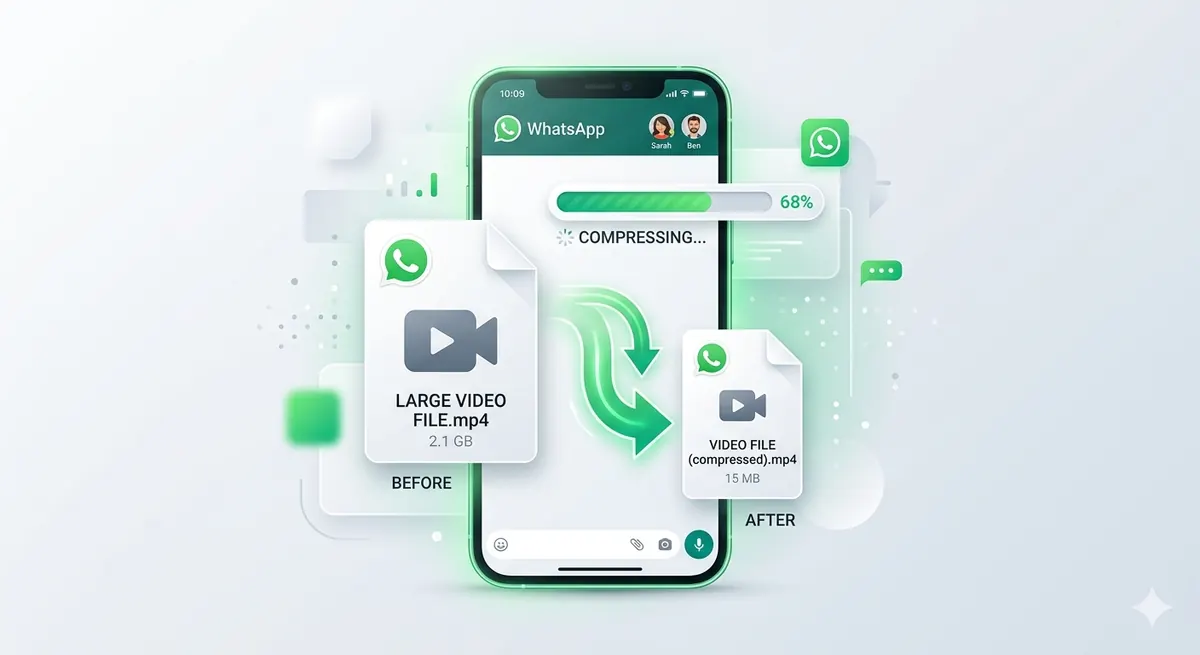
Trying to send a video on WhatsApp only to see "file too large" error? WhatsApp limits video size to 16MB, which is about 90 seconds of HD video. Longer or higher-quality videos get rejected or automatically compressed to potato quality. Here's how to compress videos for WhatsApp while maintaining quality you'll actually want to share.
Quick Answer
Use Free Media Tools' Video Compressor to reduce video size for WhatsApp. Upload your video, select medium or heavy compression, and download. Your video will be under 16MB while maintaining good quality. Works in your browser with complete privacy — files never leave your device.
WhatsApp Video Size Limits Explained
Current Limits (2026)
- Maximum file size: 16MB per video
- Recommended duration: Under 90 seconds for HD quality
- Automatic compression: WhatsApp compresses videos over 16MB (quality suffers)
- Status videos: 30 seconds maximum
What 16MB Actually Means
1080p (Full HD):
- 30fps: ~90 seconds
- 60fps: ~45 seconds
720p (HD):
- 30fps: ~3 minutes
- 60fps: ~90 seconds
480p (SD):
- 30fps: ~5 minutes
- 60fps: ~2.5 minutes
The higher your video quality and frame rate, the shorter the video you can send.
Why WhatsApp Compresses Videos
WhatsApp automatically compresses videos to:
- Reduce server storage costs
- Speed up sending/receiving
- Save users' mobile data
- Improve app performance
The problem: WhatsApp's automatic compression is aggressive and produces poor quality. Compressing videos yourself before sending gives you control over the quality-size balance.
How to Compress Video for WhatsApp (Step-by-Step)
Method 1: Free Media Tools (Recommended)
Best for: Best quality, privacy, unlimited compression
Steps:
- Go to freemediatools.online/compress-video-online
- Click "Select Video" or drag and drop your file
- Choose compression level:
- Medium: For videos 1-3 minutes (60-70% reduction)
- Heavy: For longer videos (70-80% reduction)
- Click "Compress Video"
- Download compressed video
- Check file size (should be under 16MB)
- Send on WhatsApp
Pros:
- ✅ Completely free, unlimited
- ✅ Privacy-focused (files processed in browser)
- ✅ No watermarks
- ✅ Better quality than WhatsApp's compression
- ✅ No registration required
Cons:
- None for basic compression
Method 2: Compress on iPhone
Using built-in Photos app:
- Open video in Photos app
- Tap "Edit"
- Tap crop icon
- Drag ends to trim video (shorter = smaller file)
- Tap "Done"
- Share to WhatsApp
Using Shortcuts app (better compression):
- Download "Compress Video" shortcut
- Select video from Photos
- Run shortcut
- Choose quality (Medium recommended)
- Save compressed video
- Share to WhatsApp
Pros:
- Built into iPhone
- Quick for short videos
Cons:
- Limited compression control
- Trimming only reduces duration, not quality
Method 3: Compress on Android
Using Google Photos:
- Open video in Google Photos
- Tap three dots → "Save to device"
- Select "SD quality" or "HD quality"
- Download compressed version
- Share to WhatsApp
Using Video Compressor apps:
Popular apps:
- Video Compressor Panda
- Video Dieter 2
- VidCompact
Steps:
- Install app from Play Store
- Select video
- Choose compression level
- Compress
- Share to WhatsApp
Pros:
- Works offline
- Mobile-friendly
Cons:
- Apps may contain ads
- Privacy concerns
- Limited free features
Method 4: Desktop Software
Using HandBrake (free, open-source):
- Download HandBrake
- Open video
- Select "Fast 720p30" preset
- Click "Start"
- Transfer to phone
- Send on WhatsApp
Pros:
- Professional-grade compression
- Free and open-source
- Precise control
Cons:
- Requires installation
- Learning curve
- Need to transfer file to phone
Real-World Example: Birthday Party Video
My sister recorded her daughter's birthday party on her iPhone:
- Original video: 4 minutes, 185MB (1080p 60fps)
- Problem: Way over WhatsApp's 16MB limit
Solution:
- Used our video compressor
- Selected heavy compression
- Result: 4 minutes, 14.2MB (720p 30fps)
Outcome: Video looked great on phone screens, sent instantly on WhatsApp, family members could watch without buffering.
Best Settings for WhatsApp Videos
For Short Videos (Under 2 minutes)
Settings:
- Resolution: 720p
- Frame rate: 30fps
- Compression: Medium
- Target size: Under 16MB
Result: Excellent quality, smooth playback
For Medium Videos (2-5 minutes)
Settings:
- Resolution: 720p or 480p
- Frame rate: 30fps
- Compression: Heavy
- Target size: Under 16MB
Result: Good quality, acceptable for sharing
For Long Videos (Over 5 minutes)
Options:
- Trim video - Send only the best parts
- Split into parts - Send multiple shorter videos
- Heavy compression - 480p, heavy compression
- Use cloud storage - Upload to Google Drive, share link
Recommendation: For videos over 5 minutes, consider sharing via Google Drive or YouTube link instead.
Comparison Table: Compression Methods
| Method | Quality | Speed | Privacy | Cost | Ease of Use |
|---|---|---|---|---|---|
| Free Media Tools | Excellent | Fast | Excellent | Free | Easy |
| iPhone Photos | Good | Fast | Excellent | Free | Easy |
| Android Apps | Good | Medium | Fair | Free-$ | Easy |
| HandBrake | Excellent | Medium | Excellent | Free | Medium |
| WhatsApp Auto | Poor | Instant | Fair | Free | Automatic |
Winner: Free Media Tools for best quality-size balance and privacy.
Tips to Maintain Quality While Compressing
1. Start with Good Source Video
Compressing already-compressed videos makes quality worse. Always compress from the original video when possible.
2. Don't Over-Compress
Heavy compression saves space but reduces quality. Use medium compression unless file size is still too large.
3. Match Resolution to Viewing Device
WhatsApp videos are watched on phones. 720p looks great on phone screens — no need for 4K.
4. Reduce Frame Rate
60fps videos are twice as large as 30fps. For most videos, 30fps is smooth enough.
5. Trim Unnecessary Parts
Remove boring intro/outro sections. Shorter videos = smaller files without quality loss.
6. Use Proper Lighting
Well-lit videos compress better than dark videos. Dark areas create compression artifacts.
What to Avoid: WhatsApp Video Mistakes
1. Letting WhatsApp Compress Automatically
WhatsApp's automatic compression is aggressive and produces poor quality.
Solution: Compress videos yourself before sending for better quality control.
2. Sending 4K Videos
4K videos are massive and will be heavily compressed by WhatsApp anyway.
Solution: Reduce to 1080p or 720p before sending.
3. Compressing Multiple Times
Compressing an already-compressed video degrades quality further.
Solution: Always compress from the original high-quality video.
4. Wrong Aspect Ratio
Vertical videos sent as horizontal (or vice versa) look awkward.
Solution: Maintain original aspect ratio during compression.
5. Not Checking File Size
Compressing without checking final file size may still exceed 16MB.
Solution: Always verify file size before sending. Compress more if needed.
WhatsApp Status Videos
Status-Specific Requirements
- Maximum duration: 30 seconds
- Maximum file size: 16MB
- Recommended resolution: 720p or 1080p
- Aspect ratio: 9:16 (vertical) for full-screen
Optimizing for Status
- Trim to 30 seconds or less
- Use vertical (portrait) orientation
- Compress to under 16MB
- Use 720p for best balance
Alternative: Share Long Videos
For videos longer than 5 minutes or over 100MB:
Option 1: Google Drive
- Upload video to Google Drive
- Get shareable link
- Send link on WhatsApp
- Recipients stream or download
Pros: No size limit, original quality Cons: Requires internet to view
Option 2: YouTube
- Upload as unlisted video
- Share link on WhatsApp
- Recipients watch on YouTube
Pros: No size limit, easy streaming Cons: Requires YouTube account
Option 3: Cloud Storage
Services like Dropbox, OneDrive, iCloud:
- Upload video
- Generate share link
- Send on WhatsApp
Pros: No size limit Cons: May require account
Frequently Asked Questions
What is the maximum video size for WhatsApp?
WhatsApp's maximum video size is 16MB. Videos larger than this will be automatically compressed by WhatsApp (with significant quality loss) or rejected.
How long can a WhatsApp video be?
There's no specific time limit, but 16MB allows approximately 90 seconds of 1080p video at 30fps, or 3 minutes of 720p video. Longer videos need heavier compression.
Does WhatsApp reduce video quality?
Yes, WhatsApp automatically compresses videos over 16MB, which significantly reduces quality. Compressing videos yourself before sending gives better results.
How do I send a video on WhatsApp without losing quality?
Compress the video yourself using a quality compressor before sending. Use medium compression and 720p resolution for best balance of quality and file size under 16MB.
Can I send 4K videos on WhatsApp?
Technically yes, but they'll be heavily compressed. 4K videos are too large for WhatsApp's 16MB limit. Reduce to 1080p or 720p before sending.
Why is my WhatsApp video blurry?
Either the original video was low quality, or WhatsApp compressed it automatically. Compress videos yourself before sending to maintain better quality.
How do I compress a video on my phone for WhatsApp?
Use our online video compressor in your mobile browser, or use built-in tools like iPhone's Photos app or Android's Google Photos.
What's the best video format for WhatsApp?
MP4 with H.264 codec is best for WhatsApp. It offers excellent compression and universal compatibility.
Related Tools You Might Need
-
Trim Video — Cut unnecessary parts from videos to reduce file size without compressing quality.
-
Convert Video — Convert videos to MP4 format for best WhatsApp compatibility.
-
Video to GIF — Convert short video clips to GIFs for easy sharing (GIFs have no size limit on WhatsApp).
Troubleshooting Common Issues
Issue 1: Video Still Too Large After Compression
Cause: Video too long or compression too light
Solution:
- Use heavy compression instead of medium
- Reduce resolution to 480p
- Trim video to shorter duration
- Split into multiple parts
Issue 2: Compressed Video Looks Blurry
Cause: Over-compression or low-quality source
Solution:
- Use medium compression instead of heavy
- Start with higher-quality source video
- Ensure good lighting in original video
Issue 3: Video Won't Send on WhatsApp
Cause: File still over 16MB or wrong format
Solution:
- Check file size (must be under 16MB)
- Convert to MP4 format
- Compress more if needed
Issue 4: Audio Out of Sync
Cause: Compression error or codec issue
Solution:
- Compress again
- Try different compression tool
- Convert to MP4 with H.264 codec
Issue 5: Video Rotated Wrong Way
Cause: Metadata lost during compression
Solution: Use compression tool that preserves video orientation metadata.
Conclusion
Compressing videos for WhatsApp doesn't mean sacrificing quality. Use Free Media Tools' Video Compressor to reduce video size to under 16MB while maintaining quality that looks great on phone screens. Whether you're sharing family moments, funny clips, or important videos, proper compression ensures your videos look their best.
Start compressing videos for WhatsApp now — completely free, no registration required.
By Muhammad Hasnain Adam — Full-stack developer passionate about making media tools accessible to everyone. I built Free Media Tools to help people share videos without quality loss or privacy concerns.