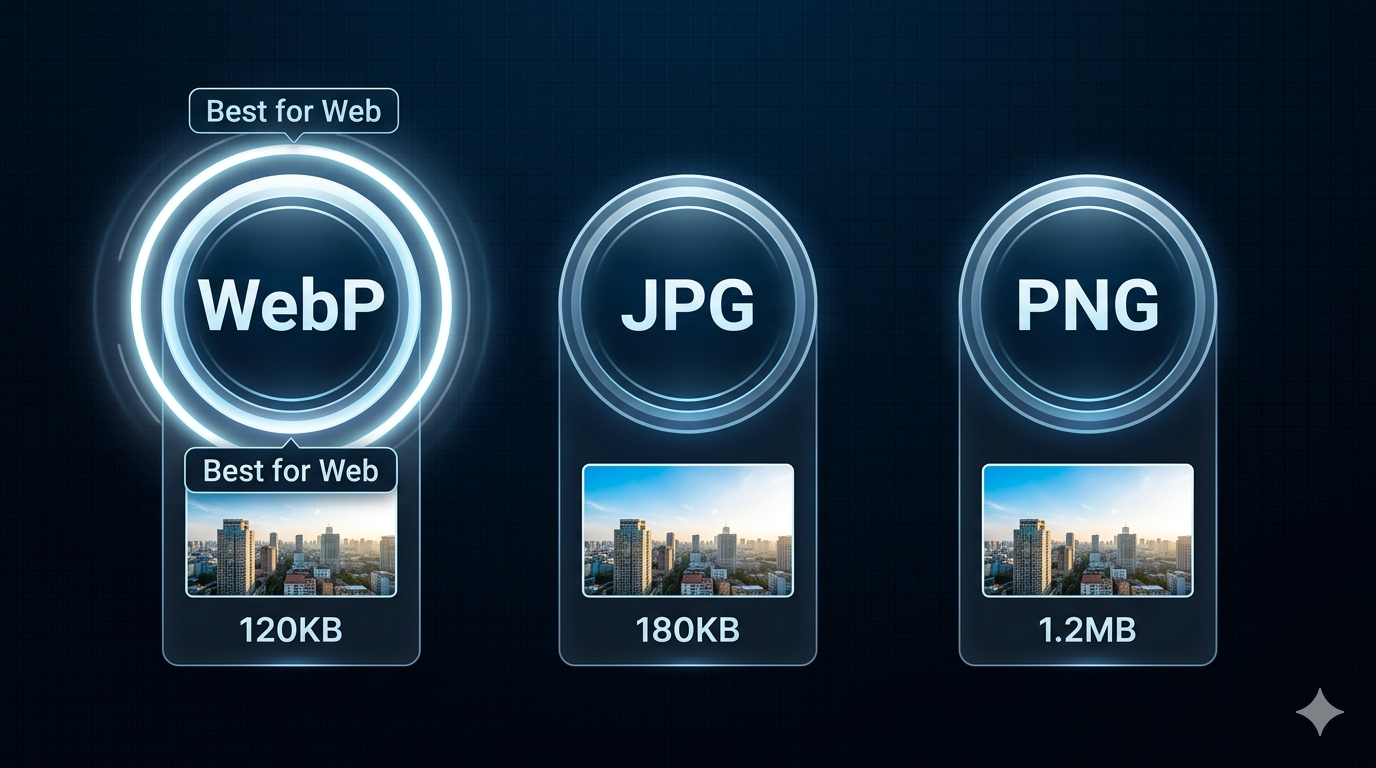
Choosing the right image format affects website speed, storage costs, and image quality. WebP, JPG, and PNG each have strengths and weaknesses. Using the wrong format means larger files, slower loading, and wasted bandwidth.
Quick Answer
For web use in 2026: WebP is the best choice. It's 25-35% smaller than JPG, supports transparency like PNG, and works on 97% of browsers. Use our image converter to convert JPG and PNG to WebP.
WebP vs JPG vs PNG: Quick Comparison
| Feature | WebP | JPG | PNG |
|---|---|---|---|
| File Size | Smallest | Medium | Largest |
| Quality | Excellent | Excellent | Excellent |
| Transparency | Yes | No | Yes |
| Animation | Yes | No | No |
| Browser Support | 97% | 100% | 100% |
| Best For | Web, modern sites | Photos, universal use | Logos, graphics |
WebP: The Modern Standard
What is WebP?
WebP is Google's image format designed for the web. Released in 2010, it's now supported by all major browsers (Chrome, Firefox, Safari, Edge).
Advantages
- Smaller file sizes - 25-35% smaller than JPG, 50% smaller than PNG
- Supports transparency - Like PNG, but much smaller
- Supports animation - Like GIF, but smaller and better quality
- Lossy and lossless - Choose based on needs
- Better compression - Advanced algorithms
Disadvantages
- Limited support - 3% of browsers don't support it (older devices)
- Newer format - Some older software can't open WebP
- Requires fallback - Need JPG/PNG backup for old browsers
When to Use WebP
- ✅ Website images (with JPG/PNG fallback)
- ✅ E-commerce product photos
- ✅ Blog images
- ✅ Web applications
- ❌ Email marketing (limited support)
- ❌ Print (not supported)
File Size Example
Same photo (1200×800):
- PNG: 1.2 MB
- JPG (90% quality): 180 KB
- WebP (90% quality): 120 KB (33% smaller than JPG)
JPG: The Universal Standard
What is JPG?
JPG (JPEG) has been the standard photo format since 1992. It's universally supported and offers excellent compression for photos.
Advantages
- Universal compatibility - Works everywhere (100% support)
- Excellent compression - Good quality at small file sizes
- Widely understood - All software supports JPG
- Proven technology - 30+ years of optimization
Disadvantages
- No transparency - Can't have transparent backgrounds
- Lossy only - Always loses some quality
- Larger than WebP - 25-35% larger files
- Artifacts - Visible at low quality settings
When to Use JPG
- ✅ Photos and complex images
- ✅ Email marketing
- ✅ Social media
- ✅ Print (at high quality)
- ✅ Universal compatibility needed
- ❌ Logos (use PNG)
- ❌ Graphics with text (use PNG)
- ❌ Transparency needed (use PNG or WebP)
Quality Settings
- 95-100%: Professional photography, print
- 85-90%: Web use, social media (recommended)
- 75-80%: Thumbnails, email
- Below 70%: Avoid (visible artifacts)
PNG: The Lossless Option
What is PNG?
PNG (Portable Network Graphics) was created in 1996 as a lossless alternative to GIF. It's perfect for graphics, logos, and images needing transparency.
Advantages
- Lossless compression - No quality loss
- Supports transparency - Alpha channel for transparent backgrounds
- Sharp edges - Perfect for text, logos, graphics
- Universal support - Works everywhere
Disadvantages
- Large file sizes - 3-5x larger than JPG for photos
- Not ideal for photos - Compression isn't optimized for photos
- Slower loading - Larger files take longer to load
When to Use PNG
- ✅ Logos and icons
- ✅ Graphics with text
- ✅ Images needing transparency
- ✅ Screenshots
- ✅ Simple graphics (few colors)
- ❌ Photos (use JPG or WebP)
- ❌ Large images (too big)
PNG-8 vs PNG-24
- PNG-8: 256 colors, smaller files, good for simple graphics
- PNG-24: 16 million colors, larger files, good for complex graphics
Real-World Example: E-commerce Website
An online store had 500 product photos, all PNG files (averaging 800KB each).
Before optimization:
- Format: PNG
- Total size: 400MB
- Page load: 8 seconds
- Bounce rate: 65%
After converting to WebP:
- Format: WebP (with JPG fallback)
- Total size: 80MB (80% reduction)
- Page load: 1.8 seconds (78% faster)
- Bounce rate: 32% (51% improvement)
Result: Faster site, better SEO, higher conversions
Comparison Table: File Sizes
Same image (1200×800) in different formats:
| Format | File Size | Quality | Use Case |
|---|---|---|---|
| PNG-24 | 1.2 MB | Perfect | Logo, transparency needed |
| PNG-8 | 400 KB | Good | Simple graphics |
| JPG (100%) | 350 KB | Excellent | Print, archival |
| JPG (90%) | 180 KB | Excellent | Web, social media |
| JPG (80%) | 120 KB | Very Good | Thumbnails |
| WebP (90%) | 120 KB | Excellent | Modern web |
| WebP (80%) | 80 KB | Very Good | Web, mobile |
What to Avoid: Image Format Mistakes
1. Using PNG for Photos
PNG files are 3-5x larger than JPG/WebP for photos. This kills page speed.
Solution: Use JPG or WebP for photos. Only use PNG for logos and graphics.
2. Using JPG for Logos
JPG compression creates artifacts around text and sharp edges.
Solution: Use PNG for logos, icons, and graphics with text.
3. Not Using WebP in 2026
WebP offers 25-35% smaller files with same quality. Not using it wastes bandwidth.
Solution: Convert images to WebP with JPG fallback for old browsers.
4. Over-Compressing JPG
Saving JPG at 60% quality creates visible artifacts and blurriness.
Solution: Use 85-90% quality for web. The file size difference is minimal.
5. Not Providing Fallbacks
Using WebP without JPG fallback means 3% of users see broken images.
Solution: Use <picture> element with WebP and JPG sources.
How to Implement WebP with Fallback
HTML Picture Element
<picture>
  <source srcset="image.webp" type="image/webp">
  <img src="image.jpg" alt="Description">
</picture>
This serves WebP to modern browsers, JPG to older browsers.
WordPress
Use plugins like:
- WebP Express
- ShortPixel
- Imagify
These automatically convert and serve WebP with fallbacks.
Next.js
Next.js Image component automatically serves WebP:
<Image src="/photo.jpg" width={800} height={600} alt="Photo" />
Frequently Asked Questions
Is WebP better than JPG?
Yes, for web use. WebP offers 25-35% smaller file sizes with same quality, plus supports transparency. But JPG has universal compatibility.
Should I use WebP or PNG?
For photos: WebP. For logos/graphics: PNG or WebP. WebP is smaller but PNG has better software support.
Do all browsers support WebP?
97% of browsers support WebP (Chrome, Firefox, Safari, Edge). Use JPG fallback for the remaining 3%.
Can I use WebP for email?
No, many email clients don't support WebP. Use JPG for email marketing.
How do I convert JPG to WebP?
Use our image converter to convert JPG, PNG, and other formats to WebP.
Is WebP lossless or lossy?
WebP supports both. Lossy WebP is smaller (like JPG), lossless WebP preserves perfect quality (like PNG).
What's the best image format for SEO?
WebP is best for SEO because it loads faster (page speed is a ranking factor). Use with JPG fallback for compatibility.
Can I print WebP images?
Most print software doesn't support WebP. Convert to JPG or PNG for printing.
Best Practices by Use Case
For Websites
Photos:
- Primary: WebP (90% quality)
- Fallback: JPG (90% quality)
Logos/Icons:
- Primary: WebP (lossless) or PNG
- Fallback: PNG
For Social Media
All platforms:
- JPG (85-90% quality)
- WebP not widely supported yet
For Email Marketing
All images:
- JPG (85-90% quality)
- PNG for logos
- Avoid WebP (limited support)
For Print
Photos:
- JPG (95-100% quality, 300 DPI)
Logos:
- PNG or vector (SVG, AI, EPS)
Related Tools You Might Need
-
Image Converter — Convert JPG and PNG to WebP for 25-35% smaller file sizes.
-
Image Compressor — Compress images in any format to reduce file size by 60-80%.
-
Image Resizer — Resize images to optimal dimensions before converting or compressing.
By Muhammad Hasnain Adam — Full-stack developer from Karachi, Pakistan. I built Free Media Tools to help everyone optimize their images for the modern web, without expensive software or technical knowledge.