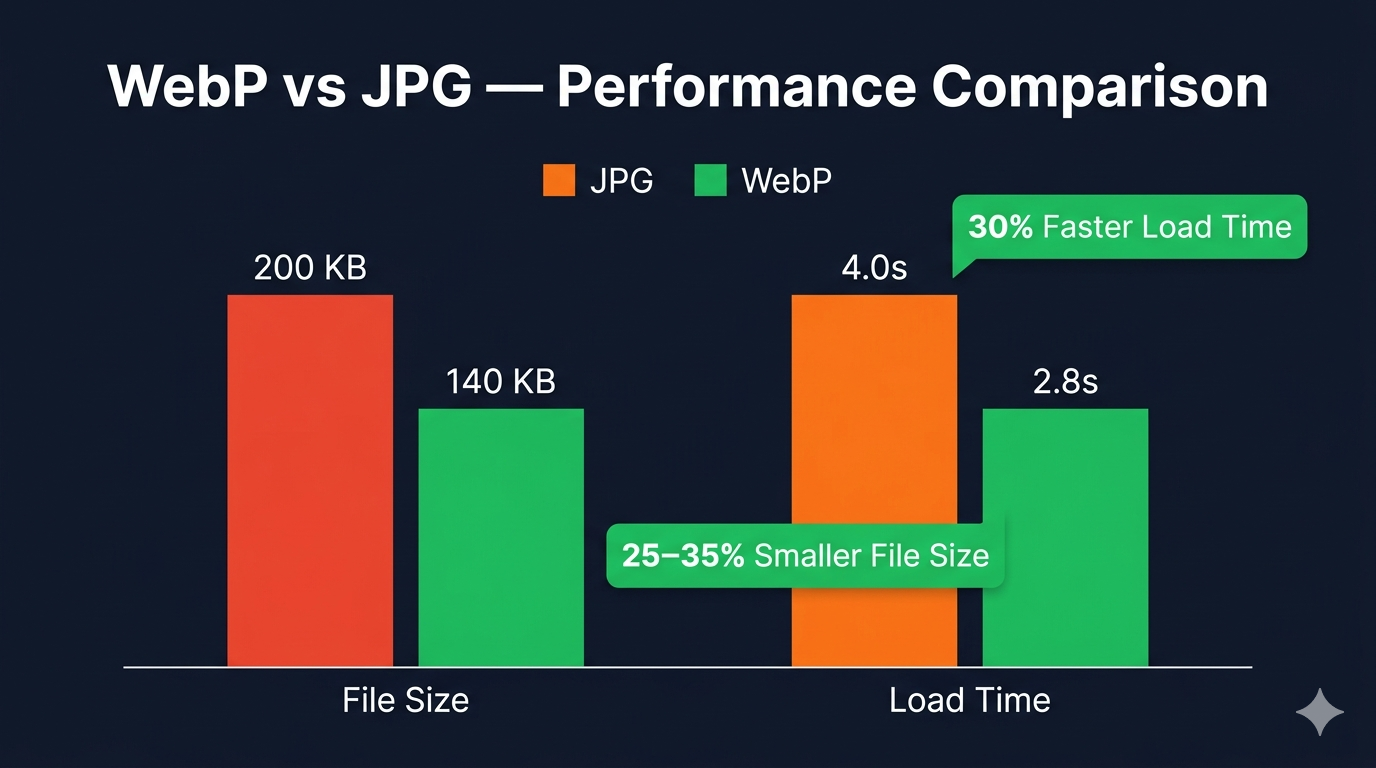
Your website's loading speed directly impacts user experience, search rankings, and conversion rates. Images typically account for 50-70% of a webpage's total size, making image optimization one of the most effective ways to improve performance. WebP format offers a solution that can reduce image file sizes by 25-35% compared to JPG and PNG without visible quality loss.
In this guide, you'll discover what WebP format is, how it works, why major websites like Google, Facebook, and Netflix use it, and how to implement WebP images on your website. Whether you're a web developer, designer, or website owner, understanding WebP can significantly improve your site's performance and SEO rankings.
What Is WebP Format?
WebP is a modern image format developed by Google in 2010, designed specifically for the web. Unlike older formats like JPG (created in 1992) and PNG (created in 1996), WebP was built from the ground up to deliver smaller file sizes with equivalent or better quality.
WebP supports both lossy and lossless compression, transparency (like PNG), and animation (like GIF). This versatility makes it a single format that can replace JPG, PNG, and GIF in most use cases. The format uses advanced compression techniques that analyze images more intelligently than older formats, removing redundant data while preserving visual quality.
Key features of WebP:
- Lossy compression: 25-35% smaller than equivalent JPG images
- Lossless compression: 26% smaller than equivalent PNG images
- Transparency support: Like PNG, but with smaller file sizes
- Animation support: Like GIF, but with better quality and smaller sizes
- Metadata support: Stores EXIF, XMP, and ICC color profile data
The format has evolved significantly since its introduction. Browser support was initially limited, but as of 2026, over 97% of web browsers support WebP, making it safe to use for virtually all websites. This widespread adoption has made WebP the preferred image format for modern web development.
How WebP Compression Works
Understanding WebP's compression technology helps explain why it's so effective at reducing file sizes.
Lossy WebP compression uses predictive coding to analyze each pixel based on surrounding pixels. This allows the format to store only the differences between predicted and actual values, rather than complete pixel data. The algorithm also uses advanced techniques like block prediction, transform coding, and entropy coding to achieve superior compression ratios.
Lossless WebP compression uses techniques like color palette reduction, spatial prediction, and dictionary-based compression. Unlike lossy compression, lossless WebP preserves every pixel exactly, making it ideal for graphics, logos, and images where perfect accuracy is required. Despite being lossless, WebP still achieves smaller file sizes than PNG through more efficient compression algorithms.
Transparency in WebP is handled more efficiently than PNG. While PNG stores transparency as a separate alpha channel, WebP integrates transparency into its compression algorithm, resulting in smaller file sizes for images with transparent backgrounds. This makes WebP particularly valuable for logos, icons, and graphics that need transparency.
The result is that WebP consistently produces smaller files than JPG and PNG at equivalent quality levels. This translates directly to faster page load times, reduced bandwidth usage, and improved user experience.
WebP vs JPG: Performance Comparison
Comparing WebP to JPG reveals significant advantages in file size and quality.
File size reduction: WebP lossy images are typically 25-35% smaller than JPG images at equivalent quality. For a website with 50 images averaging 200 KB each, converting to WebP could reduce total image weight from 10 MB to 6.5-7.5 MB—a savings of 2.5-3.5 MB per page load.
Quality comparison: At equivalent file sizes, WebP images show better quality than JPG, particularly in areas with gradients, textures, and fine details. JPG's block-based compression can create visible artifacts in these areas, while WebP's more sophisticated algorithms maintain smoother transitions.
Compression artifacts: JPG compression creates characteristic "blocking" artifacts, especially at lower quality settings. WebP's compression artifacts are less noticeable and appear more like subtle blurring rather than harsh blocks. This allows you to use more aggressive compression with WebP while maintaining acceptable quality.
Use cases: JPG remains suitable for photographs where maximum compatibility is required or when working with legacy systems. However, for modern websites, WebP provides better results in virtually all scenarios. The only exception is when you need to support very old browsers or specific software that doesn't recognize WebP.
For most websites, converting JPG images to WebP results in immediate performance improvements. You can easily convert images to WebP using free online tools without installing software.
WebP vs PNG: When to Use Each
PNG and WebP serve different purposes, though WebP can often replace PNG with better results.
Lossless compression comparison: WebP lossless images are approximately 26% smaller than equivalent PNG images. For websites with many graphics, logos, or screenshots, this reduction adds up quickly. A page with 20 PNG graphics averaging 100 KB each (2 MB total) could be reduced to approximately 1.5 MB using WebP lossless.
Transparency support: Both formats support transparency, but WebP handles it more efficiently. PNG files with transparency are often quite large, while WebP maintains smaller file sizes even with complex transparency. This makes WebP ideal for logos, icons, and graphics that need transparent backgrounds.
Color depth: PNG supports up to 48-bit color depth, while WebP supports up to 32-bit. For most web use cases, 32-bit color is more than sufficient. However, if you're working with specialized applications requiring extreme color accuracy, PNG might be necessary.
When to use PNG:
- Supporting very old browsers (pre-2020)
- Working with software that doesn't support WebP
- Archiving images where format longevity is critical
- Specific professional workflows requiring PNG
When to use WebP:
- Modern websites prioritizing performance
- E-commerce product images
- Blog and article images
- Any scenario where file size matters
For most web developers, WebP should be the default choice, with PNG as a fallback for older browsers. This approach, called "progressive enhancement," ensures maximum performance for modern users while maintaining compatibility for everyone.
Why WebP Improves Website Speed and SEO
Website speed is a critical ranking factor for search engines and a major determinant of user experience. WebP directly impacts both.
Faster page load times: Smaller image files load faster, especially on mobile networks. A page that loads in 2 seconds instead of 4 seconds can dramatically improve user engagement. Studies show that 53% of mobile users abandon sites that take longer than 3 seconds to load. By reducing image sizes by 25-35%, WebP helps you stay under this critical threshold.
Reduced bandwidth usage: Smaller files mean less data transfer, which benefits both you and your users. For high-traffic websites, this can translate to significant hosting cost savings. For users on limited data plans, faster loading with less data consumption improves their experience and makes them more likely to return.
Improved Core Web Vitals: Google's Core Web Vitals metrics include Largest Contentful Paint (LCP), which measures how quickly the largest element (often an image) loads. Using WebP reduces image file sizes, improving LCP scores and potentially boosting search rankings. Better Core Web Vitals directly correlate with higher search visibility.
Better mobile performance: Mobile devices often have slower connections than desktop computers. WebP's smaller file sizes make a bigger difference on mobile, where every kilobyte counts. Since Google uses mobile-first indexing, optimizing for mobile performance is essential for SEO.
Lower bounce rates: Faster-loading pages keep visitors engaged. When users don't have to wait for images to load, they're more likely to explore your site, read your content, and convert. Lower bounce rates signal to search engines that your site provides value, potentially improving rankings.
Implementing WebP is one of the highest-impact optimizations you can make for website performance. Combined with other techniques like image compression and proper image sizing, WebP helps create lightning-fast websites that rank well and convert better.
Browser Support and Compatibility
WebP's browser support has improved dramatically since its introduction, making it viable for mainstream use.
Current browser support (2026):
- Chrome: Full support since 2010
- Firefox: Full support since 2019
- Edge: Full support since 2018
- Safari: Full support since 2020 (iOS 14 and macOS Big Sur)
- Opera: Full support since 2011
- Samsung Internet: Full support since 2015
As of 2026, over 97% of global web traffic comes from browsers that support WebP. This means you can safely use WebP for the vast majority of your visitors. However, implementing a fallback strategy ensures compatibility for the remaining 3%.
Fallback strategies:
The most common approach uses the HTML <picture> element, which allows browsers to choose the best format they support:
<picture>
  <source srcset="image.webp" type="image/webp">
  <img src="image.jpg" alt="Description">
</picture>
This code tells browsers to use the WebP version if supported, falling back to JPG if not. The implementation is simple and ensures all users see images regardless of browser capabilities.
Server-side detection is another approach where your server detects browser capabilities and serves WebP to supporting browsers and JPG/PNG to others. This requires server configuration but provides cleaner HTML code.
Content Delivery Networks (CDNs) like Cloudflare, Fastly, and AWS CloudFront can automatically convert and serve WebP images to supporting browsers. This approach requires no code changes and works transparently.
For most websites, the <picture> element approach provides the best balance of simplicity and compatibility. It requires minimal code changes and works reliably across all browsers.
How to Convert Images to WebP
Converting existing images to WebP is straightforward with the right tools.
Online conversion tools offer the easiest method. Our free image converter lets you convert JPG, PNG, and other formats to WebP instantly. Simply upload your image, select WebP as the output format, and download the result. The conversion happens in your browser, ensuring privacy since files never leave your device.
Batch conversion is essential for websites with many images. Tools like XnConvert (free desktop software) or command-line tools like cwebp (from Google) can convert entire folders of images at once. This is ideal when migrating an existing website to WebP.
WordPress plugins like ShortPixel, Imagify, or EWWW Image Optimizer automatically convert uploaded images to WebP and implement fallback code. These plugins make WebP adoption effortless for WordPress users.
Build tools for developers include webpack plugins, Gulp tasks, and npm packages that automatically convert images to WebP during the build process. This ensures all images are optimized before deployment.
Content Management Systems like Shopify, Wix, and Squarespace increasingly support WebP automatically. Check your platform's documentation to see if WebP conversion is built-in or available through plugins.
Conversion quality settings:
- For photographs: Use lossy WebP with quality 75-85
- For graphics and logos: Use lossless WebP
- For images with transparency: Use WebP with alpha channel
- For animations: Convert GIFs to animated WebP
After conversion, always compare the WebP version to your original to ensure quality meets your standards. Most converters allow you to adjust quality settings if the initial result isn't satisfactory.
Implementing WebP on Your Website
Once you've converted images to WebP, implementing them requires updating your HTML or server configuration.
HTML implementation using picture element:
<picture>
  <source srcset="hero-image.webp" type="image/webp">
  <source srcset="hero-image.jpg" type="image/jpeg">
  <img src="hero-image.jpg" alt="Hero image description">
</picture>
This approach works for all websites and requires no server configuration. It's the most reliable method for ensuring compatibility.
CSS background images:
For CSS background images, use feature detection:
.hero {
  background-image: url('hero-image.jpg');
}

.webp .hero {
  background-image: url('hero-image.webp');
}
You'll need JavaScript to detect WebP support and add the "webp" class to the HTML element. Many frameworks and libraries include this functionality.
Server-side implementation:
Configure your server to detect the Accept header and serve WebP when supported. This requires server access and configuration knowledge but provides cleaner HTML.
CDN implementation:
Many CDNs offer automatic WebP conversion and delivery. Enable this feature in your CDN settings, and the CDN handles everything automatically. This is the easiest approach if you already use a CDN.
Testing your implementation:
After implementing WebP, test thoroughly:
- Check images load correctly in Chrome, Firefox, Safari, and Edge
- Verify fallback images work in older browsers
- Use browser DevTools to confirm WebP files are being served
- Test on mobile devices to ensure proper rendering
- Validate that file sizes are actually smaller than originals
Best Practices for WebP Implementation
Following these best practices ensures optimal results when using WebP:
Keep original files: Always maintain your original JPG or PNG files. WebP is for delivery, not archiving. You may need originals for future conversions or different use cases.
Optimize before converting: Compress your images and resize them appropriately before converting to WebP. Converting an unnecessarily large image to WebP still results in an unnecessarily large file.
Use appropriate quality settings: Don't use maximum quality for all images. Quality 75-85 is sufficient for most photographs. Graphics and logos should use lossless WebP.
Implement lazy loading: Combine WebP with lazy loading to load images only when they're about to enter the viewport. This further improves page load times.
Monitor file sizes: Occasionally, WebP files can be larger than originals, particularly for very small images or certain types of graphics. Always check file sizes after conversion and use the smaller format.
Update your workflow: Make WebP conversion part of your standard image optimization workflow. This ensures all new images benefit from WebP's advantages.
Consider animated WebP: If you use GIFs, convert them to animated WebP for significantly smaller file sizes with better quality. Animated WebP files are typically 50-70% smaller than equivalent GIFs.
Frequently Asked Questions
Is WebP better than JPG?
Yes, WebP is generally better than JPG for web use. WebP produces 25-35% smaller file sizes at equivalent quality, loads faster, and supports transparency (which JPG doesn't). The only reason to use JPG over WebP is compatibility with very old browsers or specific software that doesn't support WebP. For modern websites, WebP is the superior choice.
Does WebP reduce image quality?
WebP lossy compression does reduce quality slightly, just like JPG compression. However, at equivalent file sizes, WebP maintains better quality than JPG. You can also use WebP lossless compression, which preserves perfect quality while still achieving smaller file sizes than PNG. The key is choosing appropriate quality settings for your specific use case.
Can I use WebP for all my website images?
Yes, you can use WebP for virtually all website images as of 2026, since over 97% of browsers support it. However, you should implement fallback images (JPG or PNG) for the small percentage of users on older browsers. Using the HTML <picture> element makes this easy and ensures all visitors see your images.
How much faster will my website load with WebP?
The speed improvement depends on how image-heavy your website is. If images account for 50% of your page weight and WebP reduces image sizes by 30%, your total page size decreases by 15%. This could reduce load time from 4 seconds to 3.4 seconds, for example. The improvement is more noticeable on slower connections and mobile devices.
Do I need to convert all my images to WebP at once?
No, you can convert images gradually. Start with your most important pages (homepage, top landing pages) and high-traffic images. This provides immediate benefits while spreading out the conversion work. Many automated tools and plugins can handle conversion progressively as you update content.
Conclusion
WebP format represents a significant advancement in web image technology, offering 25-35% smaller file sizes compared to JPG and PNG without sacrificing quality. This translates directly to faster page load times, improved SEO rankings, better user experience, and reduced bandwidth costs. With over 97% browser support as of 2026, WebP is no longer experimental—it's the standard for modern web development.
Implementing WebP on your website is straightforward using the HTML <picture> element for fallback support or automated tools like CDNs and CMS plugins. The performance benefits are immediate and measurable, making WebP one of the highest-impact optimizations you can implement.
Whether you're building a new website or optimizing an existing one, converting images to WebP should be a priority. The combination of smaller file sizes, better quality, and universal browser support makes WebP the clear choice for web images in 2026 and beyond.
Ready to start using WebP? Convert your images now with our free image converter—no signup required, completely free, and your images never leave your device. Make your website faster today!
Image Suggestions:
- Performance Comparison: Graph showing page load time comparison between JPG and WebP (Alt text: "Bar chart comparing website load times using JPG vs WebP images showing 30% improvement")
- File Size Comparison: Visual showing same image in JPG and WebP with file sizes (Alt text: "Side-by-side comparison of identical image in JPG format (200KB) and WebP format (140KB)")