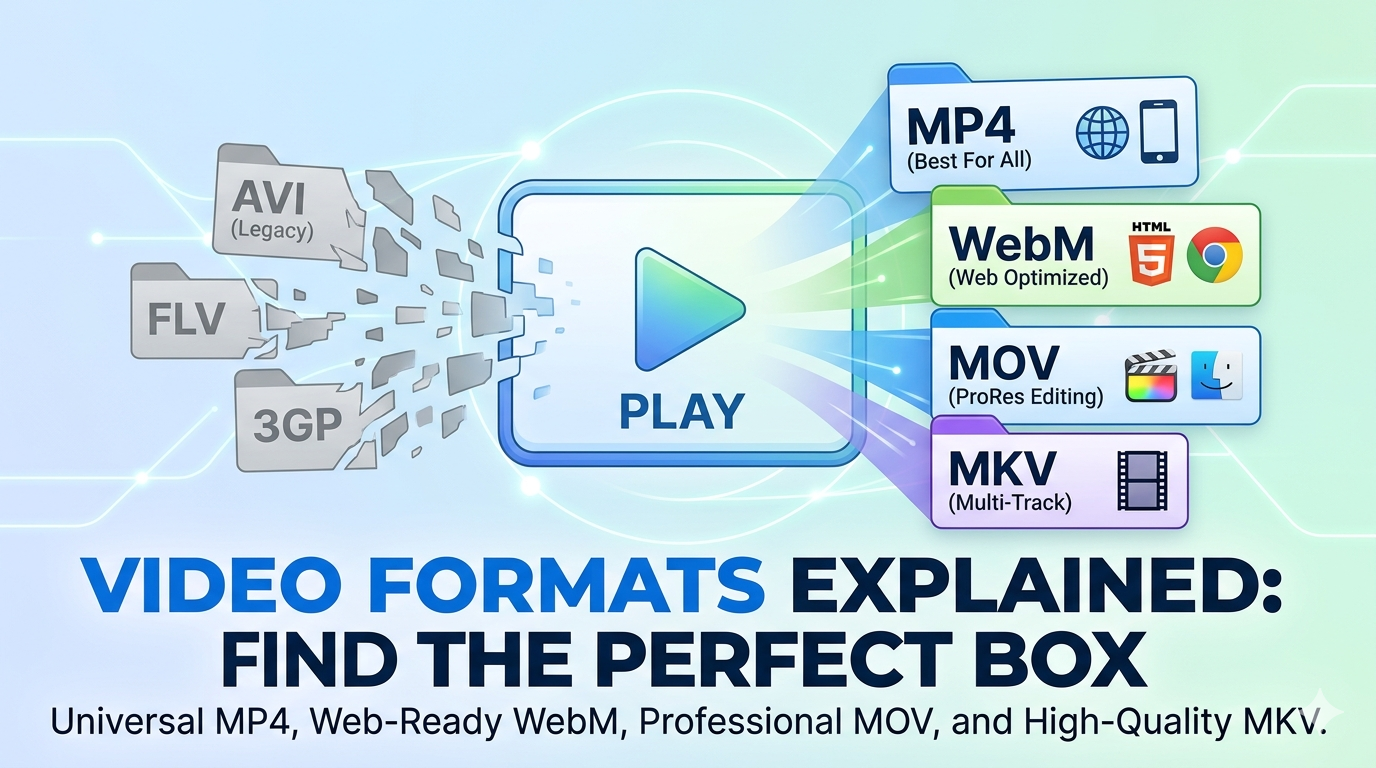
MP4, MOV, AVI, WebM, MKV—video formats can be confusing. Each has different compatibility, quality, and file size characteristics. Choosing the wrong format means your video won't play on certain devices or will be unnecessarily large.
Quick Answer
MP4 (H.264) is the best video format for most uses in 2026. It offers excellent quality, small file sizes, and works on virtually every device and platform. Use our free video converter to convert any video to MP4.
Understanding Video Formats vs Codecs
Before diving into formats, understand the difference:
Container Format (File Extension)
The "box" that holds video, audio, and metadata. Examples: MP4, MOV, AVI, WebM, MKV.
Codec (Compression Algorithm)
How the video is compressed. Examples: H.264, H.265, VP9, AV1.
Analogy: The container is like a ZIP file, the codec is how the files inside are compressed.
The 5 Most Common Video Formats
1. MP4 (MPEG-4 Part 14)
File extension: .mp4
Best for: Almost everything
Codecs: Usually H.264 (most common) or H.265 (newer, better compression)
Pros:
- Universal compatibility (plays on everything)
- Excellent quality-to-size ratio
- Supports streaming
- Works on web, mobile, TV, desktop
- Industry standard
Cons:
- Lossy compression (some quality loss)
- Not ideal for professional editing
Use MP4 for:
- YouTube, Vimeo, social media
- Website videos
- Mobile devices
- Sharing videos
- General purpose
File size: 100 MB for 10 minutes of 1080p video (H.264)
2. MOV (QuickTime Movie)
File extension: .mov
Best for: Apple ecosystem, professional editing
Codecs: Various (H.264, ProRes, etc.)
Pros:
- High quality
- Excellent for editing
- Native to macOS/iOS
- Supports multiple tracks
- Professional standard
Cons:
- Larger file sizes than MP4
- Limited compatibility on non-Apple devices
- Not ideal for web streaming
Use MOV for:
- Video editing (especially on Mac)
- Professional video production
- Apple devices
- High-quality archival
File size: 150-300 MB for 10 minutes of 1080p video
3. AVI (Audio Video Interleave)
File extension: .avi
Best for: Windows legacy systems
Codecs: Various (often uncompressed or lightly compressed)
Pros:
- High quality (often uncompressed)
- Good for editing
- Wide software support
- No licensing issues
Cons:
- Very large file sizes
- Outdated format
- Poor compression
- Not suitable for web
- Limited mobile support
Use AVI for:
- Legacy Windows systems
- Video editing (if required by software)
- Archival (uncompressed)
File size: 500 MB - 2 GB for 10 minutes of 1080p video
Note: AVI is largely obsolete. Convert to MP4 for modern use.
4. WebM
File extension: .webm
Best for: Web streaming, HTML5 video
Codecs: VP8, VP9, or AV1
Pros:
- Excellent compression (small files)
- Open source (no licensing fees)
- Optimized for web
- Good quality
- Supports transparency
Cons:
- Limited device support (mainly browsers)
- Not supported by Apple devices (Safari)
- Fewer editing tools support it
Use WebM for:
- Website videos (with MP4 fallback)
- Web applications
- Open-source projects
- Streaming
File size: 70-90 MB for 10 minutes of 1080p video
5. MKV (Matroska)
File extension: .mkv
Best for: High-quality video storage, multiple audio tracks
Codecs: Any (very flexible)
Pros:
- Supports any codec
- Multiple audio/subtitle tracks
- High quality
- Open source
- Great for movies/TV shows
Cons:
- Large file sizes
- Limited device support
- Not suitable for web
- Overkill for simple videos
Use MKV for:
- Movie collections
- Videos with multiple audio tracks
- High-quality archival
- Videos with subtitles
File size: 200-500 MB for 10 minutes of 1080p video
Video Format Comparison Table
| Format | Compatibility | File Size | Quality | Best Use |
|---|---|---|---|---|
| MP4 | ⭐⭐⭐⭐⭐ | Medium | High | General purpose |
| MOV | ⭐⭐⭐ | Large | Very High | Apple, editing |
| AVI | ⭐⭐ | Very Large | High | Legacy systems |
| WebM | ⭐⭐⭐ | Small | High | Web streaming |
| MKV | ⭐⭐⭐ | Large | Very High | Archival, movies |
Understanding Video Codecs
The codec matters more than the container for quality and file size.
H.264 (AVC)
Status: Industry standard
Pros:
- Universal support
- Good compression
- Hardware acceleration on all devices
- Proven and reliable
Cons:
- Older technology
- Larger files than H.265
Use for: General purpose, maximum compatibility
H.265 (HEVC)
Status: Modern standard
Pros:
- 50% smaller files than H.264 (same quality)
- Better quality at same file size
- 4K and 8K support
Cons:
- Requires more processing power
- Licensing fees (for creators)
- Not supported on older devices
Use for: 4K video, when file size matters, modern devices
VP9
Status: Open-source alternative
Pros:
- Similar to H.265 compression
- No licensing fees
- Used by YouTube
- Open source
Cons:
- Slower encoding
- Less hardware support
- Mainly for web use
Use for: Web video, YouTube, open-source projects
AV1
Status: Next-generation codec
Pros:
- 30% better compression than H.265
- Open source
- No licensing fees
- Future-proof
Cons:
- Very slow encoding
- Limited hardware support (improving)
- Still emerging
Use for: Future-proofing, web streaming (when encoding time isn't critical)
Which Format Should You Use?
For YouTube/Social Media
Use: MP4 (H.264)
- Universal compatibility
- Platforms re-encode anyway
- Fast upload
For Website Videos
Use: MP4 (H.264) + WebM (VP9) fallback
<video>
  <source src="video.webm" type="video/webm">
  <source src="video.mp4" type="video/mp4">
</video>
For Mobile Apps
Use: MP4 (H.264)
- Works on iOS and Android
- Hardware acceleration
- Reliable playback
For Professional Editing
Use: MOV (ProRes) or MKV (lossless)
- High quality
- Editing-friendly
- Export to MP4 for delivery
For Email/Messaging
Use: MP4 (H.264), heavily compressed
- Small file size
- Universal compatibility
- Use our video compressor
For Archival/Storage
Use: MKV (H.265) or MOV (ProRes)
- High quality
- Future-proof
- Flexible
For Presentations
Use: MP4 (H.264)
- Works in PowerPoint, Keynote, Google Slides
- Reliable playback
- No compatibility issues
How to Convert Video Formats
Using Free Media Tools (Recommended)
- Go to freemediatools.online/convert-video
- Upload your video
- Select output format (MP4, MOV, WebM, etc.)
- Choose quality settings
- Download converted video
Pros:
- Free and unlimited
- No software installation
- Works on any device
- Privacy-focused (browser-based)
Using Desktop Software
HandBrake (Free, Open Source)
- Windows, Mac, Linux
- Powerful and free
- Batch conversion
- Presets for devices
FFmpeg (Command Line)
# Convert to MP4
ffmpeg -i input.avi output.mp4

# Convert to WebM
ffmpeg -i input.mp4 -c:v libvpx-vp9 output.webm

# Convert to MOV
ffmpeg -i input.mp4 output.mov
Video Format Best Practices
1. Choose the Right Format for Your Use Case
Don't use AVI for web videos or WebM for mobile apps. Match the format to the platform.
2. Always Keep Original Files
Never overwrite your original video. Keep high-quality masters and create compressed versions for distribution.
3. Compress Before Sharing
Even MP4 files can be large. Use our video compressor to reduce file size before sharing.
4. Use the Right Resolution
Don't upload 4K videos if they'll only be viewed at 1080p. Match resolution to use case.
5. Test Playback
Always test your video on target devices before distributing widely.
Platform-Specific Requirements
YouTube
- Format: MP4 (H.264)
- Resolution: Up to 8K
- Max file size: 256 GB
- Max duration: 12 hours
- Format: MP4 (H.264)
- Resolution: 1080×1920 (Reels), 1080×1080 (Feed)
- Max file size: 4 GB
- Max duration: 90 seconds (Reels)
- Format: MP4 or MOV
- Resolution: Up to 1080p
- Max file size: 10 GB
- Max duration: 240 minutes
- Format: MP4 (H.264)
- Resolution: Up to 1920×1200
- Max file size: 512 MB
- Max duration: 2:20
TikTok
- Format: MP4 or MOV
- Resolution: 1080×1920
- Max file size: 287.6 MB
- Max duration: 10 minutes
Frequently Asked Questions
What's the difference between MP4 and MOV?
MP4 is more universally compatible and has smaller file sizes. MOV is better for editing and native to Apple devices. For most uses, MP4 is better.
Is MP4 the same as MPEG-4?
MP4 is a container format based on MPEG-4 Part 14. MPEG-4 is the broader standard that includes codecs and container formats.
Which video format has the best quality?
Quality depends on the codec, not the container. Uncompressed AVI or ProRes MOV have the highest quality but huge file sizes. For practical use, MP4 with H.265 offers excellent quality with reasonable file sizes.
Can I convert video formats without losing quality?
Converting between formats always involves re-encoding, which can reduce quality. To minimize loss, use high-quality settings and avoid converting multiple times.
Why won't my video play on my device?
Likely a codec or format compatibility issue. Convert to MP4 (H.264) for maximum compatibility.
What's the smallest video format?
WebM with AV1 codec offers the best compression, but MP4 with H.265 is more practical and widely supported.
Should I use H.264 or H.265?
H.265 offers better compression but requires more processing power and isn't supported on older devices. Use H.264 for maximum compatibility, H.265 when file size is critical and you know devices support it.
Related Tools
- Convert video formats - Free online converter
- Compress videos - Reduce file size
- Trim videos - Cut unwanted sections
Conclusion
For 99% of use cases, MP4 with H.264 codec is the best choice. It offers universal compatibility, good quality, reasonable file sizes, and works everywhere.
Need to convert your videos? Use our free video converter to convert any format to MP4 in minutes.
Real-World Example: Converting a Project
Last month, I received a client's video project with mixed formats: 15 MOV files from iPhone, 8 AVI files from an old camera, and 3 MKV files from screen recordings. Total: 12GB.
The problem: Inconsistent formats made editing difficult, and file sizes were huge.
My solution:
- Converted all files to MP4 (H.264) using our converter
- Result: 3.2GB total (73% reduction)
- All files now compatible with my editing software
- Faster editing workflow
Time saved: 4+ hours of troubleshooting format issues
Comparison Table: Format File Sizes
Same 10-minute 1080p video in different formats:
| Format | Codec | File Size | Quality | Compatibility |
|---|---|---|---|---|
| AVI | Uncompressed | 2.1 GB | Perfect | Poor |
| MOV | ProRes | 1.8 GB | Excellent | Medium |
| MKV | H.264 | 180 MB | Excellent | Medium |
| MP4 | H.264 | 150 MB | Excellent | Excellent |
| MP4 | H.265 | 75 MB | Excellent | Good |
| WebM | VP9 | 90 MB | Excellent | Medium |
Winner for most uses: MP4 (H.264) - Best balance of size, quality, and compatibility.
What to Avoid: Video Format Mistakes
1. Using AVI for Modern Projects
AVI is outdated and creates unnecessarily large files. There's no reason to use AVI in 2026.
Solution: Convert all AVI files to MP4 using our video converter.
2. Uploading MOV to Social Media
While MOV works, it's larger than MP4 and takes longer to upload. Social platforms re-encode anyway.
Solution: Convert MOV to MP4 before uploading to YouTube, Instagram, or Facebook.
3. Using WebM Without MP4 Fallback
WebM doesn't work on Safari/iOS. Using WebM alone means Apple users can't watch your videos.
Solution: Always provide MP4 fallback when using WebM for web videos.
4. Choosing Format Based on File Extension Alone
The container (MP4, MOV) matters less than the codec (H.264, H.265). An MP4 with old codec can be larger than a MOV with modern codec.
Solution: Check both format and codec. Use MP4 with H.264 or H.265 for best results.
5. Not Considering Target Platform
Different platforms have different requirements. Using the wrong format causes upload failures or quality loss.
Solution: Check platform requirements before converting. When in doubt, use MP4 (H.264).
Frequently Asked Questions (Expanded)
Can I convert video formats without losing quality?
Converting always involves re-encoding, which can reduce quality slightly. To minimize loss:
- Use high-quality settings (our tool uses optimal settings)
- Avoid converting multiple times
- Start from the highest quality source
Why is my MP4 file so large?
MP4 is just a container. The codec and bitrate determine file size. An MP4 with high bitrate or inefficient codec can be huge.
Solution: Re-encode with H.264 or H.265 codec at appropriate bitrate using our video compressor.
What's the difference between container and codec?
Container (MP4, MOV, AVI) is the "box" that holds video, audio, and metadata.
Codec (H.264, H.265, VP9) is how the video is compressed.
Think of it like a ZIP file (container) containing compressed documents (codec).
Should I use H.264 or H.265 in 2026?
H.264 for maximum compatibility (works everywhere)
H.265 for better compression (50% smaller files) if you know devices support it
For general use, H.264 is still the safer choice.
Can I play MKV files on my TV?
Most modern smart TVs support MKV, but older TVs don't. Convert to MP4 for guaranteed compatibility.
Why does YouTube re-encode my videos?
YouTube re-encodes all uploads to create multiple quality versions (360p, 720p, 1080p, etc.) and optimize for streaming. Upload high-quality MP4 for best results.
Related Tools You Might Need
-
Video Compressor — After converting to MP4, compress to reduce file size further without losing quality.
-
Video Trimmer — Cut unwanted sections from your videos before converting to save time and space.
-
Image Converter — Convert image formats (JPEG, PNG, WebP) for thumbnails and graphics.
By Muhammad Hasnain Adam — Full-stack developer and creator of Free Media Tools. I built this platform to simplify video format conversion and help everyone work with videos without technical barriers.