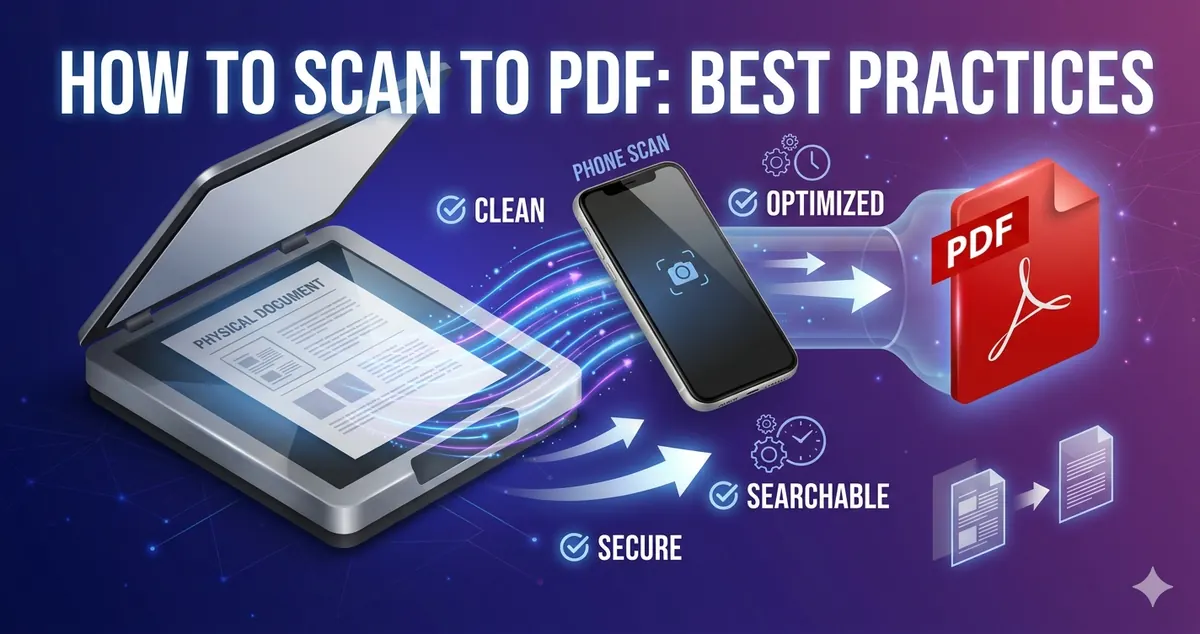
Need to digitize paper documents? Scanning to PDF is the best way to create searchable, shareable, and archivable digital documents. Whether you're scanning receipts, contracts, or old photos, here's everything you need to know to create perfect PDF scans.
Quick Answer
For best results: scan at 300 DPI for documents (150 DPI for basic text), use color for important documents (grayscale for text-only), enable OCR to make PDFs searchable, and compress images to reduce file size. Use Free Media Tools' JPG to PDF converter to combine multiple scanned images into one PDF.
Why Scan to PDF?
Benefits of Digital Documents
1. Space Savings
- 1 filing cabinet = 10,000+ pages
- 10,000 pages as PDF = ~500 MB (fits on USB drive)
- Eliminate physical storage costs
2. Easy Sharing
- Email PDFs instantly
- Share via cloud storage
- No physical delivery needed
3. Searchability
- Find documents in seconds (with OCR)
- Search by keyword, date, or content
- No more manual filing
4. Backup and Security
- Cloud backup prevents loss
- Password protect sensitive documents
- Disaster-proof (fire, flood, theft)
5. Accessibility
- Access from anywhere
- View on any device
- No need to be at office
6. Organization
- Tag and categorize easily
- Create folder structures
- Link related documents
Scanning Equipment Options
1. Dedicated Scanner
Types:
- Flatbed scanner - Best for books, photos, fragile documents
- Sheet-fed scanner - Best for multi-page documents, fast scanning
- All-in-one printer - Printer + scanner + copier
Pros:
- ✅ Best quality
- ✅ Fast (sheet-fed)
- ✅ Consistent results
- ✅ Batch scanning
Cons:
- ❌ Expensive ($100-$500+)
- ❌ Takes up space
- ❌ Not portable
Best for: Office use, high-volume scanning, archival quality
Popular models:
- Epson WorkForce ES-400 ($300) - Fast sheet-fed
- Canon CanoScan LiDE 400 ($90) - Affordable flatbed
- Fujitsu ScanSnap iX1600 ($500) - Premium sheet-fed
2. Smartphone Camera
Apps:
- Adobe Scan (free, iOS/Android)
- Microsoft Lens (free, iOS/Android)
- CamScanner (free/paid, iOS/Android)
- Apple Notes (built-in, iOS)
- Google Drive (built-in, Android)
Pros:
- ✅ Free (you already have phone)
- ✅ Portable
- ✅ Convenient
- ✅ Good quality (modern phones)
Cons:
- ❌ Slower than dedicated scanner
- ❌ Requires good lighting
- ❌ Manual alignment needed
- ❌ Not ideal for large volumes
Best for: Receipts, business cards, occasional documents, on-the-go scanning
3. Multifunction Printer (MFP)
Examples:
- HP OfficeJet Pro series
- Canon PIXMA series
- Epson EcoTank series
Pros:
- ✅ Printer + scanner in one
- ✅ Good quality
- ✅ Scan to email/cloud
- ✅ Affordable ($150-$300)
Cons:
- ❌ Slower than dedicated scanner
- ❌ Takes up space
- ❌ Not portable
Best for: Home office, small business, occasional scanning
Optimal Scanning Settings
Resolution (DPI)
DPI = Dots Per Inch - Higher DPI = better quality, larger file size
| Document Type | Recommended DPI | File Size (per page) |
|---|---|---|
| Text documents | 300 DPI | 50-200 KB |
| Basic text (OCR only) | 150 DPI | 20-100 KB |
| Photos | 300-600 DPI | 500 KB - 2 MB |
| Archival/preservation | 600 DPI | 1-5 MB |
| Large format (posters) | 150-300 DPI | 500 KB - 2 MB |
Recommendation: 300 DPI for most documents (best balance of quality and file size)
Avoid:
- ❌ 72-100 DPI - Too low, text may be blurry
- ❌ 1200+ DPI - Unnecessarily large files, no visible benefit
Color Mode
Color (24-bit RGB)
- Use for: Photos, colored documents, forms with colored text
- File size: Largest
- Example: 300 DPI color = 200 KB per page
Grayscale (8-bit)
- Use for: Black and white documents, text-only pages
- File size: Medium
- Example: 300 DPI grayscale = 80 KB per page
Black & White (1-bit)
- Use for: Simple text documents, faxes
- File size: Smallest
- Example: 300 DPI B&W = 30 KB per page
Recommendation:
- Color for important documents (contracts, forms)
- Grayscale for text-only documents
- Black & white for simple text (if file size critical)
File Format
PDF (Recommended)
- Universal compatibility
- Can contain multiple pages
- Supports OCR (searchable text)
- Can be compressed
- Professional standard
TIFF
- High quality
- Large file size
- Used in archival/legal contexts
- Not web-friendly
JPG
- Good for photos
- Lossy compression
- One page per file
- Not ideal for text
Recommendation: Always use PDF for scanned documents
Step-by-Step: Scanning to PDF
Method 1: Using Dedicated Scanner
Equipment: Flatbed or sheet-fed scanner
Steps:
-
Prepare documents
- Remove staples, paper clips
- Flatten creases
- Arrange in order
-
Configure scanner settings
- Resolution: 300 DPI
- Color mode: Color or Grayscale
- Format: PDF
- Enable OCR (if available)
-
Scan documents
- Place document on scanner
- Click "Scan"
- Repeat for multiple pages
-
Combine into single PDF (if needed)
- Use scanner software to merge
- Or use Free Media Tools' PDF Merger
-
Optimize PDF
- Compress images using our compressor
- Reduce file size by 60-80%
-
Save and organize
- Use descriptive filename: "2026-04-19-Contract-Smith.pdf"
- Store in organized folder structure
Method 2: Using Smartphone
Equipment: Smartphone with camera
Steps:
-
Download scanning app
- Adobe Scan (recommended)
- Microsoft Lens
- CamScanner
-
Prepare environment
- Good lighting (natural light best)
- Flat surface
- Contrasting background (dark document on light surface)
-
Position document
- Place flat on surface
- Remove shadows
- Ensure entire document visible
-
Scan with app
- Open app
- Point camera at document
- App auto-detects edges
- Capture image
-
Review and adjust
- Check edges are correct
- Adjust crop if needed
- Enhance contrast (auto-enhance)
-
Add more pages (if multi-page)
- Scan additional pages
- App combines into single PDF
-
Export as PDF
- Save to device
- Share via email or cloud
-
Optimize (optional)
- If file too large, compress images
- Use our image compressor
Method 3: Using Multifunction Printer
Equipment: All-in-one printer with scanner
Steps:
-
Place document on scanner bed
- Face down (usually)
- Align with corner guides
-
Select scan mode
- On printer display or computer software
- Choose "Scan to PDF"
-
Configure settings
- Resolution: 300 DPI
- Color mode: Color or Grayscale
- Destination: Computer, email, or cloud
-
Start scan
- Press "Scan" button
- Wait for completion
-
Retrieve PDF
- Check destination folder
- Or check email/cloud storage
-
Optimize and organize
- Compress if needed
- Rename with descriptive name
- Store in organized location
OCR: Making PDFs Searchable
What is OCR?
OCR = Optical Character Recognition
Converts scanned images of text into actual searchable, selectable text.
Without OCR:
- PDF is just an image
- Can't search for words
- Can't copy text
- Larger file size
With OCR:
- PDF contains searchable text
- Can search for keywords
- Can copy and paste text
- Often smaller file size
How to Add OCR
Method 1: During Scanning
Many scanners and apps have built-in OCR:
- Enable "OCR" or "Searchable PDF" option
- Scanner processes text automatically
- Creates searchable PDF
Method 2: After Scanning
Adobe Acrobat Pro:
- Open scanned PDF
- Tools → Enhance Scans → Recognize Text
- Select language
- Process
Online Tools:
- SmallPDF OCR
- iLovePDF OCR
- OnlineOCR.net
Free Desktop Software:
- Tesseract OCR (open-source)
- ABBYY FineReader (trial)
OCR Best Practices
For best OCR accuracy:
- ✅ Scan at 300 DPI minimum
- ✅ Use good lighting (no shadows)
- ✅ Ensure text is straight (not skewed)
- ✅ Use clean, clear originals
- ✅ Select correct language
OCR accuracy:
- Clean, printed text: 95-99% accurate
- Handwritten text: 60-80% accurate (varies greatly)
- Faded or poor quality: 70-90% accurate
Optimizing Scanned PDFs
Problem: Large File Sizes
Scanned PDFs can be huge:
- 10-page document at 300 DPI color = 2-5 MB
- 100-page document = 20-50 MB (too large to email)
Solution: Compress Images
Steps:
- Extract images from PDF
- Compress images using our compressor
- Recreate PDF with compressed images
Result: 70-90% file size reduction with minimal quality loss
Alternative: Use PDF compression tools
- Adobe Acrobat: "Reduce File Size"
- SmallPDF: PDF Compressor
- iLovePDF: Compress PDF
Read: How to Compress PDF File Size
Optimization Checklist
- Scan at appropriate DPI (300 for most documents)
- Use grayscale for text-only documents
- Enable OCR for searchability
- Compress images to reduce file size
- Remove blank pages
- Straighten skewed pages
- Crop to remove borders
Best Practices for Different Document Types
Receipts
Settings:
- Resolution: 300 DPI
- Color: Grayscale (or color if receipt has colors)
- OCR: Yes (for expense tracking)
Tips:
- Scan immediately (thermal receipts fade)
- Use smartphone app for convenience
- Organize by date or category
Contracts and Legal Documents
Settings:
- Resolution: 300 DPI minimum (600 DPI for archival)
- Color: Color (preserves signatures, stamps)
- OCR: Yes (for searchability)
Tips:
- Scan both sides if double-sided
- Preserve original formatting
- Don't over-compress (maintain quality)
- Password protect sensitive documents
Read: How to Password Protect PDF
Business Cards
Settings:
- Resolution: 300 DPI
- Color: Color
- OCR: Yes (extracts contact info)
Tips:
- Use dedicated business card scanner or app
- Apps can auto-extract name, phone, email
- Export to contacts automatically
Photos
Settings:
- Resolution: 600 DPI (for preservation)
- Color: Color (24-bit)
- Format: PDF or TIFF (for archival)
Tips:
- Clean scanner glass thoroughly
- Handle photos carefully
- Consider professional scanning for valuable photos
- Store originals safely after scanning
Books and Magazines
Settings:
- Resolution: 300 DPI
- Color: Color (for magazines), Grayscale (for books)
- OCR: Yes
Tips:
- Use flatbed scanner
- Be gentle with spine
- Consider book scanner for valuable books
- Check copyright before scanning
Forms
Settings:
- Resolution: 300 DPI
- Color: Color (preserves form colors)
- OCR: Yes
Tips:
- Scan blank form as template
- Fill digitally if possible
- Or scan filled form for records
Organizing Scanned Documents
File Naming Convention
Good naming:
2026-04-19-Invoice-Acme-Corp-12345.pdf2026-04-Contract-Employment-John-Smith.pdf2026-Q1-Tax-Documents.pdf
Bad naming:
Scan001.pdfDocument.pdfIMG_1234.pdf
Format: YYYY-MM-DD-Type-Description.pdf
Folder Structure
Example structure:
Documents/
├── Contracts/
│   ├── 2026/
│   ├── 2025/
│   └── Archive/
├── Invoices/
│   ├── 2026/
│   │   ├── Q1/
│   │   ├── Q2/
│   └── 2025/
├── Receipts/
│   ├── 2026/
│   └── 2025/
├── Personal/
│   ├── Medical/
│   ├── Financial/
│   └── Legal/
└── Archive/
Backup Strategy
3-2-1 Rule:
- 3 copies of data
- 2 different storage types
- 1 off-site backup
Example:
- Original on computer
- External hard drive backup
- Cloud storage (Google Drive, Dropbox, OneDrive)
Common Scanning Problems and Solutions
Problem 1: Blurry or Unclear Text
Causes:
- DPI too low
- Document moved during scan
- Scanner glass dirty
Solutions:
- Increase DPI to 300
- Hold document still
- Clean scanner glass with microfiber cloth
Problem 2: Skewed or Crooked Pages
Causes:
- Document not aligned properly
- Document shifted during scan
Solutions:
- Use scanner alignment guides
- Use auto-deskew feature in scanning software
- Manually rotate in PDF editor
Problem 3: File Size Too Large
Causes:
- DPI too high
- Color mode when grayscale sufficient
- Uncompressed images
Solutions:
- Reduce DPI to 300 (from 600+)
- Use grayscale for text-only documents
- Compress images using our tool
Problem 4: OCR Not Working
Causes:
- DPI too low
- Poor image quality
- Wrong language selected
- Handwritten text (OCR doesn't work well)
Solutions:
- Scan at 300 DPI minimum
- Improve lighting and contrast
- Select correct language
- Manually type handwritten text
Problem 5: Colors Look Wrong
Causes:
- Scanner color calibration off
- Monitor not calibrated
- Faded original document
Solutions:
- Calibrate scanner (check manual)
- Adjust brightness/contrast in scanning software
- Use color correction tools
Frequently Asked Questions
What DPI should I scan documents at?
300 DPI for most documents. Use 150 DPI for basic text-only documents, 600 DPI for photos or archival purposes.
Should I scan in color or black and white?
Use color for important documents (contracts, forms), grayscale for text-only documents, black & white for simple text if file size is critical.
How do I make scanned PDFs searchable?
Enable OCR (Optical Character Recognition) during scanning, or add OCR after scanning using Adobe Acrobat Pro or online OCR tools.
How do I reduce scanned PDF file size?
Compress images in the PDF using our image compressor, or use PDF compression tools. You can typically reduce file size by 70-90%.
Can I scan multiple pages into one PDF?
Yes, most scanners and scanning apps can combine multiple pages into a single PDF. Or use our PDF merger to combine separate scans.
What's the best free scanning app for iPhone?
Adobe Scan or Apple Notes (built-in). Both offer automatic edge detection, OCR, and PDF export.
How do I scan a document with my phone?
Use a scanning app (Adobe Scan, Microsoft Lens), position document on flat surface with good lighting, point camera at document, app auto-detects edges and captures.
Should I keep paper documents after scanning?
Keep originals of important documents (contracts, legal documents, certificates). Shred routine documents (receipts, invoices) after scanning and verification.
Related Tools You Might Need
-
JPG to PDF — Convert scanned images to PDF format.
-
Merge PDF — Combine multiple scanned PDFs into one document.
-
Compress Images — Reduce scanned PDF file size by compressing images.
-
Split PDF — Extract specific pages from scanned PDFs.
Conclusion
Scanning to PDF is the best way to digitize and preserve paper documents. Use 300 DPI for most documents, enable OCR for searchability, and compress images to reduce file size. Whether using a dedicated scanner or smartphone, following these best practices ensures perfect, professional PDF scans.
Start digitizing your documents today — go paperless and never lose an important document again.
By Muhammad Hasnain Adam — Full-stack developer passionate about productivity and document management. I built Free Media Tools to help everyone work with PDFs efficiently, making the paperless office a reality for everyone.