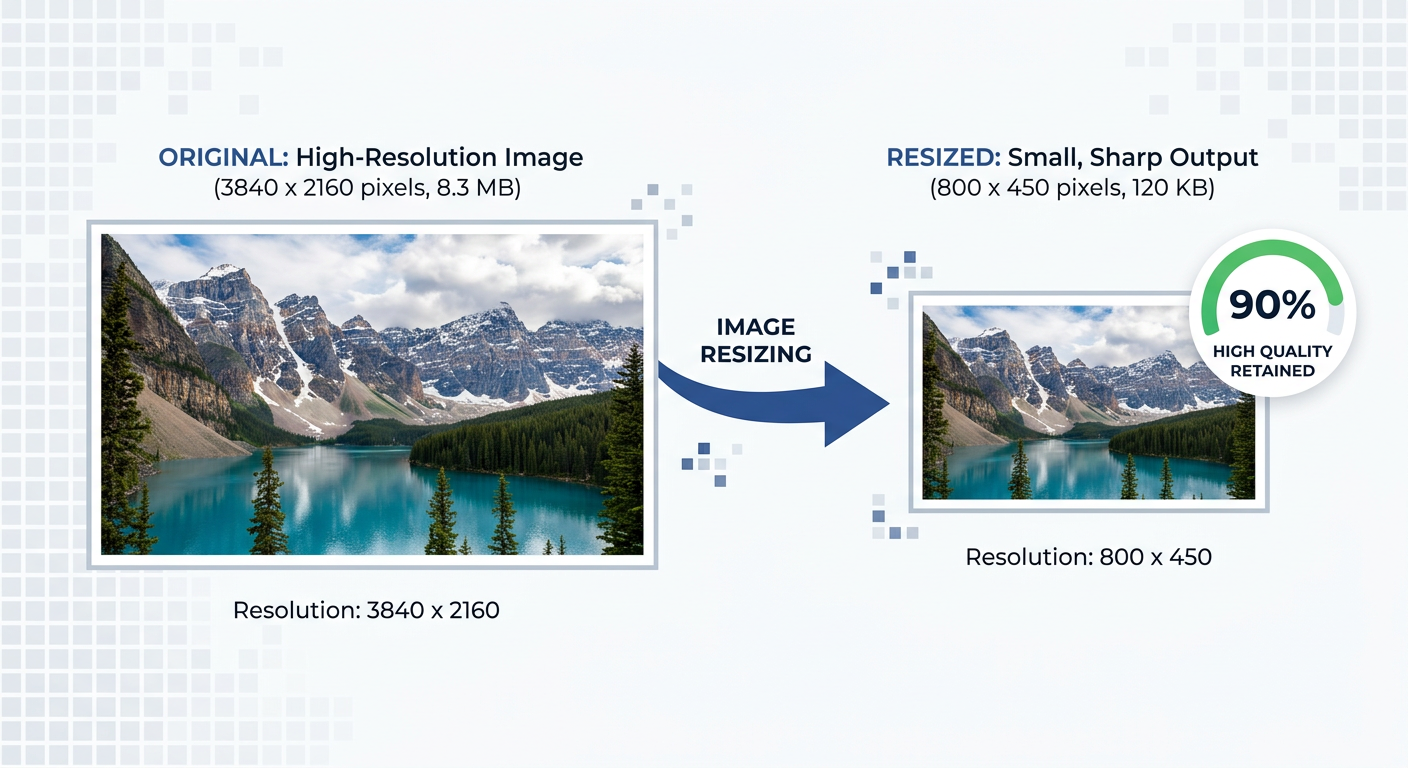
Resizing images often results in blurry, pixelated photos. But with the right tools and settings, you can resize images while maintaining excellent quality. Whether you're preparing images for web, print, or social media, quality preservation is crucial.
Quick Answer
Use Free Media Tools' image resizer with high-quality resampling algorithms to resize images without noticeable quality loss. Always resize down (not up), use the right format (JPG for photos, PNG for graphics), and save at 85-95% quality.
Understanding Image Quality Loss
Why Resizing Affects Quality
When resizing down (making smaller):
- Pixels are removed
- Image data is discarded
- Minimal quality loss with proper algorithms
When resizing up (making larger):
- New pixels must be created
- Software "guesses" what pixels should look like
- Always causes quality loss (blurriness)
The Golden Rule
Always resize down, never up. Start with high-resolution originals and make them smaller. Enlarging images always reduces quality.
How to Resize Images Without Losing Quality
Method 1: Online Image Resizer (Recommended)
Best for: Quick resizing, any device, maintaining quality
Steps:
- Go to freemediatools.online/resize-image
- Upload your image
- Enter target dimensions or percentage
- Select "Maintain aspect ratio"
- Choose high-quality resampling
- Download resized image
Pros:
- Uses advanced resampling algorithms (Lanczos, bicubic)
- No software installation
- Batch processing available
- Free and unlimited
Method 2: Photoshop (Professional)
Best for: Professional photographers, precise control
Steps:
- Open image in Photoshop
- Image → Image Size
- Enter new dimensions
- Check "Resample"
- Select "Bicubic Sharper (reduction)" for downsizing
- Click OK
- File → Export → Save for Web (85-95% quality)
Pros:
- Professional-grade quality
- Precise control
- Batch processing with actions
Cons:
- Expensive ($22.99/month)
- Overkill for simple resizing
Method 3: GIMP (Free Alternative)
Best for: Free Photoshop alternative
Steps:
- Open image in GIMP
- Image → Scale Image
- Enter new dimensions
- Interpolation: Select "Cubic" or "LoHalo"
- Scale
- File → Export As → Adjust quality to 85-95%
Pros:
- Free and open source
- Professional features
- Cross-platform
Cons:
- Steeper learning curve
- Slower than online tools
Real-World Example: E-commerce Product Photos
A client had 200 product photos at 6000×4000 pixels (24MP, 8-12MB each). Their website only displayed images at 1200×800 pixels.
Problem:
- Slow page loads (8-10 seconds)
- Wasted bandwidth
- Poor mobile experience
Solution:
- Resized all images to 1200×800 using our tool
- Used high-quality Lanczos resampling
- Saved as JPG at 90% quality
Results:
- File size: 8MB → 180KB (96% reduction)
- Page load: 8s → 1.2s (85% faster)
- Quality: Identical on website display
- Mobile experience: Dramatically improved
Comparison Table: Resampling Algorithms
| Algorithm | Quality | Speed | Best For |
|---|---|---|---|
| Lanczos | Excellent | Medium | Photos, general use |
| Bicubic | Very Good | Fast | Photos, quick resizing |
| Bilinear | Good | Very Fast | Simple graphics |
| Nearest Neighbor | Poor | Fastest | Pixel art only |
Recommendation: Use Lanczos for best quality. Our tool uses Lanczos by default.
What to Avoid: Image Resizing Mistakes
1. Resizing Up (Enlarging)
Enlarging images creates blurriness and pixelation. No algorithm can add detail that doesn't exist.
Solution: Always start with high-resolution originals. If you need larger images, reshoot or find higher-resolution sources.
2. Multiple Resizes
Resizing an already-resized image compounds quality loss.
Solution: Always resize from the original high-resolution file, not from previously resized versions.
3. Wrong File Format
Saving photos as PNG creates huge files. Saving logos as JPG creates artifacts.
Solution:
- Photos → JPG (smaller, good for photos)
- Logos/graphics → PNG (lossless, supports transparency)
- Web images → WebP (best compression)
4. Low Quality Settings
Saving at 60% JPG quality creates visible artifacts and blurriness.
Solution: Use 85-95% quality for JPG. The file size difference is minimal, but quality difference is huge.
5. Not Maintaining Aspect Ratio
Forcing images into dimensions that don't match their aspect ratio creates distortion (stretched or squashed images).
Solution: Always maintain aspect ratio, or crop first then resize.
Best Settings for Different Use Cases
For Web Use
Blog images:
- Resize to: 1200×800 or 1600×1200
- Format: JPG or WebP
- Quality: 85-90%
- File size target: Under 200KB
Thumbnails:
- Resize to: 300×200 or 400×300
- Format: JPG or WebP
- Quality: 80-85%
- File size target: Under 30KB
Hero images:
- Resize to: 1920×1080 or 2400×1600
- Format: JPG or WebP
- Quality: 90-95%
- File size target: Under 500KB
For Social Media
Instagram:
- Feed: 1080×1080 (square) or 1080×1350 (portrait)
- Stories: 1080×1920
- Format: JPG
- Quality: 90%
Facebook:
- Posts: 1200×630
- Cover: 820×312
- Format: JPG
- Quality: 85-90%
LinkedIn:
- Posts: 1200×627
- Format: JPG
- Quality: 85-90%
For Print
Photo prints:
- 4×6 inch: 1200×1800 pixels (300 DPI)
- 8×10 inch: 2400×3000 pixels (300 DPI)
- 11×14 inch: 3300×4200 pixels (300 DPI)
- Format: JPG or TIFF
- Quality: 95-100%
Rule: Multiply desired inches by 300 for print-quality resolution.
For Email
Attachments:
- Resize to: 800×600 or 1024×768
- Format: JPG
- Quality: 80-85%
- File size target: Under 500KB
Frequently Asked Questions
Can I resize images without losing quality?
When resizing down, quality loss is minimal with proper tools and settings. When resizing up, quality loss is inevitable. Always resize from high-resolution originals.
What's the best way to resize images?
Use tools with advanced resampling algorithms (Lanczos, bicubic). Our online tool uses Lanczos for best quality. Save at 85-95% JPG quality.
How do I make an image larger without losing quality?
You can't truly enlarge without quality loss. AI upscaling tools (like Topaz Gigapixel) can help, but results vary. Best solution: Start with higher-resolution originals.
What resolution should I resize images to for web?
- Full-width images: 1920×1080 to 2400×1600
- Content images: 1200×800 to 1600×1200
- Thumbnails: 300×200 to 400×300
Should I resize before or after compressing?
Resize first, then compress. This gives you the best file size reduction while maintaining quality.
What's the difference between resizing and compressing?
Resizing changes dimensions (pixels). Compressing reduces file size without changing dimensions. Often you'll do both: resize to target dimensions, then compress to reduce file size.
Can I batch resize multiple images?
Yes! Our tool supports batch resizing. Upload multiple images, set dimensions, and resize all at once.
What quality setting should I use for JPG?
- 95-100%: Professional photography, print
- 85-90%: General web use, social media (recommended)
- 75-80%: Thumbnails, email
- Below 70%: Avoid (visible quality loss)
Technical Details: How Resampling Works
Lanczos Resampling (Best Quality)
Lanczos uses a mathematical function to calculate new pixel values based on surrounding pixels. It produces sharp, high-quality results with minimal artifacts.
Best for:
- Photos
- Complex images
- When quality is priority
Bicubic Resampling (Fast & Good)
Bicubic looks at 16 surrounding pixels to calculate new pixel values. Faster than Lanczos, still produces good results.
Best for:
- Quick resizing
- Batch processing
- When speed matters
Bilinear Resampling (Basic)
Bilinear looks at 4 surrounding pixels. Faster but lower quality than bicubic or Lanczos.
Best for:
- Simple graphics
- When speed is critical
- Low-quality acceptable
Related Tools You Might Need
-
Image Compressor — After resizing, compress images to reduce file size by 60-80% without visible quality loss.
-
Image Converter — Convert resized images to WebP format for 25-35% smaller file sizes.
-
Image Cropper — Crop images to specific aspect ratios before resizing for perfect composition.
Why Our Tool Maintains Quality
Our image resizer uses:
- Lanczos resampling - Industry-leading algorithm for quality
- High-quality encoding - 85-95% JPG quality by default
- Metadata preservation - Keeps EXIF data (date, camera info)
- Aspect ratio protection - Prevents distortion
- Browser-based processing - No server uploads, complete privacy
By Muhammad Hasnain Adam — Full-stack developer from Karachi, Pakistan. I built Free Media Tools to provide professional-quality image resizing without expensive software or technical knowledge.