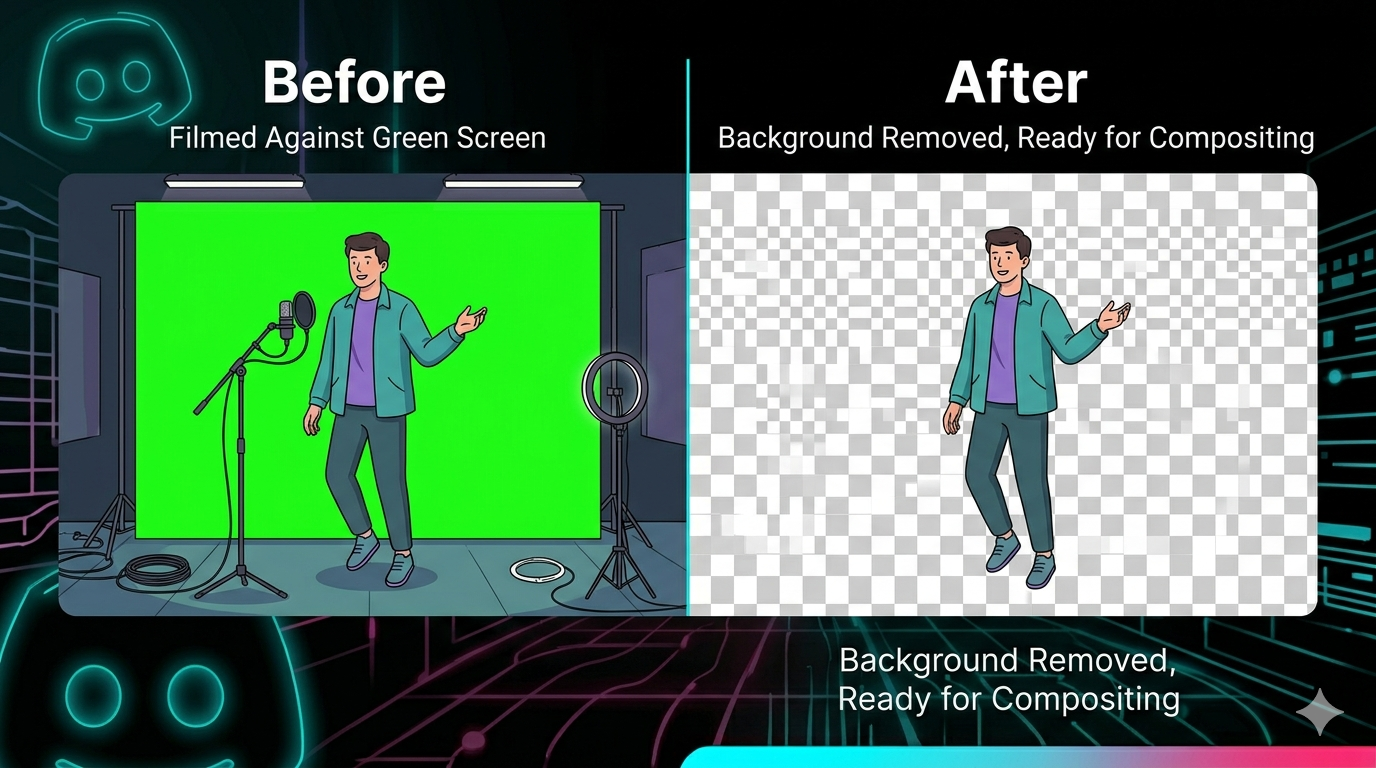
Removing video backgrounds lets you create professional green screen effects, transparent backgrounds for overlays, or replace backgrounds entirely. Whether for YouTube, TikTok, or professional video production, background removal is a powerful technique.
Quick Answer
For browser-based background removal, use tools like Unscreen (free, AI-powered) or DaVinci Resolve (free desktop software). For best results, film against a green screen and use chroma key in your editor. After removing the background, use our video compressor to reduce the file size before sharing.
Why Remove Video Backgrounds?
Common Use Cases
- Green screen effects - Replace background with anything
- Professional presentations - Remove messy backgrounds
- YouTube videos - Create custom backgrounds
- TikTok/Instagram - Trending background effects
- Product demos - Focus on product, remove distractions
- Virtual events - Professional appearance from home
Methods to Remove Video Background
Method 1: Unscreen (AI-Powered, Free)
Best for: Quick removal, no green screen needed
Steps:
- Go to unscreen.com
- Upload video (max 5 minutes free)
- AI automatically removes background
- Download video with transparent background
Pros:
- No green screen needed
- AI-powered (works on any background)
- Free for short videos
- Simple and fast
Cons:
- 5-minute limit (free)
- Quality depends on video
- Watermark on free version
- Uploads to their servers
Cost: Free (with limits), Pro from $9/month
Method 2: Adobe Premiere Pro (Professional)
Best for: Professional video editing, green screen
Steps:
- Import video into Premiere Pro
- Apply "Ultra Key" effect
- Use eyedropper to select green screen color
- Adjust settings (matte cleanup, spill suppression)
- Export with transparent background
Pros:
- Professional quality
- Precise control
- Works with green/blue screens
- Part of full editing suite
Cons:
- Expensive ($22.99/month)
- Requires green screen for best results
- Steep learning curve
Method 3: DaVinci Resolve (Free)
Best for: Free professional-grade editing
Steps:
- Import video into DaVinci Resolve
- Go to Color page
- Use Qualifier to select background color
- Refine selection with masks
- Export with alpha channel
Pros:
- Free and powerful
- Professional features
- No watermarks
- Works with green screens
Cons:
- Complex interface
- Requires green screen
- Large download (3GB+)
Method 4: Kapwing (Online, Free)
Best for: Quick online editing
Steps:
- Go to kapwing.com
- Upload video
- Use "Remove Background" tool
- AI removes background
- Download
Pros:
- Online (no installation)
- AI-powered
- Simple interface
Cons:
- Watermark on free version
- File size limits
- Quality varies
Cost: Free (with watermark), Pro from $16/month
Method 5: Runway ML (AI-Powered)
Best for: AI background removal, no green screen
Steps:
- Go to runwayml.com
- Upload video
- Select "Background Removal"
- AI processes video
- Download result
Pros:
- Advanced AI
- No green screen needed
- High quality
Cons:
- Expensive (credits system)
- Requires account
- Processing time
Cost: From $12/month
Real-World Example: YouTube Tutorial
A YouTuber wanted to create tutorials with custom backgrounds instead of showing his messy room.
Original setup: Filming in bedroom, cluttered background
Solution:
- Bought green screen backdrop ($30)
- Filmed videos against green screen
- Used DaVinci Resolve (free) to remove green
- Added custom backgrounds (office, library, etc.)
Result: Professional-looking videos, 35% increase in viewer retention
Comparison Table: Background Removal Tools
| Tool | Cost | Quality | Green Screen Required | Best For |
|---|---|---|---|---|
| Unscreen | Free-$9/mo | Good | No | Quick removal |
| Premiere Pro | $23/mo | Excellent | Yes | Professionals |
| DaVinci Resolve | Free | Excellent | Yes | Free pro editing |
| Kapwing | Free-$16/mo | Good | No | Online editing |
| Runway ML | $12+/mo | Very Good | No | AI removal |
Tips for Best Results
1. Use a Green Screen
Why: Much easier and cleaner removal than AI
Setup:
- Green screen backdrop ($20-50)
- Even lighting (no shadows)
- Distance from screen (3-6 feet)
- Avoid green clothing
2. Proper Lighting
Key points:
- Light the green screen separately
- Light the subject separately
- Avoid shadows on green screen
- Use soft, even lighting
3. Camera Settings
Optimal settings:
- High shutter speed (reduces motion blur)
- Low ISO (reduces noise)
- Proper focus (sharp edges)
- 1080p or 4K resolution
4. Subject Distance
Ideal distance:
- 3-6 feet from green screen
- Prevents green spill on subject
- Easier to remove background
5. Avoid Green Clothing
Why: Green clothing will become transparent
Solution:
- Wear contrasting colors (blue, red, black)
- Check for green accessories
- Avoid reflective materials
What to Avoid: Background Removal Mistakes
1. Poor Lighting
Uneven lighting creates shadows and makes removal difficult.
Solution: Use multiple lights to evenly light the green screen.
2. Wrinkled Green Screen
Wrinkles create shadows and uneven color.
Solution: Iron or steam green screen before filming.
3. Green Spill
Green light reflects onto subject, creating green edges.
Solution: Increase distance from screen, use backlighting on subject.
4. Low Resolution
Low-res videos have poor edge quality after background removal.
Solution: Film in 1080p minimum, 4K preferred.
5. Compression Artifacts
Heavily compressed videos have poor edge quality.
Solution: Use high-quality video settings, compress after editing.
Frequently Asked Questions
Can I remove video background without green screen?
Yes, AI tools like Unscreen and Runway ML can remove backgrounds without green screens. Quality varies based on video complexity.
What's the best free tool to remove video background?
DaVinci Resolve (free) for green screen removal. Unscreen (free tier) for AI-powered removal without green screen.
How do I remove background from video on iPhone?
Use apps like:
- CapCut (free, AI removal)
- InShot (free with watermark)
- Unscreen website in Safari
Can I remove video background in Premiere Pro?
Yes, use the "Ultra Key" effect for green screen removal. Premiere Pro offers professional-quality results.
What color green screen is best?
Chroma key green (RGB: 0, 177, 64) is standard. Blue screens work too, especially if subject wears green.
How much does a green screen cost?
- Backdrop only: $20-50
- Full kit (backdrop + stand + lights): $100-300
- Professional: $500+
Can I use a green wall instead of screen?
Yes, if painted with proper chroma key green paint and evenly lit. Green screens are more portable and easier to light evenly.
DIY Green Screen Setup
Budget Setup ($50-100)
- Green screen backdrop: $30
- Clamp lights (2): $30
- Clips/tape: $10
Mid-Range Setup ($200-400)
- Green screen with stand: $80
- Softbox lights (2): $100
- Ring light: $50
- Backdrop stand: $70
Professional Setup ($1000+)
- Professional green screen: $200
- Studio lighting kit: $500
- Light stands and modifiers: $300+
Related Tools You Might Need
-
Video Compressor — Compress videos after background removal to reduce file size.
-
Video Converter — Convert videos to formats that support transparency (MOV with alpha channel).
-
Video Trimmer — Trim videos before background removal to save processing time.
By Muhammad Hasnain Adam — Full-stack developer from Karachi, Pakistan. I built Free Media Tools to help everyone edit and process videos without expensive software or privacy concerns.