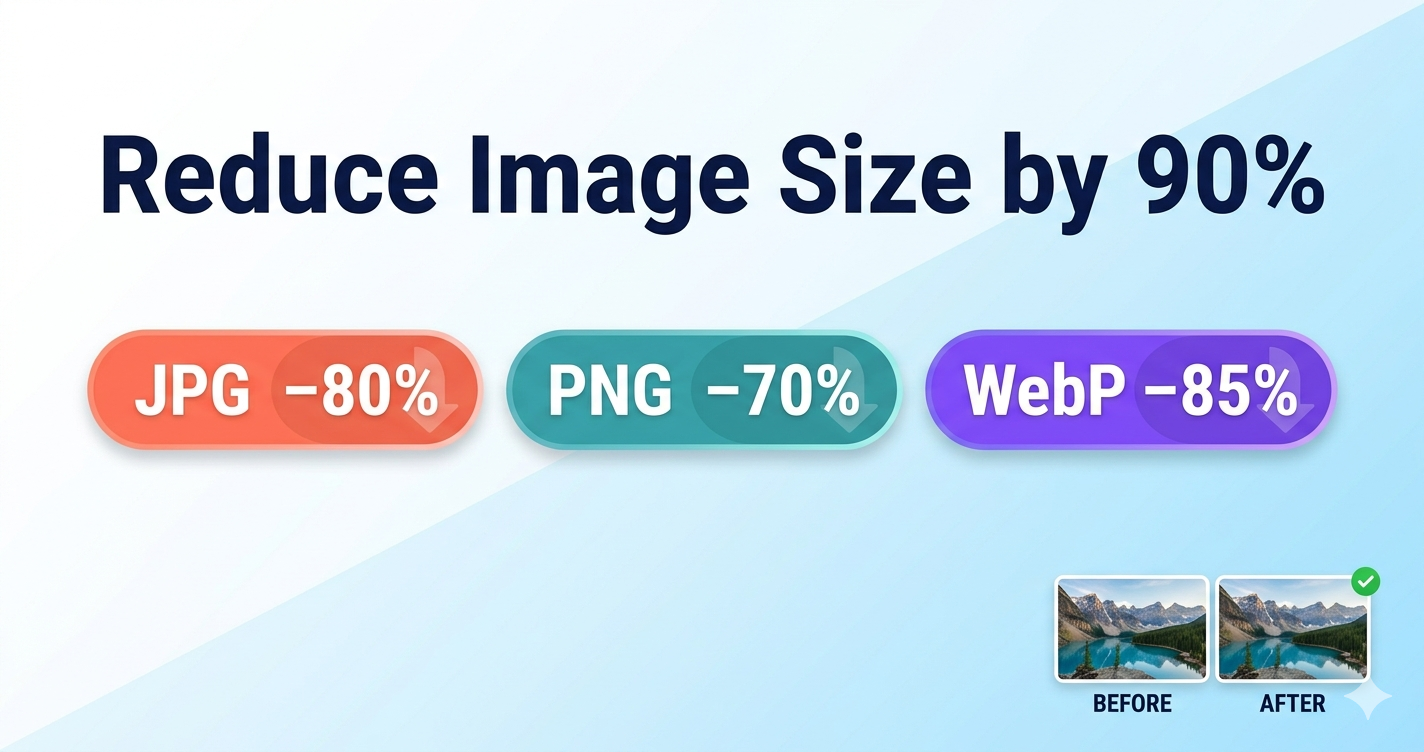
Large image files slow down websites, fill up storage, and take forever to upload or email. But you can reduce image file size by 60-90% without visible quality loss using the right tools and techniques.
Quick Answer
Use Free Media Tools' image compressor to reduce image file size by 60-80% instantly. Our tool uses advanced compression algorithms to maintain visual quality while dramatically reducing file size. Works with JPG, PNG, WebP, and other formats.
7 Methods to Reduce Image File Size
Method 1: Compress Images (Recommended)
Best for: Maintaining dimensions while reducing file size
Compression removes unnecessary data from images without changing dimensions. Modern algorithms can reduce file size by 60-80% with no visible quality loss.
How to do it:
- Go to freemediatools.online/compress-image
- Upload your image(s)
- Select compression level (High, Medium, or Low)
- Download compressed images
Results:
- JPG: 60-80% smaller
- PNG: 50-70% smaller
- WebP: 70-85% smaller
When to use: Always. Compression should be your first step for any image optimization.
Method 2: Resize Images
Best for: Images displayed at smaller dimensions
If you're displaying a 4000×3000 image at 800×600 on your website, you're wasting 96% of the file size.
How to do it:
- Determine display size (how large image appears on screen)
- Use image resizer to match display size
- For retina displays, use 2x dimensions (1600×1200 for 800×600 display)
Results:
- Resizing 4000×3000 to 1200×900: 90% smaller
- Resizing 3000×2000 to 800×600: 93% smaller
When to use: When images are displayed smaller than their original size.
Method 3: Convert to WebP
Best for: Modern websites (97% browser support)
WebP format offers 25-35% better compression than JPG and 50% better than PNG while maintaining the same quality.
How to do it:
- Use image converter
- Select WebP as output format
- Provide JPG fallback for older browsers
Results:
- JPG to WebP: 25-35% smaller
- PNG to WebP: 50-70% smaller
When to use: For all website images (with fallback for old browsers).
Method 4: Choose the Right Format
Best for: Optimizing based on image type
Different formats work better for different image types:
| Image Type | Best Format | Why |
|---|---|---|
| Photos | JPG or WebP | Excellent compression for complex images |
| Logos | PNG or WebP | Supports transparency, sharp edges |
| Graphics | PNG or WebP | Lossless quality for text and shapes |
| Animations | WebP or GIF | WebP is smaller, GIF is more compatible |
| Icons | SVG | Vector format, infinitely scalable |
When to use: Choose format based on image content, not habit.
Method 5: Reduce Quality Settings
Best for: Finding the sweet spot between quality and file size
Most images can be saved at 80-85% quality with no visible difference, but 40-50% smaller file size.
Quality guidelines:
- 95-100%: Professional photography, print
- 85-90%: Web use, social media (recommended)
- 75-80%: Thumbnails, email
- Below 70%: Avoid (visible artifacts)
Results:
- 100% quality: 1.2 MB
- 90% quality: 350 KB (71% smaller, no visible difference)
- 80% quality: 180 KB (85% smaller, minimal difference)
- 60% quality: 90 KB (92% smaller, visible artifacts)
When to use: For JPG images where perfect quality isn't critical.
Method 6: Remove Metadata
Best for: Privacy and small file size reductions
Images contain metadata (EXIF data) including camera settings, GPS location, date, and more. This can add 10-50 KB per image.
What metadata includes:
- Camera make and model
- Date and time taken
- GPS coordinates
- Camera settings (ISO, aperture, shutter speed)
- Copyright information
How to remove:
- Use our image compressor (removes metadata automatically)
- Or use EXIF removal tools
Results:
- 10-50 KB reduction per image
- Privacy protection (removes GPS location)
When to use: For web images where metadata isn't needed.
Method 7: Crop Unnecessary Areas
Best for: Removing wasted space
Images often contain unnecessary background or empty space. Cropping to the subject reduces file size.
How to do it:
- Use image cropper
- Select the important area
- Remove unnecessary background
Results:
- Depends on how much is cropped
- Can reduce file size by 30-70%
When to use: When images have unnecessary background or empty space.
Real-World Example: E-commerce Website
An online store had 300 product photos averaging 2.5 MB each (total: 750 MB).
Problems:
- Page load time: 12 seconds
- High bounce rate: 68%
- Poor mobile experience
- Slow checkout process
Solution applied:
- Resized images from 4000×3000 to 1200×900 (display size)
- Compressed at 85% quality
- Converted to WebP with JPG fallback
- Removed metadata
Results:
| Metric | Before | After | Improvement |
|---|---|---|---|
| Avg file size | 2.5 MB | 120 KB | 95% smaller |
| Total size | 750 MB | 36 MB | 95% smaller |
| Page load | 12s | 1.8s | 85% faster |
| Bounce rate | 68% | 29% | 57% reduction |
| Mobile score | 32/100 | 94/100 | 194% improvement |
Business impact:
- 45% increase in conversions
- 60% more mobile sales
- Better Google rankings (page speed is ranking factor)
Comparison Table: File Size by Method
Original image: 3000×2000 photo, 2.8 MB
| Method | File Size | Reduction | Quality |
|---|---|---|---|
| Original | 2.8 MB | - | Perfect |
| Compress (85%) | 420 KB | 85% | Excellent |
| Resize to 1200×800 | 180 KB | 94% | Excellent |
| Convert to WebP | 280 KB | 90% | Excellent |
| Resize + Compress | 95 KB | 97% | Excellent |
| Resize + Compress + WebP | 65 KB | 98% | Excellent |
Best approach: Combine methods for maximum reduction.
What to Avoid: Image Compression Mistakes
1. Over-Compressing
Saving images at 50-60% quality creates visible artifacts, blurriness, and pixelation.
Solution: Use 80-90% quality for JPG. The file size difference between 90% and 60% is minimal, but quality difference is huge.
2. Not Resizing Before Compressing
Compressing a 4000×3000 image that displays at 800×600 wastes file size.
Solution: Always resize to display dimensions first, then compress.
3. Using PNG for Photos
PNG files are 3-5x larger than JPG for photos. This kills page speed.
Solution: Use JPG or WebP for photos. Only use PNG for logos and graphics.
4. Multiple Compressions
Compressing an already-compressed image compounds quality loss.
Solution: Always work from original high-quality files, not previously compressed versions.
5. Not Testing Quality
Blindly compressing without checking results can create unusable images.
Solution: Always preview compressed images before using them. Our tool shows before/after comparison.
Image Optimization Checklist
For every image:
- Resize to display dimensions (or 2x for retina)
- Choose right format (JPG for photos, PNG for logos, WebP for web)
- Compress at 80-90% quality
- Remove metadata (unless needed)
- Test on actual device/website
- Provide WebP with JPG fallback
- Use lazy loading for below-fold images
- Add alt text for accessibility and SEO
Best Practices by Use Case
For Websites
Hero images:
- Resize to: 1920×1080 or 2400×1600
- Format: WebP with JPG fallback
- Quality: 85-90%
- Target size: Under 300 KB
Content images:
- Resize to: 1200×800
- Format: WebP with JPG fallback
- Quality: 85%
- Target size: Under 150 KB
Thumbnails:
- Resize to: 300×200 or 400×300
- Format: WebP with JPG fallback
- Quality: 80%
- Target size: Under 30 KB
For Email
Attachments:
- Resize to: 800×600 or 1024×768
- Format: JPG
- Quality: 80-85%
- Target size: Under 500 KB per image
Email body images:
- Resize to: 600×400
- Format: JPG or PNG
- Quality: 80%
- Target size: Under 100 KB
For Social Media
Instagram:
- Feed: 1080×1080 (square) or 1080×1350 (portrait)
- Stories: 1080×1920
- Format: JPG
- Quality: 85-90%
Facebook:
- Posts: 1200×630
- Format: JPG
- Quality: 85%
LinkedIn:
- Posts: 1200×627
- Format: JPG
- Quality: 85%
For Print
Don't compress for print!
Print requires high resolution (300 DPI) and maximum quality.
- Format: JPG (95-100% quality) or TIFF
- Resolution: 300 DPI
- Don't compress or reduce quality
Frequently Asked Questions
How much can I reduce image file size without losing quality?
With modern compression, you can reduce JPG by 60-80% and PNG by 50-70% with no visible quality loss. Our tool uses advanced algorithms to maximize compression while preserving quality.
What's the best way to reduce image file size?
Combine methods: 1) Resize to display dimensions, 2) Compress at 85% quality, 3) Convert to WebP for web use. This can reduce file size by 95-98%.
Should I use JPG or PNG?
Use JPG for photos (smaller files, good compression). Use PNG for logos, graphics, and images needing transparency. For web, convert both to WebP.
How do I reduce image size for email?
Resize to 800×600 or smaller, compress at 80-85% quality, use JPG format. Keep total attachment size under 10 MB (ideally under 5 MB).
Can I reduce image size without losing quality?
Yes, to a point. Modern compression can reduce file size by 60-80% with no visible quality loss. Beyond that, you'll start seeing artifacts and blurriness.
What's the best image format for websites?
WebP is best for modern websites (25-35% smaller than JPG). Always provide JPG fallback for older browsers (3% of users).
How do I batch compress multiple images?
Use our image compressor which supports batch processing. Upload multiple images, select quality, and compress all at once.
Why are my images still large after compressing?
Common causes:
- Images not resized to display dimensions
- Using PNG for photos (use JPG or WebP)
- Quality set too high (use 80-90%)
- Not using WebP format
Technical Details: How Compression Works
Lossy Compression (JPG, WebP)
Removes data that human eyes can't easily detect. This is why you can reduce file size by 80% with no visible quality loss.
How it works:
- Divides image into 8×8 pixel blocks
- Converts to frequency domain
- Removes high-frequency data (fine details)
- Compresses remaining data
Result: Much smaller files, minimal visible quality loss
Lossless Compression (PNG)
Compresses without removing any data. Every pixel is preserved exactly.
How it works:
- Finds patterns in pixel data
- Replaces patterns with shorter codes
- No data is lost
Result: Smaller files than uncompressed, but larger than lossy
Related Tools You Might Need
-
Image Resizer — Resize images to optimal dimensions before compressing for maximum file size reduction.
-
Image Converter — Convert images to WebP format for 25-35% additional file size reduction.
-
Image Cropper — Remove unnecessary background and empty space to reduce file size.
Why Our Compressor is Best
- Advanced algorithms - Uses Lanczos resampling and optimized compression
- No quality loss - Maintains visual quality while reducing file size
- Batch processing - Compress multiple images at once
- Privacy-focused - Files processed locally in browser
- No limits - Compress unlimited images
- Free forever - No subscriptions or hidden fees
- All formats - Supports JPG, PNG, WebP, GIF, and more
By Muhammad Hasnain Adam — Full-stack developer and creator of Free Media Tools. I built this platform to help everyone optimize their images for the modern web, without expensive software or technical knowledge. Fast websites benefit everyone.