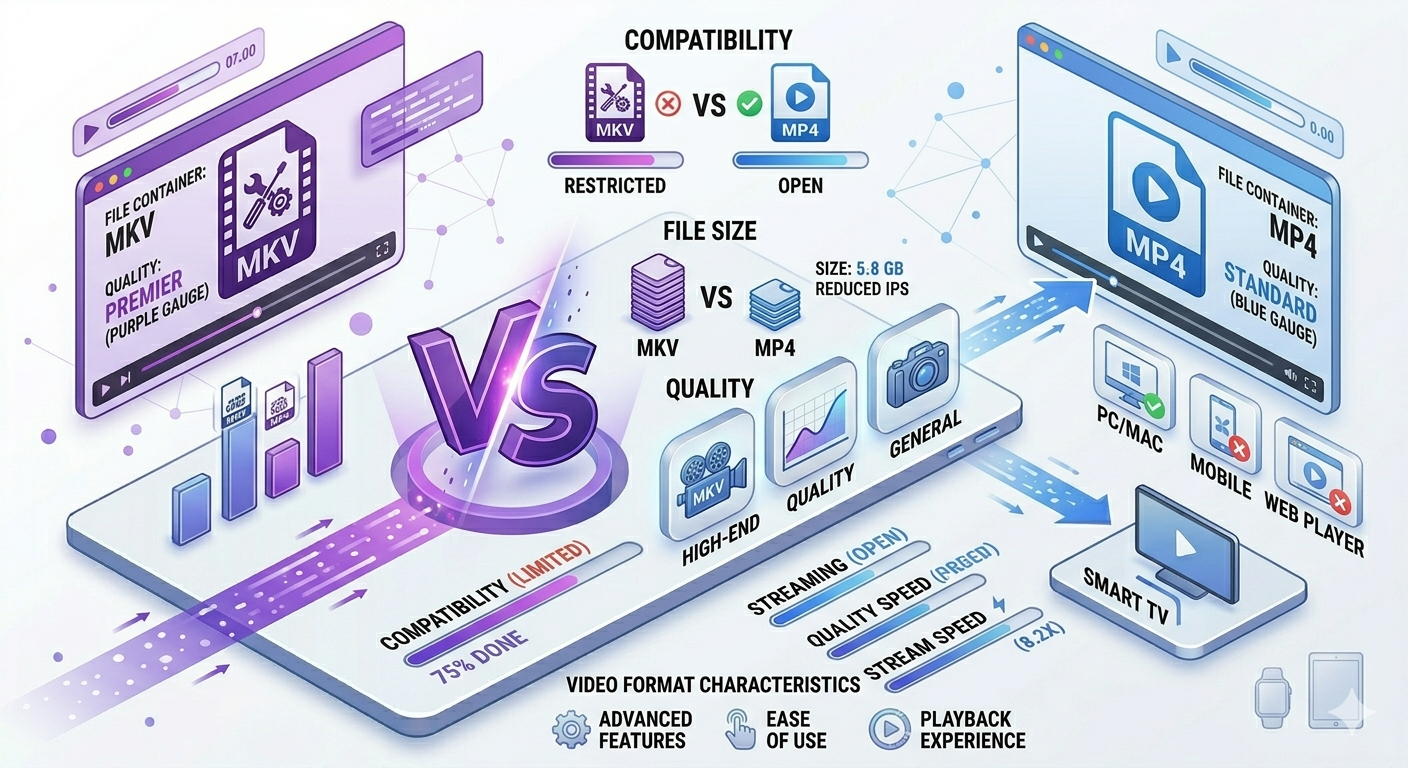
Choosing between MKV and MP4 can be confusing. Both are container formats that hold video, audio, and subtitles, but they serve different purposes. MP4 offers universal compatibility and streaming optimization. MKV provides flexibility and quality preservation. Here's exactly which format to use for your needs.
Quick Answer
Use MP4 for: Streaming, social media, mobile devices, maximum compatibility, and web use. Use MKV for: Archiving, high-quality storage, multiple audio tracks, advanced subtitles, and personal media libraries. For most users: MP4 is the better choice due to universal compatibility.
MKV vs MP4: Key Differences
What Are Container Formats?
Both MKV and MP4 are container formats, not codecs. They're like boxes that hold:
- Video streams (H.264, H.265, etc.)
- Audio streams (AAC, MP3, etc.)
- Subtitles
- Metadata
- Chapters
Think of it like: A ZIP file for video content.
MP4 (MPEG-4 Part 14)
Released: 2001 Developer: ISO/IEC
Best for:
- Streaming (YouTube, Netflix)
- Social media
- Mobile devices
- Web browsers
- General use
Characteristics:
- Universal compatibility
- Optimized for streaming
- Smaller file sizes
- Limited subtitle support
- Standard features
MKV (Matroska Video)
Released: 2002 Developer: Matroska (open-source)
Best for:
- High-quality archiving
- Multiple audio tracks
- Advanced subtitles
- Personal media libraries
- Blu-ray rips
Characteristics:
- Open-source
- Highly flexible
- Supports unlimited tracks
- Advanced features
- Larger file sizes
Detailed Comparison
Compatibility
MP4:
- ✅ All devices (phones, tablets, TVs, computers)
- ✅ All browsers (Chrome, Safari, Firefox, Edge)
- ✅ All platforms (Windows, Mac, Linux, iOS, Android)
- ✅ All media players
- ✅ Social media platforms
- ✅ Streaming services
Winner: MP4 (100% compatibility)
MKV:
- ✅ Most computers (with VLC or similar)
- ✅ Some smart TVs
- ❌ Limited mobile support (requires third-party apps)
- ❌ No browser support
- ❌ Not supported by social media
- ❌ Not supported by streaming platforms
Compatibility: ~60-70%
File Size
MP4:
- Optimized for streaming
- Efficient compression
- Smaller file sizes
- Good for bandwidth-limited situations
Example: 1080p movie: 1.5-2.5GB
MKV:
- Prioritizes quality over size
- Less compression
- Larger file sizes
- Better for storage when quality matters
Example: 1080p movie: 2-4GB
Winner: MP4 for smaller files, MKV for quality
Video Quality
Both support same codecs:
- H.264 (most common)
- H.265/HEVC (newer, better compression)
- VP9 (Google)
- AV1 (newest)
Quality depends on codec, not container.
At same codec and bitrate:
- MP4: Excellent quality
- MKV: Excellent quality
Winner: Tie (quality determined by codec, not container)
Audio Support
MP4:
- AAC (most common)
- MP3
- AC3
- Limited to 1-2 audio tracks typically
MKV:
- AAC, MP3, AC3
- DTS, TrueHD, FLAC
- Unlimited audio tracks
- Multiple languages
Winner: MKV (more flexibility, unlimited tracks)
Subtitle Support
MP4:
- Basic subtitle support
- Usually embedded or separate SRT files
- Limited formatting
MKV:
- Advanced subtitle support
- Multiple subtitle tracks
- Styled subtitles (fonts, colors, positioning)
- Embedded fonts
- Picture-based subtitles (PGS, VobSub)
Winner: MKV (far superior subtitle support)
Streaming
MP4:
- Optimized for streaming
- Progressive download (starts playing before fully downloaded)
- Supported by all streaming platforms
- Adaptive bitrate streaming support
MKV:
- Not optimized for streaming
- Must download completely before playing
- Not supported by streaming platforms
- Poor for web use
Winner: MP4 (designed for streaming)
Editing
MP4:
- Widely supported by video editors
- Adobe Premiere, Final Cut Pro, DaVinci Resolve
- Easy to work with
MKV:
- Limited support in professional editors
- Often needs conversion to MP4 first
- More difficult to edit
Winner: MP4 (better editing support)
Comparison Table: MKV vs MP4
| Feature | MP4 | MKV | Winner |
|---|---|---|---|
| Compatibility | Universal | Limited | MP4 |
| File Size | Smaller | Larger | MP4 |
| Video Quality | Excellent | Excellent | Tie |
| Audio Tracks | 1-2 | Unlimited | MKV |
| Subtitles | Basic | Advanced | MKV |
| Streaming | Excellent | Poor | MP4 |
| Mobile Support | Perfect | Limited | MP4 |
| Editing | Excellent | Limited | MKV |
| Open Source | No | Yes | MKV |
| Flexibility | Standard | High | MKV |
Overall Winner: MP4 for most users, MKV for specific use cases
When to Use MP4
✅ Use MP4 For:
1. Streaming and Web Use
- YouTube, Vimeo, social media
- Website videos
- Online courses
- Live streaming
2. Mobile Devices
- iPhone, iPad
- Android phones and tablets
- Mobile apps
3. Social Media
- Instagram, Facebook, TikTok
- Twitter, LinkedIn
- All platforms require MP4
4. Maximum Compatibility
- Sharing with others
- Unknown playback devices
- Universal access
5. Smaller File Sizes
- Limited storage
- Bandwidth constraints
- Faster uploads/downloads
6. Video Editing
- Professional editing software
- Quick edits
- Collaborative projects
7. Streaming Devices
- Roku, Apple TV, Chromecast
- Smart TVs
- Game consoles
When to Use MKV
✅ Use MKV For:
1. High-Quality Archiving
- Blu-ray rips
- DVD backups
- Long-term storage
- Quality preservation
2. Multiple Audio Tracks
- Multiple languages
- Commentary tracks
- Different audio formats
- Surround sound options
3. Advanced Subtitles
- Multiple subtitle languages
- Styled subtitles
- Forced subtitles
- Picture-based subtitles
4. Personal Media Libraries
- Plex, Kodi, Jellyfin
- Home media servers
- Personal collections
5. Anime and Foreign Films
- Multiple audio tracks (dub/sub)
- Advanced subtitle styling
- Multiple subtitle tracks
6. Lossless Audio
- FLAC audio
- DTS-HD Master Audio
- TrueHD
- Audiophile quality
Real-World Use Cases
Use Case 1: YouTube Creator
Scenario: Creating videos for YouTube
Best format: MP4
- YouTube requires MP4
- Optimized for streaming
- Smaller upload times
- Universal playback
Settings:
- Codec: H.264
- Resolution: 1080p or 4K
- Audio: AAC
Use Case 2: Movie Collector
Scenario: Archiving Blu-ray collection
Best format: MKV
- Preserves quality
- Multiple audio tracks (English, Spanish, commentary)
- Multiple subtitle tracks
- Chapter markers
Settings:
- Codec: H.265 for smaller size
- Original resolution
- Lossless or high-quality audio
Use Case 3: Social Media Marketer
Scenario: Creating content for Instagram, TikTok, Facebook
Best format: MP4
- Required by all platforms
- Optimized for mobile
- Fast uploads
- Universal compatibility
Settings:
- Codec: H.264
- Resolution: 1080p
- Audio: AAC
Use Case 4: Home Media Server
Scenario: Running Plex server for family
Best format: MKV for source files, MP4 for streaming
- Store originals as MKV (quality, flexibility)
- Plex transcodes to MP4 for streaming
- Best of both worlds
How to Convert Between MKV and MP4
MKV to MP4 (Most Common)
Why convert:
- Need compatibility
- Upload to social media
- Play on mobile devices
- Edit in video software
Method 1: Free Media Tools (Recommended)
Steps:
- Go to freemediatools.online/convert-video
- Upload MKV file
- Select MP4 output
- Click "Convert"
- Download MP4
Pros:
- ✅ Free, unlimited
- ✅ Privacy-focused (browser-based)
- ✅ Fast conversion
- ✅ No watermarks
Method 2: HandBrake (Desktop)
Steps:
- Download HandBrake
- Open MKV file
- Select MP4 format
- Choose preset (Fast 1080p30)
- Click "Start"
Pros:
- ✅ Free and open-source
- ✅ Batch conversion
- ✅ Advanced settings
MP4 to MKV (Less Common)
Why convert:
- Add multiple audio tracks
- Add advanced subtitles
- Archiving purposes
Method: MKVToolNix
Steps:
- Download MKVToolNix
- Open MP4 file
- Add additional audio/subtitle tracks
- Click "Start multiplexing"
Note: Usually unnecessary unless adding tracks.
File Size Comparison: Real Example
Same 2-hour movie:
MP4 (H.264, 1080p):
- File size: 2.1GB
- Video bitrate: 2.5 Mbps
- Audio: AAC stereo
- Subtitles: Separate SRT file
MKV (H.264, 1080p):
- File size: 3.8GB
- Video bitrate: 4 Mbps
- Audio: DTS 5.1 + AAC stereo
- Subtitles: 3 languages embedded
Difference: MKV is 81% larger but includes more content and higher quality.
What to Avoid: Common Mistakes
1. Using MKV for Social Media
MKV files won't upload to Instagram, Facebook, TikTok, etc.
Solution: Always convert to MP4 before uploading to social media.
2. Using MP4 for Archiving with Multiple Tracks
MP4 doesn't handle multiple audio/subtitle tracks well.
Solution: Use MKV for archiving, convert to MP4 when needed for playback.
3. Assuming MKV is Higher Quality
Quality depends on codec and bitrate, not container.
Solution: Both can have identical quality. Choose based on compatibility needs.
4. Converting Unnecessarily
Converting between formats can reduce quality if re-encoded.
Solution: Only convert when necessary for compatibility.
5. Not Checking Device Compatibility
Assuming all devices play MKV.
Solution: Check device specs. When in doubt, use MP4.
Advanced Considerations
Codec vs Container
Important distinction:
- Container (MKV, MP4): The box that holds content
- Codec (H.264, H.265): How video is compressed
Quality is determined by codec, not container.
Example:
- MKV with H.264 at 2 Mbps = Same quality as MP4 with H.264 at 2 Mbps
Modern Codecs
H.265/HEVC:
- 50% smaller than H.264 at same quality
- Supported by both MKV and MP4
- Limited device support (improving)
AV1:
- 30% smaller than H.265
- Open-source
- Growing support
- Future-proof
Recommendation: Use H.264 for compatibility, H.265 for efficiency.
Streaming Protocols
MP4 supports:
- HLS (HTTP Live Streaming)
- DASH (Dynamic Adaptive Streaming)
- Progressive download
MKV supports:
- None (not designed for streaming)
Result: MP4 is essential for streaming applications.
Frequently Asked Questions
Is MKV better quality than MP4?
No, quality depends on the codec and bitrate, not the container. Both MKV and MP4 can contain identical video quality. MKV often has larger file sizes because it includes more content (multiple audio tracks, subtitles).
Why is MKV not supported everywhere?
MKV is open-source and highly flexible, but it's not an industry standard. MP4 is standardized by ISO/IEC and supported by all major companies. Device manufacturers prioritize MP4 support.
Can I play MKV on iPhone?
Not natively. iPhone doesn't support MKV playback in the default video player. You need third-party apps like VLC or Infuse. Convert to MP4 for native iPhone support.
Should I convert MKV to MP4?
Convert if you need compatibility (mobile devices, social media, streaming) or smaller file sizes. Keep as MKV if you need multiple audio tracks, advanced subtitles, or archiving.
Does converting MKV to MP4 lose quality?
If you remux (change container without re-encoding), no quality loss. If you re-encode, some quality loss occurs. Use remuxing when possible.
Which is better for Plex?
Both work well. MKV is better for source files (multiple tracks, quality). Plex can transcode MKV to MP4 for streaming to devices that need it.
Is MKV larger than MP4?
Usually yes, because MKV files often contain more content (multiple audio tracks, subtitles) and use higher bitrates. But at identical settings, file sizes are similar.
Can YouTube accept MKV?
No, YouTube requires MP4, MOV, AVI, WMV, FLV, or WebM. Convert MKV to MP4 before uploading to YouTube.
Troubleshooting Common Issues
Issue 1: MKV Won't Play on TV
Cause: TV doesn't support MKV format
Solution:
- Convert to MP4 using our converter
- Or use media player that supports MKV (Plex, Kodi)
- Or use streaming device (Roku, Fire TV with VLC)
Issue 2: MP4 Has No Subtitles
Cause: MP4 doesn't embed subtitles well
Solution:
- Use separate SRT subtitle file
- Or convert to MKV to embed subtitles
- Or use video player that supports external subtitles
Issue 3: File Size Too Large
Cause: High bitrate or multiple tracks
Solution:
- Convert to MP4 with lower bitrate
- Remove unnecessary audio tracks
- Use H.265 codec for better compression
Issue 4: Can't Edit MKV in Premiere
Cause: Premiere has limited MKV support
Solution:
- Convert to MP4 before editing
- Or use HandBrake to remux to MP4
- Or use DaVinci Resolve (better MKV support)
Related Tools You Might Need
-
Convert Video — Convert between MKV and MP4 formats quickly and easily.
-
Compress Video — Reduce file size of MKV or MP4 videos while maintaining quality.
-
Trim Video — Cut unnecessary parts from videos before converting formats.
Conclusion
For most users, MP4 is the better choice due to universal compatibility, streaming optimization, and smaller file sizes. Use MKV when you need multiple audio tracks, advanced subtitles, or high-quality archiving. Convert between formats using our video converter when compatibility requires it.
Start converting your videos now — completely free, no registration required.
By Muhammad Hasnain Adam — Full-stack developer passionate about video technology. I built Free Media Tools to help everyone work with video formats without expensive software or complicated workflows.