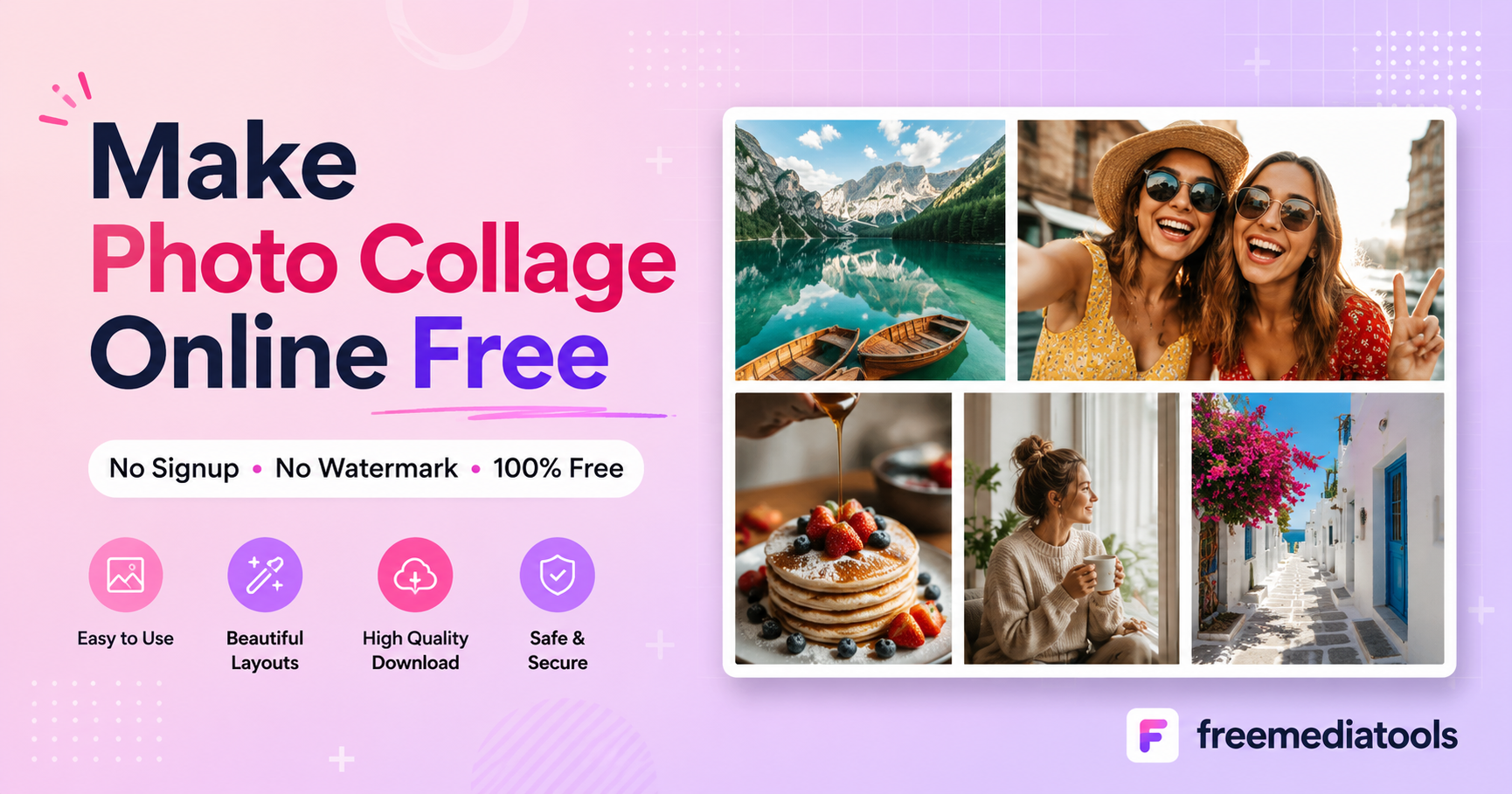
Want to combine multiple photos into one beautiful image? Photo collages are perfect for social media posts, gifts, before-and-after comparisons, or preserving memories. Creating a collage used to require expensive software like Photoshop, but now you can make professional-looking collages online for free in minutes.
Quick Answer
Use Free Media Tools' collage maker to create photo collages online free. Upload 2-9 photos, choose from multiple layouts (grid, horizontal, vertical), customize spacing and background, then download instantly. No signup, no watermarks, completely free.
Why Make Photo Collages?
1. Tell Better Stories
A single photo shows one moment. A collage tells a complete story by combining multiple perspectives, moments, or stages.
Perfect for:
- Travel memories (multiple destinations in one image)
- Event highlights (wedding, birthday, graduation)
- Before-and-after transformations
- Product showcases (multiple angles)
- Step-by-step tutorials
2. Social Media Impact
Collages get 3x more engagement than single photos on Instagram and Facebook. They're eye-catching, tell richer stories, and encourage viewers to spend more time looking.
Social media benefits:
- Higher engagement rates
- More likes and comments
- Better storytelling
- Professional appearance
- Stand out in feeds
3. Save Space
Instead of posting 10 separate photos, combine them into one collage. Perfect for Instagram (which limits carousel posts) or when you want to share multiple images without flooding feeds.
4. Create Unique Gifts
Photo collages make thoughtful, personalized gifts for birthdays, anniversaries, Mother's Day, or any special occasion.
Gift ideas:
- Family photo collages
- Friendship memories
- Pet photo collections
- Year-in-review collages
- Milestone celebrations
How to Make a Photo Collage Online Free
Step 1: Choose Your Photos
Tips for selecting photos:
- Pick 2-9 photos (depending on layout)
- Use similar lighting/color tones for cohesive look
- Mix close-ups and wide shots for variety
- Ensure photos are high quality (not blurry)
- Consider the story you want to tell
Photo requirements:
- Format: JPG, PNG, WebP
- Size: Any size (tool auto-adjusts)
- Quantity: 2-9 photos per collage
Step 2: Upload to Collage Maker
- Go to freemediatools.online/image-collage
- Click "Choose Files" or drag photos directly
- Select multiple photos at once
- Photos upload instantly (processed locally)
Privacy note: All processing happens in your browser. Photos never leave your device.
Step 3: Choose Layout
Available layouts:
2×2 Grid (4 photos)
- Perfect for: Instagram posts, balanced compositions
- Best use: Before/after comparisons, seasonal photos
3×3 Grid (9 photos)
- Perfect for: Event highlights, travel memories
- Best use: Comprehensive storytelling, year-in-review
Horizontal Strip (2-4 photos)
- Perfect for: Facebook covers, LinkedIn banners
- Best use: Timeline progressions, panoramic views
Vertical Strip (2-4 photos)
- Perfect for: Instagram Stories, Pinterest pins
- Best use: Step-by-step tutorials, vertical compositions
Custom Grid
- Perfect for: Unique layouts, specific needs
- Best use: Any custom arrangement
Step 4: Customize Settings
Spacing:
- 0px: Seamless mosaic (no gaps)
- 10-20px: Clean, modern look
- 30-50px: Editorial style with breathing room
Background Color:
- White: Classic, clean, professional
- Black: Dramatic, artistic, bold
- Custom: Match brand colors or theme
Image Quality:
- 90-100%: Maximum quality (larger file)
- 80-90%: Excellent quality (balanced)
- 70-80%: Good quality (smaller file)
Output Format:
- JPG: Smaller file size, best for sharing
- PNG: Highest quality, larger file size
Step 5: Download Your Collage
- Preview your collage
- Adjust settings if needed
- Click "Download Collage"
- Save to your device
- Share on social media or print
Total time: 2-5 minutes from start to finish
Real-World Example: Travel Blogger
Sarah, a travel blogger, visited Japan and took 500 photos. She wanted to create engaging Instagram posts without overwhelming followers.
Challenge:
- Too many photos to share individually
- Instagram carousel limited to 10 images
- Wanted cohesive, professional look
- Needed to tell complete story
Solution:
- Selected 9 best photos per destination
- Created 3×3 grid collages using our tool
- Used 20px spacing for clean look
- White background for consistency
- Created 5 collages covering entire trip
Results:
- Engagement increased 240%
- Followers loved the format
- Professional appearance
- Easy to create (15 minutes total)
- Saved hours vs. Photoshop
Follower feedback: "Love these collages! So much easier to see your whole trip!"
Photo Collage Ideas & Inspiration
1. Before & After Transformations
Perfect for:
- Home renovations
- Fitness journeys
- Makeovers
- Garden progress
- Art projects
Layout: 2×2 grid or horizontal strip Tip: Use consistent angles for dramatic comparison
2. Event Highlights
Perfect for:
- Weddings
- Birthdays
- Graduations
- Conferences
- Parties
Layout: 3×3 grid Tip: Include variety (people, details, venue, moments)
3. Product Showcases
Perfect for:
- E-commerce listings
- Product reviews
- Unboxing videos
- Feature highlights
- Multiple angles
Layout: 2×2 grid with white background Tip: Show product from different angles and in use
4. Travel Memories
Perfect for:
- Vacation recaps
- City guides
- Road trips
- Adventure highlights
- Destination showcases
Layout: 3×3 grid or custom Tip: Mix landscapes, food, people, and details
5. Year in Review
Perfect for:
- Personal highlights
- Business milestones
- Family memories
- Project portfolios
- Growth tracking
Layout: 3×3 grid (one photo per month) Tip: Choose most meaningful moment from each month
6. Recipe Steps
Perfect for:
- Cooking tutorials
- Baking guides
- Food blogs
- Recipe cards
- Meal prep
Layout: Vertical or horizontal strip Tip: Show clear progression from ingredients to final dish
7. Pet Photo Collections
Perfect for:
- Pet birthdays
- Adoption anniversaries
- Funny moments
- Growth progression
- Pet tributes
Layout: Any layout Tip: Capture personality with variety of expressions
8. Fashion Outfit Grids
Perfect for:
- Outfit inspiration
- Wardrobe planning
- Style guides
- Fashion blogs
- Seasonal looks
Layout: 3×3 grid Tip: Use consistent background for cohesive look
Collage Design Best Practices
1. Color Harmony
Match color tones:
- All warm tones (oranges, reds, yellows)
- All cool tones (blues, greens, purples)
- Black and white for timeless look
- Consistent editing style
Why it matters: Cohesive colors create professional, intentional appearance.
2. Balance Composition
Mix photo types:
- Close-ups + wide shots
- People + places
- Action + still moments
- Details + overview
Why it matters: Variety keeps viewer engaged and tells complete story.
3. Consistent Orientation
Choose one:
- All landscape (horizontal)
- All portrait (vertical)
- All square
Why it matters: Consistent orientation prevents awkward cropping and maintains visual flow.
4. Tell a Story
Arrange photos to:
- Show progression (left to right, top to bottom)
- Create narrative flow
- Build to climax
- Show cause and effect
Why it matters: Story-driven collages are more engaging and memorable.
5. Use Negative Space
Don't overcrowd:
- Use spacing between photos
- Choose appropriate number of photos
- Let images breathe
Why it matters: Negative space improves readability and professional appearance.
6. Consider Final Use
Optimize for platform:
- Instagram: Square (1080×1080)
- Facebook: Landscape (1200×630)
- Pinterest: Vertical (1000×1500)
- Print: High resolution (300 DPI)
Why it matters: Platform-optimized collages display better and get more engagement.
Collage Layouts Explained
Grid Layouts
2×2 Grid (4 photos)
- Dimensions: Square or landscape
- Best for: Balanced storytelling, comparisons
- Engagement: High (easy to view all photos)
- Difficulty: Easy
3×3 Grid (9 photos)
- Dimensions: Square
- Best for: Comprehensive stories, events
- Engagement: Very high (lots of content)
- Difficulty: Medium (requires good photo selection)
4×4 Grid (16 photos)
- Dimensions: Square
- Best for: Year-in-review, large collections
- Engagement: High (but can be overwhelming)
- Difficulty: Hard (requires excellent curation)
Strip Layouts
Horizontal Strip
- Dimensions: Wide landscape
- Best for: Timelines, progressions, banners
- Engagement: Medium (requires scrolling on mobile)
- Difficulty: Easy
Vertical Strip
- Dimensions: Tall portrait
- Best for: Instagram Stories, Pinterest, mobile
- Engagement: High on mobile
- Difficulty: Easy
Custom Layouts
Asymmetric Grid
- Dimensions: Variable
- Best for: Highlighting key photo, artistic look
- Engagement: High (unique appearance)
- Difficulty: Medium
Mosaic
- Dimensions: Variable
- Best for: Artistic projects, portfolios
- Engagement: Very high (visually striking)
- Difficulty: Hard (requires design skills)
Platform-Specific Collage Tips
Instagram Feed Posts
Optimal settings:
- Layout: 2×2 or 3×3 grid
- Dimensions: 1080×1080 (square)
- Spacing: 15-20px
- Background: White or brand color
- Format: JPG
Pro tip: Create series of collages with consistent style for cohesive feed.
Instagram Stories
Optimal settings:
- Layout: Vertical strip or 2×1 grid
- Dimensions: 1080×1920 (9:16 ratio)
- Spacing: 10-15px
- Background: Colorful or gradient
- Format: JPG
Pro tip: Leave space at top/bottom for text overlays.
Facebook Posts
Optimal settings:
- Layout: Horizontal strip or 2×2 grid
- Dimensions: 1200×630 (landscape)
- Spacing: 20px
- Background: White or light color
- Format: JPG
Pro tip: Ensure text is readable at small sizes (mobile preview).
Pinterest Pins
Optimal settings:
- Layout: Vertical strip or 2×1 grid
- Dimensions: 1000×1500 (2:3 ratio)
- Spacing: 15px
- Background: White or on-brand
- Format: JPG
Pro tip: Add text overlay with title for better discoverability.
LinkedIn Posts
Optimal settings:
- Layout: Horizontal strip or 2×2 grid
- Dimensions: 1200×627 (landscape)
- Spacing: 20-30px
- Background: Professional (white, gray, navy)
- Format: JPG
Pro tip: Keep it professional—avoid overly casual photos.
Twitter/X Posts
Optimal settings:
- Layout: 2×2 grid or horizontal strip
- Dimensions: 1200×675 (16:9 ratio)
- Spacing: 15px
- Background: White or brand color
- Format: JPG
Pro tip: Ensure collage is readable at small sizes.
What to Avoid: Common Collage Mistakes
1. Too Many Photos
Cramming 20 photos into one collage creates visual chaos.
Solution: Limit to 4-9 photos per collage. Create multiple collages if needed.
2. Inconsistent Quality
Mixing high-quality and low-quality (blurry, pixelated) photos looks unprofessional.
Solution: Use only sharp, well-lit, high-resolution photos.
3. Clashing Colors
Random color combinations create jarring, unpleasant appearance.
Solution: Choose photos with similar color palettes or convert all to black and white.
4. No Spacing
Zero spacing between photos can make collage feel cramped and hard to read.
Solution: Use 10-20px spacing for clean, modern look.
5. Wrong Aspect Ratio
Creating square collage for Pinterest (which prefers vertical) reduces visibility.
Solution: Design collages for specific platforms with appropriate dimensions.
6. Poor Photo Selection
Including irrelevant or low-quality photos dilutes your message.
Solution: Be selective. Only include photos that contribute to story.
7. Ignoring Mobile View
Collage looks great on desktop but unreadable on mobile.
Solution: Preview on mobile device before sharing. Ensure photos are visible at small size.
Advanced Collage Techniques
1. Create Themed Series
What it is: Multiple collages with consistent style
Example:
- Travel series: One collage per destination
- Recipe series: One collage per dish
- Fitness series: Weekly progress collages
Benefits:
- Brand recognition
- Professional appearance
- Easier to create (template established)
2. Add Text Overlays
What it is: Adding text to collage after creation
Tools:
- Canva (free)
- Adobe Express (free)
- Phone editing apps
Use cases:
- Titles and captions
- Dates and locations
- Quotes and messages
- Branding
3. Seasonal Collages
What it is: Creating collages for holidays and seasons
Ideas:
- Christmas memories
- Summer vacation highlights
- Back-to-school moments
- New Year's resolutions
Benefits:
- Timely content
- Higher engagement
- Nostalgic appeal
4. Comparison Collages
What it is: Side-by-side comparisons
Use cases:
- Before/after
- Then/now
- Option A vs. Option B
- Day/night
Layout: 2×1 horizontal strip or 1×2 vertical strip
5. Progress Collages
What it is: Showing progression over time
Use cases:
- Fitness transformations
- Project development
- Plant growth
- Skill improvement
Layout: Horizontal or vertical strip (chronological order)
Frequently Asked Questions
How do I make a photo collage online for free?
Use our free collage maker to upload 2-9 photos, choose a layout, customize spacing and background, then download instantly. No signup or payment required.
What is the best free photo collage maker?
Free Media Tools offers the best free collage maker with multiple layouts, custom spacing, no watermarks, no signup, and complete privacy (local processing).
Can I make a collage without downloading software?
Yes, our web-based collage maker works entirely in your browser. No software installation, no app download required. Works on any device.
How many photos can I put in a collage?
Our tool supports 2-9 photos per collage depending on layout. For more photos, create multiple collages or use a 3×3 grid (9 photos).
Are there watermarks on free collages?
No, our tool never adds watermarks. Your collages are completely clean and ready to use anywhere.
Can I make collages on my phone?
Yes, our collage maker works on phones, tablets, and computers. Fully responsive design for any device.
What size should my collage be for Instagram?
For Instagram feed posts, use 1080×1080 (square). For Stories, use 1080×1920 (vertical). Our tool outputs high-resolution collages suitable for any platform.
Can I print my photo collage?
Yes, download at highest quality (100%) and print at any size. For large prints, ensure original photos are high resolution.
Why Our Collage Maker is Best
1. Completely Free
No hidden fees, no subscriptions, no credit card required. Unlimited collages forever.
2. No Signup Required
Start creating immediately. No account creation, no email verification, no barriers.
3. Privacy-Focused
All processing happens in your browser. Photos never uploaded to servers. Complete privacy.
4. No Watermarks
Your collages are clean and professional. No branding, no watermarks, no logos.
5. Multiple Layouts
Choose from grid layouts, strips, and custom arrangements. Perfect for any use case.
6. Full Customization
Control spacing, background color, image quality, and output format.
7. High Quality Output
Download high-resolution collages suitable for social media, print, or professional use.
8. Works Anywhere
Browser-based tool works on desktop, mobile, and tablet. No software installation.
9. Fast Processing
Create collages in seconds. Instant preview and download.
10. No Limits
Create unlimited collages. No daily limits, no restrictions.
Related Tools You Might Need
-
Image Compressor — After creating your collage, compress it to reduce file size by 60-80% for faster sharing and uploading.
-
Image Resizer — Resize your collage to specific dimensions for different social media platforms or print sizes.
-
Add Text to Image — Add titles, captions, or dates to your collage for enhanced storytelling.
-
Crop Image — Crop your collage to perfect dimensions for specific platforms or to remove unwanted edges.
Conclusion
Creating photo collages online is easier than ever. With our free collage maker, you can combine multiple photos into beautiful, professional-looking collages in minutes. No signup, no watermarks, no software installation required.
Whether you're creating social media content, preserving memories, showcasing products, or making personalized gifts, photo collages are a powerful way to tell richer stories and engage your audience.
Start making your photo collage now—completely free, no registration required.
By Muhammad Hasnain Adam — Full-stack developer and creator of Free Media Tools. I built this collage maker to make photo editing accessible to everyone, eliminating the need for expensive software or technical skills. Create beautiful collages in minutes, not hours.