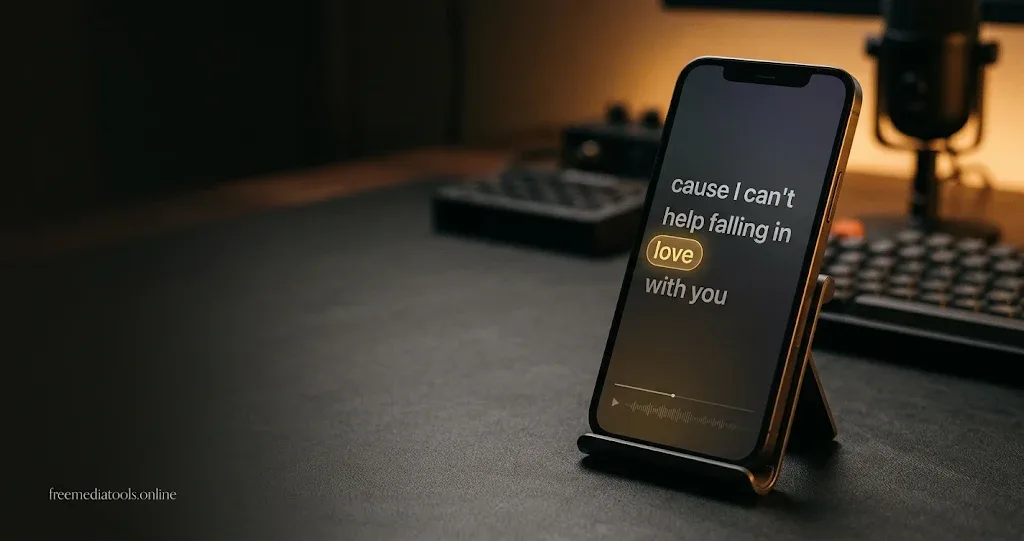
Want a karaoke-style video where lyrics scroll and each word lights up with the audio — without CapCut timelines, After Effects, or uploading your track to a cloud editor? You can build that in the browser with two sync modes: a simple Manual speed you already control, or AI Auto-sync that times words to actual speech.
Quick Answer
Open Audio Text Video on Free Media Tools. Upload your audio, paste lyrics or a transcript, pick Manual speed or AI Auto-sync, style the look, then Generate. Everything runs in your tab — audio stays on your device. Output is WebM (convert to MP4 with our Video Converter if you need it).
What “karaoke scrolling lyrics” actually means here
This is not a full music-video studio. It is a focused utility:
- Your audio plays as the soundtrack
- Your pasted text wraps into lines and scrolls
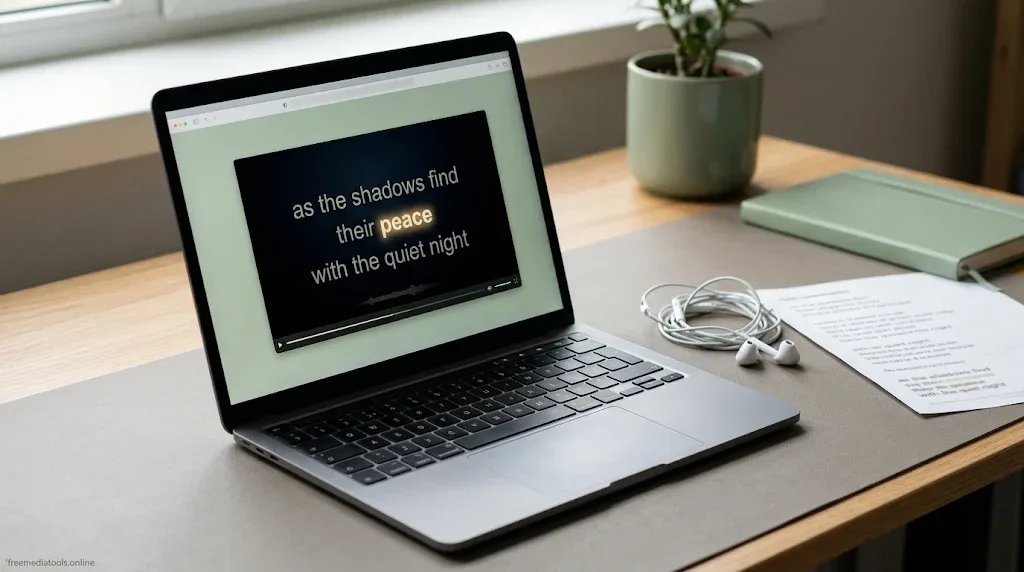
- The current word is highlighted so viewers can follow along
That pattern works for sung lyrics, spoken poems, podcast clips, language practice, and short social hooks where reading along matters more than fancy transitions.
Why highlight timing lags (and how to fix it)
Fixed-interval highlighting is honest and fast: you set “one word every X seconds.” It works when delivery is steady. It drifts when the speaker speeds up, pauses, or holds a note — mid-track the highlighter can look early or late even though the tool is doing exactly what you asked.
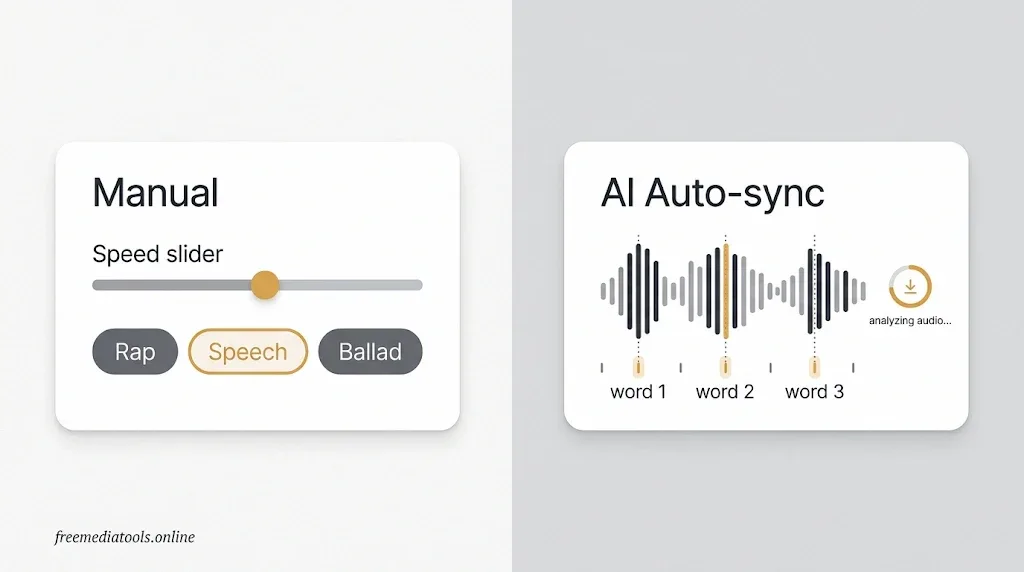
That lag is a timing model problem, not a random bug. So the tool now offers two clear choices:
| Mode | How it works | Best when |
|---|---|---|
| Manual speed | You set seconds-per-word (and presets like Rap / Speech / Ballad / Poetry) | Steady pace, poetry, beat-driven rap, you want full control |
| AI Auto-sync | Downloads a small Whisper speech model in the browser, detects word timings, aligns them to your pasted text | Natural speech, uneven pacing, “stop fighting the slider” |
AI does not replace your transcript. It listens to the audio and maps timestamps onto the words you already wrote — so spelling and line breaks stay yours.
Manual vs AI: pick one on purpose
Manual speed (the original control)
- Choose scroll speed (slow / normal / fast).
- Drag the highlight interval (about 0.3s–4s per word) or tap a preset.
- Preview. If highlights crawl or race, nudge the slider and preview again.
Pros: Instant, no model download, predictable.
Cons: One average rate for the whole clip — variable speech will still drift.
AI Auto-sync (browser Whisper)
- Switch Timing to AI Auto-sync.
- Click Download AI & sync words (first run ~40 MB once; cached afterward).
- Wait for “words timed to audio,” then Preview / Generate.
Pros: Highlights follow spoken (or sung-clear) English better; less mid-track lag.
Cons: First download + sync time; works best with clearer English speech and a transcript that matches the audio. Noisy music-only beds without vocals are a weak fit.
Step-by-step: make the video
- Go to Audio Text Video.
- Upload audio — MP3, WAV, AAC, M4A, OGG, FLAC (anything the browser can decode).
- Paste text — lyrics or transcript that match what is heard.
- Timing — Manual or AI Auto-sync (run sync before Preview if you chose AI).
- Visual style — theme, colors, highlight style (pill / underline / bold / box), font size, progress bar.
- Preview at 960×540 to check sync and look.
- Generate Video — final is 1280×720 WebM with audio baked in.
- Download, then optionally convert WebM → MP4 for Instagram / WhatsApp / editors that prefer MP4.
No account. No server upload of your track for this tool.
Honest limits (so you are not surprised)
- Not CapCut. No multi-track timelines, beat markers, or stock footage layers.
- AI English bias. The tiny English Whisper model is strongest on clear English speech; heavy music, thick accents, or non-English may need Manual.
- Transcript quality. AI aligns to your words. Wrong lyrics = wrong highlights even if ASR is fine.
- WebM out. Widely playable in Chrome/Firefox/Edge; use the converter for MP4 workflows.
- Device CPU. Long tracks + AI sync + render take longer on weak phones — shorter clips first.
Real-world uses
Indie musician — Drop a vocal demo + lyrics, AI-sync once, export a lyric video for YouTube Shorts without opening a NLE.
Teacher / language coach — Spoken paragraph + matching text; students follow highlighted words.
Poet / spoken-word — Manual “Poetry” preset or AI if pacing wanders.
Podcaster — Clip a 30–60s quote into a readable vertical-friendly landscape export (crop later if needed).
Best practices for clean sync
- Paste a transcript that matches the audio word for word (skip ad-libs you did not type).
- Prefer a dry vocal or clear speech over a loud instrumental bed for AI mode.
- Use Preview before a long Generate — sync issues are cheaper to catch there.
- If AI drifts on a chorus buried in reverb, fall back to Manual and a ballad/speech preset.
- Keep clips short the first time you download the AI model so you learn the workflow before a 10-minute render.
Common mistakes
- Choosing AI and hitting Preview before “Download AI & sync words” finishes
- Changing audio or text after sync and forgetting to re-run AI (timings invalidate)
- Expecting AI to invent lyrics you never pasted
- Setting Manual to 0.3s/word on a slow ballad (highlighter will fly)
- Sharing WebM to an app that only accepts MP4 without converting first
FAQ
Is this karaoke maker really free?
Yes. No signup and no watermark from us for this tool. Your browser does the work.
Does AI Auto-sync upload my audio?
No. The speech model runs in your browser. The first sync downloads model files once and caches them locally. Audio and text stay on your device.
Manual or AI — which should I use?
Steady delivery → Manual. Uneven speech or “highlights lag mid-song” → try AI Auto-sync. You can switch anytime.
What formats can I upload?
Common browser-playable audio: MP3, WAV, AAC, M4A, OGG, FLAC, and similar.
Can I use this for Instagram or TikTok?
Yes after export. Convert WebM to MP4 if the app rejects WebM, then crop/reframe in your phone editor if you need 9:16.
How long does generation take?
Depends on clip length and your CPU. A ~1-minute piece often takes a few minutes to render in-browser. AI sync adds download + listen time on the first run.
Related tools
- Audio Text Video generator — this workflow
- Add subtitles to video — burn SRT captions into an existing video
- Convert video — WebM → MP4 and more
- Remove audio from video — strip a soundtrack when you only need picture
Bottom line
Karaoke-style scrolling lyrics do not require a full editor. Paste text, pick Manual for simple rate control or AI Auto-sync when fixed intervals lag, style the frame, and export — privately, in the browser.
Try it free: Make a karaoke text video.