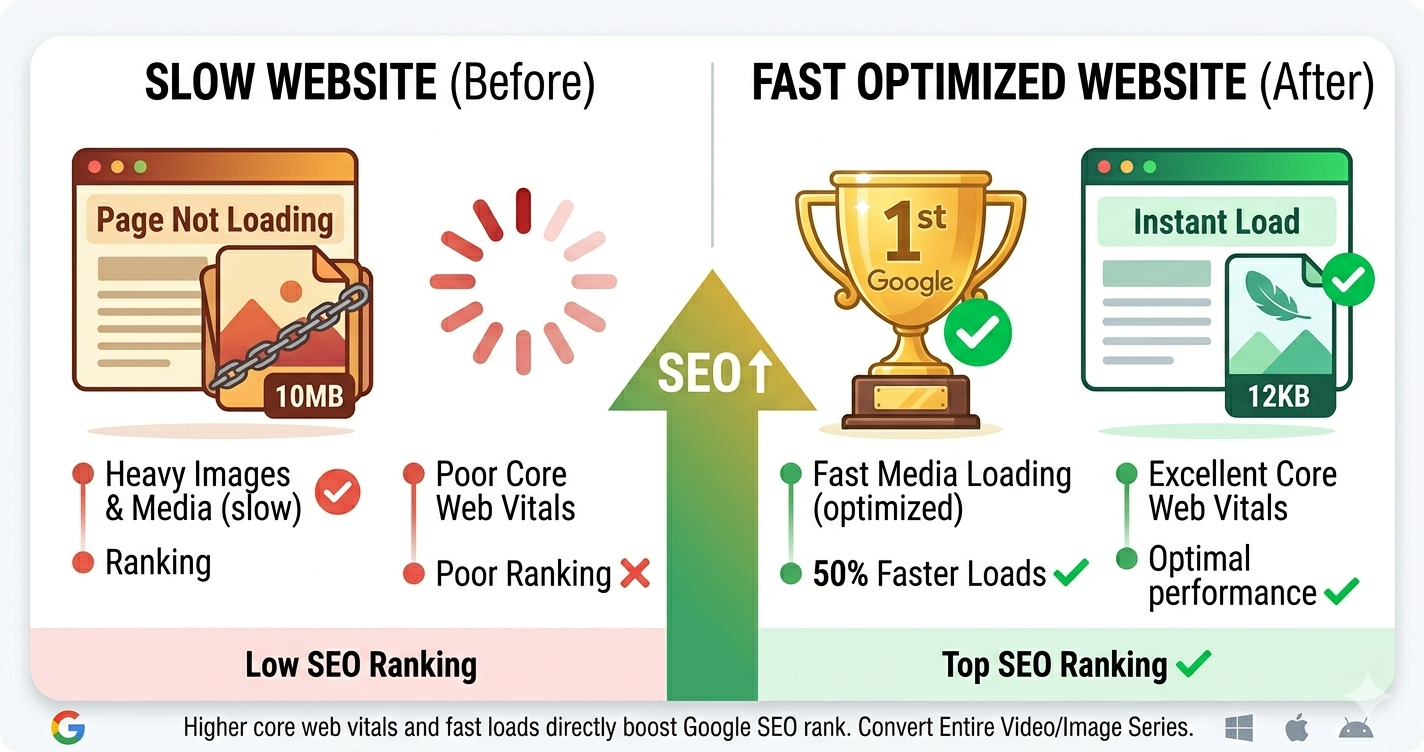
Images can make or break your SEO. Optimized images help you rank higher in Google Images, improve page speed (a ranking factor), and enhance user experience. Poor image optimization slows down your site and hurts rankings.
Quick Answer
Image SEO requires three key elements: 1) Small file sizes (compress images by 60-80%), 2) Descriptive alt text (for accessibility and SEO), and 3) Proper formats (WebP for web, JPG for photos, PNG for graphics). Use our image compressor to reduce file size while maintaining quality.
Why Image Optimization Matters for SEO
1. Page Speed is a Ranking Factor
Google uses page speed as a ranking factor. Images typically account for 50-70% of page weight.
Impact:
- Slow sites rank lower
- Fast sites rank higher
- Mobile speed especially important
Solution: Compress images to reduce page weight by 60-80%.
2. Google Images Traffic
Google Images drives 22% of all web searches. Optimized images can bring significant organic traffic.
Benefits:
- Additional traffic source
- High-intent visitors
- Brand visibility
Solution: Optimize alt text, file names, and image quality.
3. User Experience
Users abandon slow sites. 53% of mobile users leave if page takes over 3 seconds to load.
Impact:
- High bounce rate hurts rankings
- Poor UX reduces conversions
- Slow images frustrate users
Solution: Fast-loading, optimized images improve UX and rankings.
4. Core Web Vitals
Google's Core Web Vitals measure user experience. Images affect all three metrics:
- LCP (Largest Contentful Paint): Large images slow down LCP
- CLS (Cumulative Layout Shift): Images without dimensions cause layout shift
- FID (First Input Delay): Heavy images block interactivity
Solution: Optimize images to improve Core Web Vitals scores.
10 Steps to Optimize Images for SEO
Step 1: Choose the Right Format
Different formats work better for different image types.
| Image Type | Best Format | Why |
|---|---|---|
| Photos | WebP or JPG | Excellent compression |
| Logos | WebP or PNG | Supports transparency |
| Graphics | WebP or PNG | Sharp edges, text |
| Icons | SVG | Vector, infinitely scalable |
| Animations | WebP or GIF | WebP is smaller |
Action: Use image converter to convert to optimal format.
Step 2: Compress Images
Reduce file size by 60-80% without visible quality loss.
Target file sizes:
- Hero images: Under 300 KB
- Content images: Under 150 KB
- Thumbnails: Under 30 KB
How to compress:
- Go to freemediatools.online/compress-image
- Upload images
- Select compression level (High or Medium)
- Download compressed images
Result: 60-80% smaller files, faster page load, better rankings.
Step 3: Resize to Display Dimensions
Don't use 4000×3000 images when displaying at 800×600.
How to determine size:
- Check how large image displays on page
- For retina displays, use 2x dimensions
- Resize to those dimensions
Example:
- Display size: 800×600
- Retina size: 1600×1200
- Don't use: 4000×3000 (wasted 93% of file size)
Action: Use image resizer to match display dimensions.
Step 4: Add Descriptive Alt Text
Alt text helps Google understand images and improves accessibility.
Good alt text:
- Describes image content
- Includes target keyword (naturally)
- Under 125 characters
- Specific and descriptive
Examples:
❌ Bad: alt="image1"
❌ Bad: alt=""
❌ Bad: alt="buy cheap shoes online best price discount"
✅ Good: alt="Red running shoes on wooden floor"
✅ Good: alt="Woman using laptop in modern office"
✅ Good: alt="Chocolate chip cookies on cooling rack"
When to leave alt text empty:
- Decorative images (borders, spacers)
- Images already described in surrounding text
Step 5: Use Descriptive File Names
File names help Google understand image content.
Good file names:
- Descriptive
- Include target keyword
- Use hyphens (not underscores)
- Lowercase
- No special characters
Examples:
❌ Bad: IMG_1234.jpg
❌ Bad: image-final-final-v2.jpg
❌ Bad: red_shoes.jpg (underscores)
✅ Good: red-running-shoes.jpg
✅ Good: chocolate-chip-cookies.jpg
✅ Good: modern-office-workspace.jpg
Action: Rename files before uploading to website.
Step 6: Add Width and Height Attributes
Specify image dimensions to prevent layout shift (CLS).
HTML example:
<img src="image.jpg" alt="Description" width="800" height="600">
Benefits:
- Prevents layout shift (better CLS score)
- Improves user experience
- Better Core Web Vitals
Action: Always include width and height in HTML.
Step 7: Implement Lazy Loading
Don't load images until they're needed (when user scrolls to them).
HTML example:
<img src="image.jpg" alt="Description" loading="lazy">
Benefits:
- Faster initial page load
- Saves bandwidth
- Better page speed score
When to use:
- Below-fold images (not visible on initial load)
- Long pages with many images
When NOT to use:
- Above-fold images (visible immediately)
- Hero images
Step 8: Use Responsive Images
Serve different image sizes for different devices.
HTML example:
<img
  src="image-800.jpg"
  srcset="image-400.jpg 400w, image-800.jpg 800w, image-1200.jpg 1200w"
  sizes="(max-width: 600px) 400px, (max-width: 1200px) 800px, 1200px"
  alt="Description">
Benefits:
- Mobile users get smaller images
- Desktop users get larger images
- Saves bandwidth
- Faster loading on all devices
Step 9: Add Structured Data
Help Google understand image context with structured data.
Example (JSON-LD):
{
  "@context": "https://schema.org",
  "@type": "ImageObject",
  "contentUrl": "https://example.com/image.jpg",
  "description": "Red running shoes on wooden floor",
  "name": "Red Running Shoes"
}
Benefits:
- Better Google Images ranking
- Rich results in search
- Enhanced visibility
Step 10: Create an Image Sitemap
Help Google discover all your images.
XML sitemap example:
<url>
  <loc>https://example.com/page</loc>
  <image:image>
    <image:loc>https://example.com/image.jpg</image:loc>
    <image:caption>Red running shoes</image:caption>
    <image:title>Red Running Shoes</image:title>
  </image:image>
</url>
Benefits:
- Google finds all images
- Better indexing
- More Google Images traffic
Real-World Example: E-commerce Store
An online shoe store had 500 product images, all unoptimized.
Before optimization:
- Avg image size: 2.5 MB
- Total page weight: 15 MB
- Page load time: 12 seconds
- Google PageSpeed score: 28/100
- Bounce rate: 68%
- Google Images traffic: 2% of total
Optimization applied:
- Resized images to 1200×1200 (display size)
- Compressed at 85% quality
- Converted to WebP with JPG fallback
- Added descriptive alt text
- Renamed files descriptively
- Implemented lazy loading
- Added width/height attributes
After optimization:
| Metric | Before | After | Improvement |
|---|---|---|---|
| Avg image size | 2.5 MB | 120 KB | 95% smaller |
| Page weight | 15 MB | 800 KB | 95% lighter |
| Page load time | 12s | 1.8s | 85% faster |
| PageSpeed score | 28/100 | 94/100 | 236% better |
| Bounce rate | 68% | 29% | 57% reduction |
| Google Images traffic | 2% | 18% | 800% increase |
Business impact:
- 45% increase in organic traffic
- 60% more conversions
- Better Google rankings (page speed factor)
- Significant Google Images traffic
Image SEO Checklist
For every image:
- Compressed to 60-80% smaller (use compressor)
- Resized to display dimensions (or 2x for retina)
- Converted to WebP with JPG fallback
- Descriptive file name (hyphens, lowercase, keyword)
- Descriptive alt text (under 125 characters, natural keyword)
- Width and height attributes added
- Lazy loading implemented (for below-fold images)
- Responsive images (srcset) for different devices
- Proper format (WebP/JPG for photos, PNG for logos)
- Added to image sitemap
Common Image SEO Mistakes to Avoid
1. Using Generic File Names
IMG_1234.jpg tells Google nothing about the image.
Solution: Use descriptive names like red-running-shoes.jpg.
2. Missing Alt Text
Missing alt text hurts SEO and accessibility.
Solution: Add descriptive alt text to all images (except decorative).
3. Keyword Stuffing in Alt Text
alt="shoes running shoes best shoes buy shoes cheap shoes" is spam.
Solution: Write natural, descriptive alt text with keyword used once.
4. Not Compressing Images
Uncompressed images slow down your site and hurt rankings.
Solution: Compress all images by 60-80% using our tool.
5. Using Wrong Format
PNG for photos creates huge files. JPG for logos creates artifacts.
Solution: JPG/WebP for photos, PNG/WebP for logos and graphics.
6. Not Using WebP
WebP offers 25-35% better compression than JPG. Not using it wastes bandwidth.
Solution: Convert to WebP with JPG fallback for older browsers.
7. No Width/Height Attributes
Missing dimensions cause layout shift (CLS), hurting Core Web Vitals.
Solution: Always specify width and height in HTML.
8. Not Lazy Loading
Loading all images immediately slows down page load.
Solution: Lazy load below-fold images.
Advanced Image SEO Techniques
1. Use CDN for Images
Content Delivery Networks serve images from servers closest to users.
Benefits:
- Faster image loading
- Reduced server load
- Better global performance
Popular CDNs:
- Cloudflare (free tier available)
- Amazon CloudFront
- Cloudinary (image-specific)
2. Implement WebP with Fallback
Serve WebP to modern browsers, JPG to older browsers.
HTML example:
<picture>
  <source srcset="image.webp" type="image/webp">
  <img src="image.jpg" alt="Description">
</picture>
3. Optimize for Google Discover
Google Discover requires high-quality images (1200px wide minimum).
Requirements:
- Minimum width: 1200px
- High quality (not blurry or pixelated)
- Aspect ratio: 16:9, 4:3, or 1:1
- Enabled in Google Search Console
4. Use Image Captions
Captions are read more than body text. Include keywords naturally.
HTML example:
<figure>
  <img src="image.jpg" alt="Description">
  <figcaption>Red running shoes perfect for marathon training</figcaption>
</figure>
5. Optimize Thumbnails
Thumbnails appear in Google Images results. Make them clear and recognizable.
Best practices:
- Minimum 300×300 pixels
- Clear, recognizable at small size
- Compressed but not blurry
Frequently Asked Questions
How do I optimize images for SEO?
Optimize images by: 1) Compressing to reduce file size, 2) Adding descriptive alt text, 3) Using proper formats (WebP/JPG for photos), 4) Resizing to display dimensions, 5) Using descriptive file names.
What is alt text and why is it important?
Alt text describes images for screen readers (accessibility) and search engines (SEO). It helps Google understand image content and rank it in Google Images.
What's the best image format for SEO?
WebP is best for SEO (25-35% smaller than JPG). Always provide JPG fallback for older browsers. Use JPG for photos, PNG for logos/graphics.
How much should I compress images?
Compress images by 60-80% for optimal balance between file size and quality. Use 85-90% quality for JPG images.
Do image file names matter for SEO?
Yes, descriptive file names help Google understand image content. Use hyphens, lowercase, and include target keyword naturally.
Should I use lazy loading for all images?
No, only lazy load below-fold images (not visible on initial page load). Don't lazy load hero images or above-fold content.
What size should images be for SEO?
Resize images to display dimensions (or 2x for retina). Target file sizes: Hero images under 300KB, content images under 150KB, thumbnails under 30KB.
How do I add images to sitemap?
Add image information to your XML sitemap using image:image tags. Include image URL, caption, and title. Submit sitemap to Google Search Console.
Tools for Image SEO
Free Tools
- Image Compressor - Reduce file size by 60-80%
- Image Converter - Convert to WebP format
- Image Resizer - Resize to optimal dimensions
- Google PageSpeed Insights - Test page speed
- Google Search Console - Monitor image performance
Paid Tools (Optional)
- Cloudinary - Image CDN and optimization
- ShortPixel - WordPress image optimization
- Imagify - WordPress image optimization
- TinyPNG - Image compression API
Image SEO Best Practices Summary
- Compress images - 60-80% smaller files
- Use WebP format - 25-35% better compression
- Add alt text - Descriptive, under 125 characters
- Descriptive file names - Include keywords naturally
- Resize to display size - Don't use oversized images
- Add dimensions - Width and height attributes
- Lazy load - Below-fold images only
- Responsive images - Different sizes for different devices
- Image sitemap - Help Google discover images
- Monitor performance - Use Google Search Console
Related Tools You Might Need
-
Image Compressor — Reduce image file size by 60-80% for faster page load and better SEO.
-
Image Converter — Convert images to WebP format for 25-35% additional file size reduction.
-
Image Resizer — Resize images to optimal dimensions before compressing for maximum SEO benefit.
By Muhammad Hasnain Adam — Full-stack developer and creator of Free Media Tools. I built these tools to help website owners and SEO professionals optimize images for better rankings, faster page speed, and improved user experience without expensive software.