You've got a logo, a screenshot of a website you like, or a photo of a painted wall, and you need the exact colour code for CSS, Canva, PowerPoint or a print shop. Guessing by eye never quite matches. What you need is the HEX code of the actual pixels.
This guide shows how to get it in a few seconds. It also covers something most colour-picker pages skip: why the code you get can be slightly wrong, and how to make sure it isn't. I tested this with an image of known colours, so the numbers below are measured, not invented.
Quick Answer
Open the Color Picker, upload your image (JPG, PNG or WebP) and click the exact spot you want. You'll see the colour's HEX, RGB and HSL values, each with a copy button. Hover over the image to get a magnified view so you can land on the right pixel. For an accurate brand colour, pick from the original PNG or SVG export of the logo, not from a JPEG screenshot.
Step-by-Step: Get a HEX Code from an Image
-
Go to the Color Picker.
-
Upload the image. Nothing is uploaded to a server; the image is drawn onto a canvas in your browser.
-
Move your mouse over the image. The Zoom View (a magnifier) shows the 20×20 pixel area around your cursor, enlarged ten times, with a crosshair in the middle.
-
Click a pixel. The Picked Color panel shows the code in three formats, for example:
- HEX
#3B82F6 - RGB
rgb(59, 130, 246) - HSL
hsl(217, 91%, 60%)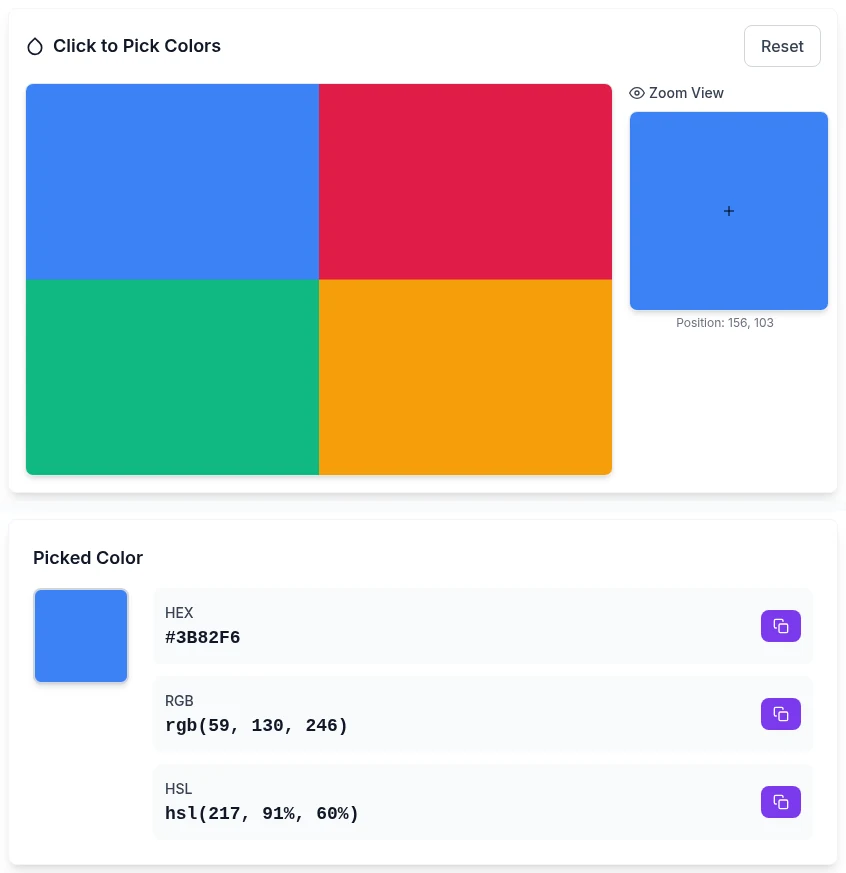
- HEX
-
Click the copy button next to the format you need.
-
Keep clicking other spots. Each pick is saved in Color History, so you can collect a whole palette and click back to any earlier colour.
My Test: Exact on PNG, Slightly Off on JPEG
I made a 1200×800 image with four solid blocks of known colours, saved it once as PNG (lossless) and once as JPEG at quality 60, which is typical for a screenshot or social-media image. Then I clicked the middle of each block in our picker:
| True colour | Picked from PNG | Picked from JPEG (q60) |
|---|---|---|
| #3B82F6 (blue) | #3B82F6 (exact) | #3B82F6 (exact) |
| #E11D48 (rose) | #E11D48 (exact) | #E11C47 (off) |
| #10B981 (green) | #10B981 (exact) | #10B884 (off) |
| #F59E0B (amber) | #F59E0B (exact) | #F39E0D (off) |
From the PNG, every pick was exact. From the JPEG, three out of four were off by a few units, even in the middle of a flat block. Near the edge of the blue block, the JPEG gave #3187F6 instead of #3B82F6, because JPEG compression smears colours along edges.
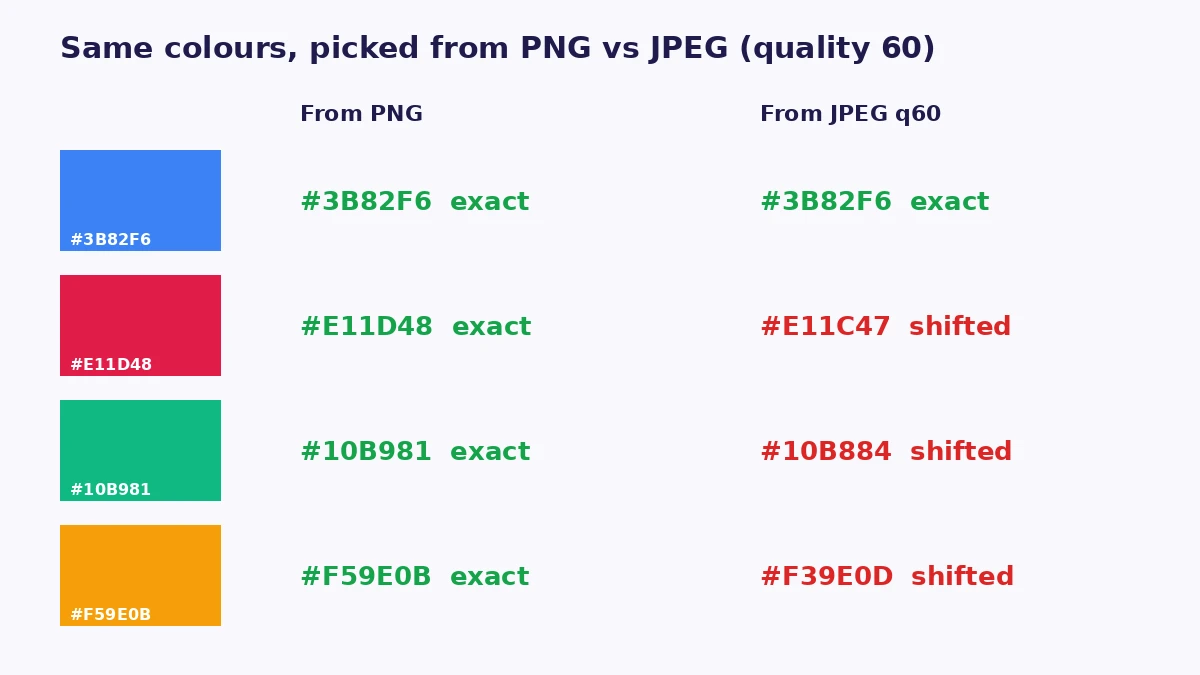
The differences are too small to see by eye, but if you paste #E11C47 into your CSS while your brand guide says #E11D48, the two won't match exactly.
Pro tip: If you need an exact brand colour, ask for (or download) the logo as PNG or SVG, or check the company's brand guidelines page. A JPEG or a screenshot shared on social media gets you close, not exact.
How to Pick the Right Pixel
- Click the middle of a flat area. Edges and text blend into the background colour. In the JPEG test, the centre of the block was much more accurate than the edge.
- Avoid thin lines and tiny details. The picker shows your image scaled to fit a 600×400 preview, so a 1–2 pixel line in a large image gets blended with its neighbours. To pick a thin detail, crop that area first with Crop Image so it fills the preview, then pick.
- Sample three or four spots. If they all give the same HEX, you've found the colour. If they differ, the area is a gradient, texture or JPEG noise. Choose the one that looks right or take the most common value.
- Photos don't have one "true" colour. A red car in a photo is dozens of shades because of light and shadow. For a photo, choose a mid-tone that represents what you see, not the brightest highlight.
The Dominant Colours Palette (and Its Limits)
When you upload, the picker also lists up to eight dominant colours with the percentage of the image each covers. That's useful for a quick colour scheme from a photo or mood board.
To build the list, the picker samples pixels across the image and groups similar shades together. Each swatch then shows the most common exact colour in its group, not an averaged or rounded value. In my test image of four flat blocks, the palette listed #3B82F6, #F59E0B and the other two colours exactly, at 25% each.
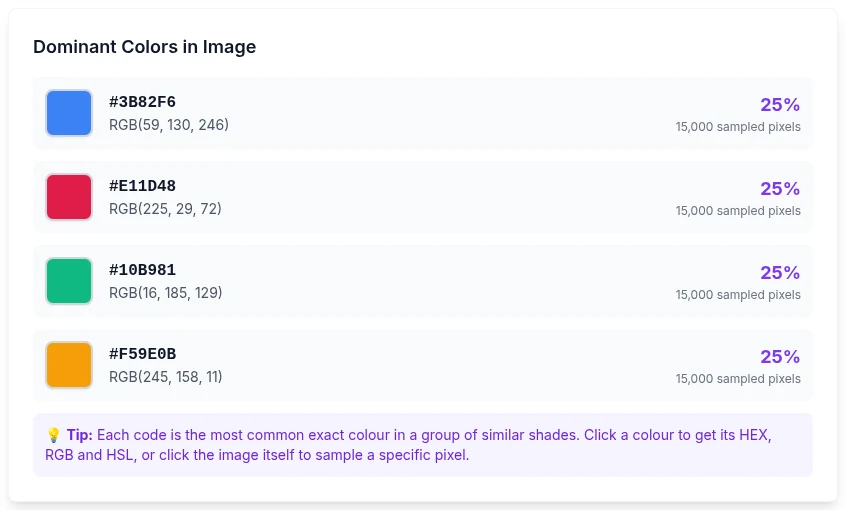
There are two limits. The percentages come from a sample of pixels, so treat them as approximate. And in a photo, where a "blue sky" is really thousands of slightly different blues, the swatch shows the single most common one, which may not be the shade you have in mind. So use the palette to see an image's main colours, then click the exact spot when you need the code of one particular pixel.
HEX, RGB and HSL: Which One Do You Need?
All three describe the same colour:
- HEX (
#3B82F6) — three pairs of base-16 digits for red, green and blue.3B= 59,82= 130,F6= 246. This is what CSS, Canva, Figma and most web tools ask for. - RGB (
rgb(59, 130, 246)) — the same three values in decimal, from 0 to 255. Office apps and many design tools have RGB fields in their custom-colour dialogs. - HSL (
hsl(217, 91%, 60%)) — hue (position on the colour wheel), saturation and lightness. It's the easiest to adjust: keep the hue and change the lightness to get a darker hover colour or a lighter background in the same family.
Warning: For print, a printer will usually want CMYK or a Pantone reference. Converting a screen colour to CMYK changes how it looks, because screens can show colours that ink can't. Give your print shop the HEX and ask them to match it, or ask for a proof.
Built-In Alternatives (No Upload Needed at All)
Sometimes the colour is on your screen and not in a file:
- Windows: Microsoft's free PowerToys includes a Color Picker. Press Win+Shift+C, click anywhere on screen and copy the HEX.
- Mac: open Digital Color Meter (Applications → Utilities). Hover over any pixel to see its values. Set it to display in sRGB if you want codes that match the web.
- Chrome / Edge: in DevTools, click any colour swatch in the Styles panel and use the eyedropper to sample anything on the page.
- iPhone and Android: there's no system-wide picker. Take a screenshot and open it in the Color Picker in your mobile browser. Screenshots are usually PNG, so the colours stay exact.
Screen pickers sample what your display is showing, which can include colour management and scaling effects. For the most reliable code, pick from the original image file.
Using the Code You Found
- CSS:
color: #3B82F6;orbackground: rgb(59 130 246); - Canva / Figma: click the colour swatch and paste the HEX (with or without
#, depending on the field). - PowerPoint / Word: More Colors → Custom and enter the RGB values (newer Microsoft 365 versions also have a Hex field).
- Image editing: use the code for text with our Add Text to Image tool or for a matching watermark with Add Watermark.
Frequently Asked Questions
How do I find the HEX code of a colour in an image?
Upload the image to the Color Picker and click the colour. The HEX code appears in the Picked Color panel with a copy button, along with RGB and HSL.
Why doesn't the colour I picked match the brand colour exactly?
Usually because the image is a JPEG or a compressed screenshot. In my test, JPEG compression shifted #E11D48 to #E11C47 and #10B981 to #10B884. Pick from a PNG or SVG version of the logo, or check the official brand guidelines.
Is the dominant colours list accurate?
The codes are real colours from the image: each swatch shows the most common exact colour in a group of similar shades. The percentages are approximate because they come from a sample of pixels. For one particular spot, click directly on the image.
Can I get colour codes from a photo on my iPhone?
Yes. Open the Color Picker in Safari, tap the upload area, choose the photo, then tap the spot you want. iPhone photos are often HEIC. If the picker can't open one, convert it to JPG or PNG first with the Image Converter.
What's the difference between HEX and RGB?
Nothing in terms of the colour. HEX writes the red, green and blue values in base 16 (#3B82F6); RGB writes them in decimal (59, 130, 246). Use whichever format your app asks for.
Does the picker upload my image?
No. The image is drawn on a canvas in your browser and all picking happens locally on your device.
Related Tools You Might Need
- Color Picker — Click any pixel for HEX, RGB and HSL, with magnifier and history
- Crop Image — Zoom in on a small detail before picking its colour
- Image Converter — Turn HEIC, AVIF or TIFF into PNG for exact picks
- Add Text to Image — Use your matched colour for text overlays
- Grayscale Image — Check contrast by viewing your design without colour
By Muhammad Hasnain Adam — Developer based in Karachi and the builder of Free Media Tools. I tested our colour picker against an image of known colours before writing this, which is how I found out how much JPEG compression shifts a "brand" colour.