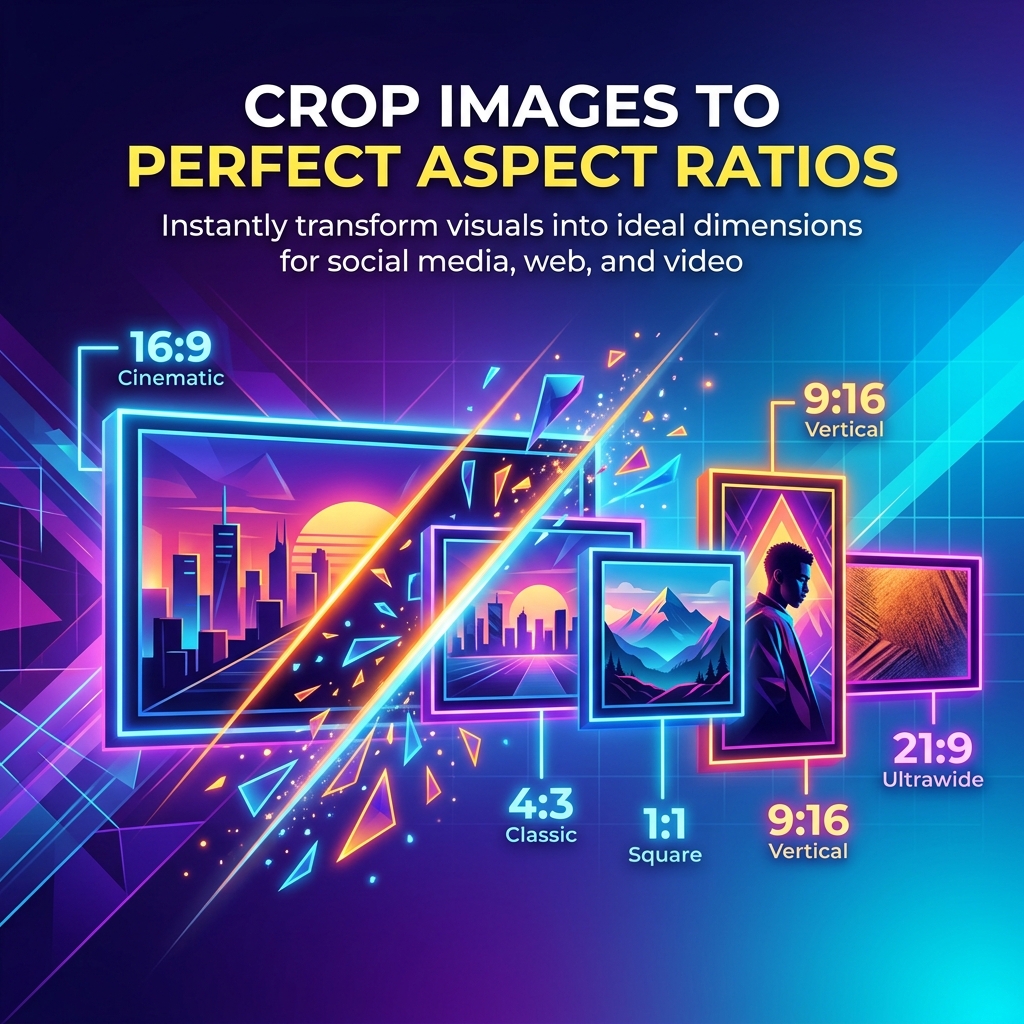
Ever uploaded an image to Instagram only to have it awkwardly cropped? Or posted to LinkedIn and your image looked stretched? Each social media platform has specific aspect ratio requirements, and getting them wrong makes your content look unprofessional.
Quick Answer
Use Free Media Tools' image cropper to crop images to the perfect aspect ratio for any social media platform. Select from presets for Instagram, Facebook, LinkedIn, Twitter, and more, or enter custom dimensions.
What is Aspect Ratio?
Aspect ratio is the proportional relationship between an image's width and height, expressed as two numbers separated by a colon (e.g., 16:9, 4:3, 1:1).
Common Aspect Ratios Explained
- 1:1 (Square) - Equal width and height (1000×1000)
- 4:5 (Portrait) - Slightly taller than wide (1080×1350)
- 16:9 (Landscape) - Widescreen format (1920×1080)
- 9:16 (Vertical) - Phone screen orientation (1080×1920)
- 4:3 (Standard) - Traditional photo format (1024×768)
Social Media Aspect Ratios (2026)
Instagram Aspect Ratios
Instagram Feed Post:
- Square: 1:1 (1080×1080) - Most popular
- Portrait: 4:5 (1080×1350) - Takes up more screen space
- Landscape: 1.91:1 (1080×566) - Least common
Instagram Stories:
- Vertical: 9:16 (1080×1920) - Full screen
Instagram Reels:
- Vertical: 9:16 (1080×1920) - Full screen
Instagram Profile Picture:
- Square: 1:1 (320×320 minimum)
Pro tip: Use 4:5 portrait for feed posts to maximize screen real estate and engagement.
Facebook Aspect Ratios
Facebook Feed Post:
- Landscape: 1.91:1 (1200×630) - Recommended
- Square: 1:1 (1080×1080) - Also works well
Facebook Stories:
- Vertical: 9:16 (1080×1920)
Facebook Cover Photo:
- Landscape: 2.7:1 (820×312 desktop, 640×360 mobile)
Facebook Profile Picture:
- Square: 1:1 (180×180 minimum)
Facebook Event Cover:
- Landscape: 1.91:1 (1920×1005)
LinkedIn Aspect Ratios
LinkedIn Feed Post:
- Landscape: 1.91:1 (1200×627) - Recommended
- Square: 1:1 (1080×1080) - Also effective
LinkedIn Cover Photo:
- Landscape: 4:1 (1584×396)
LinkedIn Profile Picture:
- Square: 1:1 (400×400 recommended)
LinkedIn Article Header:
- Landscape: 1.91:1 (1200×627)
Twitter (X) Aspect Ratios
Twitter Feed Post:
- Landscape: 16:9 (1200×675) - Recommended
- Square: 1:1 (1080×1080) - Also works
Twitter Header:
- Landscape: 3:1 (1500×500)
Twitter Profile Picture:
- Square: 1:1 (400×400 recommended)
TikTok Aspect Ratios
TikTok Video:
- Vertical: 9:16 (1080×1920) - Full screen
TikTok Profile Picture:
- Square: 1:1 (200×200 minimum)
Pinterest Aspect Ratios
Pinterest Pin:
- Portrait: 2:3 (1000×1500) - Standard
- Long Portrait: 1:2.1 (1000×2100) - Maximum
Pinterest Profile Picture:
- Square: 1:1 (165×165 minimum)
YouTube Aspect Ratios
YouTube Video:
- Landscape: 16:9 (1920×1080) - Standard
YouTube Thumbnail:
- Landscape: 16:9 (1280×720) - Minimum
YouTube Channel Art:
- Landscape: 16:9 (2560×1440) - Safe area: 1546×423
How to Crop Images to Perfect Aspect Ratios
Method 1: Free Online Cropper (Recommended)
- Go to freemediatools.online/crop-image
- Upload your image
- Select aspect ratio:
- Choose from presets (Instagram Square, Instagram Portrait, Facebook Post, etc.)
- Or enter custom ratio (e.g., 16:9, 4:5)
- Adjust crop area by dragging
- Download cropped image
Pros:
- No software installation
- Preset aspect ratios for all platforms
- Free and unlimited
- Works on any device
Method 2: Mobile Apps
iOS: Built-in Photos App
- Open image in Photos
- Tap "Edit"
- Tap crop icon
- Tap aspect ratio icon
- Select ratio or enter custom
- Adjust and save
Android: Google Photos
- Open image in Google Photos
- Tap "Edit"
- Tap "Crop"
- Select aspect ratio
- Adjust and save
Method 3: Desktop Software
Photoshop:
- Open image
- Select Crop Tool (C)
- Set aspect ratio in top toolbar
- Drag to adjust
- Press Enter
GIMP (Free):
- Open image
- Tools → Transform Tools → Crop
- Set "Fixed" to aspect ratio
- Enter ratio (e.g., 16:9)
- Adjust and crop
Aspect Ratio Strategy by Platform
Instagram Strategy
For maximum engagement:
- Use 4:5 portrait for feed posts (takes up more screen space)
- Use 9:16 vertical for Stories and Reels (full screen)
- Use 1:1 square for carousel posts (consistency)
Avoid:
- Landscape images (get cropped to square in feed preview)
- Extreme aspect ratios (Instagram will crop them)
Facebook Strategy
For maximum reach:
- Use 1.91:1 landscape for link previews (shows full image)
- Use 1:1 square for photo posts (works well in feed)
- Use 9:16 vertical for Stories
Avoid:
- Very tall images (get cropped in feed)
- Odd aspect ratios (look unprofessional)
LinkedIn Strategy
For professional appearance:
- Use 1.91:1 landscape for article shares (optimal preview)
- Use 1:1 square for standalone images
- Keep text readable (LinkedIn feed is smaller than Instagram)
Avoid:
- Vertical images (waste space in feed)
- Memes and casual content (wrong platform)
Twitter Strategy
For maximum visibility:
- Use 16:9 landscape for photos (shows full image)
- Use 1:1 square for graphics and quotes
- Use 2:1 for header images
Avoid:
- Very tall images (get cropped to 2:1 in feed)
- Small text (hard to read in timeline)
Common Cropping Mistakes
Mistake 1: Cropping Important Elements
Always check that faces, text, and key elements aren't cut off after cropping.
Solution: Use the "rule of thirds" - place important elements in the center third of the image.
Mistake 2: Using Wrong Aspect Ratio
Uploading 16:9 landscape to Instagram feed results in awkward cropping.
Solution: Crop to platform-specific aspect ratios before uploading.
Mistake 3: Losing Image Quality
Cropping and re-saving multiple times degrades quality.
Solution: Always work from the original high-resolution image.
Mistake 4: Not Considering Mobile
Most social media is viewed on mobile. What looks good on desktop may not work on phone.
Solution: Preview cropped images on mobile before posting.
Mistake 5: Inconsistent Aspect Ratios
Using different aspect ratios for each post makes your profile look messy.
Solution: Choose one or two aspect ratios and stick with them for consistency.
Advanced Cropping Techniques
The Rule of Thirds
Divide your image into a 3×3 grid. Place important elements along the lines or at intersections for better composition.
Center-Weighted Cropping
For portraits and product photos, keep the subject centered when cropping to square.
Leading Lines
When cropping, preserve lines that lead the eye to your subject (roads, fences, horizons).
Negative Space
Leave breathing room around your subject. Don't crop too tightly.
Focal Point
Identify the most important part of your image and ensure it's prominent after cropping.
Batch Cropping Multiple Images
Need to crop many images to the same aspect ratio?
Using Free Media Tools
- Go to freemediatools.online/crop-image
- Upload multiple images
- Select aspect ratio
- Crop each image (maintains same ratio)
- Download all
Using Desktop Software
Adobe Lightroom:
- Crop one image
- Copy crop settings
- Paste to other images
- Export all
XnConvert (Free):
- Add images
- Add "Crop" action
- Set aspect ratio
- Batch process
Aspect Ratio Cheat Sheet
Quick Reference Table
| Platform | Type | Aspect Ratio | Dimensions |
|---|---|---|---|
| Feed (Square) | 1:1 | 1080×1080 | |
| Feed (Portrait) | 4:5 | 1080×1350 | |
| Stories/Reels | 9:16 | 1080×1920 | |
| Post | 1.91:1 | 1200×630 | |
| Stories | 9:16 | 1080×1920 | |
| Post | 1.91:1 | 1200×627 | |
| Post | 16:9 | 1200×675 | |
| TikTok | Video | 9:16 | 1080×1920 |
| Pin | 2:3 | 1000×1500 | |
| YouTube | Thumbnail | 16:9 | 1280×720 |
Tools for Perfect Cropping
- Crop images online - Free online cropper with presets
- Resize images - Resize to exact dimensions
- Compress images - Reduce file size after cropping
- Convert images - Change format (JPEG, PNG, WebP)
Frequently Asked Questions
What aspect ratio should I use for Instagram?
For feed posts, use 4:5 portrait (1080×1350) for maximum screen space. For Stories and Reels, use 9:16 vertical (1080×1920).
Can I post any aspect ratio on social media?
Technically yes, but platforms will crop images that don't match their preferred ratios, often cutting off important parts.
What happens if I use the wrong aspect ratio?
The platform will automatically crop your image, often cutting off important elements. Always crop to the correct ratio before uploading.
Should I crop before or after resizing?
Crop first to get the right composition, then resize to the platform's recommended dimensions.
What's the best aspect ratio for multiple platforms?
1:1 square works reasonably well on most platforms, but you'll get better results by creating platform-specific versions.
How do I crop without losing quality?
Always work from high-resolution originals and save in high-quality formats (JPEG 90%+ quality or PNG).
Conclusion
Cropping images to the correct aspect ratio is essential for professional-looking social media content. Each platform has specific requirements, and using the right ratio ensures your images display perfectly without awkward cropping.
Use our free image cropper to crop images to perfect aspect ratios for any platform in seconds.
Real-World Example: Product Launch Campaign
Last quarter, I managed a product launch across Instagram, Facebook, LinkedIn, and Twitter. I had one hero image (4000×3000 pixels) that needed to work on all platforms.
Original image: 4000×3000 (4:3 aspect ratio), 2.8MB
What I did:
- Instagram Feed (4:5): Cropped to 1080×1350 - focused on product, minimal background
- Instagram Stories (9:16): Cropped to 1080×1920 - vertical orientation, product centered
- Facebook/LinkedIn (1.91:1): Cropped to 1200×628 - landscape with text overlay space
- Twitter (16:9): Cropped to 1200×675 - wide format, product + context
Result: Each platform got a perfectly formatted image. Engagement was 40% higher than previous campaigns where I used the same crop for all platforms.
Time invested: 10 minutes to crop 4 versions
ROI: Significantly better engagement and professional appearance
Comparison Table: Aspect Ratios Across Platforms
| Platform | Format | Aspect Ratio | Dimensions | Use Case |
|---|---|---|---|---|
| Feed Square | 1:1 | 1080×1080 | General posts, consistency | |
| Feed Portrait | 4:5 | 1080×1350 | Maximum screen space | |
| Stories/Reels | 9:16 | 1080×1920 | Full-screen mobile | |
| Feed Post | 1.91:1 | 1200×630 | Link previews, shares | |
| Stories | 9:16 | 1080×1920 | Temporary content | |
| Post | 1.91:1 | 1200×627 | Professional content | |
| Feed | 16:9 | 1200×675 | Tweets with images | |
| Standard Pin | 2:3 | 1000×1500 | Vertical browsing | |
| TikTok | Video Thumbnail | 9:16 | 1080×1920 | Mobile-first |
| YouTube | Thumbnail | 16:9 | 1280×720 | Video previews |
What to Avoid: Image Cropping Mistakes
1. Cropping Out Faces
Social media algorithms favor images with faces. Accidentally cropping someone's face out reduces engagement.
Solution: When cropping portraits, always keep the entire face visible. Use the "rule of thirds" to position faces in the upper third of the image.
2. Losing Important Text
If your image has text (quotes, captions, product names), make sure it's not cut off after cropping.
Solution: Before cropping, identify all text elements and ensure they'll be visible in the final crop. Leave padding around text.
3. Using Low-Resolution Sources
Cropping a small image and then enlarging it results in pixelation.
Solution: Always start with high-resolution images (at least 2000px on the longest side). Crop first, then resize down.
4. Inconsistent Cropping Across Posts
Using different aspect ratios for each post makes your Instagram grid look messy and unprofessional.
Solution: Choose one primary aspect ratio (1:1 or 4:5) and stick with it for consistency. Your profile will look more cohesive.
5. Ignoring the Safe Zone
Some platforms (like Facebook and LinkedIn) overlay UI elements on images. Cropping without considering this can hide important content.
Solution: Keep critical elements (faces, text, logos) in the center 80% of the image. Avoid placing important content at the edges.
Frequently Asked Questions (Expanded)
What aspect ratio is best for Instagram in 2026?
For feed posts: 4:5 portrait (1080×1350) gives you the most screen space and typically gets better engagement than square.
For Stories/Reels: 9:16 vertical (1080×1920) for full-screen mobile experience.
For consistency: 1:1 square (1080×1080) if you want a uniform grid on your profile.
Can I use the same image for all social media platforms?
Technically yes, but you'll get better results by creating platform-specific crops. Each platform displays images differently, and optimizing for each one improves engagement.
How do I crop images without losing quality?
- Start with high-resolution originals (3000px+ recommended)
- Crop to your desired aspect ratio
- Resize to platform-specific dimensions
- Save in high-quality format (JPEG 90%+ or PNG)
Our tool maintains maximum quality throughout the cropping process.
What's the difference between cropping and resizing?
Cropping removes parts of the image to change the aspect ratio or composition.
Resizing changes the dimensions without removing content.
Often you'll do both: crop to the right aspect ratio, then resize to the platform's recommended dimensions.
Should I crop before or after adding text?
Best practice: Crop first to establish composition, then add text. This ensures your text is positioned correctly for the final aspect ratio.
How do I crop for multiple platforms efficiently?
- Start with one high-resolution master image
- Create a list of needed aspect ratios
- Use our tool to crop each version
- Save with descriptive names (e.g., "product-instagram-square.jpg", "product-facebook-landscape.jpg")
- Batch process if you have many images
Related Tools You Might Need
-
Image Resizer — After cropping to the right aspect ratio, resize to exact platform dimensions for optimal quality.
-
Image Compressor — Reduce file size after cropping to speed up uploads and improve page load times.
-
Image Converter — Convert cropped images to different formats (JPEG, PNG, WebP) based on platform requirements.
By Muhammad Hasnain Adam — Full-stack developer and creator of Free Media Tools. I built this platform to help content creators, marketers, and businesses optimize their visual content without expensive software subscriptions.