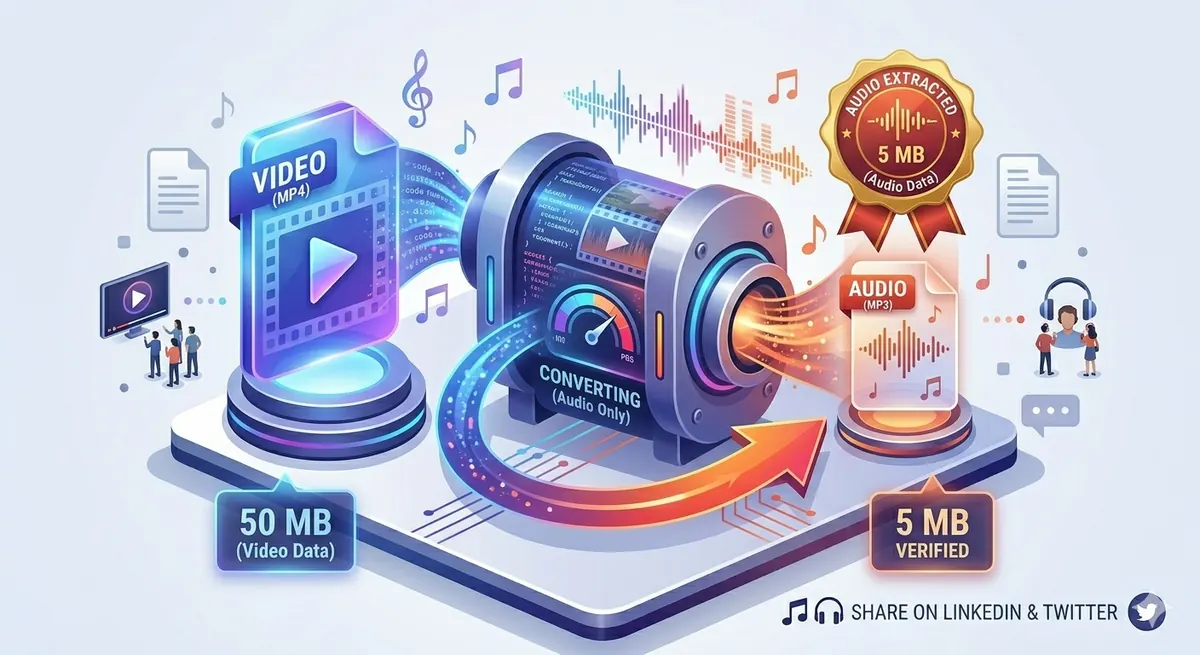
Need to extract audio from a video? Whether you want to save a podcast, create a music playlist, or extract audio for editing, converting MP4 to MP3 is simple and free. No software installation required — just upload, convert, and download your MP3 in seconds.
Quick Answer
Use Free Media Tools' Audio Extractor to convert MP4 to MP3 online. Upload your video file, select MP3 format, choose quality (192kbps recommended), and download. Works in your browser with complete privacy — files never leave your device.
Why Convert MP4 to MP3?
Common Use Cases
- Save podcasts and interviews - Extract audio from video podcasts
- Create music playlists - Convert music videos to MP3 files
- Audio editing - Extract audio for editing in audio software
- Save storage space - Audio files are 10-20x smaller than videos
- Listen offline - Play audio on any device without video player
- Create audiobooks - Extract narration from video courses
- Ringtones - Create custom ringtones from videos
- Background music - Extract music from videos for projects
Benefits of MP3 Format
- Universal compatibility - Plays on every device
- Small file size - 3-5MB for a 3-minute song vs 30-50MB video
- Easy sharing - Smaller files send faster
- Battery efficient - Audio playback uses less power than video
- Background playback - Listen while using other apps
How to Convert MP4 to MP3 Online (Step-by-Step)
Method 1: Free Media Tools (Recommended)
Best for: Privacy, quality, unlimited conversions
Steps:
- Go to freemediatools.online/extract-audio
- Click "Select Video" or drag and drop MP4 file
- Select output format: MP3
- Choose audio quality:
- 128kbps: Good quality, smaller file
- 192kbps: Excellent quality (recommended)
- 320kbps: Maximum quality, larger file
- Click "Extract Audio"
- Download your MP3 file
Pros:
- ✅ Completely free, unlimited
- ✅ Privacy-focused (files processed in browser)
- ✅ No file size limits
- ✅ No watermarks
- ✅ No registration required
- ✅ Supports multiple video formats
Cons:
- None for basic conversion
Method 2: VLC Media Player (Desktop)
Best for: Offline conversion, batch processing
Steps:
- Open VLC Media Player
- Media → Convert/Save
- Add MP4 file
- Click "Convert/Save"
- Select profile: "Audio - MP3"
- Choose destination
- Click "Start"
Pros:
- ✅ Free and open-source
- ✅ Offline processing
- ✅ Batch conversion
Cons:
- Requires software installation
- Less user-friendly interface
Method 3: Online Converters
Popular tools:
- CloudConvert
- Online-Convert
- Convertio
- FreeConvert
Steps:
- Upload MP4 file
- Select MP3 output
- Click convert
- Download MP3
Pros:
- Simple interface
- Fast
Cons:
- ❌ Files uploaded to servers
- ❌ Privacy concerns
- ❌ File size limits
- ❌ Often require subscription
Method 4: FFmpeg (Command Line)
Best for: Advanced users, automation
Command:
ffmpeg -i input.mp4 -vn -ar 44100 -ac 2 -b:a 192k output.mp3
Explanation:
-vn: No video-ar 44100: Sample rate 44.1kHz-ac 2: Stereo audio-b:a 192k: Bitrate 192kbps
Pros:
- ✅ Powerful and flexible
- ✅ Scriptable
- ✅ Free
Cons:
- Requires technical knowledge
- Command line interface
Real-World Example: Podcast Listener
A friend watches video podcasts on YouTube but wants to listen during commutes:
- Problem: Video files are 200-500MB each, drain battery, can't play with screen off
- Solution: Convert to MP3 using our tool
Results:
- Video: 350MB (1 hour)
- MP3: 28MB (1 hour at 64kbps)
- Savings: 92% smaller, 3x longer battery life
- Benefit: Listen with screen off, save data, easier to manage
Audio Quality Settings Explained
Bitrate Comparison
| Bitrate | Quality | File Size (3 min) | Use Case |
|---|---|---|---|
| 64kbps | Acceptable | 1.4 MB | Podcasts, audiobooks |
| 128kbps | Good | 2.8 MB | General listening |
| 192kbps | Excellent | 4.2 MB | Music (recommended) |
| 256kbps | Very High | 5.6 MB | High-quality music |
| 320kbps | Maximum | 7.0 MB | Audiophile, archiving |
Recommendation:
- Podcasts/speech: 64-96kbps
- General music: 192kbps
- High-quality music: 256-320kbps
Sample Rate
Standard: 44.1kHz (CD quality)
- Sufficient for all music and audio
- Universal compatibility
Higher rates (48kHz, 96kHz):
- Larger file size
- No audible difference for most people
- Use only for professional audio work
Supported Video Formats
Our audio extractor supports all common video formats:
Video Formats
- MP4 - Most common video format
- AVI - Windows video format
- MOV - Apple QuickTime format
- MKV - High-quality video format
- WMV - Windows Media Video
- FLV - Flash video
- WebM - Web video format
- MPEG - Standard video format
Output Audio Formats
- MP3 - Universal compatibility
- M4A - Apple devices, high quality
- WAV - Uncompressed, largest file
- OGG - Open format, good compression
- FLAC - Lossless, large file
Most popular: MP3 for universal compatibility.
Comparison Table: MP4 to MP3 Converters
| Tool | Cost | File Limit | Privacy | Quality | Speed |
|---|---|---|---|---|---|
| Free Media Tools | Free | None | Excellent | Excellent | Fast |
| VLC Player | Free | None | Excellent | Good | Medium |
| Online Converters | Free-$ | 100MB-1GB | Poor | Good | Fast |
| FFmpeg | Free | None | Excellent | Excellent | Fast |
| Desktop Software | $20-50 | None | Excellent | Excellent | Fast |
Winner: Free Media Tools for privacy, ease of use, and quality.
What to Avoid: Conversion Mistakes
1. Using Maximum Bitrate for Everything
320kbps MP3 for podcasts wastes space without quality benefit.
Solution: Match bitrate to content:
- Speech: 64-96kbps
- Music: 192kbps
- High-quality music: 256-320kbps
2. Converting Already-Compressed Audio
Converting MP3 → MP4 → MP3 degrades quality.
Solution: Always convert from original high-quality source.
3. Not Checking Audio Quality
Sometimes source video has poor audio quality.
Solution: Preview audio before converting. High bitrate won't fix poor source audio.
4. Forgetting to Trim
Converting entire video when you only need a section wastes time.
Solution: Trim video first using our video trimmer, then extract audio.
5. Wrong Format for Device
Some devices don't support certain audio formats.
Solution: Use MP3 for maximum compatibility.
Advanced Audio Extraction Tips
1. Normalize Audio Levels
Some videos have inconsistent volume. Normalize for consistent playback.
How: Use audio editing software (Audacity) after extraction.
2. Remove Background Noise
Extract audio, then use noise reduction tools.
Tools:
- Audacity (free)
- Adobe Audition (paid)
- Online noise reducers
3. Split Long Audio Files
Extract audio from long videos, then split into chapters.
Use case: Convert 2-hour lecture to multiple 15-minute MP3s.
4. Add Metadata
Add title, artist, album info to MP3 files.
Tools:
- MP3Tag (Windows)
- Kid3 (Mac/Linux)
- iTunes/Music app
5. Batch Convert Multiple Videos
Convert entire folders of videos to MP3.
Best tools:
- VLC (batch mode)
- FFmpeg (scripting)
- Desktop conversion software
Security and Privacy Considerations
Why Privacy Matters
Videos may contain:
- Personal conversations
- Confidential meetings
- Private content
- Copyrighted material
How Free Media Tools Protects Privacy
- Client-side processing - Videos processed in your browser, never uploaded
- No server storage - Files never touch our servers
- No tracking - We don't track what you convert
- No registration - No account, no email required
- Works offline - Once loaded, works without internet
Other Tools' Privacy Risks
Online converters that upload files:
- Videos stored on their servers
- Potential data breaches
- Terms may allow data use
- Government access to server data
Recommendation: For personal or sensitive videos, use tools that process files locally (like Free Media Tools or VLC).
Frequently Asked Questions
Is it free to convert MP4 to MP3?
Yes, our audio extractor is completely free with no limits. No registration, no watermarks, no hidden fees.
How do I extract audio from a video?
Upload the video to an audio extractor tool, select MP3 format, choose quality (192kbps recommended), and download the extracted audio file.
Does converting MP4 to MP3 lose quality?
The video's audio is extracted and encoded to MP3. At 192kbps or higher, quality loss is minimal and imperceptible to most listeners.
Can I convert YouTube videos to MP3?
Downloading YouTube videos violates their Terms of Service. Only convert videos you own or have permission to use.
What's the best bitrate for MP3?
192kbps is the sweet spot for music — excellent quality with reasonable file size. Use 64-96kbps for podcasts, 256-320kbps for high-quality music.
How long does MP4 to MP3 conversion take?
Conversion typically takes 10-30 seconds for a 3-5 minute video, depending on file size and your device's processing power.
Can I convert MP4 to MP3 on my phone?
Yes, our converter works on mobile browsers (iOS Safari, Android Chrome). Upload and convert videos from your phone.
What's the difference between MP3 and M4A?
MP3 has universal compatibility. M4A offers better quality at same file size but limited compatibility (mainly Apple devices). Use MP3 for maximum compatibility.
MP4 to MP3 for Specific Use Cases
For Podcasts
Settings:
- Bitrate: 64-96kbps (speech doesn't need high bitrate)
- Mono audio (if original is mono)
- Normalize volume
Result: Small file size, clear speech
For Music
Settings:
- Bitrate: 192-256kbps
- Stereo audio
- 44.1kHz sample rate
Result: Excellent music quality
For Audiobooks
Settings:
- Bitrate: 64-96kbps
- Mono audio
- Split into chapters
Result: Small files, easy navigation
For Ringtones
Settings:
- Extract specific section (30 seconds)
- Bitrate: 128kbps
- Trim to desired length
Result: Custom ringtone
Troubleshooting Common Issues
Issue 1: No Audio in Output File
Cause: Source video has no audio track
Solution: Check if original video has audio. Some videos are silent.
Issue 2: Audio Out of Sync
Cause: Variable frame rate video or conversion error
Solution: Try converting again or use different tool.
Issue 3: Poor Audio Quality
Cause: Source video has low-quality audio
Solution: High bitrate won't fix poor source. Find better quality source video.
Issue 4: File Too Large
Cause: Bitrate too high
Solution: Reduce bitrate to 128-192kbps for reasonable file size.
Issue 5: Conversion Failed
Cause: Corrupted video file or unsupported codec
Solution:
- Check if video plays correctly
- Try converting with different tool
- Convert video to MP4 first, then extract audio
Legal Considerations
Copyright and Fair Use
Legal:
- ✅ Converting your own videos
- ✅ Videos you have permission to use
- ✅ Public domain content
- ✅ Fair use (education, commentary, criticism)
Illegal:
- ❌ Downloading copyrighted YouTube videos
- ❌ Converting copyrighted music videos
- ❌ Distributing converted copyrighted content
Recommendation: Only convert content you own or have permission to use.
Related Tools You Might Need
-
Trim Video — Cut specific sections from videos before extracting audio.
-
Video Compressor — Reduce video file size before extracting audio.
-
Convert Video — Convert videos to MP4 format for best compatibility before audio extraction.
Alternative Audio Formats
When to Use Other Formats
M4A (AAC):
- Better quality than MP3 at same bitrate
- Smaller file size
- Good for Apple devices
- Limited compatibility on older devices
WAV:
- Uncompressed audio
- Maximum quality
- Very large file size (10x larger than MP3)
- Use for professional audio editing
OGG:
- Open-source format
- Better quality than MP3 at same bitrate
- Limited device compatibility
- Good for web use
FLAC:
- Lossless compression
- Perfect quality preservation
- Large file size (3-5x larger than MP3)
- Use for archiving or audiophile listening
Recommendation: Stick with MP3 for maximum compatibility unless you have specific needs.
Conclusion
Converting MP4 to MP3 is simple, fast, and free with the right tool. Use Free Media Tools' Audio Extractor to extract audio from videos in seconds with complete privacy. Whether you're creating music playlists, saving podcasts, or extracting audio for editing, our tool makes it effortless.
Start extracting audio from videos now — completely free, no registration required.
By Muhammad Hasnain Adam — Full-stack developer passionate about making media tools accessible. I built Free Media Tools to help everyone work with audio and video without expensive software or privacy concerns.