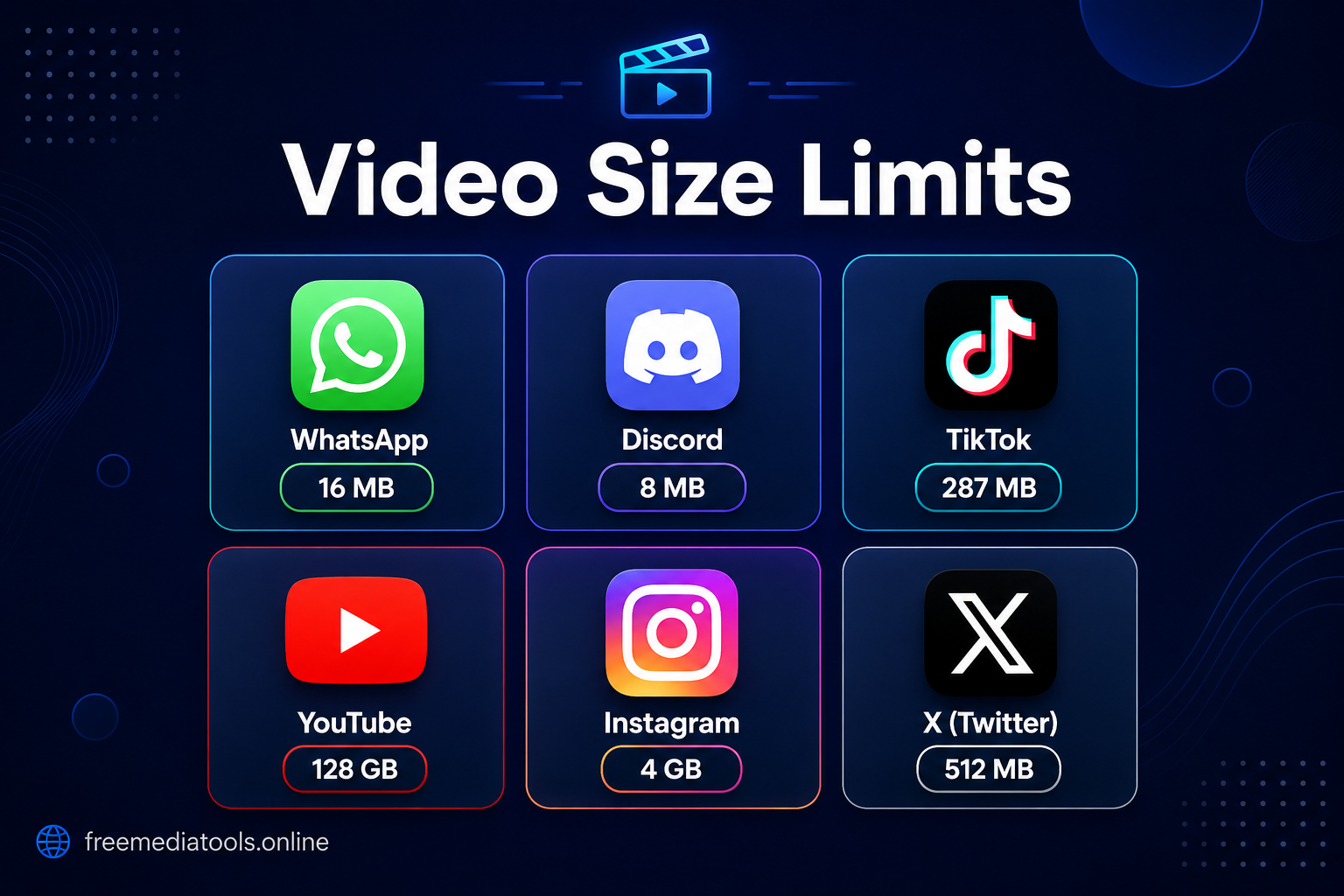
Every platform has different video size limits, aspect ratios, and format requirements. Uploading the wrong size wastes time, triggers automatic re-compression that destroys quality, or blocks uploads entirely. This guide covers every major platform in one place — no need to search separately for each one.
Quick Reference: All Platforms at a Glance
| Platform | Max File Size | Max Duration | Recommended Resolution | Best Format |
|---|---|---|---|---|
| 16 MB | No limit (practical ~90s HD) | 720p | MP4 H.264 | |
| Discord (Free) | 8 MB | No limit | 720p | MP4 H.264 |
| Discord (Nitro) | 500 MB | No limit | 1080p | MP4 H.264 |
| TikTok | 287.6 MB (iOS) / 72 MB (Android) | 10 minutes | 1080×1920 (9:16) | MP4 H.264 |
| Instagram Reels | 650 MB | 90 seconds | 1080×1920 (9:16) | MP4 H.264 |
| Instagram Feed | 650 MB | 60 minutes | 1080×1350 (4:5) | MP4 H.264 |
| YouTube | 256 GB | 12 hours | 1920×1080 or 3840×2160 | MP4 H.264 |
| YouTube Shorts | 256 GB | 60 seconds | 1080×1920 (9:16) | MP4 H.264 |
| Facebook Feed | 4 GB | 240 minutes | 1920×1080 | MP4 H.264 |
| Facebook Reels | 4 GB | 90 seconds | 1080×1920 (9:16) | MP4 H.264 |
| LinkedIn Feed | 5 GB | 10 minutes | 1920×1080 | MP4 H.264 |
| Twitter / X | 512 MB | 2 min 20 sec | 1280×720 | MP4 H.264 |
| Zoom Chat | 512 MB | No limit | 720p or 1080p | MP4 H.264 |
| Gmail | 25 MB | — | 720p | MP4 H.264 |
| Outlook | 20 MB | — | 720p | MP4 H.264 |
Use Free Media Tools' video compressor to hit any of these targets — free, browser-based, no upload to servers.
Limits
- Max file size: 16 MB per video
- Status videos: 30 seconds maximum
- Supported formats: MP4, MOV, AVI, 3GP
What 16 MB Gets You
| Resolution | Frame Rate | Approx. Duration |
|---|---|---|
| 1080p | 30 fps | ~90 seconds |
| 1080p | 60 fps | ~45 seconds |
| 720p | 30 fps | ~3 minutes |
| 480p | 30 fps | ~5 minutes |
Why This Matters
WhatsApp auto-compresses videos that exceed 16 MB — aggressively. The result is a blurry, pixelated mess. Compressing yourself before sending gives you control over exactly how much quality is preserved. A 4-minute 1080p 60fps video from an iPhone is typically 185 MB; compressed to 720p 30fps with medium compression it lands at ~14 MB with quality that looks perfectly fine on a phone screen.
Recommended Settings
- Resolution: 720p
- Bitrate: ~500–700 Kbps
- Frame rate: 30 fps
- Target size: Under 14 MB (leaves buffer)
When to Use a Link Instead
Videos over 5 minutes: share via Google Drive or YouTube (unlisted) and send the link. WhatsApp will never look good at that duration under 16 MB.
Discord
Limits
| Account Type | File Size Limit |
|---|---|
| Free | 8 MB |
| Nitro Classic | 50 MB |
| Nitro | 500 MB |
What the 8 MB Limit Means in Practice
| Resolution | Compression | Max Duration |
|---|---|---|
| 1080p | Medium | 10–20 seconds |
| 720p | Medium | 20–40 seconds |
| 480p | Medium | 60–120 seconds |
The 8 MB free limit is genuinely tight. A 30-second gaming clip at 1080p 60fps from a screen recorder can easily be 150–300 MB. The realistic options are:
- Trim to the essential 15–30 seconds, then compress to 720p or 480p
- Use YouTube (unlisted) and paste the link — Discord embeds it with a preview
- Upgrade to Nitro if you share clips daily (500 MB limit)
Recommended Settings for 8 MB
- Resolution: 480p–720p
- Frame rate: 30 fps (drop to 24 if needed)
- Compression level: Heavy
- Bitrate: ~150–200 Kbps for short clips
For Gaming Clips Specifically
Trim first using Free Media Tools' video trimmer. A 45-second 1080p 60fps gaming clip trimmed to 25 seconds and compressed to 720p 30fps lands around 6–7 MB — just under the free limit.
TikTok
Limits
- Max file size: 287.6 MB on iOS, 72 MB on Android
- Max duration: 10 minutes
- Recommended aspect ratio: 9:16 (vertical)
- Supported formats: MP4, MOV
The Practical Reality
TikTok re-encodes everything you upload. Uploading a 287 MB file doesn't give you better quality than uploading a 30 MB file — TikTok's output quality is capped at 1080p regardless. What changes is upload time.
A 60-second clip at different settings:
| Resolution | Frame Rate | File Size | Upload Time (4G) |
|---|---|---|---|
| 4K | 60 fps | ~400 MB | ~15 min |
| 1080p | 60 fps | ~100 MB | ~4 min |
| 1080p | 30 fps | ~50 MB | ~2 min |
| 720p | 30 fps | ~25 MB | ~1 min |
Optimal upload: 1080p, 30 fps, 20–50 MB. 4K is wasted since TikTok displays at 1080p max.
Recommended Settings
- Resolution: 1080×1920 (vertical)
- Frame rate: 30 fps (60 fps only for dance/sports)
- Format: MP4, H.264
- Target file size: 20–50 MB
Common Mistake
Filming horizontally and trying to crop to vertical in post — you lose significant quality. Film vertically from the start when content is destined for TikTok.
Reels
- Max file size: 650 MB
- Max duration: 90 seconds
- Aspect ratio: 9:16 (1080×1920)
- Frame rate: 30 fps recommended
Feed Videos
- Max file size: 650 MB
- Max duration: 60 minutes
- Aspect ratio: 4:5 (1080×1350) for best mobile coverage
- Frame rate: 30 fps
Stories
- Max file size: 650 MB
- Max duration: 60 seconds (longer videos are auto-split)
- Aspect ratio: 9:16 (1080×1920)
Key Insight
Instagram, like TikTok, re-encodes. The effective quality ceiling for Reels is 1080p. Uploading larger files only wastes upload time. Unlike TikTok's stricter mobile limit, Instagram's 650 MB cap is generous — the compression benefit here is upload speed, not hitting a hard wall.
Recommended settings for Reels: 1080×1920, 30 fps, MP4, ~30–80 MB.
YouTube
Standard Videos
- Max file size: 256 GB
- Max duration: 12 hours
- Recommended bitrates:
| Resolution | Frame Rate | Target Bitrate |
|---|---|---|
| 1080p | 30 fps | 8 Mbps |
| 1080p | 60 fps | 12 Mbps |
| 4K | 30 fps | 35–45 Mbps |
| 4K | 60 fps | 53–68 Mbps |
YouTube Shorts
- Max duration: 60 seconds
- Aspect ratio: 9:16 (1080×1920)
- Bitrate: 8–12 Mbps
The Core Principle
YouTube re-encodes everything. A 10-minute 4K video filmed at 110 Mbps (typical for Sony/Canon cameras) contains no more final quality on YouTube than one uploaded at 45 Mbps — YouTube's encoder caps the output. But the 110 Mbps file takes 3–4 hours to upload vs. 40–50 minutes for 45 Mbps.
Real example: A 15-minute 4K 60fps gaming recording at 110 Mbps = 12 GB. Compressed to 60 Mbps = 3.2 GB. Upload time: 3 hours → 45 minutes. YouTube output quality: identical.
Audio
- 128–192 kbps AAC is sufficient for most content
- 256 kbps for music-heavy videos
Feed Posts
- Max file size: 4 GB
- Max duration: 240 minutes
- Recommended bitrate: 8–12 Mbps at 1080p
Reels
- Max duration: 90 seconds
- Aspect ratio: 9:16 (1080×1920)
Stories
- Max duration: 60 seconds
- Aspect ratio: 9:16 (1080×1920)
Aspect Ratio Guide for Facebook Feed
| Ratio | Resolution | Best For |
|---|---|---|
| 16:9 | 1920×1080 | Traditional landscape |
| 1:1 | 1080×1080 | Mobile feed — takes more screen space |
| 4:5 | 1080×1350 | Optimal mobile coverage |
| 9:16 | 1080×1920 | Full-screen Stories/Reels |
Practical note: Facebook's 4 GB limit is rarely the issue. The real pain point is upload time. A 3-minute promo video at 80 Mbps (1.8 GB) takes 45 minutes to upload and often fails mid-way. The same video compressed to 10 Mbps (225 MB) uploads in 4 minutes with identical on-platform quality.
Feed Posts
- Max file size: 5 GB
- Max duration: 10 minutes
- Recommended bitrate: 8–12 Mbps
- Min duration: 3 seconds
Articles
- Max file size: 200 MB
- Max duration: 10 minutes
Ads
- Max file size: 200 MB
- Recommended bitrate: 10 Mbps
Aspect Ratio Performance
LinkedIn supports 16:9, 1:1, 9:16, and 2.4:1. For mobile reach, 1:1 (square) tends to get the highest engagement because it takes up more screen space on mobile feeds without being a full-screen vertical video.
Optimal Length
- Tips/advice: 1–3 minutes
- Tutorials: 3–5 minutes
- Teasers: 30–60 seconds
Longer than 5 minutes sees a significant drop in completion rate on LinkedIn.
Twitter / X
Limits
- Max file size: 512 MB
- Max duration: 2 minutes 20 seconds (140 seconds)
- Supported formats: MP4, MOV
File Size vs. Duration for a 2-Minute Video
| Resolution | Frame Rate | Approx. File Size |
|---|---|---|
| 1080p | 60 fps | ~600 MB (over limit) |
| 1080p | 30 fps | ~300 MB |
| 720p | 30 fps | ~150 MB |
| 480p | 30 fps | ~80 MB |
The hard constraints:
- Duration: 2:20 is a hard cut-off — no workaround except trimming or splitting into a thread
- File size: 512 MB is rejected outright
Recommended: 720p, 30 fps, MP4 — puts a 2-minute video at ~150 MB, well under the limit with room for heavier-motion content.
When You Have Longer Content
Split into a tweet thread, or upload the full video to YouTube and link it. Twitter shows a preview card for YouTube links.
Zoom
File Upload in Chat
- Max file size: 512 MB (all account tiers)
Cloud Recording Storage
| Account | Storage |
|---|---|
| Free | No cloud recording |
| Pro | 1 GB per license |
| Business | 1 GB per license |
| Enterprise | Unlimited |
Recommended Settings for Zoom Sharing
- Format: MP4
- Resolution: 720p (most Zoom content doesn't need 1080p)
- Bitrate: 5–8 Mbps
- Frame rate: 30 fps
- Target size: Under 500 MB
Duration vs. File Size at 6 Mbps / 720p
| Duration | File Size | Fits in Zoom Chat? |
|---|---|---|
| 5 min | 225 MB | ✓ Yes |
| 10 min | 450 MB | ✓ Yes |
| 15 min | 675 MB | ✗ No |
For training or meeting recordings over 10 minutes, upload to Google Drive and share the link in Zoom chat — better experience for recipients anyway.
Attachment Limits by Provider
| Provider | Max Attachment |
|---|---|
| Gmail | 25 MB |
| Outlook.com | 20 MB |
| Yahoo Mail | 25 MB |
| Apple Mail (iCloud) | 20 MB |
| ProtonMail | 25 MB |
Practical target: under 15 MB — this ensures delivery across all providers including older corporate email servers that may have tighter limits.
Video Length You Can Attach at Different Qualities
| Quality | 15 MB Budget |
|---|---|
| 1080p Medium | ~1.5 minutes |
| 720p Medium | ~3 minutes |
| 720p Low | ~6 minutes |
For anything over 3 minutes, use a cloud storage link (Google Drive, Dropbox) in the email body instead of an attachment. It's a better experience for the recipient anyway — they stream it without downloading.
How to Compress for Any Platform
Step-by-Step
- Identify your target — Check the table at the top of this article for your platform's limit
- Trim unnecessary content first — Use Free Media Tools' video trimmer. Shorter video = smaller file without quality loss
- Compress — Use Free Media Tools' video compressor. Select the quality level that gets you under the platform's limit
- Check the output — Verify file size before uploading. Our tool shows the compressed size before you download
Choosing Compression Level
| Your Situation | Use This Level |
|---|---|
| Need to hit WhatsApp 16 MB | Medium or Heavy |
| Need to hit Discord 8 MB free | Heavy + trim first |
| YouTube / Facebook (big limit) | Light or Medium |
| Email attachment under 15 MB | Medium or Heavy |
| TikTok / Instagram upload speed | Medium |
The "Compress Twice" Mistake
Never compress an already-compressed video. Each pass through a lossy encoder degrades quality. Always start from the highest-quality original you have.
Frequently Asked Questions
Why does WhatsApp compress my video even when it's under 16 MB?
WhatsApp applies additional compression when you send via the normal video share method. To bypass this: share the video as a Document instead (tap the attachment icon → Document → select your video). This sends the file as-is without WhatsApp's extra compression pass.
Does uploading a higher quality video make it look better on TikTok or YouTube?
No, once you exceed the platform's encoding ceiling it makes no difference. YouTube displays 1080p video at 8 Mbps regardless of whether you uploaded at 8 Mbps or 110 Mbps. TikTok displays at 1080p max. The only effect of uploading larger files is slower upload and processing times.
What's the best single format that works everywhere?
MP4 with H.264 codec is universally supported across every platform listed here. It's not always the smallest (H.265 compresses better) but compatibility is perfect — no platform rejects it.
My compressed video still looks blurry on Instagram. Why?
Three common causes: (1) You compressed too heavily — reduce compression and try again from the original file. (2) Instagram is still processing — wait 5–10 minutes after upload. (3) The original video had poor lighting — dark footage compresses badly because the encoder struggles with noise in dark areas.
Which platforms re-encode all uploads?
All major platforms (YouTube, TikTok, Instagram, Facebook, Twitter, LinkedIn) re-encode your video after upload. This means uploading far above their quality ceiling wastes time without improving output. The only exception is sending as a file attachment (Discord, Zoom, email) where the recipient gets your exact file.
Related Tools
- Video Compressor — Compress any video to hit platform limits. Free, browser-based, no uploads to servers.
- Video Trimmer — Cut videos shorter before compressing for better quality at smaller sizes.
- Video Converter — Convert to MP4/H.264 if your source is in an incompatible format.
- Extract Audio — Pull audio from video if you only need the sound.
By Muhammad Hasnain Adam — Mobile app and full-stack developer from Karachi, Pakistan. I built Free Media Tools after repeatedly hitting these exact limits myself — spending 10 minutes figuring out why a video wouldn't upload to Discord or why WhatsApp made it blurry. This guide is what I wish existed when I started.