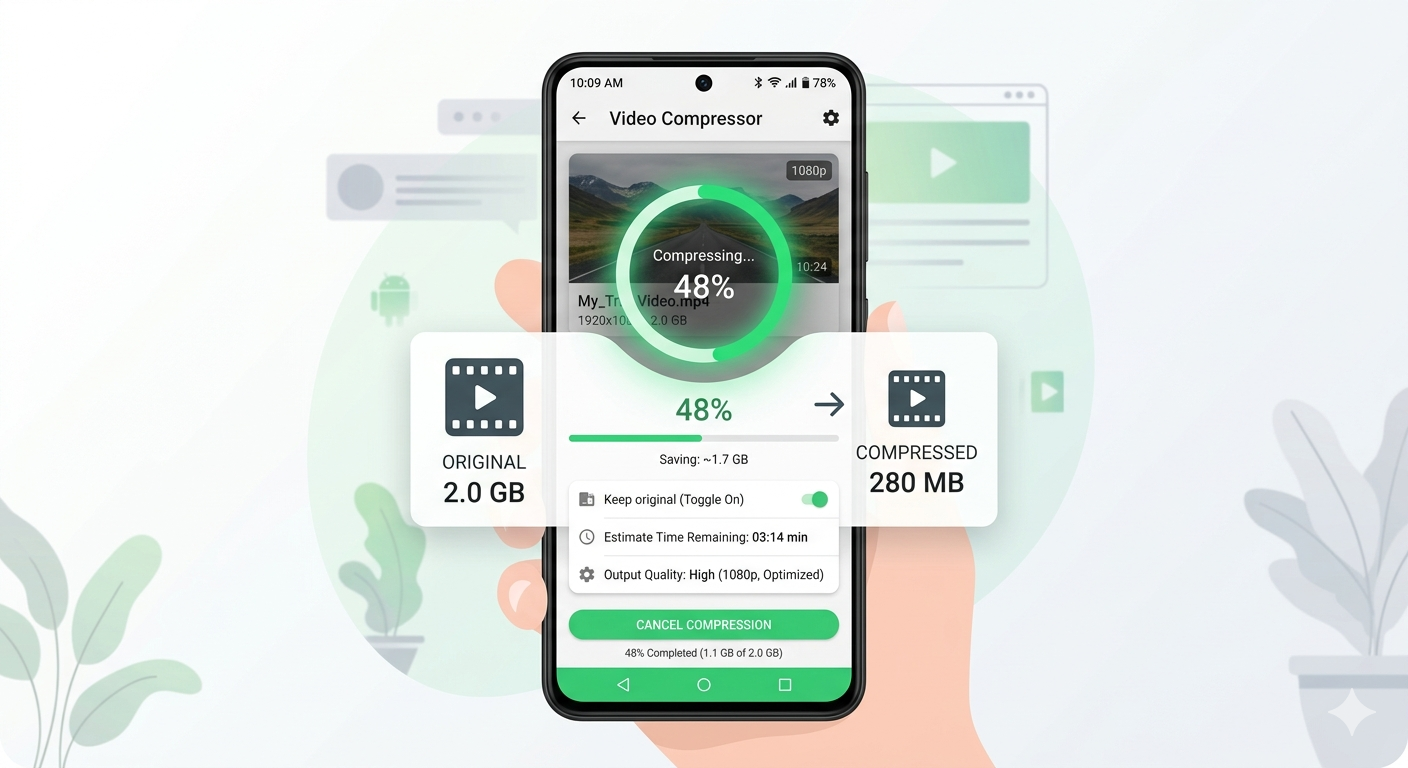
Android phones record stunning videos, but file sizes are massive. A 5-minute 4K video can be 2-3GB, making it impossible to share via WhatsApp, email, or even upload to social media. Here's how to compress videos on your Android phone for free, reducing file size by 70% while maintaining quality you'll actually want to share.
Quick Answer
Best method: Use Chrome browser on Android to access our online compressor — no app installation, complete privacy, unlimited compression. Alternative: Use Google Photos (built-in) or free apps like Video Compressor Panda. Reduce videos to under 16MB for WhatsApp or 100MB for most platforms.
Why Android Videos Are So Large
Android Video Recording Sizes
Typical Android phone (2026):
- 4K 60fps: 400-500MB per minute
- 4K 30fps: 200-250MB per minute
- 1080p 60fps: 130-150MB per minute
- 1080p 30fps: 60-80MB per minute
- 720p 30fps: 30-40MB per minute
Example: 5-minute 4K video = 1-2.5GB
Size Limits for Popular Apps
| App | Size Limit | Typical Duration |
|---|---|---|
| 16MB | ~90 sec 720p | |
| Gmail | 25MB | ~5 min 720p |
| 100MB | ~1 min 1080p | |
| 100MB | ~2 min 1080p | |
| Telegram | 2GB | No practical limit |
| 512MB | ~2 min 1080p |
The problem: Most apps can't handle full-quality Android videos.
Method 1: Browser-Based Compression (Recommended)
Best for: Privacy, no app installation, unlimited use
Using Chrome on Android
Steps:
- Open Chrome browser on Android
- Go to freemediatools.online/compress-video-online
- Tap "Select Video"
- Choose video from Gallery
- Select compression level:
- Medium: 60-70% reduction (recommended)
- Heavy: 70-80% reduction
- Tap "Compress Video"
- Wait for processing (1-5 minutes)
- Tap "Download"
- Video saves to Downloads folder
Pros:
- ✅ No app installation
- ✅ Complete privacy (files processed in browser)
- ✅ Unlimited compression
- ✅ No watermarks
- ✅ Works on all Android devices
Cons:
- Requires internet connection
- Uses browser storage temporarily
Time: 2-5 minutes for 5-minute video
Result: 60-80% smaller file, excellent quality
Method 2: Google Photos (Built-in)
Best for: Quick compression, already installed
Using Google Photos
Steps:
- Open Google Photos app
- Select video
- Tap three dots (⋮) → "Save to device"
- Choose quality:
- High quality: Free unlimited storage, compressed
- Original quality: Uses Google Drive storage
- Select "High quality"
- Tap "Save"
- Compressed video saves to Gallery
Pros:
- ✅ Built into most Android phones
- ✅ Free unlimited storage
- ✅ Automatic backup
- ✅ Simple interface
Cons:
- ❌ Limited compression control
- ❌ Requires Google account
- ❌ Uploads to cloud (privacy concern)
- ❌ Requires internet
Compression: Typically 40-60% reduction
Recommendation: Good for quick compression, but less control than other methods.
Method 3: Video Compressor Apps
Best Free Android Apps
1. Video Compressor Panda (Recommended)
Download: Google Play Store (Free)
Features:
- Multiple compression levels
- Batch compression
- Custom resolution
- No watermarks (free version)
Steps:
- Install from Play Store
- Open app
- Tap "Select Video"
- Choose compression level
- Tap "Compress"
- Save compressed video
Pros:
- ✅ Free with no watermarks
- ✅ Good compression
- ✅ Batch processing
- ✅ Offline processing
Cons:
- ❌ Contains ads
- ❌ App installation required
Verdict: ⭐⭐⭐⭐ (4/5) - Best free app
2. Video Dieter 2
Download: Google Play Store (Free)
Features:
- Simple interface
- Good compression
- Trim videos
- No watermarks
Pros:
- ✅ Free
- ✅ Simple to use
- ✅ No watermarks
Cons:
- ❌ Ads
- ❌ Limited features
Verdict: ⭐⭐⭐ (3/5) - Good for basic compression
3. VidCompact
Download: Google Play Store (Free)
Features:
- Video compression
- Video converter
- Trim and merge
- Extract audio
Pros:
- ✅ Multiple tools
- ✅ Good compression
- ✅ Free version available
Cons:
- ❌ Watermark on free version
- ❌ Ads
- ❌ In-app purchases
Verdict: ⭐⭐⭐ (3/5) - Good features but watermark
Method 4: Samsung Gallery (Samsung Phones Only)
Best for: Samsung phone users
Using Samsung Gallery
Steps:
- Open Gallery app
- Select video
- Tap three dots (⋮)
- Select "Reduce file size"
- Choose quality level
- Tap "Save"
Pros:
- ✅ Built into Samsung phones
- ✅ Simple
- ✅ No app needed
Cons:
- ❌ Samsung phones only
- ❌ Limited compression options
Availability: Samsung Galaxy S series, Note series, A series
Comparison Table: Android Video Compression Methods
| Method | Compression | Quality | Privacy | Cost | Ease of Use |
|---|---|---|---|---|---|
| Browser (Free Media Tools) | 70-80% | Excellent | Excellent | Free | Easy |
| Google Photos | 40-60% | Good | Fair | Free | Easy |
| Video Compressor Panda | 60-70% | Good | Good | Free | Easy |
| Video Dieter 2 | 60-70% | Good | Good | Free | Easy |
| VidCompact | 60-70% | Good | Good | Free-$ | Easy |
| Samsung Gallery | 40-60% | Good | Excellent | Free | Easy |
Winner: Browser-based (Free Media Tools) for best compression and privacy
Real-World Example: Family Vacation Video
Recorded 10-minute video of family vacation on Samsung Galaxy S24:
- Original: 4K 30fps, 2.1GB
- Problem: Can't send via WhatsApp (16MB limit), too large for email
Solution tried:
- ❌ WhatsApp: Rejected (too large)
- ❌ Email: Failed (25MB limit)
- ✅ Compressed using browser method
Results:
- Compressed video: 280MB (87% reduction)
- Quality: Excellent on phone screen
- Shared via Google Drive link
- Family downloaded and enjoyed
Alternative: Could have compressed to 15MB for direct WhatsApp sharing (heavy compression, 720p).
Best Settings for Different Use Cases
For WhatsApp (16MB Limit)
Settings:
- Resolution: 720p or 480p
- Compression: Heavy
- Duration: Under 90 seconds
Method: Browser compression or Video Compressor Panda
Result: Fits WhatsApp limit, acceptable quality
For Email (25MB Limit)
Settings:
- Resolution: 720p
- Compression: Medium to Heavy
- Duration: 3-5 minutes
Method: Browser compression
Result: Fits email limit, good quality
For Instagram/Facebook (100MB Limit)
Settings:
- Resolution: 1080p
- Compression: Medium
- Duration: 1-2 minutes
Method: Browser compression or Google Photos
Result: Looks great on social media
For Storage/Backup
Settings:
- Resolution: 1080p or original
- Compression: Light to Medium
- Preserve quality
Method: Google Photos or browser compression
Result: Saves space while maintaining quality
For YouTube
Settings:
- Resolution: 1080p or 4K
- Compression: Light
- Maintain quality
Method: Browser compression (light setting)
Result: Good quality for YouTube upload
Advanced Tips for Android Users
1. Record in Lower Resolution
Settings → Camera → Video size:
- 4K: Highest quality, largest files
- 1080p: Good quality, medium files
- 720p: Acceptable quality, small files
Recommendation: Use 1080p for videos you'll share, 4K for special occasions.
2. Trim Before Compressing
Remove unnecessary parts:
- Open video in Gallery
- Tap Edit
- Trim start and end
- Save
- Then compress
Result: Smaller file without quality loss
3. Use Google Drive for Large Videos
For videos over 100MB:
- Upload to Google Drive
- Share link via WhatsApp/email
- Recipient streams or downloads
Benefit: No compression needed, original quality
4. Batch Compress Multiple Videos
Using Video Compressor Panda:
- Select multiple videos
- Choose compression level
- Compress all at once
Result: Save time on multiple videos
5. Clear Cache Regularly
After compressing:
- Clear browser cache
- Delete temporary files
- Free up storage
Location: Settings → Storage → Cached data
What to Avoid: Common Mistakes
1. Over-Compressing
Heavy compression on already-compressed videos creates unwatchable results.
Solution: Start with medium compression. Only use heavy if file is still too large.
2. Using Apps with Watermarks
Free apps that add watermarks ruin your videos.
Solution: Use browser method or apps without watermarks (Video Compressor Panda).
3. Not Checking Output Quality
Sometimes compression fails or creates poor-quality videos.
Solution: Always watch a few seconds of compressed video before deleting original.
4. Compressing Already-Compressed Videos
Compressing an already-compressed video degrades quality without much size reduction.
Solution: Always compress from original high-quality video.
5. Forgetting to Delete Originals
Keeping both original and compressed videos wastes storage.
Solution: After verifying compressed video quality, delete original (or back up to cloud).
Troubleshooting Common Issues
Issue 1: Compression Takes Too Long
Cause: Large file, slow phone, or many apps running
Solution:
- Close other apps
- Ensure phone is charged
- Use Wi-Fi (for browser method)
- Try compressing shorter video first
Issue 2: Compressed Video Looks Blurry
Cause: Over-compression or quality settings too low
Solution:
- Use medium compression instead of heavy
- Increase resolution (720p → 1080p)
- Start from original high-quality video
Issue 3: App Crashes During Compression
Cause: Insufficient memory or app bug
Solution:
- Close other apps
- Restart phone
- Try browser method instead
- Update app to latest version
Issue 4: Video Still Too Large
Cause: Video too long or compression not aggressive enough
Solution:
- Trim video to shorter duration
- Use heavy compression
- Reduce resolution to 720p or 480p
- Split into multiple parts
Issue 5: Can't Find Compressed Video
Cause: Saved to unexpected location
Solution:
- Browser: Check Downloads folder
- Apps: Check Gallery or app's output folder
- Google Photos: Check Photos app
Security and Privacy on Android
Safe Methods
Completely safe:
- Browser-based (Free Media Tools) - files processed locally
- Samsung Gallery - offline processing
- Video Compressor Panda - offline processing
Use with caution:
- Google Photos - uploads to cloud
- Online tools that upload files
- Apps with excessive permissions
Privacy Considerations
Browser-based tools (like Free Media Tools):
- ✅ Files processed locally in browser
- ✅ No upload to servers
- ✅ Complete privacy
Google Photos:
- ❌ Videos uploaded to Google servers
- ❌ Google can access your videos
- ❌ Privacy concerns for sensitive content
Third-party apps:
- Check permissions before installing
- Avoid apps requesting unnecessary permissions
- Read reviews for privacy concerns
Recommendation: For personal or sensitive videos, use browser-based tools or offline apps.
Frequently Asked Questions
How do I compress a video on my Android phone?
Use Chrome browser to access our online compressor, or install a free app like Video Compressor Panda. Select video, choose compression level, and save compressed version.
What is the best free video compressor for Android?
For privacy and quality, use browser-based compression at freemediatools.online. For offline use, Video Compressor Panda is the best free app.
Can I compress videos without installing apps?
Yes, use Chrome browser on Android to access our online compressor. No app installation required, works on all Android devices.
How much can I compress a video on Android?
You can reduce video size by 60-80% without noticeable quality loss. A 1GB video can become 200-400MB with excellent quality, or 100-200MB with acceptable quality.
Does compressing video reduce quality?
Some quality loss is inevitable, but at proper settings (medium compression, 1080p or 720p), the difference is minimal and imperceptible on phone screens.
How do I compress a video for WhatsApp on Android?
Use heavy compression and reduce resolution to 720p or 480p to get under 16MB limit. Or share via Google Drive link through WhatsApp instead.
Can I compress 4K videos on Android?
Yes, but processing takes longer (5-10 minutes for 5-minute video). Consider reducing to 1080p for easier sharing while maintaining good quality.
Are video compressor apps safe?
Reputable apps like Video Compressor Panda are safe. Avoid apps with excessive permissions or poor reviews. Browser-based tools offer best privacy.
Related Tools You Might Need
-
Trim Video — Cut unnecessary parts from videos before compressing to reduce file size further.
-
Convert Video — Convert videos to MP4 format for best compatibility and compression.
-
Extract Audio — Extract audio from videos to create smaller audio-only files.
Conclusion
Compressing videos on Android doesn't require expensive apps or complicated processes. Use our browser-based compressor for best privacy and quality, or install Video Compressor Panda for offline compression. Reduce video sizes by 70% while maintaining quality that looks great on phone screens.
Start compressing videos on your Android phone now — completely free, no registration required.
By Muhammad Hasnain Adam — Full-stack developer passionate about making media tools accessible. I built Free Media Tools to help Android users compress videos without expensive apps or privacy concerns.