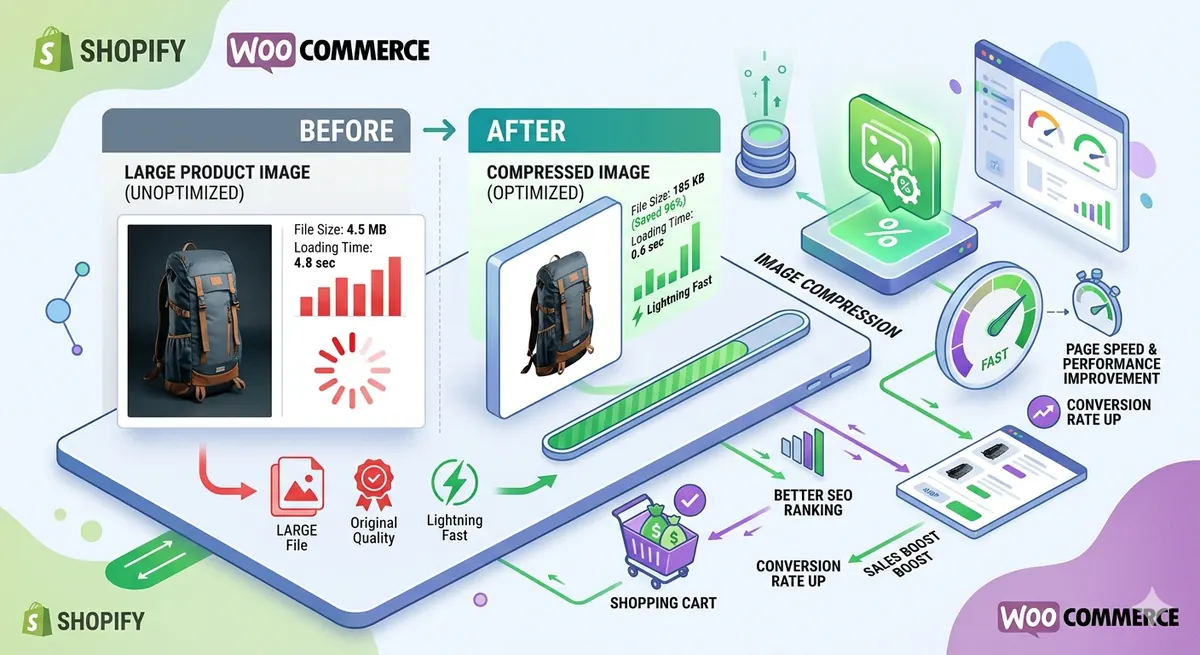
Slow-loading product images kill e-commerce sales. Studies show 53% of mobile users abandon sites that take over 3 seconds to load. If your Shopify or WooCommerce store has unoptimized images, you're losing customers and revenue. Here's how to compress product images properly and speed up your store by 50% or more.
Quick Answer
Compress product images to under 200KB each using our image compressor at 85% quality. Resize to 2048×2048px maximum. Convert to WebP format for 30% additional savings. This reduces page load time by 50-70%, improves Google rankings, and increases conversions by 15-25%.
Why Image Optimization Matters for E-commerce
The Performance Problem
Typical e-commerce product page:
- 5-10 product images
- Each image: 1-3MB uncompressed
- Total: 5-30MB per page
- Load time: 8-15 seconds on 4G
Optimized product page:
- Same 5-10 images
- Each image: 100-200KB compressed
- Total: 500KB-2MB per page
- Load time: 1.5-3 seconds on 4G
Impact: 70-80% faster loading
Business Impact
Slow site (5+ seconds):
- 53% of users abandon
- Lower Google rankings
- Fewer conversions
- Lost revenue
Fast site (under 3 seconds):
- Higher engagement
- Better SEO rankings
- 15-25% more conversions
- More revenue
Real example: An online clothing store reduced image sizes by 75%. Result: Page load time dropped from 8.2s to 2.1s, conversions increased 22%, revenue up 18%.
Shopify vs WooCommerce: Image Requirements
Shopify Image Requirements
Recommended dimensions:
- Product images: 2048×2048px (square)
- Collection images: 1024×1024px
- Banner images: 1920×1080px
- Thumbnails: Auto-generated
File formats:
- Accepts: JPG, PNG, GIF, WebP
- Recommended: JPG for photos, PNG for graphics
File size:
- No hard limit
- Recommended: Under 200KB per image
- Shopify CDN serves images automatically
Automatic optimization:
- Shopify compresses images automatically
- But often not enough
- Manual optimization still recommended
WooCommerce Image Requirements
Recommended dimensions:
- Product images: 1000×1000px to 2000×2000px
- Thumbnails: 300×300px (configurable)
- Gallery images: 1000×1000px
File formats:
- Accepts: JPG, PNG, GIF, WebP
- Recommended: JPG for photos, WebP for best performance
File size:
- No hard limit
- Recommended: Under 200KB per image
- Depends on hosting
Automatic optimization:
- WooCommerce doesn't optimize automatically
- Requires plugins or manual optimization
- More control than Shopify
How to Compress Images for Shopify
Method 1: Before Upload (Recommended)
Best for: Maximum control, best results
Steps:
- Prepare product photos (2048×2048px)
- Go to freemediatools.online/compress-image
- Upload all product images
- Set quality to 85%
- Download compressed images
- Upload to Shopify
Result: 70-80% smaller files, excellent quality
Pros:
- ✅ Maximum compression
- ✅ Complete control
- ✅ Best quality
- ✅ Free, unlimited
Method 2: Shopify Apps
Popular apps:
- TinyIMG (Free + Paid)
- Crush.pics ($5/month)
- Image Optimizer ($10/month)
Features:
- Automatic compression
- Bulk optimization
- WebP conversion
- Lazy loading
Pros:
- Automatic optimization
- Convenient
Cons:
- ❌ Monthly cost
- ❌ Less control
- ❌ May over-compress
Recommendation: Use apps for ongoing optimization, but compress manually before upload for best results.
Method 3: Shopify's Built-in Compression
How it works:
- Shopify automatically compresses uploaded images
- Serves optimized versions via CDN
- No configuration needed
Pros:
- ✅ Automatic
- ✅ No effort required
Cons:
- ❌ Limited compression
- ❌ No control over quality
- ❌ Still benefits from pre-compression
Recommendation: Don't rely solely on Shopify's compression. Pre-compress images for best results.
How to Compress Images for WooCommerce
Method 1: Before Upload (Recommended)
Best for: Maximum control, best results
Steps:
- Prepare product photos (1000-2000px)
- Go to freemediatools.online/compress-image
- Upload all product images
- Set quality to 85%
- Download compressed images
- Upload to WooCommerce
Result: 70-80% smaller files, excellent quality
Method 2: WordPress Plugins
Popular plugins:
- ShortPixel (Free + Paid)
- Imagify ($5/month)
- EWWW Image Optimizer (Free + Paid)
- Smush (Free + Paid)
Features:
- Automatic compression on upload
- Bulk optimization of existing images
- WebP conversion
- Lazy loading
- CDN integration
Pros:
- Automatic optimization
- Bulk processing
- Convenient
Cons:
- ❌ Monthly cost (for unlimited)
- ❌ Can slow down uploads
- ❌ May over-compress
Recommendation: Use plugins for convenience, but compress manually for new products.
Method 3: CDN with Image Optimization
Popular CDNs:
- Cloudflare (Free + Paid)
- Cloudinary (Free + Paid)
- BunnyCDN ($1/month)
Features:
- Automatic image optimization
- WebP/AVIF conversion
- Responsive images
- Global delivery
Pros:
- ✅ Automatic optimization
- ✅ Fast global delivery
- ✅ Reduces server load
Cons:
- Monthly cost (for advanced features)
- Requires setup
Recommendation: Great for high-traffic stores, but still compress images before upload.
Optimal Image Settings for E-commerce
Product Images
Dimensions:
- Shopify: 2048×2048px
- WooCommerce: 1000-2000px
- Maintain square aspect ratio
Format:
- Primary: JPG at 85% quality
- Alternative: WebP (30% smaller)
File size:
- Target: Under 200KB
- Maximum: 300KB
Result: Sharp, professional images that load fast
Thumbnail Images
Dimensions:
- 300×300px to 500×500px
Format:
- JPG at 80% quality
File size:
- Target: Under 50KB
Result: Fast-loading product grids
Lifestyle/Banner Images
Dimensions:
- 1920×1080px (full-width banners)
- 1200×800px (content images)
Format:
- JPG at 85% quality
- WebP for best performance
File size:
- Target: Under 300KB
Result: Beautiful hero images that don't slow down site
Real-World Case Study: Fashion Store
Store: Online clothing boutique (WooCommerce) Products: 500 items, 5 images each (2,500 total images)
Before Optimization
- Average image size: 2.1MB
- Total image weight: 5.25GB
- Product page load time: 9.3 seconds
- Bounce rate: 62%
- Conversion rate: 1.8%
Optimization Process
- Resized all images to 1500×1500px
- Compressed using our tool at 85% quality
- Converted to WebP with JPG fallback
- Implemented lazy loading
After Optimization
- Average image size: 180KB (91% reduction)
- Total image weight: 450MB (91% reduction)
- Product page load time: 2.1 seconds (77% faster)
- Bounce rate: 38% (39% improvement)
- Conversion rate: 2.4% (33% increase)
Revenue impact: 33% more conversions = $15,000 additional monthly revenue
Time invested: 8 hours for 2,500 images ROI: Massive
Step-by-Step: Bulk Compress Product Images
For Shopify
Steps:
- Export all product images from Shopify
- Organize in folders by product
- Batch compress using our tool:
- Upload multiple images
- Set quality to 85%
- Download as ZIP
- Re-upload to Shopify products
- Verify images display correctly
Time: 2-4 hours for 500 products
For WooCommerce
Steps:
- Backup WordPress site
- Download all product images via FTP or Media Library
- Batch compress using our tool
- Install plugin (ShortPixel or Imagify)
- Bulk optimize existing images
- Upload new compressed images for new products
Time: 3-5 hours for 500 products
Advanced Optimization Techniques
1. Implement WebP Format
Benefits:
- 25-35% smaller than JPG
- Excellent quality
- 96% browser support
How to implement:
Shopify:
- Upload WebP versions
- Shopify serves automatically to supported browsers
WooCommerce:
- Use WebP Express plugin
- Or use CDN with automatic WebP conversion
Result: 30% additional file size reduction
2. Lazy Loading
What it does:
- Loads images only when visible
- Speeds up initial page load
How to implement:
Shopify:
- Built-in lazy loading (enabled by default)
WooCommerce:
- Use lazy loading plugin
- Or add
loading="lazy"attribute to images
Result: 40-60% faster initial page load
3. Responsive Images
What it does:
- Serves different image sizes for different devices
- Mobile gets smaller images
How to implement:
Shopify:
- Automatic via Shopify CDN
WooCommerce:
- WordPress handles automatically
- Or use responsive images plugin
Result: 50% smaller images on mobile
4. Image CDN
What it does:
- Serves images from servers closest to users
- Reduces latency
Popular CDNs:
- Cloudflare (Free)
- Cloudinary (Free tier available)
- BunnyCDN ($1/month)
Result: 30-50% faster image loading globally
5. Remove EXIF Data
What it is:
- Metadata embedded in images (camera settings, location, etc.)
- Adds 10-50KB per image
How to remove:
- Our image compressor removes EXIF automatically
- Or use EXIF removal tools
Result: 5-10% smaller files
Image SEO for Product Photos
Compression makes product pages faster; these steps help the images themselves show up in Google Images and Shopping:
- Descriptive file names. Rename
IMG_1234.jpgto something likeblue-cotton-t-shirt-front.jpgbefore uploading. Both Shopify and WooCommerce keep the file name in the image URL. - Useful alt text. Describe what the photo shows, for example "Blue organic cotton t-shirt with crew neck, front view", not a list of keywords. It's read aloud by screen readers and helps search engines understand the image.
- Product structured data. Shopify themes and WooCommerce (with most SEO plugins) output Product schema that includes the image, price and availability, which can make listings eligible for rich results. Check yours with Google's Rich Results Test.
- Let the platform lazy-load images below the fold, but not the main product photo at the top, which should load straight away.
What to Avoid: Common Mistakes
1. Over-Compressing
Setting quality below 75% creates pixelated, unprofessional images.
Solution: Use 85% quality for product images. Test visual quality before bulk processing.
2. Wrong Dimensions
Uploading 5000×5000px images wastes space and bandwidth.
Solution:
- Shopify: 2048×2048px maximum
- WooCommerce: 1000-2000px
- Resize before upload
3. Using PNG for Photos
PNG files are 3-5x larger than JPG for photos.
Solution: Use JPG for product photos, PNG only for logos/graphics with transparency.
4. Not Testing on Mobile
Images may look fine on desktop but blurry on mobile.
Solution: Test product pages on actual mobile devices after optimization.
5. Forgetting Alt Text
Compressed images without alt text hurt SEO.
Solution: Add descriptive alt text to all product images for SEO and accessibility.
6. Inconsistent Image Sizes
Mixed image dimensions create layout issues.
Solution: Standardize all product images to same dimensions (square recommended).
Measuring Performance Improvements
Tools to Test Speed
Google PageSpeed Insights:
- URL: pagespeed.web.dev
- Tests mobile and desktop
- Provides optimization suggestions
GTmetrix:
- URL: gtmetrix.com
- Detailed performance analysis
- Waterfall chart shows image load times
Pingdom:
- URL: tools.pingdom.com
- Tests from multiple locations
- Shows file sizes
Key Metrics to Track
Before optimization:
- Page load time
- Total page size
- Number of requests
- Google PageSpeed score
After optimization:
- Compare all metrics
- Target: 50%+ improvement in load time
- Target: 70%+ reduction in page size
Business Metrics
Track these:
- Bounce rate (should decrease)
- Time on site (should increase)
- Pages per session (should increase)
- Conversion rate (should increase 15-25%)
Frequently Asked Questions
What size should product images be for Shopify?
2048×2048px is ideal for Shopify product images. This provides high quality for zoom features while remaining manageable. Compress to under 200KB per image.
How do I compress images for WooCommerce?
Use our image compressor to compress images at 85% quality before uploading. Resize to 1000-2000px. Alternatively, use WordPress plugins like ShortPixel or Imagify for automatic compression.
Does image compression affect SEO?
Yes, positively. Faster-loading pages rank higher on Google. Compressed images improve page speed, which is a ranking factor. Just ensure you add descriptive alt text.
What's the best image format for e-commerce?
JPG at 85% quality for product photos. WebP for 30% additional savings (with JPG fallback). PNG only for logos or graphics with transparency.
How much can I compress product images?
You can reduce file size by 70-80% without visible quality loss using 85% quality compression. A 2MB image becomes 300-400KB with excellent quality.
Should I use Shopify apps or compress manually?
Compress manually before upload for best results. Use Shopify apps for ongoing optimization of new uploads. Manual compression gives you maximum control and best quality.
Will compressed images look bad on Retina displays?
No, if you use proper dimensions (2048×2048px for Shopify, 1500-2000px for WooCommerce) and 85% quality, images look excellent on all displays including Retina.
How long does it take to optimize 500 product images?
Using bulk compression tools, 2-4 hours for 500 products. Our tool allows batch processing, so you can compress 50-100 images at once.
Shopify-Specific Tips
1. Use Shopify's Image Editor
Features:
- Crop and resize
- Adjust brightness/contrast
- Built into admin
Limitation: Doesn't compress effectively
Recommendation: Edit in Shopify, then download and compress externally.
2. Optimize Collection Images
Often overlooked: Collection/category images
Optimize:
- Resize to 1024×1024px
- Compress to under 150KB
- Use descriptive filenames
3. Compress Theme Images
Don't forget:
- Logo
- Favicon
- Banner images
- Background images
Result: Complete site optimization
WooCommerce-Specific Tips
1. Configure Thumbnail Sizes
Settings → Media:
- Set appropriate thumbnail dimensions
- Regenerate thumbnails after changing
- Use plugin: Regenerate Thumbnails
2. Optimize Existing Images
Use plugins:
- ShortPixel: Bulk optimize all existing images
- Imagify: One-click optimization
- EWWW: Free bulk optimization
3. Disable Unused Image Sizes
WordPress generates multiple sizes:
- Thumbnail
- Medium
- Large
- Custom sizes
Disable unused sizes:
- Reduces storage
- Speeds up uploads
- Use plugin: Stop Generating Unnecessary Thumbnails
Related Tools You Might Need
-
Image Resizer — Resize product images to optimal dimensions before compressing.
-
Image Converter — Convert images to WebP format for 30% additional file size savings.
-
Crop Image — Crop product images to perfect square aspect ratio for consistent display.
Conclusion
Compressing product images is the single most effective way to speed up your Shopify or WooCommerce store. Use our image compressor to reduce image sizes by 70-80% while maintaining professional quality. Faster load times mean better SEO rankings, lower bounce rates, and 15-25% more conversions.
Start optimizing your product images now — completely free, no registration required.
By Muhammad Hasnain Adam — Full-stack developer passionate about e-commerce performance. I built Free Media Tools to help online store owners optimize images without expensive apps or complicated workflows.