Choosing the wrong video format can slow down your website, cause compatibility issues, and frustrate visitors. The right format ensures fast loading, universal playback, and excellent quality across all devices.
Quick Answer
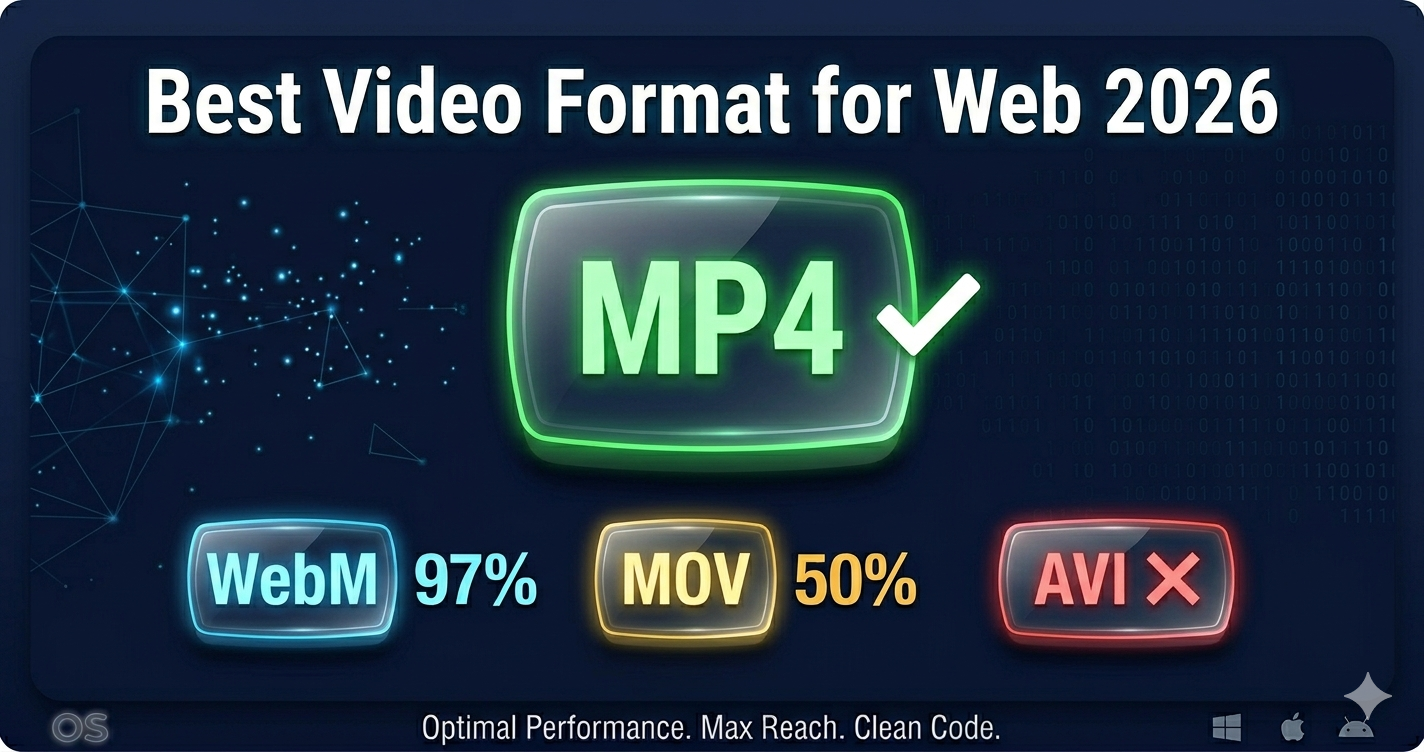
MP4 with H.264 codec is the best video format for websites in 2026. It offers universal compatibility (works on 100% of browsers), excellent compression, and fast loading. Use our video converter to convert any video to web-optimized MP4.
Video Format Comparison Table
| Format | Browser Support | File Size | Quality | Best For |
|---|---|---|---|---|
| MP4 (H.264) | 100% | Medium | Excellent | General web use (recommended) |
| WebM (VP9) | 97% | Small | Excellent | Modern websites with fallback |
| MP4 (H.265) | 70% | Smallest | Excellent | Modern browsers only |
| AVI | 0% | Huge | Good | Avoid for web |
| MOV | 50% | Large | Excellent | Avoid for web (Mac-focused) |
| MKV | 0% | Medium | Excellent | Avoid for web |
Best Video Formats for Web (Detailed)
1. MP4 with H.264 (Recommended)
Browser support: 100% (all browsers, all devices)
Advantages:
- Universal compatibility
- Excellent compression (60-80% smaller than uncompressed)
- Fast encoding and decoding
- Hardware acceleration on all devices
- Streaming support
- Proven, mature technology
Disadvantages:
- Larger than WebM or H.265
- Patent licensing (not an issue for users)
When to use:
- ✅ All websites (primary format)
- ✅ Maximum compatibility needed
- ✅ Mobile-first websites
- ✅ E-commerce product videos
- ✅ Background videos
- ✅ Video tutorials
Technical specs:
- Container: MP4
- Video codec: H.264 (AVC)
- Audio codec: AAC
- Bitrate: 5-12 Mbps for 1080p
- Browser support: Chrome, Firefox, Safari, Edge, all mobile browsers
2. WebM with VP9 (Modern Alternative)
Browser support: 97% (all except older Safari)
Advantages:
- 20-30% smaller than MP4 (H.264)
- Open source (no licensing fees)
- Excellent quality
- Good for streaming
- YouTube's preferred format
Disadvantages:
- No Safari support on older iOS/macOS
- Slower encoding than H.264
- Less hardware acceleration
When to use:
- ✅ Modern websites with MP4 fallback
- ✅ When file size is critical
- ✅ Progressive web apps
- ✅ Video streaming platforms
Technical specs:
- Container: WebM
- Video codec: VP9 (or VP8)
- Audio codec: Opus (or Vorbis)
- Bitrate: 4-8 Mbps for 1080p
- Browser support: Chrome, Firefox, Edge, modern Safari
Implementation with fallback:
<video controls>
  <source src="video.webm" type="video/webm">
  <source src="video.mp4" type="video/mp4">
  Your browser doesn't support video.
</video>
3. MP4 with H.265 (HEVC) - Emerging
Browser support: 70% (Safari, Edge, some Chrome)
Advantages:
- 40-50% smaller than H.264
- Excellent quality
- Good for 4K video
- Hardware acceleration on modern devices
Disadvantages:
- Limited browser support
- Patent licensing complexity
- Slower encoding
- Not supported on Firefox
When to use:
- ⚠️ Only with H.264 fallback
- ✅ 4K video on modern devices
- ✅ When file size is critical and fallback is provided
Technical specs:
- Container: MP4
- Video codec: H.265 (HEVC)
- Audio codec: AAC
- Bitrate: 3-8 Mbps for 1080p
- Browser support: Safari, Edge, Chrome (with hardware support)
4. AVI - Avoid for Web
Browser support: 0% (no native browser support)
Why avoid:
- No browser support
- Huge file sizes
- Old, outdated format
- No streaming support
When to use:
- ❌ Never for web
- ✅ Only for archival or editing
5. MOV - Avoid for Web
Browser support: 50% (Safari only, requires QuickTime on others)
Why avoid:
- Limited browser support
- Larger file sizes than MP4
- Mac/iOS focused
- Requires plugins on Windows
When to use:
- ❌ Avoid for web
- ✅ Use for Mac video editing
- ✅ Convert to MP4 for web
6. MKV - Avoid for Web
Browser support: 0% (no native browser support)
Why avoid:
- No browser support
- Requires plugins or conversion
- Not optimized for streaming
When to use:
- ❌ Never for web
- ✅ Only for local playback or archival
Real-World Example: E-commerce Website
An online furniture store had product videos in various formats (AVI, MOV, MP4).
Problems:
- Videos didn't play on some browsers
- Page load time: 15 seconds
- High bounce rate: 72%
- Poor mobile experience
Solution:
- Converted all videos to MP4 (H.264)
- Compressed to 8 Mbps bitrate
- Added WebM version for modern browsers
- Implemented lazy loading
Results:
| Metric | Before | After | Improvement |
|---|---|---|---|
| Browser compatibility | 50% | 100% | 100% increase |
| Avg file size | 15 MB | 3 MB | 80% reduction |
| Page load time | 15s | 2.8s | 81% faster |
| Bounce rate | 72% | 31% | 57% reduction |
| Mobile conversions | Low | 3x higher | 200% increase |
Video Codec Comparison
H.264 (AVC) - Industry Standard
Compression: Good (baseline)
Speed: Fast encoding/decoding
Support: Universal
Best for: General web use
H.265 (HEVC) - Next Generation
Compression: Excellent (40-50% better than H.264)
Speed: Slower encoding
Support: Limited (70%)
Best for: 4K video with fallback
VP9 - Open Source
Compression: Very Good (20-30% better than H.264)
Speed: Slow encoding
Support: Good (97%)
Best for: Modern websites with fallback
AV1 - Future Standard
Compression: Excellent (30-40% better than H.264)
Speed: Very slow encoding
Support: Growing (85%)
Best for: Cutting-edge websites (not ready for mainstream)
Best Practices for Web Video
1. Use MP4 as Primary Format
Always provide MP4 (H.264) for maximum compatibility.
<video controls>
  <source src="video.mp4" type="video/mp4">
</video>
2. Add WebM for Modern Browsers
Provide WebM for 20-30% file size reduction on modern browsers.
<video controls>
  <source src="video.webm" type="video/webm">
  <source src="video.mp4" type="video/mp4">
</video>
Browser automatically chooses first supported format.
3. Optimize Bitrate
Don't use unnecessarily high bitrates.
Recommended bitrates:
- 720p: 5 Mbps
- 1080p: 8 Mbps
- 1440p: 16 Mbps
- 4K: 35-45 Mbps
4. Use Appropriate Resolution
Match resolution to display size.
Guidelines:
- Hero videos: 1920×1080 (1080p)
- Content videos: 1280×720 (720p)
- Background videos: 1280×720 (720p)
- Thumbnails: 640×360 (360p)
5. Implement Lazy Loading
Don't load videos until they're needed.
<video controls loading="lazy">
  <source src="video.mp4" type="video/mp4">
</video>
6. Add Poster Image
Show image before video loads.
<video controls poster="thumbnail.jpg">
  <source src="video.mp4" type="video/mp4">
</video>
7. Compress Before Uploading
Use our video compressor to reduce file size by 60-80% before uploading to your website.
What to Avoid: Web Video Mistakes
1. Using AVI or WMV
These formats don't work in browsers. Always convert to MP4.
Solution: Convert to MP4 (H.264) using our converter.
2. Uncompressed or Lightly Compressed Videos
Raw video files are 10-50x larger than necessary.
Solution: Compress to 5-12 Mbps bitrate for 1080p video.
3. Autoplay with Sound
Browsers block autoplay with sound. It's also annoying.
Solution: If autoplay is needed, mute by default.
<video autoplay muted loop>
  <source src="video.mp4" type="video/mp4">
</video>
4. No Fallback Format
Using only WebM or H.265 breaks video on some browsers.
Solution: Always provide MP4 (H.264) fallback.
5. Wrong Aspect Ratio
Forcing videos into wrong aspect ratio creates black bars or distortion.
Solution: Use native aspect ratio (usually 16:9).
6. Not Optimizing for Mobile
Large videos kill mobile data and battery.
Solution:
- Use lower bitrate (5-8 Mbps)
- Consider serving different quality based on device
- Implement lazy loading
Frequently Asked Questions
What's the best video format for websites?
MP4 with H.264 codec is the best format for websites. It offers universal compatibility (100% browser support), excellent compression, and fast loading.
Should I use MP4 or WebM?
Use both. Provide WebM for modern browsers (20-30% smaller) with MP4 fallback for universal compatibility.
What's the difference between MP4 and MOV?
MP4 and MOV are containers. Both can use H.264 codec. MP4 has better web compatibility (100% vs 50%).
Can I use AVI videos on my website?
No, browsers don't support AVI natively. Convert to MP4 for web use.
What bitrate should I use for web video?
- 720p: 5 Mbps
- 1080p: 8 Mbps
- 1440p: 16 Mbps
- 4K: 35-45 Mbps
Is H.265 better than H.264 for web?
H.265 offers better compression (40-50% smaller) but limited browser support (70%). Use H.264 for maximum compatibility.
How do I convert videos to web format?
Use our video converter to convert any video to web-optimized MP4 (H.264) format.
What's the best video format for mobile?
MP4 (H.264) is best for mobile. It's universally supported and has hardware acceleration on all mobile devices.
Technical Details: Container vs Codec
Container (MP4, WebM, AVI, MOV)
The container is like a box that holds video, audio, and metadata. It doesn't affect quality or compression.
Common containers:
- MP4 (MPEG-4)
- WebM
- AVI
- MOV (QuickTime)
- MKV
Codec (H.264, H.265, VP9)
The codec is how video is compressed. It affects quality, file size, and compatibility.
Common codecs:
- H.264 (AVC) - Most common, universal support
- H.265 (HEVC) - Better compression, limited support
- VP9 - Open source, good compression
- AV1 - Future standard, growing support
Key point: You can have H.264 video in both MP4 and MOV containers. The codec determines compression, the container determines compatibility.
Recommended Web Video Workflow
- Record or export in high quality (H.264, high bitrate)
- Edit as needed
- Compress to web bitrate (5-12 Mbps) using our compressor
- Convert to MP4 (H.264) if not already
- Optionally create WebM version for modern browsers
- Upload to website
- Implement with proper HTML5 video tag
- Test on multiple browsers and devices
Related Tools You Might Need
-
Video Compressor — Reduce video file size by 60-80% for faster web loading without quality loss.
-
Video Converter — Convert any video format to web-optimized MP4 (H.264) for universal compatibility.
-
Video Trimmer — Cut unnecessary parts before uploading to reduce file size and improve engagement.
Why Our Tools Are Best for Web Video
- Web-optimized output - Automatically uses best settings for web
- Fast conversion - Processes videos quickly
- No quality loss - Maintains visual quality while reducing file size
- Batch processing - Convert multiple videos at once
- Privacy-focused - Files processed locally in browser
- Free forever - No subscriptions or hidden fees
By Muhammad Hasnain Adam — Full-stack developer and creator of Free Media Tools. I built these tools to help web developers and content creators optimize videos for the modern web, ensuring fast loading and universal compatibility without expensive software.